A WordPress 500 error can take your entire site offline without explaining what went wrong. Visitors may see “Internal Server Error,” your admin dashboard may stop loading, and your business pages may become unreachable.
The safest fix is to identify the cause before changing files randomly. A 500 error can come from a plugin conflict, theme problem, PHP fatal error, corrupted .htaccess file, memory limit, server issue, or malware infection.
 RyoheiYokoyama
I am Ryohei Yokoyama, an IT engineer with over 20 years of experience in WordPress, PHP, and website recovery. I explain the safest repair order so you can avoid making a 500 error worse.
- What a WordPress 500 error means
- The most common causes of 500 Internal Server Error
- Safe first steps before editing files
- How to check plugins, themes, .htaccess, PHP, and server logs
- When professional recovery is the safer option
WordPress 500 Error Fix: Start With a Backup
The first step in any WordPress 500 error fix is to protect the current site state. Even when the site is broken, the files and database still contain information needed for diagnosis.
If you change plugins, overwrite files, or restore a backup too quickly, you may erase clues that explain why the error happened. A careful backup gives you a safe point to return to.
Back up files and database before repair
Create a copy of the WordPress files and database before making major changes. If your hosting provider has automatic backups, download or duplicate the latest available restore point as well.
Record the exact error condition
Check whether the error appears on the homepage, wp-admin, all pages, or only specific URLs. Also record what changed recently, such as plugin updates, PHP version changes, migrations, or malware cleanup work.
- Back up WordPress files and database
- Write down affected URLs and error messages
- Check whether wp-admin is accessible
- Note recent updates, plugin changes, or hosting changes
- Avoid deleting files until you know what they are
WordPress 500 Error Causes: Plugins, Themes, and PHP
The most common WordPress 500 error causes are plugin conflicts, theme errors, and PHP fatal errors. These problems often appear after an update or after installing a new plugin.
Because WordPress depends on PHP, one broken file can stop the entire request. The site may show a generic 500 error even though the real cause is written in the server error log.
Plugin conflicts
A plugin can trigger a 500 error if it is incompatible with your WordPress version, PHP version, theme, or another plugin. If wp-admin is unavailable, renaming the plugins folder through FTP/SFTP can help test whether plugins are involved.
If you cannot access wp-admin, rename the plugins directory through FTP/SFTP or your hosting file manager. This disables all plugins without deleting them.
wp-content/plugins
wp-content/plugins-disabled
If the site loads after this change, rename the folder back to plugins, then disable plugins one by one from the dashboard or by renaming individual plugin folders.
Theme or functions.php errors
A broken theme file or incorrect code added to functions.php can also cause a fatal error. If the error started after editing theme files, restore the previous version or switch to a default theme for testing.
PHP version and memory limit
Some plugins require a newer PHP version, while older code may break on newer PHP. Low memory limits can also trigger server errors during heavy operations.
To display WordPress debug information temporarily, add or adjust these lines in wp-config.php. Remove or disable public debug display after testing, because errors can expose paths and sensitive details.
define('WP_DEBUG', true);
define('WP_DEBUG_LOG', true);
define('WP_DEBUG_DISPLAY', false);
@ini_set('display_errors', 0);
If the error is related to memory exhaustion, you can test a higher WordPress memory limit. Your hosting plan must also allow the value.
define('WP_MEMORY_LIMIT', '256M');- A recently updated plugin is incompatible
- A theme file contains a PHP error
- functions.php was edited incorrectly
- The PHP version changed on the server
- The memory limit is too low for the current site
WordPress 500 Error Fix: Check .htaccess and Server Settings
A WordPress 500 error can also come from server-level configuration. On Apache servers, a damaged .htaccess file is a common cause. On other hosting environments, PHP handlers, permissions, or security rules can be involved.
This is why you should not assume every 500 error is caused by WordPress itself. Server logs and hosting settings often reveal the missing clue.
Regenerate .htaccess safely
If your site uses Apache, download a copy of the current .htaccess file, then temporarily rename it. If the site loads again, regenerate permalinks from WordPress settings after confirming the correct redirect and security rules.
For a standard WordPress site installed in the document root, a clean Apache .htaccess file usually looks like this. Save your current file first, then test with this only if your host uses Apache and WordPress permalinks.
# BEGIN WordPress
<IfModule mod_rewrite.c>
RewriteEngine On
RewriteRule .* - [E=HTTP_AUTHORIZATION:%{HTTP:Authorization}]
RewriteBase /
RewriteRule ^index\.php$ - [L]
RewriteCond %{REQUEST_FILENAME} !-f
RewriteCond %{REQUEST_FILENAME} !-d
RewriteRule . /index.php [L]
</IfModule>
# END WordPress
Check file permissions and hosting logs
Incorrect file permissions can block PHP execution or prevent WordPress from loading required files. Hosting error logs can show the exact script, file path, or rule that triggered the 500 error.
- Download a copy of .htaccess before changing it
- Temporarily test with a clean .htaccess file
- Check hosting error logs for PHP fatal errors
- Review file and folder permissions
- Confirm PHP version and memory limit settings
WordPress 500 Error After Update or Malware Cleanup
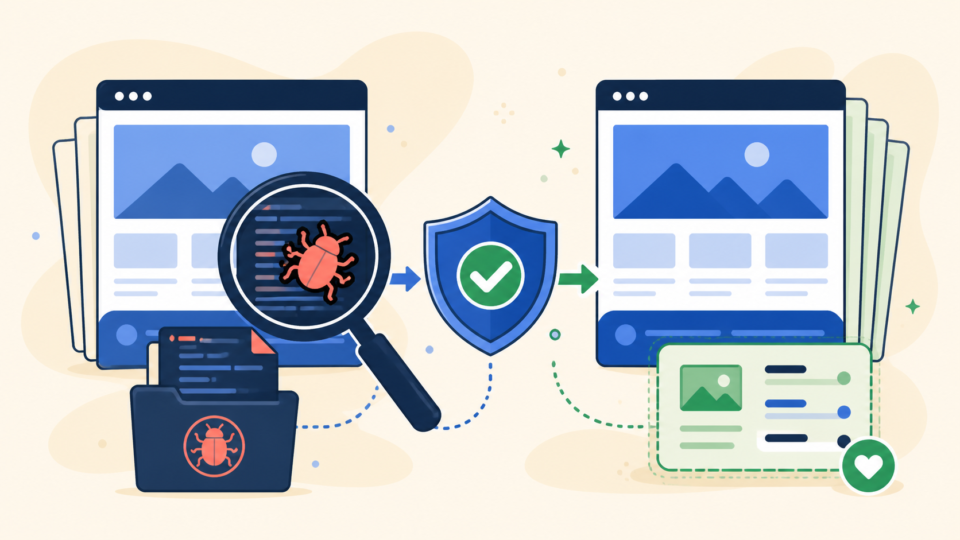
A WordPress 500 error after an update or malware cleanup needs special care. The site may be failing because files were only partially updated, deleted incorrectly, or modified by malicious code.
In this situation, simply restoring one file may not be enough. You need to confirm whether the WordPress core, plugins, themes, and database are consistent and clean.
Failed updates can leave mixed versions
If an update stops halfway, WordPress may contain files from different versions. Replacing WordPress core files with a clean copy can help, but wp-content and the database must be handled carefully.
Malware can hide behind a 500 error
Malware or a failed cleanup can break PHP files and trigger a 500 error. If suspicious files, unknown admin users, or redirects were present before the error, check for backdoors before reopening the site.
- A failed WordPress core update
- A plugin or theme update
- A server migration
- Manual file editing
- Malware removal or security plugin cleanup
- PHP version changes by the hosting provider
WordPress 500 Error Recovery Steps
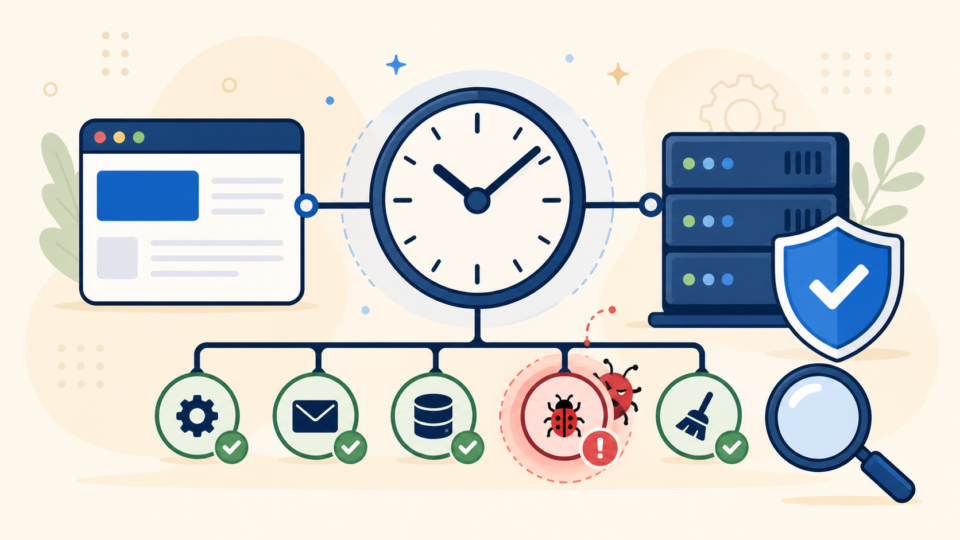
The best recovery process is systematic. Start with evidence and logs, then isolate the cause, then repair the confirmed problem. This avoids unnecessary changes and reduces downtime.
If one step makes the site load again, do not stop immediately. Confirm the underlying cause and make sure the issue will not return after cache clears, cron runs, or traffic increases.
- Back up the current site files and database
- Check the hosting error log and PHP fatal error messages
- Test whether plugins are causing the error
- Test the active theme and functions.php
- Check .htaccess, file permissions, and PHP settings
- Repair or replace the broken component
- Test frontend, wp-admin, forms, and important pages
.htaccess: rewrite rules, redirects, and server errorswp-config.php: database settings, debug mode, and memory limitwp-content/plugins/: plugin conflicts and failed updateswp-content/themes/active-theme/functions.php: custom PHP errorserror_logor hosting error logs: exact fatal error messages
For business sites, document every change during recovery. This helps you reverse a failed attempt and makes future troubleshooting easier.
WordPress 500 Error FAQ
WordPress 500 Error Fix Summary
A WordPress 500 error is a server-side failure, but the cause can be inside WordPress, the database, PHP, .htaccess, server settings, or malware. The error message is generic, so logs and safe testing are essential.
The safest approach is to back up first, identify the cause, repair only what is confirmed, and test the site carefully after recovery. Random deletion or blind restore attempts can make the problem worse.
If the site is important to your business or the cause is unclear, professional recovery can save time and reduce the risk of data loss.
If You Cannot Fix the WordPress 500 Error Yourself

If your WordPress site is showing a 500 error, critical error, white screen, or broken dashboard, SiteFixNow can help you investigate the cause and restore the site safely.
- The 500 error affects your homepage or important landing pages
- You cannot access the WordPress dashboard
- The error appeared after an update, migration, or malware cleanup
- You need recovery without risking data loss