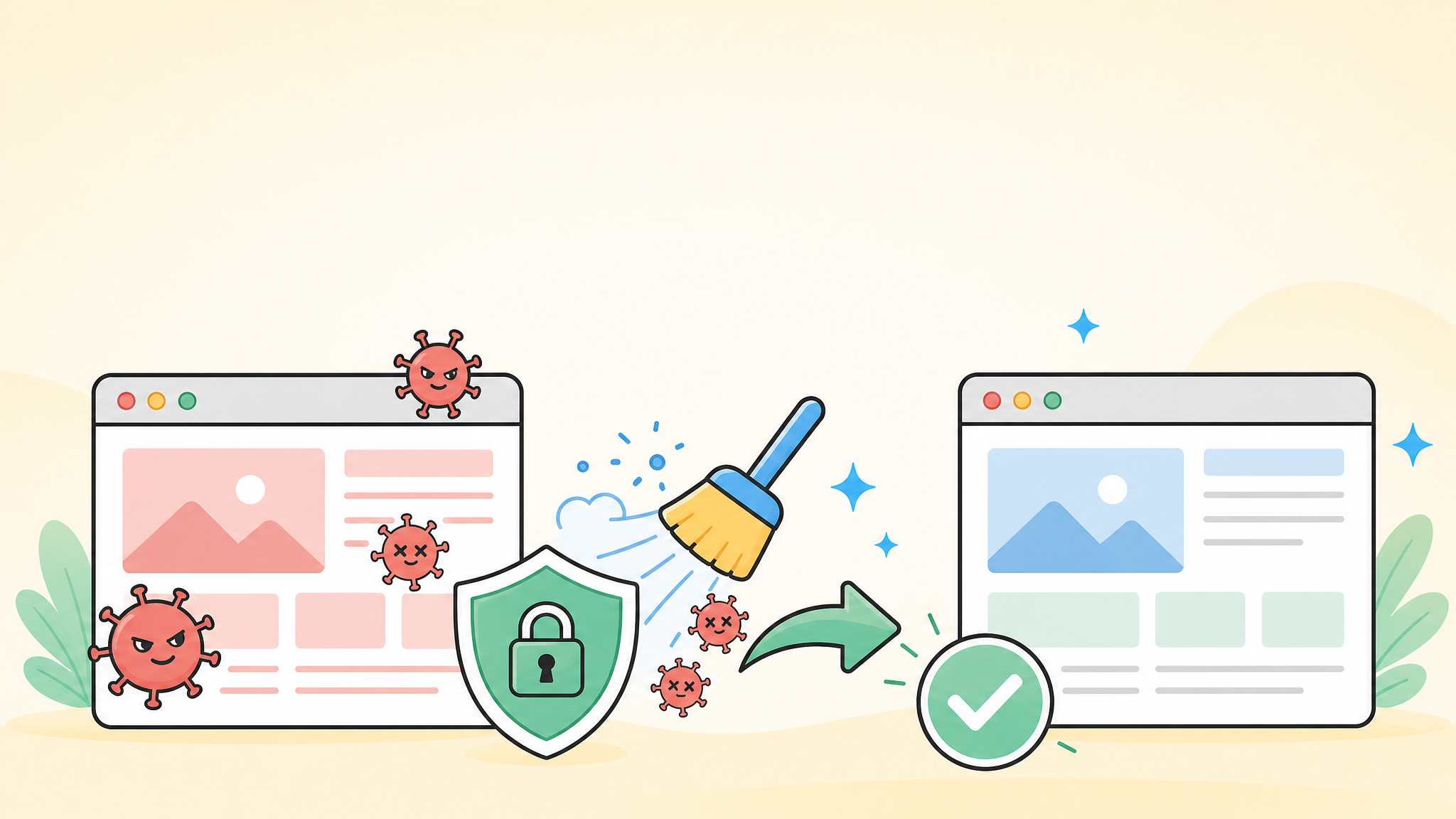
A WordPress malware infection can feel urgent and confusing. Your homepage may still look normal, but visitors may be redirected, search results may show spam pages, or your browser may warn that the site is dangerous.
The right response is not to delete random files in a panic. The safest recovery starts with containment, evidence preservation, malware cleanup, vulnerability repair, and post-recovery monitoring.
 RyoheiYokoyama
I am Ryohei Yokoyama, an IT engineer who has worked with WordPress, PHP, and website security for more than 20 years. Based on real recovery work, I will explain how to handle a malware-infected WordPress site without making the damage worse.
- How to recognize a WordPress malware infection
- What to do first before editing files
- The safest order for WordPress malware recovery
- Common mistakes that cause reinfection
- When professional recovery is the better choice
This guide is written for site owners, small business operators, and web managers who need a practical recovery path. It does not assume that you are a server engineer, but it does focus on safe decisions that protect your site, data, and visitors.
WordPress Malware Infection Recovery: Start With Containment
The first priority in WordPress malware infection recovery is containment. You need to stop the damage from spreading before you try to clean the site.
Malware can create new administrator accounts, inject scripts into theme files, add spam pages to the database, or hide backdoors in upload folders. If you start deleting files without a plan, you may remove visible symptoms while leaving the attacker’s access route open.
Take the site out of active risk if needed
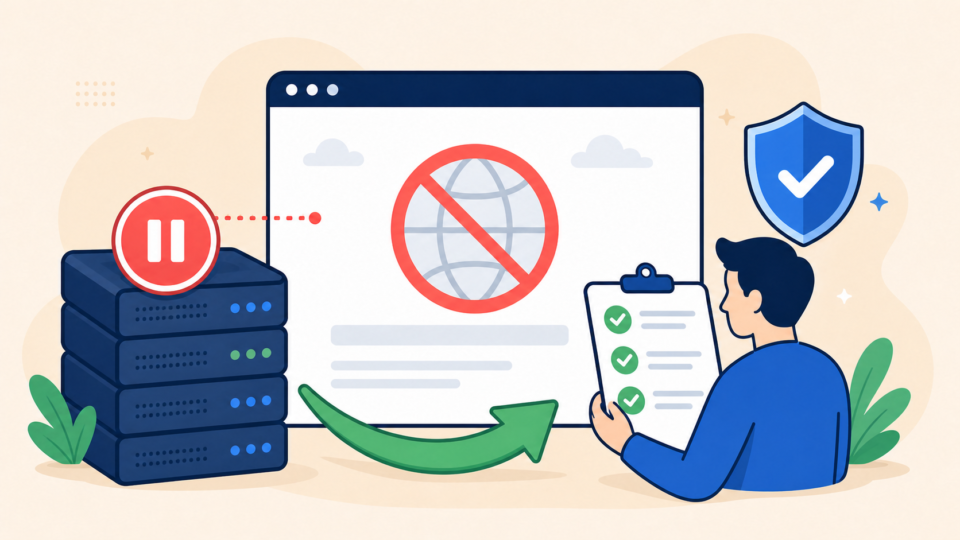
If visitors are being redirected to scam pages or the browser shows a warning, consider putting the site into maintenance mode or restricting access temporarily. This protects visitors while you investigate.
For e-commerce or lead generation sites, the decision is harder because downtime has a business cost. Even then, serving infected pages can damage trust, search visibility, and advertising accounts.
Preserve evidence before cleaning
Before you overwrite files, take a full backup of the current state. This sounds strange when the site is infected, but it helps you investigate where the malware came from and what changed.
- Take a full backup of files and database before cleanup
- Record warning messages, redirect URLs, and suspicious symptoms
- Change hosting, FTP/SFTP, WordPress admin, and database passwords
- Check whether unknown administrator users were created
- Pause risky plugins or themes only after recording the current state
WordPress Malware Infection Signs You Should Not Ignore
A WordPress malware infection is not always obvious. Some attacks hide from administrators and show malicious behavior only to search engines, mobile users, or first-time visitors.
This is why recovery should not depend only on what you see on your own screen. You need to check the site from multiple angles and look for changes in files, database content, users, and server logs.
Common visible symptoms
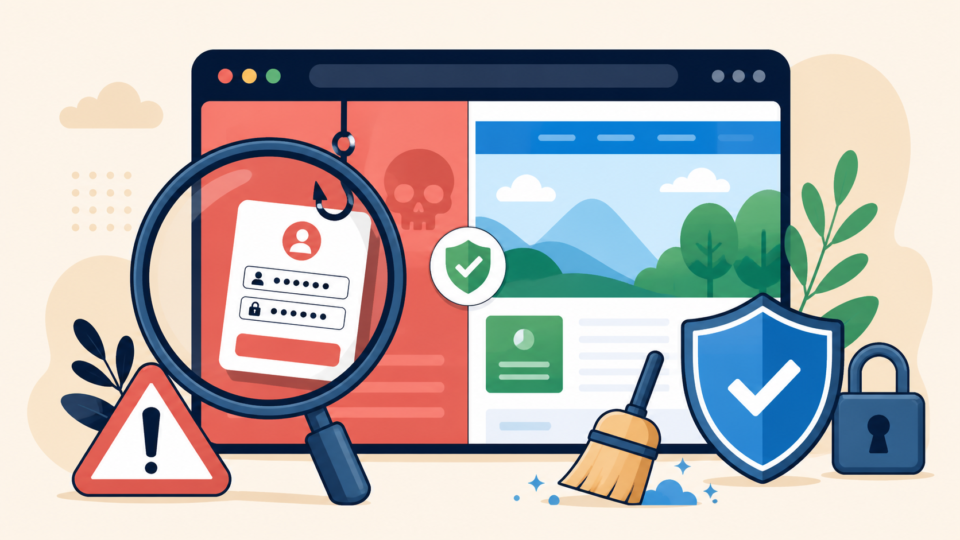
The most common symptoms are redirects, strange pop-ups, unknown pages in search results, security warnings, and unexpected changes to the homepage. In many cases, the WordPress dashboard still works, which makes the infection easy to underestimate.
Hidden symptoms inside WordPress
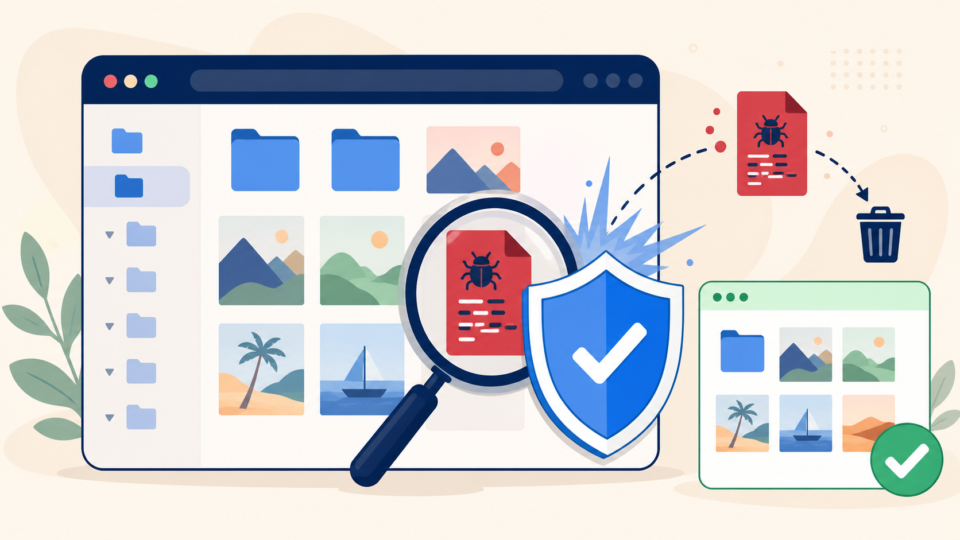
Malware may also hide in places that normal site owners rarely check. Examples include modified theme files, fake plugin folders, suspicious PHP files inside uploads, database options containing scripts, and cron jobs that recreate deleted malware.
- Visitors are redirected to casino, adult, fake support, or shopping pages
- Google Search Console reports hacked content or malicious pages
- Unknown admin users or plugin files appear
- Files change again after you delete suspicious code
- The site sends spam mail or uses too much server resources
WordPress Malware Infection Recovery Steps
The safest recovery order is to investigate first, clean second, patch third, and monitor last. Skipping this order is the main reason malware comes back after a temporary fix.
A clean-looking site is not the same as a recovered site. True recovery means removing malicious files, closing the entry point, confirming normal behavior, and reducing the chance of reinfection.
Step 1: Back up and compare files
Download the current files and database, then compare them with a known clean backup if you have one. Look for recently modified PHP files, unknown plugin folders, suspicious code in theme files, and unexpected files under uploads.
Step 2: Scan and manually inspect suspicious areas
Security scanners can help you find obvious malware, but they do not replace manual inspection. Attackers often obfuscate code or use file names that look legitimate.
Step 3: Remove malware and close the entry point
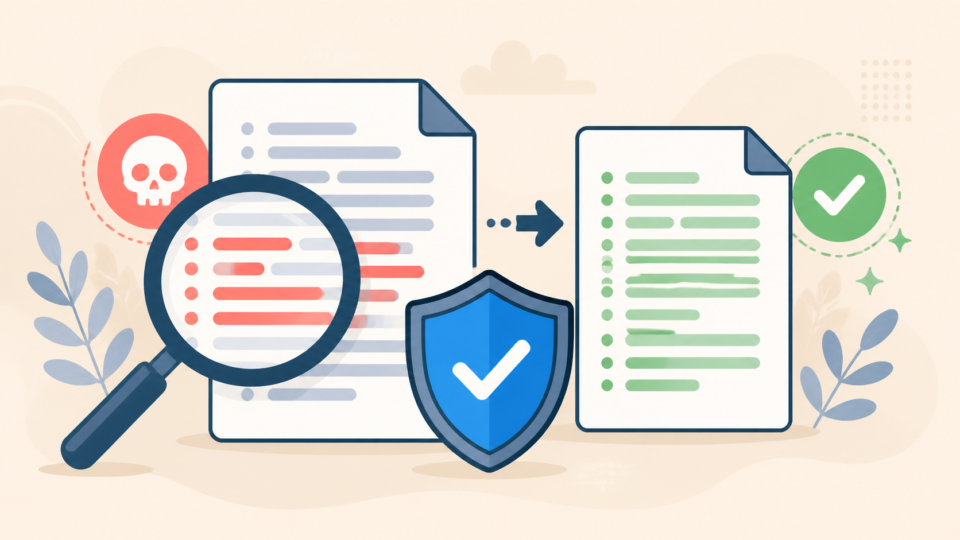
After identifying malicious files and database entries, remove them carefully. Then update WordPress core, themes, and plugins, delete unused components, rotate passwords, and check file permissions.
- Create a full backup of the infected state
- Identify symptoms, modified files, and suspicious users
- Clean files, database entries, and backdoors
- Update vulnerable plugins, themes, and WordPress core
- Reset passwords and review administrator accounts
- Test the site from desktop, mobile, and search results
- Monitor for reinfection for several days
WordPress Malware Infection Recovery Mistakes That Cause Reinfection
Many WordPress malware recovery attempts fail because they focus only on visible symptoms. If the backdoor remains, the site can be infected again within hours or days.
The most dangerous mistake is restoring or cleaning without understanding the entry point. A vulnerable plugin, stolen password, exposed XML-RPC endpoint, or writable folder can reopen the same path.
Deleting only the visible malicious file
If one malicious file is visible, assume there may be more. Attackers often place multiple backdoors so that deleting one file does not remove their access.
Restoring an infected backup
Backups are useful only when you know when the infection started. If your backup already contains the malware or vulnerable plugin, restoring it will not solve the problem.
Leaving old plugins and weak credentials unchanged
After cleanup, every password connected to the site should be changed. This includes WordPress, hosting, FTP/SFTP, database, and any admin email accounts used for password resets.
- Do not delete random files before taking a backup
- Do not trust a backup unless you know it is clean
- Do not leave unused themes or plugins installed
- Do not keep old administrator accounts active
- Do not assume the site is safe just because the homepage looks normal
WordPress Malware Infection Recovery Aftercare
Recovery is not finished when the site starts loading again. Aftercare is essential because search engines, browsers, hosting providers, and visitors may still see the site as unsafe.
You should confirm that malicious redirects are gone, request review if a warning was issued, and monitor logs for repeated suspicious access. This is also the right time to improve your security baseline.
Request security warning review when needed
If Google Safe Browsing, Search Console, or your hosting provider flagged the site, follow their review process after cleanup. Submit the review only after you are confident that the infection and backdoors have been removed.
Strengthen the site before reopening fully
Use strong passwords, remove unused plugins, update everything, limit login attempts, check administrator users, and schedule reliable backups. The goal is to make the next attack harder and recovery easier.
- Confirm that redirects and spam pages are gone
- Check Search Console for hacked content warnings
- Update WordPress core, plugins, and themes
- Remove unused plugins, themes, and old admin users
- Set up reliable backups and test restoration
- Monitor access logs and file changes after recovery
WordPress Malware Infection Recovery FAQ
WordPress Malware Infection Recovery Summary
WordPress malware infection recovery should be handled in the right order: contain the damage, preserve evidence, clean files and database entries, close the entry point, and monitor after recovery.
If you only remove the visible malware, the site may look fixed for a short time but become infected again. A safe recovery focuses on both cleanup and prevention.
When the site affects your business, visitors, search rankings, or ads, do not guess. Get the site investigated carefully and recover it in a way that protects both your data and your users.
If You Cannot Recover a Malware-Infected WordPress Site Yourself

If your WordPress site is infected, redirected, defaced, or blocked by security warnings, SiteFixNow can help you investigate the cause and restore the site safely.
- Your site redirects visitors to suspicious pages
- Google or the browser shows a security warning
- Malware returns after you delete suspicious files
- You cannot log in to the WordPress dashboard
- You need recovery without breaking the live site further