WordPress malware removal can feel overwhelming when you are not a developer. Your site may redirect visitors, show strange pop-ups, display a browser warning, or suddenly lose traffic because Google marked it as unsafe.
The important point is this: do not delete random files first. A safe cleanup starts with a backup, evidence collection, and a clear check of the files most commonly abused by malware.
 RyoheiYokoyama
I am Ryohei Yokoyama, an IT engineer with over 20 years of experience in WordPress, PHP, security cleanup, and website recovery. This guide explains malware removal in a beginner-friendly order without hiding the technical details you need to check.
- What WordPress malware looks like in real sites
- Which files and folders beginners should check first
- How to use safe examples for .htaccess, wp-config.php, and plugin folders
- What not to delete during cleanup
- When professional malware removal is safer than DIY
This article is written for beginners, but it includes concrete file names and examples because malware removal cannot be done with vague advice alone. Even if you ask a professional for help later, these checks will help you understand what is happening.
WordPress Malware Removal: Start With a Safe Backup
The first step in WordPress malware removal is to preserve the current condition of the site. Even infected files can contain clues that show when the attack started, which files were changed, and whether the database was affected.
If you delete files too early, you may remove evidence while leaving the real backdoor behind. A backup gives you a safe point to return to if a cleanup attempt breaks the site.
Back up files and database separately
A complete WordPress backup has two parts: the website files and the database. The files include WordPress core, themes, plugins, uploads, and configuration files. The database includes posts, settings, users, and many plugin settings.
public_html/ or your WordPress document root
wp-config.php
wp-content/plugins/
wp-content/themes/
wp-content/uploads/
Database export from phpMyAdmin, Adminer, or hosting control panel
Record the visible symptoms
Write down exactly what you see before making changes. Useful notes include redirect URLs, warning messages, suspicious admin users, unknown plugin names, and the date when the problem first appeared.
- Download a full file backup
- Export the WordPress database
- Save screenshots of browser or Google warnings
- Record suspicious redirect URLs
- Change hosting, FTP/SFTP, WordPress admin, and database passwords after backup
WordPress Malware Signs Beginners Should Check
WordPress malware often appears as visible symptoms, but the infected code may be hidden in a completely different place. For example, a homepage redirect can be caused by a plugin file, a theme file, .htaccess, or injected database content.
Beginners should focus on symptoms first, then check the most common locations one by one. This prevents random editing and reduces the risk of breaking the site.
Common malware symptoms
- Visitors are redirected to casino, adult, fake support, or shopping pages
- Google Search Console shows hacked content or security issues
- Unknown administrator users appear in WordPress
- New PHP files appear inside wp-content/uploads/
- The site sends spam mail from the server
- Security plugins report modified core files or suspicious code
Files and folders to inspect first
The following locations are common starting points. You do not need to understand every line of PHP, but you should know where suspicious changes often hide.
.htaccess
wp-config.php
wp-content/plugins/
wp-content/themes/active-theme/functions.php
wp-content/uploads/
wp-includes/
Recently modified PHP files
WordPress Malware Removal: Check .htaccess and wp-config.php
.htaccess and wp-config.php are small files, but they can affect the entire site. Attackers may use them to redirect visitors, load malicious code, or hide errors.
For beginners, the goal is not to rewrite everything. The goal is to compare the file against a normal example and look for lines that do not belong.
Normal WordPress .htaccess example
On many Apache servers, a basic WordPress .htaccess file looks similar to this. If you see long encoded strings, strange redirect domains, or rules that point to unknown files, investigate carefully before deleting.
# BEGIN WordPress
RewriteEngine On
RewriteRule .* - [E=HTTP_AUTHORIZATION:%{HTTP:Authorization}]
RewriteBase /
RewriteRule ^index\.php$ - [L]
RewriteCond %{REQUEST_FILENAME} !-f
RewriteCond %{REQUEST_FILENAME} !-d
RewriteRule . /index.php [L]
# END WordPress
Safe wp-config.php debug example
wp-config.php should contain database settings and WordPress configuration. If you need to investigate errors during cleanup, debug logging can help, but it should not display errors publicly to visitors.
define('WP_DEBUG', true);
define('WP_DEBUG_LOG', true);
define('WP_DEBUG_DISPLAY', false);
@ini_set('display_errors', 0);- Unknown domains inside .htaccess redirects
- base64_decode, eval, gzinflate, str_rot13, or long unreadable strings in PHP files
- PHP files inside wp-content/uploads/
- Unknown include or require statements in wp-config.php
- Recently modified files that do not match your update history
WordPress Malware Cleanup Steps for Beginners
A safe cleanup follows a controlled order. You isolate the infection, remove malicious code, close the entry point, then test the site again. Cleaning only the visible symptom can lead to reinfection.
Disable plugins safely without deleting them
If the dashboard is unavailable or you suspect a plugin, rename the plugins folder through FTP/SFTP or the hosting file manager. This disables plugins without deleting their files.
wp-content/plugins
wp-content/plugins-disabled
If the site loads after renaming the folder, create a new plugins folder and move plugins back one by one. This helps identify the plugin involved in the issue.
Replace WordPress core files carefully
If WordPress core files are modified, download a fresh copy from WordPress.org and replace core directories such as wp-admin and wp-includes. Do not overwrite wp-content or wp-config.php without checking them first.
Replace if infected or modified:
wp-admin/
wp-includes/
Root WordPress core files such as wp-load.php and wp-settings.php

Do not blindly overwrite:
wp-content/
wp-config.php
.htaccess
Check uploads for PHP files
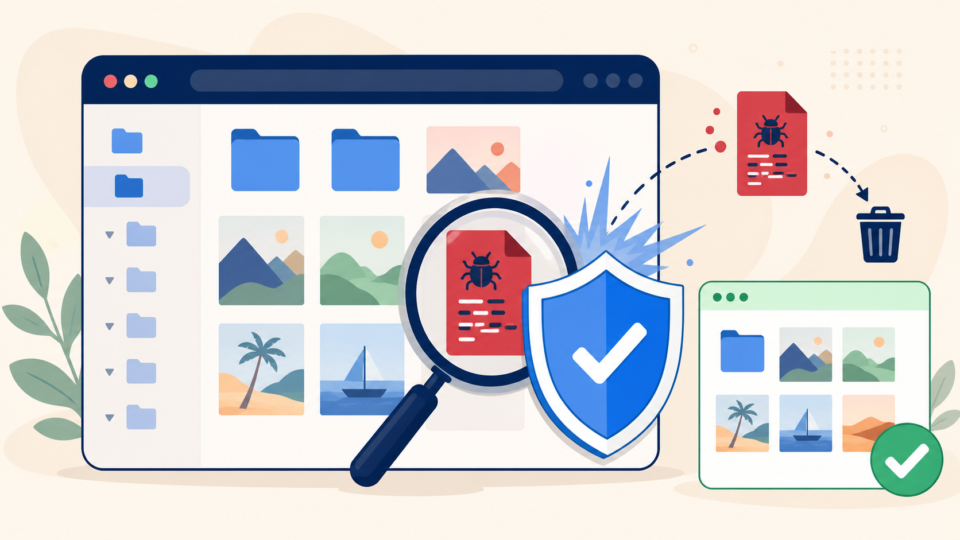
The uploads folder should usually contain images, PDFs, and media files. PHP files in uploads are suspicious on most WordPress sites and should be investigated.
wp-content/uploads/2026/05/logo.php
wp-content/uploads/cache/index.php
wp-content/uploads/.hidden.php
After WordPress Malware Removal: Prevent Reinfection
Malware removal is not finished when the visible redirect disappears. You also need to close the entry point. Otherwise, the same attacker may return through an old plugin, weak password, hidden backdoor, or compromised hosting account.
After cleanup, update WordPress core, plugins, and themes. Remove unused plugins, delete unknown users, rotate passwords, and confirm that backups are working.
- Update WordPress core, plugins, and themes
- Remove unused themes and plugins
- Delete unknown administrator users
- Change WordPress, hosting, FTP/SFTP, database, and email passwords
- Check Google Search Console security issues
- Set up scheduled backups and monitoring
WordPress Malware Removal FAQ
WordPress Malware Removal Summary
WordPress malware removal should be done in a safe order: back up the site, record symptoms, inspect common file locations, remove malicious code carefully, close the entry point, and verify the result.
For beginners, the biggest mistake is deleting files randomly because the site looks urgent. A careful process protects your data and reduces the chance of reinfection.
If You Cannot Fix WordPress Malware Removal Yourself

If your WordPress site is infected, hacked, redirecting visitors, or showing security warnings, SiteFixNow can help you investigate the cause and restore the site safely.
- Your website is redirecting to spam or unknown pages
- Google or your browser shows a dangerous site warning
- You found unfamiliar files, admin users, or code changes
- You cannot tell which files are safe to delete
- The site is business-critical and downtime is costing money