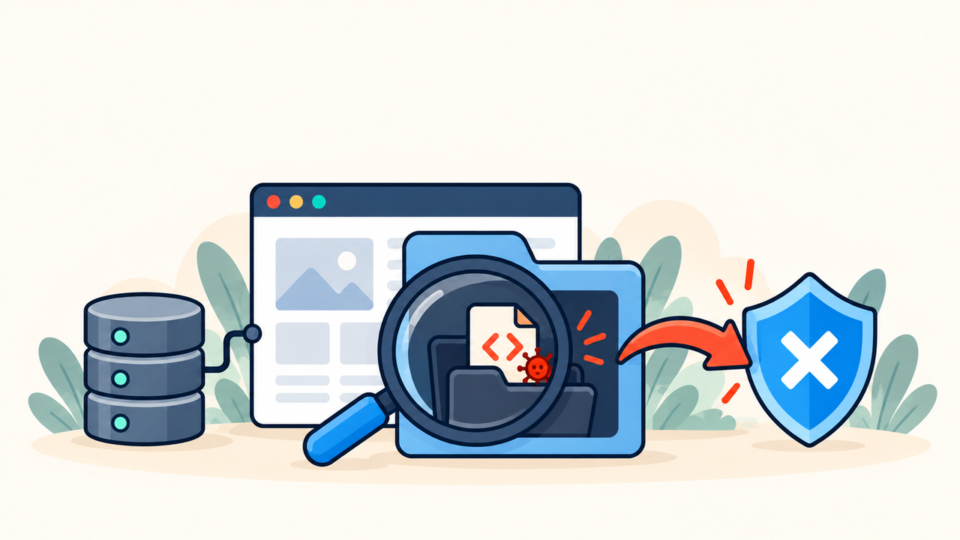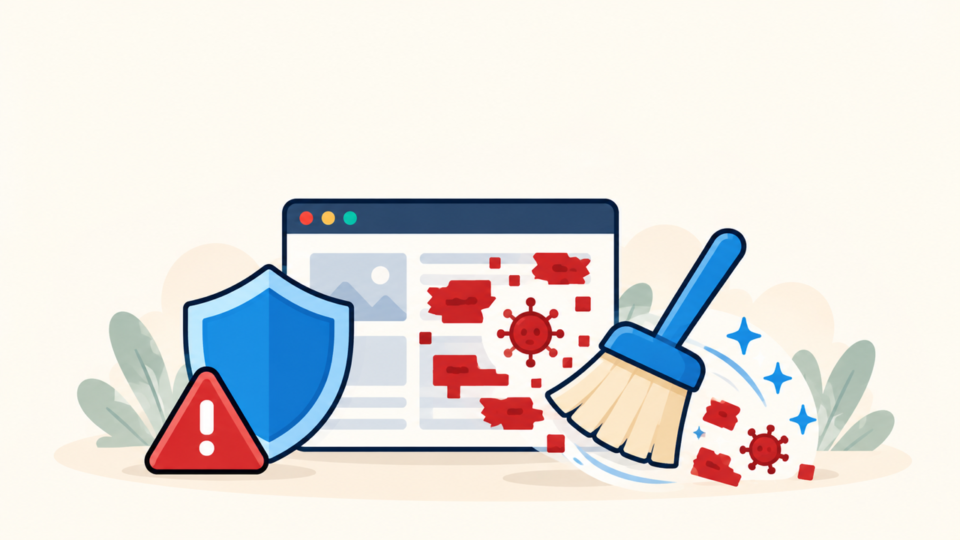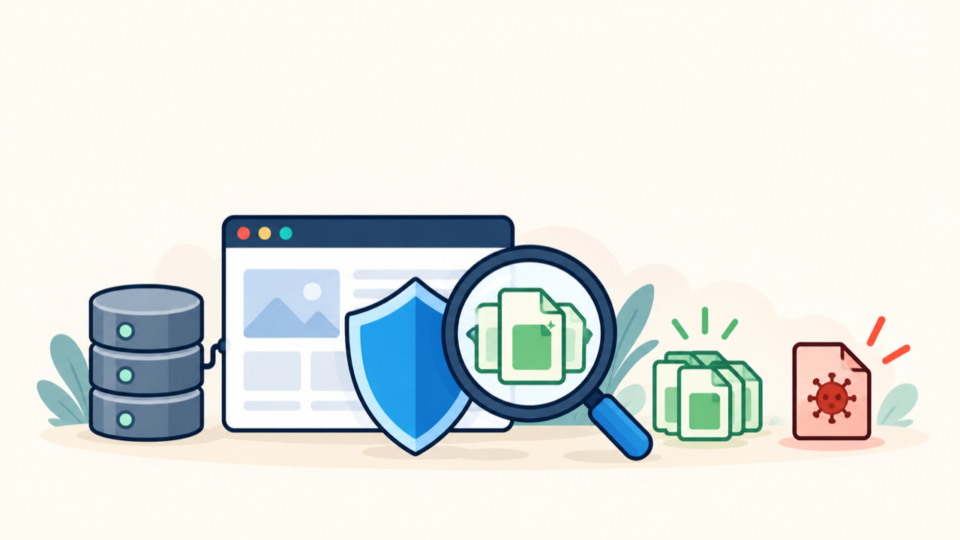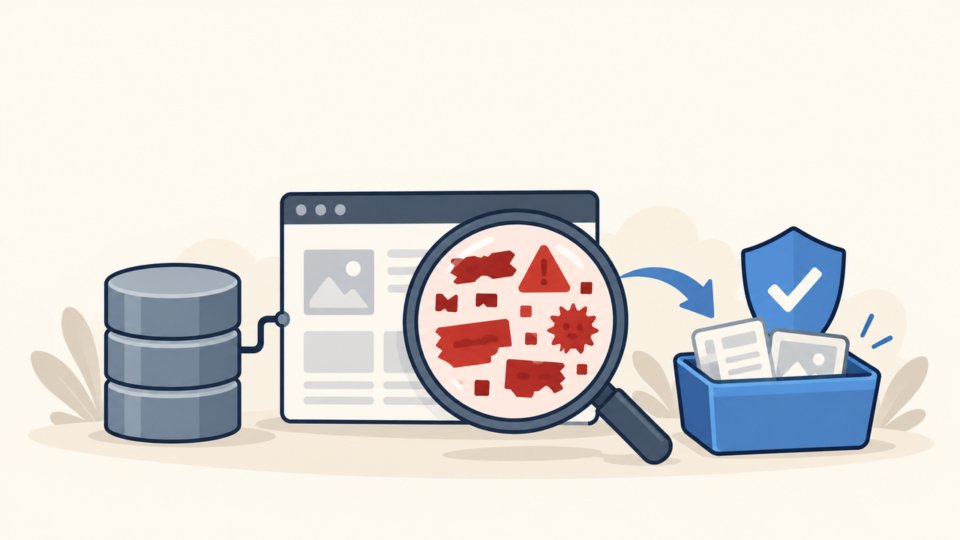
A hacked WordPress site can damage trust quickly. Visitors may see spam pages, browser warnings, strange redirects, or a completely broken website. If your business depends on the site, every hour matters.
Before you rush to delete files or reinstall WordPress, take a safer approach. Hacked WordPress site repair should protect the current data, identify how the attacker entered, and restore the site without leaving a hidden backdoor.
 RyoheiYokoyama
I am Ryohei Yokoyama, an IT engineer with over 20 years of experience in WordPress, PHP, security repair, and website recovery. This guide explains what to do first when a WordPress site is hacked, using plain English and concrete technical examples.
- The safest first actions after a WordPress hack
- How to check admin users, plugins, themes, and server files
- Which files often contain hacked code
- How to repair access without destroying evidence
- How to reduce the risk of the site being hacked again
This guide is beginner-friendly, but it does not avoid practical details. Real WordPress repair often involves files such as .htaccess, wp-config.php, plugin folders, theme functions.php, and server logs.
Hacked WordPress Site Repair: Do These First
The first repair step is not cleanup. The first step is containment. You need to stop the damage from spreading while preserving the information needed to understand what happened.
If the site is sending spam, redirecting visitors, or showing dangerous content, consider enabling maintenance mode at the hosting level or temporarily restricting access while you investigate.
Protect access and preserve evidence
Change important passwords after creating backups, not before if you still need to preserve logs and session evidence. Prioritize hosting, SFTP/FTP, WordPress admin, database, and connected email accounts.
- Take a full backup of files and database
- Save screenshots of warnings, redirects, and hacked pages
- List all administrator users in WordPress
- Change hosting, SFTP/FTP, database, and WordPress passwords
- Check whether the hosting provider has malware or access logs
Check whether wp-admin is still accessible
If wp-admin is still accessible, do not immediately install many new security plugins. First, record users, active plugins, recent updates, and suspicious admin accounts. Too many changes can make the cause harder to find.
Hacked WordPress Site Repair: Check Users, Plugins, and Themes
Many WordPress attacks leave traces in users, plugins, themes, or uploaded files. Beginners should inspect these areas before editing unfamiliar PHP code.
Look for unknown administrator users
In the WordPress dashboard, go to Users and check all administrator accounts. If you find an account you do not recognize, record the username and email before deleting or downgrading it.
- Unknown administrator accounts
- Email addresses using random domains
- Recently created admin users during the attack period
- Usernames that look like system accounts but were not created by you
- Admin accounts that reappear after deletion
Disable plugins safely when the dashboard is broken
If the hacked site also shows a 500 error, critical error, or redirect in wp-admin, use FTP/SFTP or the hosting file manager to rename the plugins folder. This disables plugins without deleting data.
Original folder:
wp-content/plugins/

Rename to:
wp-content/plugins-disabled/

Then create a new empty folder:
wp-content/plugins/
Check active theme files
Theme files are also common targets. In particular, check the active theme’s functions.php file and any unfamiliar PHP files inside the theme directory.
wp-content/themes/active-theme/functions.php
wp-content/themes/active-theme/header.php
wp-content/themes/active-theme/footer.php
wp-content/themes/active-theme/*.php
Hacked WordPress Site Repair: Find Suspicious Code and Backdoors
A hacked site may look clean after removing one redirect, but a backdoor can allow the attacker to return. Backdoors often hide inside normal-looking PHP files or in locations where beginners do not expect PHP code.
Common suspicious PHP patterns
Not every technical-looking line is malware, but certain patterns should be reviewed carefully. Long unreadable strings and dynamic execution functions are common in malicious code.
base64_decode(
eval(
gzinflate(
str_rot13(
shell_exec(
assert(
preg_replace with /e modifier
very long unreadable strings
Check uploads for executable files
The uploads directory should normally contain media files. PHP files inside uploads are suspicious on most WordPress sites because uploads are not supposed to run application code.
wp-content/uploads/2026/05/image.jpg   OK
wp-content/uploads/2026/05/invoice.pdf  OK
wp-content/uploads/2026/05/cache.php    Suspicious
wp-content/uploads/.well-known/a.php     Suspicious
Review .htaccess for redirects
If visitors are redirected to another website, .htaccess is one of the first files to check on Apache hosting. Look for rules that send traffic to unknown domains or only redirect mobile/search visitors.
RewriteEngine On
RewriteCond %{HTTP_USER_AGENT} "google|bing|yahoo" [NC]
RewriteRule ^(.*)$ https://example-spam-domain.com/$1 [R=302,L]
Hacked WordPress Site Repair: Restore Files Without Losing Data
Repair usually means replacing known-good files and cleaning site-specific files. WordPress core files can often be replaced from a fresh download, but wp-content and the database need careful review because they contain your site data.
Replace WordPress core safely
Download the same WordPress version or the latest stable version from WordPress.org. Replace core folders such as wp-admin and wp-includes if they were modified. Do not delete wp-content because it contains themes, plugins, and uploads.
Usually safe to replace after backup:
wp-admin/
wp-includes/
wp-load.php
wp-settings.php

Review manually before changing:
wp-config.php
.htaccess
wp-content/
Check database content
Some hacks inject scripts into posts, widgets, options, or plugin settings. If file cleanup does not stop redirects, the database may contain malicious JavaScript or iframe code.
wp_posts: unexpected scripts, iframes, spam links
wp_options: siteurl, home, active_plugins, widget content
wp_users: unknown admin users
wp_usermeta: administrator capabilities
Hacked WordPress Site Repair: Stop It From Happening Again
Repair is incomplete if the entry point remains open. After cleaning the site, update vulnerable plugins and themes, remove unused software, reset credentials, and check Search Console warnings.
Also check hosting logs if available. They can reveal suspicious login attempts, uploaded files, or requests to vulnerable plugin paths.
Hosting control panel: Error Log / Access Log
cPanel: Metrics > Errors or Raw Access
Plesk: Websites & Domains > Logs
Server paths may include:
/var/log/apache2/access.log
/var/log/nginx/access.log
/var/log/php-fpm/error.log- Update WordPress core, themes, and plugins
- Delete unused themes and plugins
- Reset all passwords and API keys
- Remove unknown admin users
- Scan files again after cleanup
- Request Google Search Console review if a warning appeared
- Set up backups and file change monitoring
Hacked WordPress Site Repair FAQ
Hacked WordPress Site Repair Summary
Hacked WordPress site repair should be handled in a safe order: contain the damage, back up files and database, check users and access, inspect common malware locations, clean or replace infected files, review the database, and close the entry point.
Beginners can perform several safe checks, but repeated reinfection, database injections, and hidden backdoors are strong signs that professional repair is the safer choice.
If You Cannot Fix a Hacked WordPress Site Yourself

If your WordPress site is infected, hacked, redirecting visitors, or showing security warnings, SiteFixNow can help you investigate the cause and restore the site safely.
- Your website is redirecting to spam or unknown pages
- Google or your browser shows a dangerous site warning
- You found unfamiliar files, admin users, or code changes
- You cannot tell which files are safe to delete
- The site is business-critical and downtime is costing money