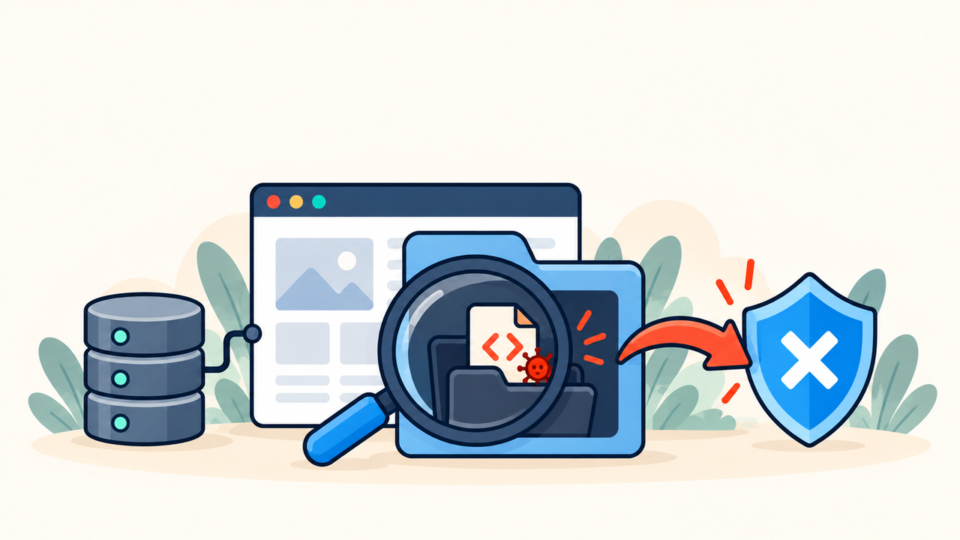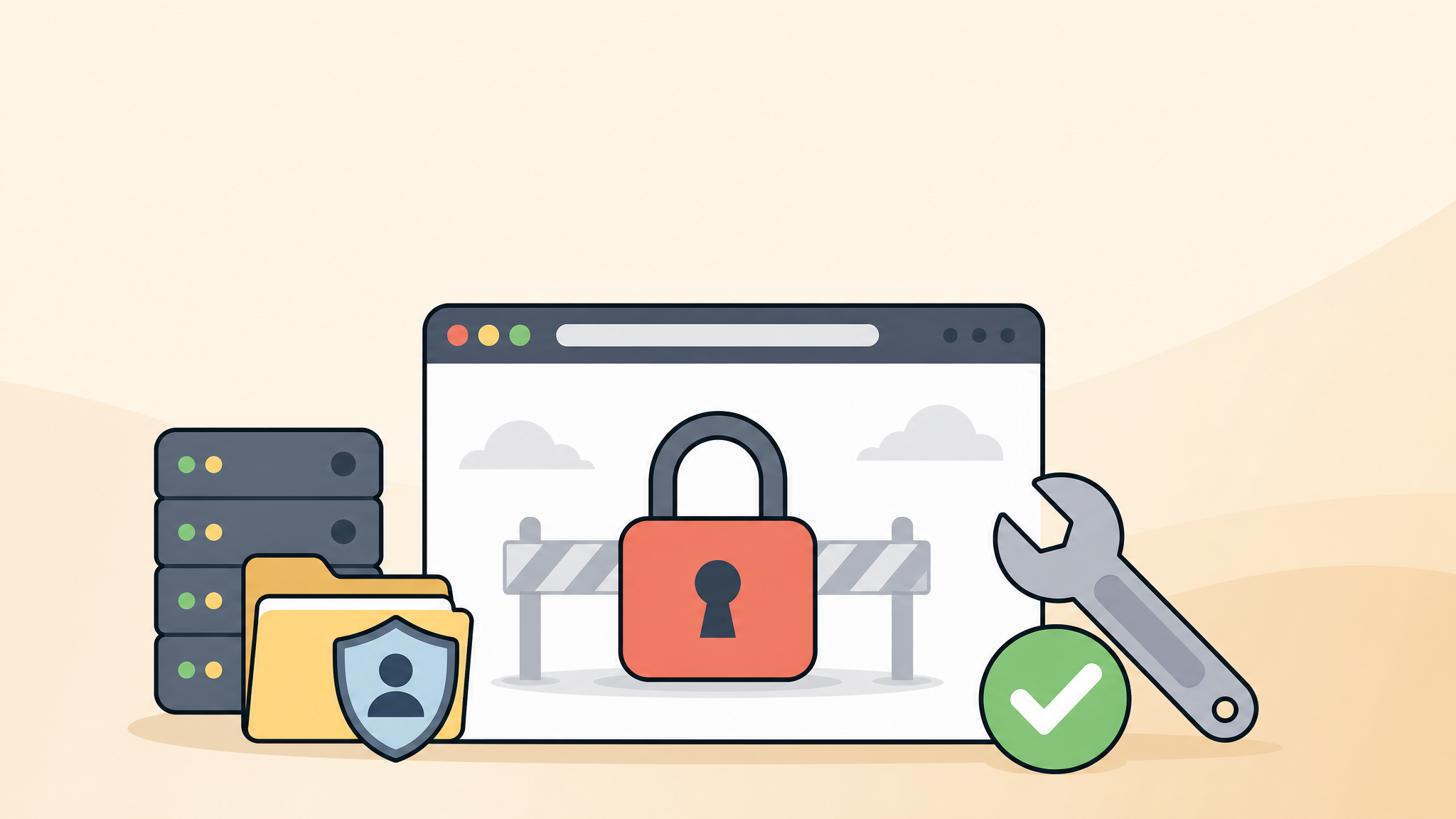
A WordPress 403 Forbidden error means your server is refusing access. The page may exist, but the server, security plugin, firewall, or file permission settings are blocking the request.
The safest fix is to identify what is blocking access before disabling security blindly. A 403 error can protect your site from attacks, but it can also lock out legitimate users and site owners.
 RyoheiYokoyama
I am Ryohei Yokoyama, an IT engineer with over 20 years of experience in WordPress, PHP, and website recovery. I will show practical checks for 403 errors, including files, permissions, .htaccess, and security rules.
- What a WordPress 403 Forbidden error means
- How to check .htaccess, file permissions, and security plugins
- Safe code and configuration examples to test
- How to avoid weakening security while restoring access
- When professional recovery is safer
WordPress 403 Forbidden Error: Check the Exact Location
The first step is to identify where the 403 error appears. A 403 on one image, one admin page, or the whole site points to different causes.
Write down the affected URL, whether it happens for logged-in users, whether it happens on mobile, and whether it affects wp-admin, REST API, uploads, or frontend pages.
Common 403 locations
- Homepage:
https://example.com/ - Admin login:
/wp-login.php - Dashboard:
/wp-admin/ - Uploads:
/wp-content/uploads/ - REST API:
/wp-json/ - A specific page, image, CSS, or JavaScript file
If only one directory is blocked, permissions or directory rules are likely. If the whole site is blocked, .htaccess, WAF, IP restriction, or hosting security settings are more likely.
WordPress 403 Forbidden Error: .htaccess Rules to Check
On Apache servers, .htaccess is one of the most common causes of WordPress 403 errors. A deny rule, broken rewrite rule, or leftover malware cleanup rule can block normal access.
Before editing, download a copy of your current .htaccess file. Then test with a clean WordPress rule set only if your host uses Apache and your site is installed in the document root.
Clean WordPress .htaccess example
# BEGIN WordPress
<IfModule mod_rewrite.c>
RewriteEngine On
RewriteRule .* - [E=HTTP_AUTHORIZATION:%{HTTP:Authorization}]
RewriteBase /
RewriteRule ^index\.php$ - [L]
RewriteCond %{REQUEST_FILENAME} !-f
RewriteCond %{REQUEST_FILENAME} !-d
RewriteRule . /index.php [L]
</IfModule>
# END WordPress
Deny rules that can cause 403
Rules like the following intentionally block access. They may be valid for sensitive files, but dangerous if placed too broadly.
# Blocks everyone from the current directory
Require all denied

# Old Apache syntax that blocks everyone
Order allow,deny
Deny from all

# Blocks a specific IP address
Require not ip 203.0.113.10- Always keep a backup copy before editing
- Do not delete security rules unless you understand them
- Test one change at a time
- After testing, confirm wp-admin, frontend pages, forms, and images
- If the site uses a subdirectory install, adjust RewriteBase carefully
WordPress 403 Forbidden Error: File and Folder Permissions
Incorrect file permissions can make WordPress unreadable to the web server. Permissions that are too strict can cause 403 errors, while permissions that are too loose can create security risks.
Common safe defaults are 755 for directories and 644 for files. Some hosting environments differ, so check your host documentation before bulk-changing permissions.
Common permission examples
# Typical directory permission
755  wp-content/
755  wp-content/uploads/
755  wp-content/plugins/

# Typical file permission
644  index.php
644  wp-config.php
644  .htaccess
Command examples for server administrators
If you manage the server through SSH, these examples show the general pattern. Do not run commands blindly on shared hosting or unknown environments.
# Set directories to 755
find /path/to/wordpress -type d -exec chmod 755 {} \;

# Set files to 644
find /path/to/wordpress -type f -exec chmod 644 {} \;.htaccess: deny rules and rewrite ruleswp-config.php: ownership and permission issueswp-content/uploads/: blocked media fileswp-content/plugins/: security plugin rules- Hosting file manager or SSH: owner/group mismatch
WordPress 403 Forbidden Error: Security Plugins, WAF, and IP Blocks
Security plugins and WAF settings can cause 403 errors when they block suspicious requests. This is sometimes correct, but a false positive can block you, your users, or search engines.
Do not disable all security permanently. Instead, identify the exact rule that is blocking access and adjust it carefully.
Temporarily disable a security plugin safely
If you cannot access wp-admin, rename the plugin folder through FTP/SFTP or your hosting file manager. This disables the plugin without deleting its files.
wp-content/plugins/security-plugin-name
wp-content/plugins/security-plugin-name-disabled
Check common WAF and block settings
- IP address block lists
- Country blocking rules
- Login URL change settings
- XML-RPC blocking rules
- REST API restriction settings
- Bot protection or rate limit rules
- Hosting WAF events and blocked request logs
WordPress 403 Forbidden Error After Malware Cleanup
A 403 error after malware cleanup often means a security rule, file permission, or access control setting was changed during the cleanup. It can also mean malware left behind restrictive rules.
This situation needs careful review because removing every block can reopen the site to the same attack. The goal is to restore legitimate access while keeping dangerous access blocked.
Check for leftover malicious or emergency rules
Look for unexpected deny rules in .htaccess, unusual files in wp-content, suspicious PHP files in uploads, or unknown security plugin settings. Also check whether your own IP address was blocked during the cleanup process.
# Suspicious PHP files should not normally run from uploads
wp-content/uploads/*.php
wp-content/uploads/2026/*.php

# Check for unexpected access rules
.htaccess
wp-content/.htaccess
wp-content/uploads/.htaccess
WordPress 403 Forbidden Error Recovery Steps
The best recovery process is to isolate the block source, test safely, and restore access without weakening the site. Avoid making several changes at once because you will not know which change fixed or broke the site.
- Back up files and database before changes
- Record the exact URL and condition of the 403 error
- Test .htaccess with a clean copy if Apache is used
- Check file and folder permissions
- Review security plugin, WAF, and IP block rules
- Check hosting error logs and WAF event logs
- Restore only the necessary access and retest important pages
WordPress 403 Forbidden Error FAQ
WordPress 403 Forbidden Error Fix Summary
A WordPress 403 Forbidden error is an access denial problem. The most common causes are .htaccess rules, file permissions, security plugins, WAF settings, IP blocks, and hosting restrictions.
The safest fix is to check the exact affected URL, back up files, test .htaccess, inspect permissions, review security rules, and confirm that legitimate access is restored without disabling important protection.
If the error blocks wp-admin, appears after malware cleanup, or affects a business-critical site, professional recovery can prevent data loss and avoid reopening security holes.
If You Cannot Fix the WordPress 403 Error Yourself

If your WordPress site or admin dashboard is blocked by a 403 Forbidden error, SiteFixNow can help you identify the cause and restore safe access.
- You cannot access wp-admin
- Important pages show 403 Forbidden
- The error started after malware cleanup or a security plugin change
- You need to restore access without weakening security