If your WordPress site shows “There has been a critical error on this website,” it can feel scary—especially if you cannot open the admin dashboard. The good news is that many critical errors are caused by a plugin, theme, PHP version, memory limit, or a recent update, and you can narrow down the cause step by step.
This beginner-friendly guide explains what to check first, how to disable plugins safely, where to find error details, and when you should stop and ask for help before making the damage worse.
 RyoheiYokoyama
I’m Ryohei Yokoyama, founder of SiteFixNow. I’ve worked as an IT engineer for over 20 years and have handled many WordPress recovery, malware removal, hacked site repair, and critical error repair cases. In this article, I’ll explain practical checks beginners can follow safely.
- What usually causes a WordPress critical error
- How to recover when you cannot access wp-admin
- How to disable plugins and themes safely through the server
- How to use debug logs without exposing errors to visitors
- When the problem may be malware or a deeper server issue
What Does “There Has Been a Critical Error” Mean?
A WordPress critical error usually means PHP stopped running because something broke inside the site. PHP is the programming language that powers WordPress. When a plugin, theme, custom code, or server setting causes a fatal problem, WordPress may show the critical error screen instead of your website.
The message itself does not tell you the exact cause. You need to check recent changes, the recovery mode email, plugin/theme folders, and server logs to find the actual error.
- A plugin update failed or introduced a PHP fatal error.
- The active theme has broken code in
functions.php. - The PHP version changed and an old plugin is no longer compatible.
- The server memory limit is too low.
- Malware or suspicious code was inserted into WordPress files.
First: Check the WordPress Recovery Mode Email
When WordPress detects a fatal error, it may send an email to the site administrator. The subject often says that your site is experiencing a technical issue. This email can include a recovery mode link and the plugin or theme file that triggered the error.
If you received this email, use it carefully. It can help you log in even when the normal dashboard is broken. Then you can deactivate the problematic plugin or switch the theme.
If you do not receive the recovery email, check the admin email address in the database, spam folder, and hosting mail restrictions later. For urgent recovery, use SFTP or your hosting file manager instead.
Fix 1: Disable All Plugins Safely Without wp-admin
The easiest beginner-friendly repair is to temporarily disable all plugins. If the site loads after disabling plugins, one of the plugins is likely causing the critical error.
You can do this through SFTP or the hosting file manager. Rename the plugins folder instead of deleting it.
wp-content/plugins
wp-content/plugins-disabled- Open your hosting file manager or connect by SFTP.
- Go to
wp-content. - Rename
pluginstoplugins-disabled. - Reload your website and admin login page.
- If the site works, rename it back to
plugins. - Then rename individual plugin folders one by one to find the broken plugin.
Do not delete the plugin folder unless you have a backup. Renaming is reversible and safer for beginners.
Fix 2: Switch to a Default Theme Temporarily
If disabling plugins does not fix the issue, the active theme may be causing the critical error. This often happens after editing functions.php, updating a theme, or using a theme that does not support the current PHP version.
Through SFTP or the hosting file manager, go to wp-content/themes and rename the active theme folder. WordPress may fall back to a default theme if one is installed.
wp-content/themes/your-active-theme
wp-content/themes/your-active-theme-disabled
If there is no default theme such as Twenty Twenty-Four or Twenty Twenty-Five, upload a clean default theme folder from WordPress.org before switching.
Fix 3: Turn On Debug Logging Safely
Debug logs help you find the exact file and line causing the fatal error. However, you should not display errors directly on the public website because they may expose paths or sensitive information.
Edit wp-config.php and add or adjust the following lines above “That’s all, stop editing”.
define('WP_DEBUG', true);
define('WP_DEBUG_LOG', true);
define('WP_DEBUG_DISPLAY', false);
@ini_set('display_errors', 0);
After reloading the site, check this file:
wp-content/debug.logLook for phrases like Fatal error, Uncaught Error, Allowed memory size exhausted, or a plugin/theme path. The path often tells you which plugin or theme is responsible.
Fix 4: Increase the WordPress Memory Limit
If the debug log says “Allowed memory size exhausted,” the site may need a higher memory limit. This is common on sites with heavy page builders, WooCommerce, security plugins, or many active plugins.
Add this to wp-config.php above the final stop-editing comment:
define('WP_MEMORY_LIMIT', '256M');
define('WP_MAX_MEMORY_LIMIT', '512M');
If this does not work, your hosting plan may limit memory at the server level. In that case, check the hosting control panel or ask the host to confirm the PHP memory limit.
Fix 5: Check the PHP Version and Server Error Logs
A site can break after the server PHP version changes. Older plugins and themes may fail on newer PHP versions, while very old PHP versions can break modern WordPress code.
In your hosting control panel, check the PHP version and server error logs. Error logs may be found in different places depending on the host, but common locations include:
error_log
logs/error.log
public_html/error_log
hosting control panel > PHP errors
hosting control panel > access/error logs
If the log points to one plugin repeatedly, disable that plugin first. If it points to the active theme, switch themes or restore a clean theme copy.
When a Critical Error May Be More Than a Normal Bug
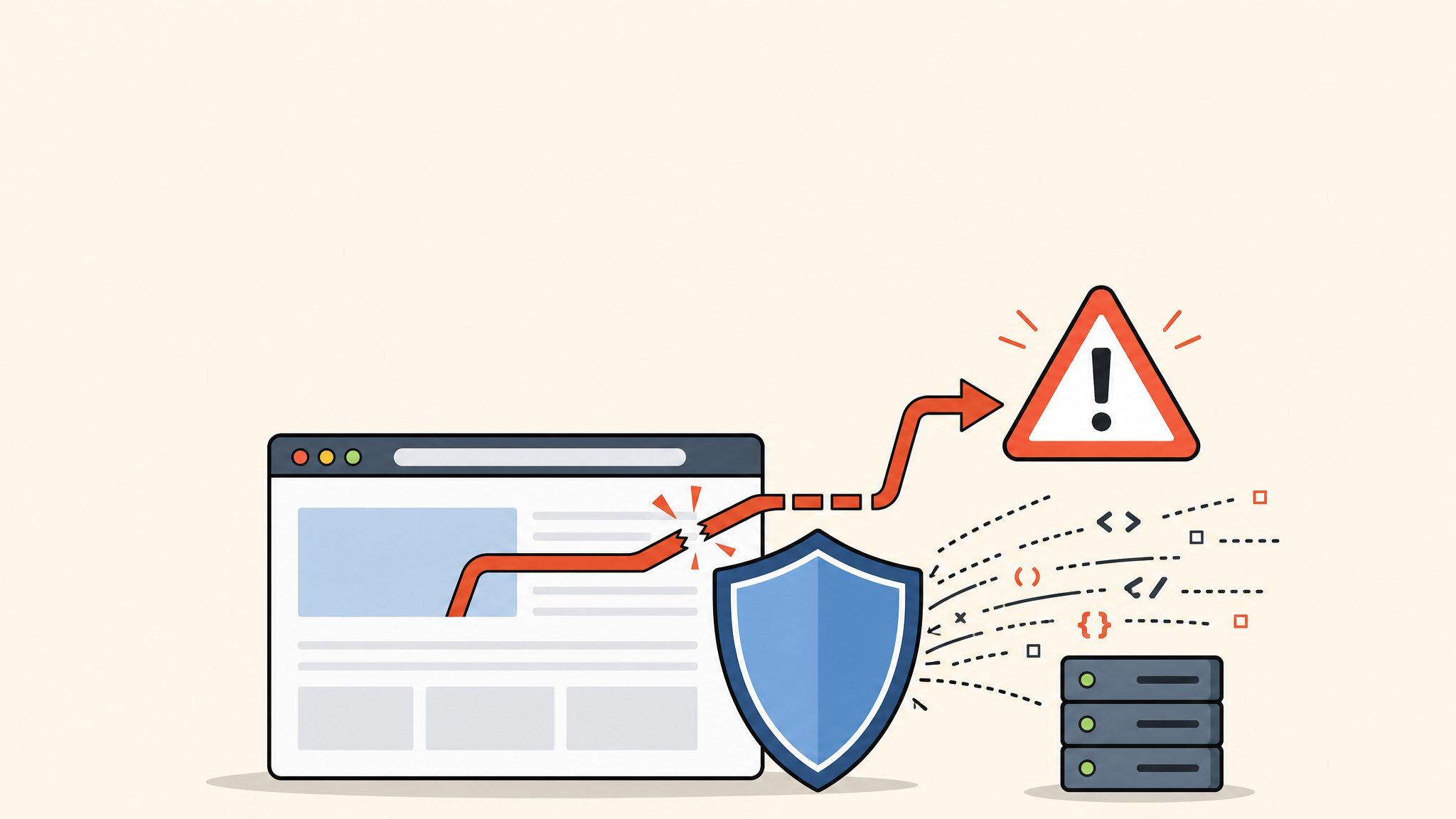
Sometimes a critical error is not just a failed update. It can be caused by malware, suspicious code in functions.php, unknown PHP files in wp-content/uploads, or modified core files.
- Unknown admin users were created.
- There are PHP files inside
wp-content/uploads. - The site redirects to strange pages after the error is fixed.
- Security warnings appear in Google or your browser.
- The same error comes back after you restore a backup.
In these cases, do not only fix the visible error. You should scan the site, compare files with clean copies, check users, review recent file changes, and close the entry point.
FAQ: WordPress Critical Error Fix
Summary: Start With Safe, Reversible Fixes
A WordPress critical error can often be fixed by checking the recovery email, disabling plugins, switching themes, reviewing debug.log, increasing memory, and checking server logs. The key is to make reversible changes and keep a backup before deeper repair work.
If you find suspicious files, unknown admin users, redirect symptoms, or repeated reinfection, treat it as a possible security issue—not only a normal WordPress bug.
If You Can’t Fix a WordPress Critical Error Yourself

If your website shows a critical error, cannot load wp-admin, or keeps breaking after updates,
SiteFixNow can help repair and recover your WordPress site.
- Your WordPress site shows a critical error message.
- You cannot access the WordPress admin dashboard.
- A plugin, theme, or update broke the site.
- You cannot find which file is causing the fatal error.
- You need urgent WordPress recovery support.
- Reduce downtime and avoid accidental data loss.
- Find the real cause instead of only hiding the error screen.
- Recover the site safely without unnecessary trial and error.