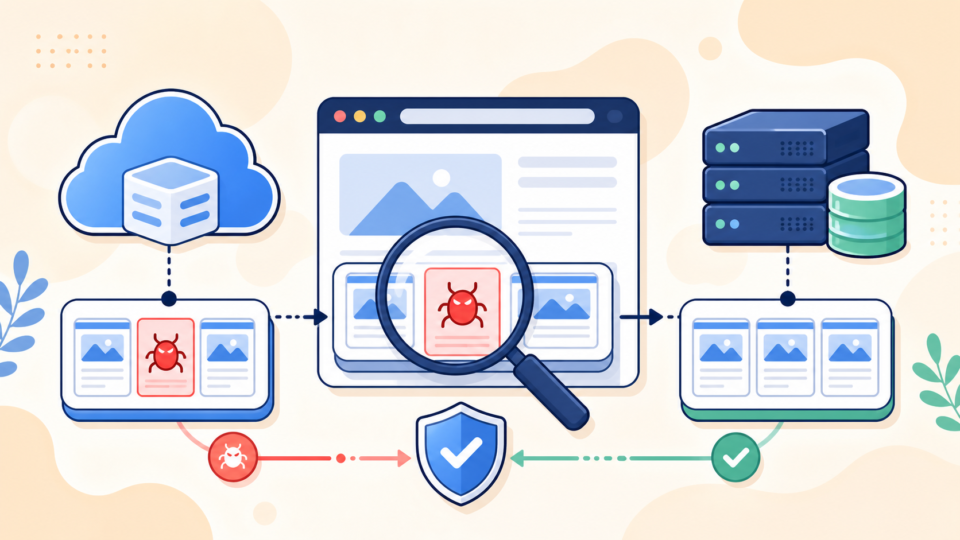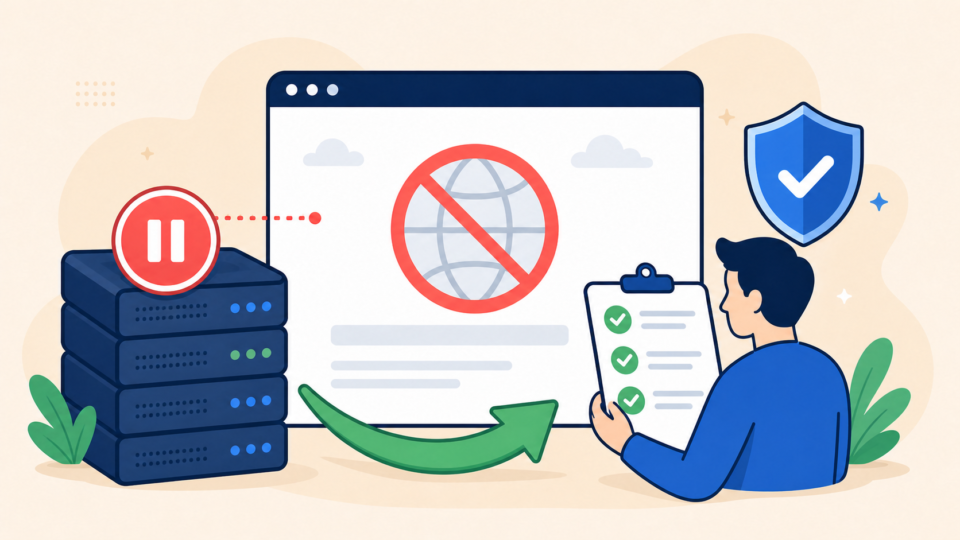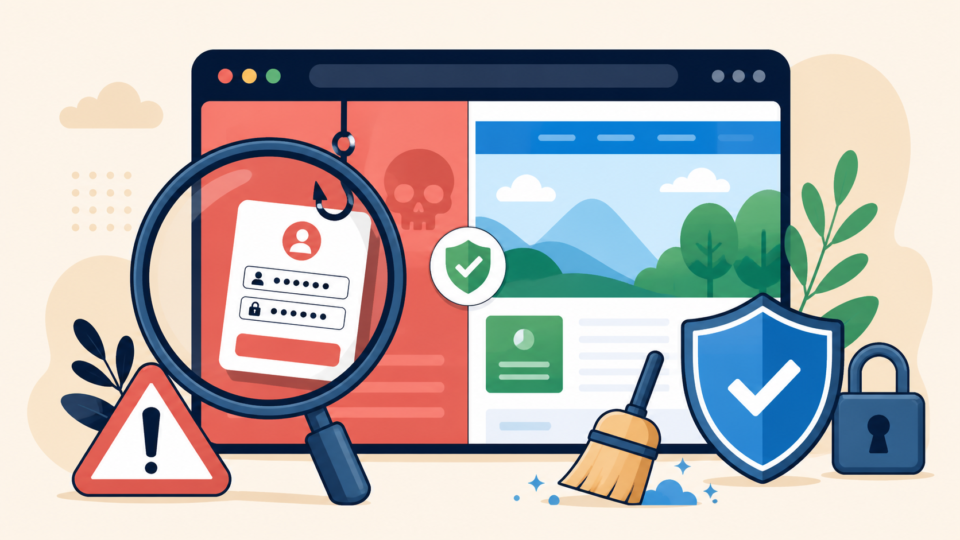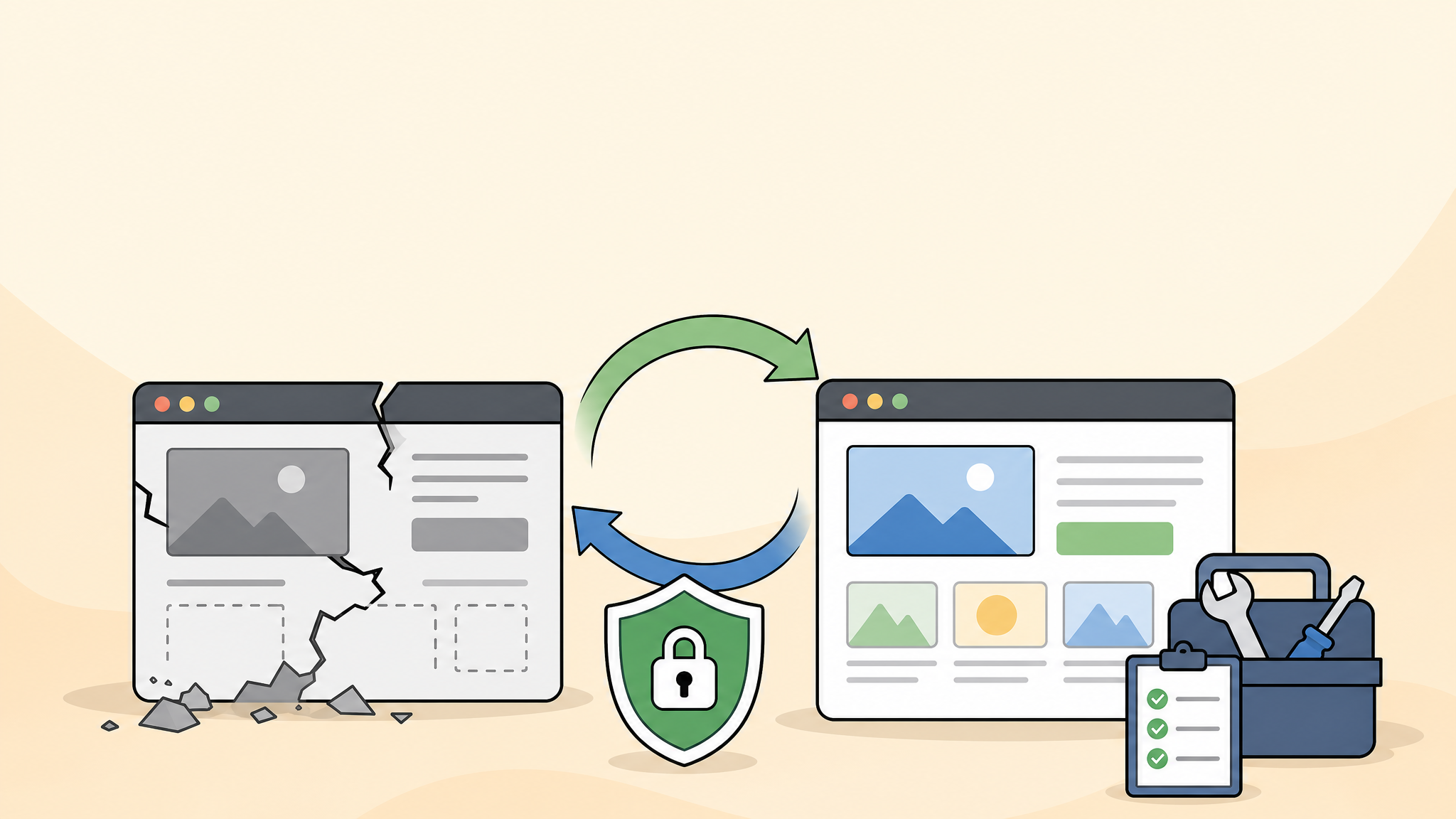
When a WordPress site suddenly breaks, every minute matters. Your homepage may be down, the admin dashboard may be inaccessible, or visitors may see a 500 error, 403 error, white screen, malware warning, or redirect to another website.
A WordPress recovery service helps you restore the site safely by finding the real cause first. The goal is not only to make the page load again, but also to prevent the same problem from returning.
 RyoheiYokoyama
I am Ryohei Yokoyama, an IT engineer with over 20 years of experience in WordPress, PHP, and website troubleshooting. I explain recovery steps from a practical point of view so site owners can avoid dangerous guesswork.
- What a WordPress recovery service actually does
- Which symptoms require urgent action
- The safest order to restore a broken WordPress site
- What information to prepare before requesting help
- How to reduce the risk of the same issue happening again
This guide is for business owners, web managers, and WordPress site owners who need a clear recovery path. If your site affects leads, sales, bookings, or customer trust, recovery should be handled carefully and quickly.
WordPress Recovery Service: What It Does
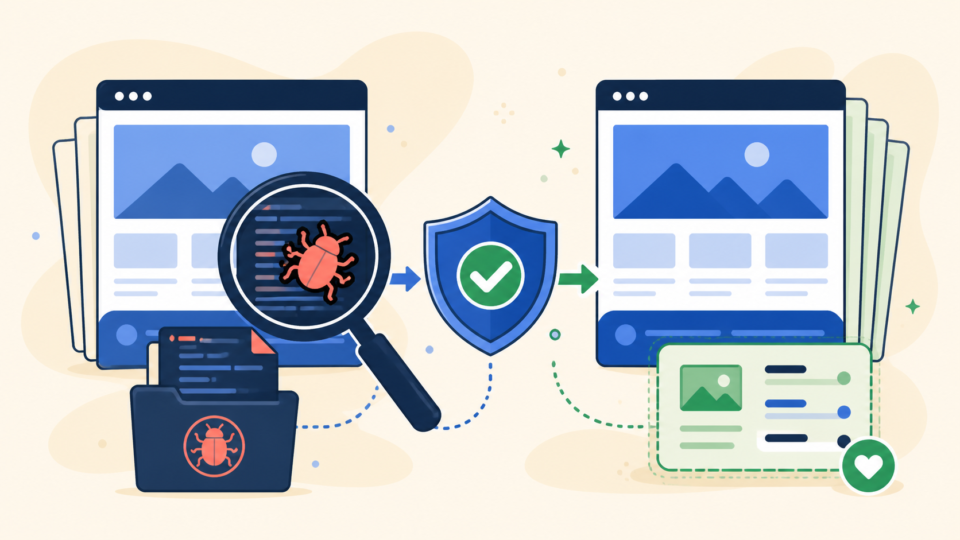
A WordPress recovery service identifies the cause of a broken site and restores it in the safest possible order. It is different from simply pressing “restore backup” or deleting a suspicious plugin.
WordPress problems often have several possible causes. A failed update, incompatible plugin, corrupted database, malware infection, server setting, or theme error can produce similar symptoms. Recovery starts by separating symptoms from the root cause.
Recovery is more than making the site visible again
A site can look fixed while the original problem remains. For example, a malware redirect may disappear after deleting one file, but a hidden backdoor can recreate the infection later.
A good recovery process protects data first
Before making changes, the current files and database should be preserved whenever possible. This protects evidence, prevents accidental loss, and makes it easier to roll back if a repair attempt creates a new issue.
- WordPress core files, plugins, and themes
- Database tables, site URL settings, and options
- Error logs, server settings, and PHP version
- Suspicious users, modified files, and malware traces
- Backups, restore points, and reinfection risks
WordPress Recovery Service: Signs You Need Help Fast
You should consider professional recovery when the site is down, visitors are affected, or the cause is unclear. The longer a business site stays broken, the more trust and search visibility can suffer.
Some issues are safe to test slowly. Others require immediate containment because they may expose visitors, damage SEO, or trigger hosting and browser warnings.
Urgent symptoms
Urgent symptoms include malware warnings, unknown redirects, blank pages, fatal errors, database connection errors, and admin login failure. These problems can block your ability to manage the site and may affect every visitor.
Business impact matters
A small blog can sometimes wait. A lead-generation site, e-commerce store, booking site, or company website usually cannot. If customers are seeing errors, recovery should be treated as a business priority.
- Visitors cannot open important pages
- The WordPress dashboard is inaccessible
- The site shows a 500 error, 403 error, or critical error
- The site redirects to suspicious pages
- Google, browsers, or hosting providers warn that the site is unsafe
- The same problem returns after temporary fixes
WordPress Recovery Service: Safe Restoration Steps
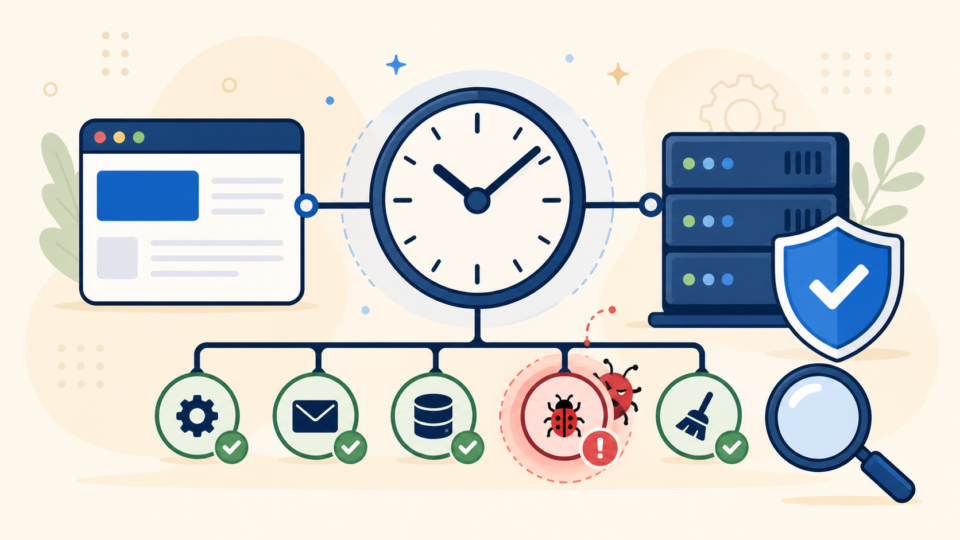
The safest restoration order is investigation, backup, isolation, repair, verification, and prevention. This order reduces the chance of losing data or hiding the real cause.
Many site owners start by disabling plugins one by one or replacing files randomly. That can work for simple conflicts, but it can also erase clues or make the site harder to diagnose.
Step 1: Record the current condition
Write down the error message, the affected URLs, what changed recently, and whether the problem appears for all users or only some users. Screenshots and timestamps are useful.
Step 2: Create a backup before repair
Even if the site is broken, create a copy of files and database before major changes. A broken backup is still valuable because it preserves the state needed for investigation.
Step 3: Repair the cause, not just the symptom
Once the cause is identified, repair it directly. That may mean replacing damaged files, removing malware, restoring clean database values, updating incompatible components, or adjusting server settings.
- Record symptoms and recent changes
- Back up the current files and database
- Check logs, plugins, themes, and database state
- Repair the confirmed cause
- Test the site from the visitor side and admin side
- Strengthen security and backup settings after recovery
WordPress Recovery Service: Common Problems It Can Fix
A WordPress recovery service can handle many types of site failure. The best approach depends on whether the issue is caused by code, database, server configuration, update failure, or malware.
The same symptom can have different causes. For example, a white screen may be caused by a PHP fatal error, memory limit, plugin conflict, theme issue, or incomplete update.
Errors and broken pages
Common repair cases include 500 Internal Server Error, 403 Forbidden, critical error messages, white screen, database connection errors, and broken layouts after updates.
Security and malware problems
Recovery may also include malware removal, redirect hack cleanup, suspicious user removal, backdoor detection, password reset, and post-cleanup monitoring.
- 500 Internal Server Error
- 403 Forbidden error
- White screen of death
- Fatal error or critical error
- Malware infection or redirect hack
- Failed WordPress, theme, or plugin update
- Database connection or database corruption issue
WordPress Recovery Service: What to Prepare Before Requesting Help
Recovery is faster when the necessary access information and background details are ready. You do not need to know the technical cause, but you should prepare the information that allows investigation to begin quickly.
If you are worried about security, send credentials through a secure method and change them after the work is completed. Do not post passwords in ordinary chat or public tickets.
Access information
The most useful access details are WordPress admin login, hosting control panel, FTP or SFTP, database access, and backup location. If you do not have all of them, start with what you have.
Timeline and symptoms
A simple timeline helps a lot. Note when the issue started, what was changed before it happened, and whether any plugin, theme, server, or WordPress update was performed recently.
- WordPress admin login if available
- Hosting control panel access
- FTP or SFTP access
- Database or phpMyAdmin access if available
- Backup information and restore point dates
- Screenshots of errors or warning messages
- A short timeline of recent changes
WordPress Recovery Service FAQ
WordPress Recovery Service Summary
A WordPress recovery service is most useful when a site is broken, infected, inaccessible, or business-critical. The right recovery process starts with investigation and backup, then repairs the root cause safely.
If you guess, delete files randomly, or restore an unknown backup, the problem can become worse. A careful recovery process protects your site, your data, and your visitors.
When downtime affects your business, the safest choice is to diagnose the issue quickly and restore the site in the right order.
If You Need a WordPress Recovery Service Now

If your WordPress site is broken, infected, redirected, or showing a critical error, SiteFixNow can help you investigate the cause and restore the site safely.
- WordPress site down or not loading
- 500 error, 403 error, fatal error, or white screen
- Malware infection, redirect hack, or suspicious files
- Broken dashboard, plugin conflict, or failed update
- Recovery planning when you are not sure what caused the issue