A suspected WordPress wp-settings.php hack is serious because this core file runs during almost every normal request. Replacing it immediately may bring the site back for a moment, but it can also erase evidence, leave the real loader untouched, or introduce a version mismatch that produces a critical error.
 RyoheiYokoyama
I’m Ryohei Yokoyama, founder of SiteFixNow. I’ve worked as an IT engineer for over 20 years and have handled many WordPress recovery, malware removal, hacked site repair, and security cleanup cases. In this article, I’ll explain how to inspect a suspicious wp-settings.php file without destroying evidence or breaking WordPress bootstrap.
- How to decide whether a wp-settings.php difference is malicious or only a version mismatch.
- How to preserve hashes, timestamps, logs, and the suspicious include target before cleanup.
- How to replace damaged core files without overwriting wp-content or wp-config.php.
- How to test for the process, account, or persistence layer that could change the file again.
WordPress wp-settings.php Hack Must Be Verified Against the Exact Core Release
The first conclusion is simple: treat a difference as suspicious, but do not call it malware until you compare it with the same WordPress version and locale. wp-settings.php is a legitimate bootstrap file with many required includes, so the presence of require statements alone proves nothing.
Use the installed version as the baseline, then obtain a clean package from an official source. If the version is uncertain, read it from wp-includes/version.php without executing the site. Do not compare a 6.x file with “the latest” package and assume every changed line is malicious.
php -r 'include "wp-includes/version.php"; echo $wp_version, PHP_EOL;'
sha256sum wp-settings.php
wp core verify-checksums --include-root
A checksum mismatch identifies a changed file; it does not identify the attacker or prove that the replacement is the only required repair. Follow the broader WordPress core file malware checksum workflow when several root, wp-admin, or wp-includes files differ.

WordPress wp-settings.php Evidence Comes Before Cleanup
Preserve evidence before you edit, delete, quarantine, or upload a clean file. The modified content, owner, permissions, timestamps, and nearby log entries may be the only clues that connect the symptom to a vulnerable plugin, stolen account, control-panel action, or server-level persistence mechanism.
stat wp-settings.php
sha256sum wp-settings.php
cp -p wp-settings.php /secure-evidence/wp-settings.php.suspect
find . -type f -newermt '2026-10-02 00:00:00' -ls
If the incident extends beyond one core file, use the files, database, and backdoor cleanup checklist to preserve a complete working set. Cleaning one visible file before inventorying the rest often hides the relationship between the loader and its payload.
WordPress wp-settings.php Unauthorized Includes Must Be Traced End to End
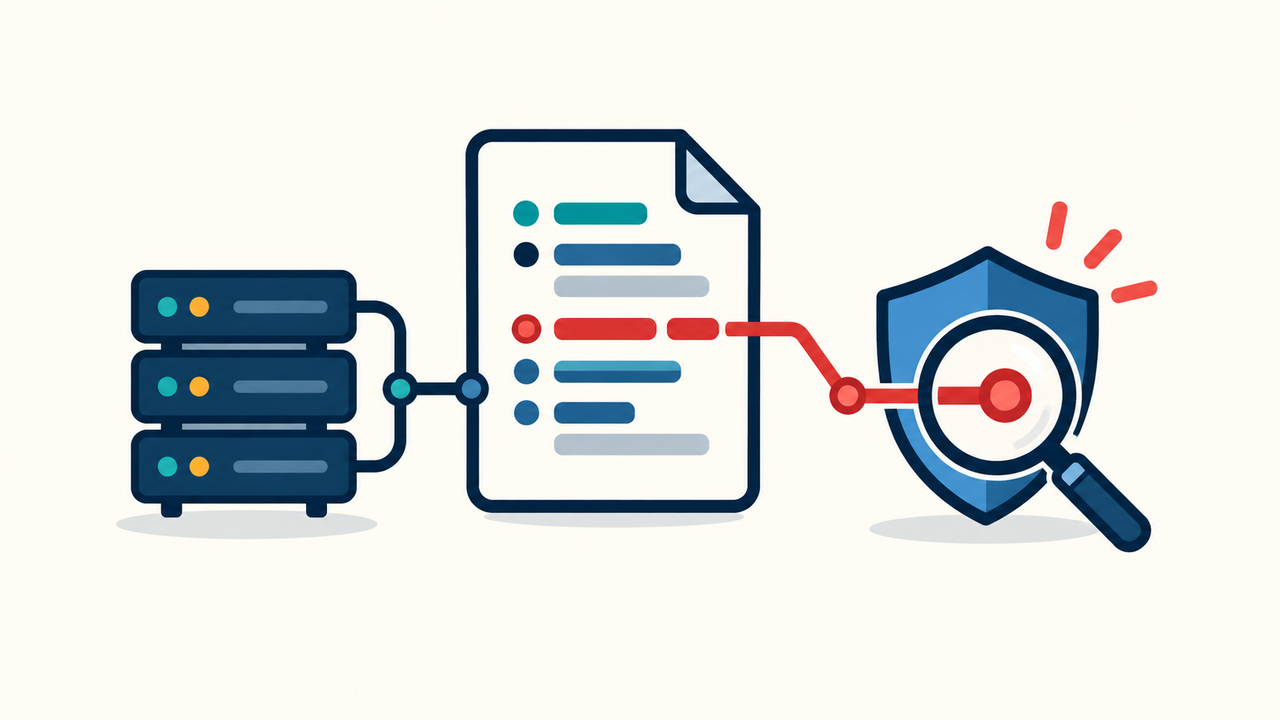
The correct response to an unknown include is to resolve the exact path and inspect the destination safely. Removing only the include line is incomplete if the payload remains executable, another loader references it, or a scheduled task adds the line back.
grep -nE '(require|include)(_once)?[[:space:]]*\\(' wp-settings.php
sed -n '1,220p' wp-settings.php
find . -type f -name '*.php' -print0 | xargs -0 grep -nF 'suspicious-loader.php'
Check code that runs before wp-settings.php
Follow the .user.ini malware inspection procedure when the changed core file returns immediately or when request behavior differs from the file you inspected. Also review .htaccess, web-server configuration, and PHP-FPM pool settings where access permits.
Check code that runs after core bootstrap
WordPress automatically loads must-use plugins before ordinary plugins, and those files may not appear on the normal Plugins screen. Compare the wp-content/mu-plugins inventory with deployment records and use the must-use plugin malware guide to trace unfamiliar loaders.
WordPress wp-settings.php Recovery Requires a Controlled Core Replacement
Once evidence is preserved and the dependency chain is understood, replace the compromised core from a trusted package that matches the installed release. A controlled core replacement is safer than hand-editing individual lines because it removes hidden changes elsewhere in core and provides a reproducible baseline.
Do not overwrite wp-content, wp-config.php, or user uploads as part of a generic core copy. Preserve site-specific configuration, verify backups, and test the replacement in a staging or maintenance context when possible. If the site is severely compromised, replace wp-admin, wp-includes, and root core files together.
php -l wp-settings.php
wp core verify-checksums --include-root
find wp-admin wp-includes -type f -name '*.php' -mtime -2 -print
Rotate WordPress administrator passwords, hosting and control-panel credentials, SFTP or SSH credentials, database credentials when exposure is plausible, and WordPress salts. Remove unknown administrators and application passwords. Patch or replace the vulnerable component before reconnecting normal traffic.
WordPress wp-settings.php Reinfection Must Be Tested After Restoration
The repair is not complete when the page loads once. Keep a known-good hash, monitor the file through multiple request types, and test front end, wp-admin, REST, login, WP-Cron, and a real scheduled interval. A delayed rewrite may appear only when a malicious task, visitor condition, or external controller activates.
Review WordPress scheduled events and the server’s system cron for unknown commands. The WordPress cron job malware procedure explains how to distinguish an unfamiliar schedule from the callback or command that actually performs the rewrite.
- The wp-settings.php hash remains equal to the trusted baseline.
- No quarantined payload or equivalent loader reappears.
- Core checksums, administrator accounts, application passwords, plugins, themes, drop-ins, and scheduled tasks are reviewed.
- Search, browser, and security warnings are addressed only after the site is technically clean.
Use the reinfection root-cause guide when the clean hash does not survive the observation window. Replacing the same file repeatedly is evidence that the writer still has a path into the account.
WordPress wp-settings.php Hack Frequently Asked Questions
WordPress wp-settings.php Recovery Summary
A WordPress wp-settings.php hack should be handled as a dependency-chain incident, not as a one-file editing task. Preserve the suspect file, compare it with the exact trusted release, trace every unauthorized include, and identify the component or account that could write the change.
If You Can’t Secure or Recover Your WordPress Site Yourself

If your website shows malware warnings, redirects to strange pages, or you are not sure whether it is secure,
SiteFixNow can help clean, repair, and recover your WordPress site.
- Your WordPress site may be infected with malware.
- Security warnings appear in Google or browser results.
- You found unknown admin users or suspicious files.
- The site redirects to spam or unknown websites.
- You need urgent WordPress hacked site repair.
- Reduce visitor risk and SEO damage.
- Find hidden malware and backdoors, not only visible symptoms.
- Recover the site safely without unnecessary data loss.