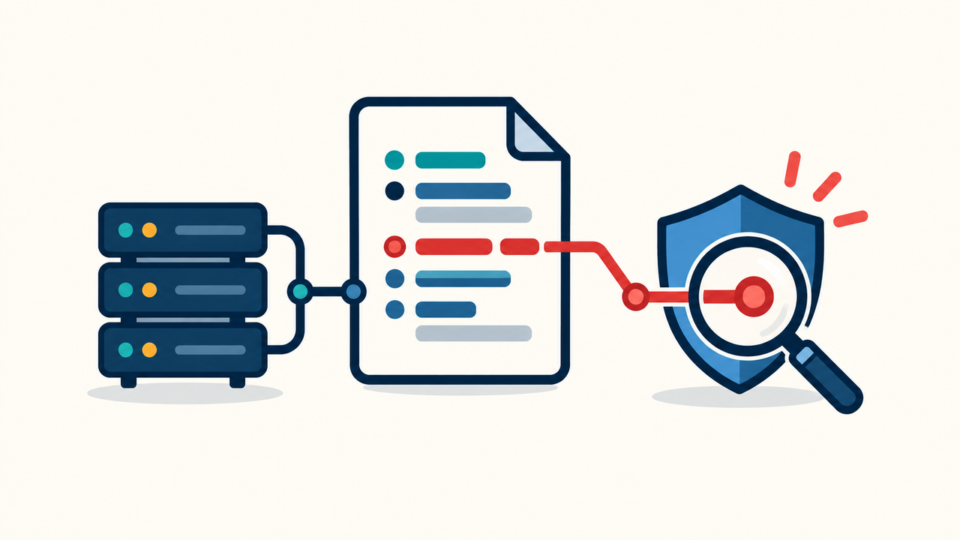
WordPress malware cleanup is not finished when the home page looks normal again. A hacked site can hide malicious PHP in files, spam scripts in the database, and small backdoors that quietly reopen the door after the visible infection is removed.
If your site shows browser warnings, redirects visitors, creates unknown admin users, or becomes infected again after a quick cleanup, you need a structured check of files, database records, and backdoor locations. This guide focuses on that practical inspection order.
 RyoheiYokoyama
I’m Ryohei Yokoyama, founder of SiteFixNow. I’ve worked as an IT engineer for over 20 years and have handled many WordPress recovery, malware removal, hacked site repair, and security cleanup cases. In this article, I’ll explain the file, database, and backdoor checks that help prevent reinfection.
- How to start WordPress malware cleanup without deleting useful evidence.
- Which file paths are most likely to contain malware or backdoors.
- Which database tables and options should be checked for injected scripts.
- How to verify that cleanup is complete before reopening the site fully.
WordPress Malware Cleanup Starts With a Safe Working Copy
The first step in WordPress malware cleanup is to preserve the current state and work from a controlled copy whenever possible. Do not begin by deleting random suspicious files on the live site.
The reason is simple: malware cleanup is partly repair work and partly investigation. If you remove files without a record, you may lose the clue that shows which plugin, account, upload form, or server credential was abused.
- Download all WordPress files, including hidden files such as
.htaccess. - Export the full database before changing tables or options.
- Save server access logs and error logs if your host provides them.
- Record the first date the problem appeared and the most recent plugin/theme updates.
- Put the site into maintenance mode or restrict access if visitors are being redirected.
A staging copy is ideal because you can inspect and replace files without risking more damage to the live site. If you must work directly on production, make a dated backup before each major change.
For a broader overview of cleanup order, compare this article with the SiteFixNow guide on how to clean an infected WordPress site safely.
WordPress Malware Cleanup File Checks: Core, Plugins, Themes, and Uploads
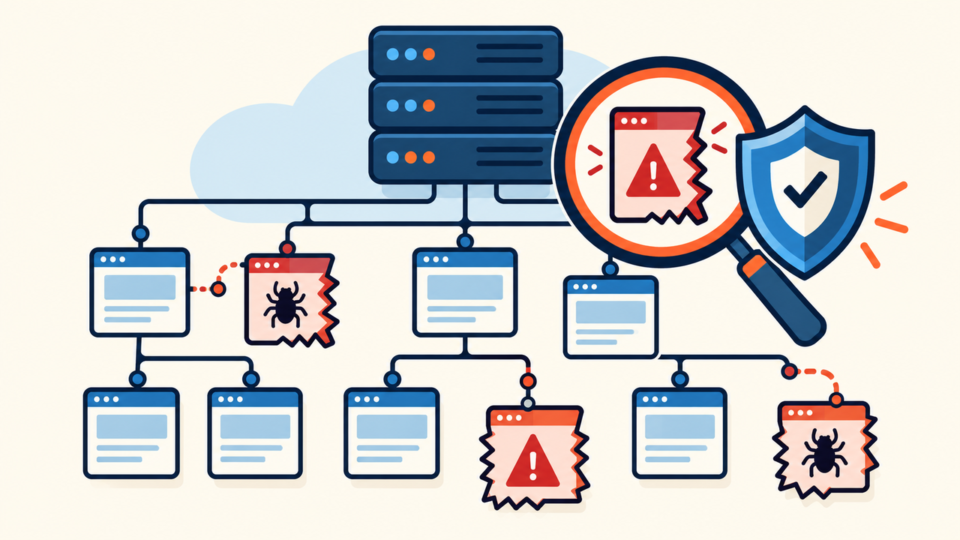
File checks should focus on locations where executable code can run or where attackers commonly hide files. Start with WordPress core, then move through plugins, themes, uploads, mu-plugins, cache folders, and configuration files.
This matters because many infections are not stored in one obvious file named “malware.php”. Attackers often use harmless-looking filenames, old plugin folders, nested upload directories, and tiny includes inside legitimate files.
wp-content/uploads/– should not normally contain executable PHP files.wp-content/plugins/– check unknown folders, abandoned plugins, and recently modified files.wp-content/themes/– inspectfunctions.php,header.php,footer.php, and unused themes.wp-content/mu-plugins/– loads automatically and is often missed during quick cleanups..htaccess,wp-config.php, and server-level config files.- Cache folders and backup folders that are publicly accessible.
If SSH access is available, search by modification date first. A cluster of files modified around the infection date is often more useful than a keyword scan alone.
find public_html -type f -mtime -14 -print
find public_html/wp-content/uploads -type f -name "*.php" -print
find public_html/wp-content -type f \( -name "*.php" -o -name "*.js" \) -mtime -14 -print
find public_html -type f -name ".htaccess" -print
These commands do not prove that every result is malicious. They show what deserves inspection. Look at the file path, modified date, ownership, surrounding code, and whether the file belongs to a known plugin or theme.
For file-specific cleanup examples, see what to check in wp-content and wp-config.php.
WordPress Malware Cleanup Database Checks: Options, Posts, Users, and Redirects
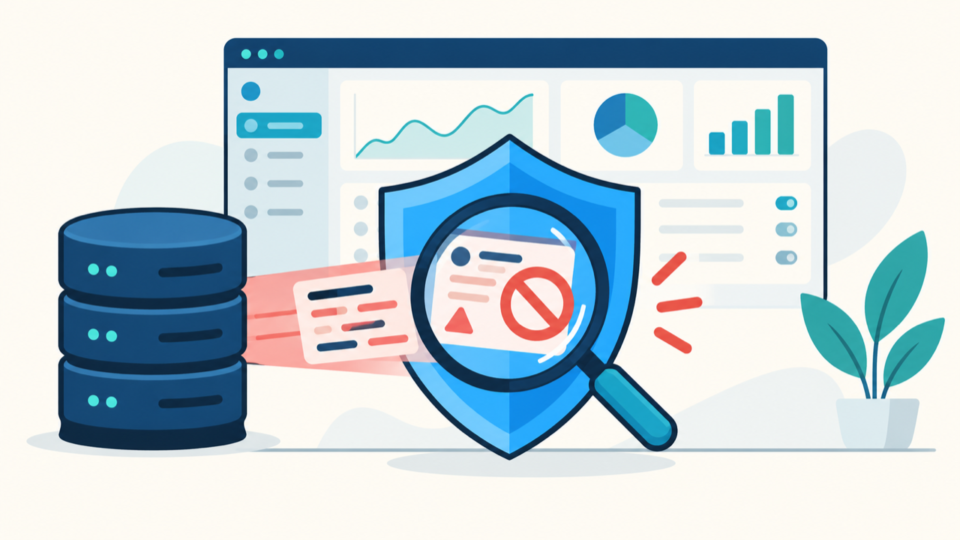
Database checks are essential because malware can be stored as content, options, users, widgets, or injected JavaScript. Cleaning files alone will not remove malicious records from the database.
Start with the tables that affect site behavior: wp_options, wp_posts, wp_users, wp_usermeta, and any plugin tables used for redirects, snippets, ads, forms, or page builders.
siteurlandhomeoption values.- Unknown administrator users and suspicious user email addresses.
- Injected
<script>,iframe, or encoded strings in posts and pages. - Unexpected redirects stored by SEO, redirect, or custom-code plugins.
- Autoloaded options containing long encoded payloads.
WP-CLI is useful for careful inspection. Replace the table prefix if your database does not use the default wp_ prefix.
wp option get siteurl
wp option get home
wp user list --role=administrator
wp db query "SELECT ID, post_title FROM wp_posts WHERE post_content LIKE '%<script%' LIMIT 20;"
wp db query "SELECT option_name FROM wp_options WHERE option_value LIKE '%base64%' LIMIT 20;"
Be careful with search results. Some legitimate plugins store serialized data, scripts, or encoded values. Before editing any database record, export the table and confirm that the value is truly malicious.
If the main symptom is unwanted redirection, also inspect the SiteFixNow guide on WordPress redirect hack cleanup.
WordPress Backdoor Checks: Hidden Access After Visible Malware Is Removed
Backdoor checks are the difference between a temporary cleanup and a durable recovery. A backdoor gives the attacker another path into the site after you delete the visible malware.
Backdoors can be PHP files in uploads, fake plugins, malicious mu-plugins, modified theme files, unknown admin users, stolen FTP credentials, cron jobs, or database records that re-create malicious files.
Common suspicious PHP functions include eval, base64_decode, gzinflate, str_rot13, assert, shell_exec, passthru, system, and remote include patterns. These functions are not always malicious, but they deserve review in unexpected files.
grep -R "base64_decode" public_html/wp-content --include="*.php"
grep -R "gzinflate" public_html/wp-content --include="*.php"
grep -R "eval(" public_html/wp-content --include="*.php"
grep -R "shell_exec" public_html/wp-content --include="*.php"
grep -R "assert(" public_html/wp-content --include="*.php"
Do not delete every match automatically. Some security, backup, and optimization plugins may use advanced functions legitimately. The risk is highest when the code appears in uploads, cache folders, random filenames, old themes, or unknown plugin directories.
// Suspicious examples to investigate
@include_once('/tmp/.cache/file.php');
require_once ABSPATH . 'wp-content/uploads/2026/07/system.php';
if (isset($_REQUEST['key'])) { eval($_REQUEST['key']); }
If you find a backdoor, remove the file or injected line only after you understand how it was placed there. Then reset credentials, update vulnerable components, remove unknown users, and review logs around the modified date.
For a deeper backdoor-focused workflow, read how to scan WordPress for malware and hidden backdoors.
WordPress Malware Cleanup Verification: Prove the Site Is Clean Enough to Reopen
Verification should confirm that the site is clean, stable, and no longer creating new suspicious files or database records. Do not rely only on the fact that the front page loads correctly.
After cleanup, clear every cache layer, then test the site from multiple paths: direct URL, Google-result entry, mobile user agent, important landing pages, login page, checkout/contact pages, and URLs that previously redirected.
- No unexpected redirects from desktop, mobile, or search-result entry points.
- No suspicious PHP files appear again in uploads or cache folders.
- No unknown administrator users or suspicious password-reset email addresses remain.
- Core, plugins, and themes are replaced or updated from trusted sources.
- Browser warnings and Google Search Console security issues are reviewed after cleanup.
- Fresh off-site backups are running before the site is fully reopened.
When a warning appears in Google or a browser, it may remain visible for a while after cleanup. Request a review only after file, database, user, and redirect checks are complete.
Once the site is clean, harden the environment. Reset passwords, disable unused accounts, remove abandoned plugins, turn off PHP execution in uploads where possible, and configure reliable backups. The SiteFixNow guide on securing WordPress after malware removal covers the next phase.
WordPress Malware Cleanup FAQ
WordPress Malware Cleanup Summary
WordPress malware cleanup should cover files, database records, and backdoors as one connected investigation. If you only remove the obvious infected file, you may leave the database payload or hidden access path that brings the infection back.
The safer order is to back up first, inspect high-risk file paths, review important database tables, search for backdoors carefully, replace compromised code from trusted sources, secure access, clear caches, and verify the site from several entry points before reopening it fully.
If the site is already redirecting visitors, showing malware warnings, or repeatedly reinfected, treat it as an urgent recovery task. A complete cleanup protects visitors, search visibility, and the trust of people who depend on your website.
If You Can’t Secure or Recover Your WordPress Site Yourself

If your website shows malware warnings, redirects to strange pages, or you are not sure whether it is secure,
SiteFixNow can help clean, repair, and recover your WordPress site.
- Your WordPress site may be infected with malware.
- Security warnings appear in Google or browser results.
- You found unknown admin users or suspicious files.
- The site redirects to spam or unknown websites.
- You need urgent WordPress hacked site repair.
- Reduce visitor risk and SEO damage.
- Find hidden malware and backdoors, not only visible symptoms.
- Recover the site safely without unnecessary data loss.