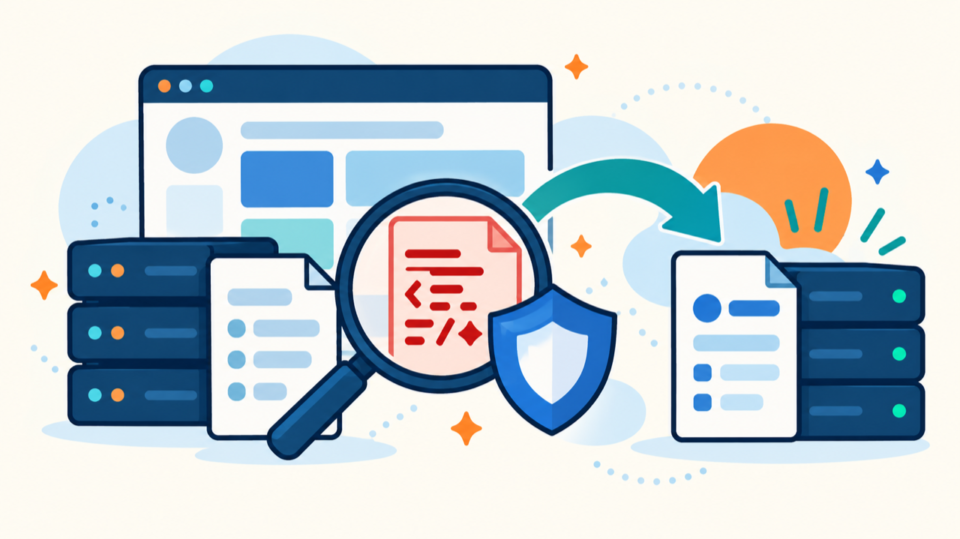
Securing WordPress after malware removal is the step that decides whether the cleanup actually lasts. A site can look clean on the homepage, pass a quick scan, and still become infected again if the original entry point, hidden backdoor, weak account, or vulnerable plugin remains in place.
If your WordPress site was recently cleaned, do not stop at “the warning disappeared.” The safer goal is to confirm what changed, remove persistence points, reset access, update the vulnerable parts, and monitor the site for signs of reinfection.
 RyoheiYokoyama
I’m Ryohei Yokoyama, founder of SiteFixNow. I’ve worked as an IT engineer for over 20 years and have handled many WordPress recovery, malware removal, hacked site repair, and security cleanup cases. In this article, I’ll explain how to secure WordPress after malware removal so the same infection does not come back quietly.
- What to check immediately after WordPress malware removal
- How to close the entry points that often cause reinfection
- Which files, users, plugins, and server settings deserve a second review
- How to build a practical monitoring routine after cleanup
Secure WordPress after malware removal by confirming what was actually cleaned
The first step is to confirm the scope of the cleanup. If you do not know which files were infected, which users were compromised, or how the attacker entered, you cannot know whether the site is secure. A malware removal report that only says “cleaned” is not enough for a business site.
This matters because many reinfections are not brand-new attacks. They are the same attack returning through an old admin account, a writable upload folder, a malicious must-use plugin, a modified .htaccess rule, or a vulnerable plugin that was left active after the visible malware was removed.
- Which infected files, database entries, or users were found
- Whether the original entry point was identified
- Whether WordPress core, plugins, themes, and server software were updated
- Whether all passwords and access keys were reset after cleanup
- Whether Google Search Console or hosting security warnings still remain
If you cleaned the site yourself, create a simple cleanup log before moving on. Record suspicious paths, removed users, plugin changes, database changes, and warnings that existed before cleanup. This gives you something to compare if the same symptom returns.
Cleanup date:
Known symptoms:
- Browser warning
- Redirect on mobile
- Unknown admin user
- Hosting malware report

Files or locations changed:
- wp-config.php
- .htaccess
- wp-content/uploads/
- wp-content/mu-plugins/
- wp-content/themes/active-theme/functions.php

Access reset:
- WordPress admin passwords
- Hosting control panel password
- SFTP/FTP passwords
- Database password
- API keys or SMTP credentials
For a wider cleanup overview, see the related guide on WordPress malware removal for infected sites. After that, use this article as the hardening checklist.
Reset every access path, not only the WordPress admin password
After malware removal, password resets should be broad. Changing only your WordPress login password can leave hosting, SFTP, database, email, SMTP, or API access exposed. If the attacker used one of those paths, the site may be modified again without touching the WordPress login screen.
The point is not to blame one account. The point is to remove every reusable credential that may have been seen during the compromise. Passwords, application passwords, FTP accounts, database users, and old contractor accounts all deserve review.
- Reset passwords for every WordPress administrator
- Remove unknown, inactive, or unnecessary administrator users
- Reset hosting control panel, SFTP, FTP, SSH, and database passwords
- Revoke WordPress application passwords and unused API keys
- Enable two-factor authentication for administrator accounts
In WordPress, check Users > All Users and look for unfamiliar administrators, unusual email addresses, recent account changes, or display names that do not match real people. If you use application passwords, review them under each user profile and revoke anything unnecessary.
Check in wp-admin:
Users > All Users
Users > Profile > Application Passwords
Settings > General > Administration Email Address
Plugins > Installed Plugins
Tools or security plugin audit logs

Also check outside WordPress:
Hosting control panel users
SFTP/FTP accounts
SSH keys
Database users
SMTP or mail service API keys
If you were locked out during the attack, review WordPress hacked site repair as well, because account takeover often requires more than a simple password reset.
Review the files that commonly cause WordPress malware reinfection
To secure WordPress after malware removal, you need a second review of persistence locations. These are places where malicious code can survive a superficial cleanup, load automatically, or recreate deleted files. The most important locations are wp-config.php, .htaccess, wp-content/uploads, wp-content/mu-plugins, active theme files, and abandoned plugin folders.
The reason these locations are risky is simple: they either run early, are writable, affect every request, or are easy to overlook. A file that looks harmless in uploads can be a web shell. A tiny include line in wp-config.php can load malware before the theme appears. A must-use plugin can run even when it is not visible in the normal plugin list.
wp-content/uploads/should not contain executable PHP fileswp-content/mu-plugins/loads automatically and is often missed.htaccesscan hide conditional redirect ruleswp-config.phpcan include unfamiliar files or remote code- Theme
functions.php,header.php, andfooter.phpcan inject scripts sitewide
Check .htaccess for redirects and hidden conditions
A normal WordPress .htaccess file is usually short. After malware removal, compare it with a clean baseline and pay attention to rules that check mobile visitors, search engine referrers, cookies, or unknown domains.
# A basic WordPress rewrite block usually looks like this.
# Unknown redirect rules above or below this block should be reviewed.
<IfModule mod_rewrite.c>
RewriteEngine On
RewriteRule .* - [E=HTTP_AUTHORIZATION:%{HTTP:Authorization}]
RewriteBase /
RewriteRule ^index\.php$ - [L]
RewriteCond %{REQUEST_FILENAME} !-f
RewriteCond %{REQUEST_FILENAME} !-d
RewriteRule . /index.php [L]
</IfModule>
Check wp-config.php for unfamiliar includes
Your wp-config.php file should mostly contain database settings, salts, the table prefix, and WordPress constants. After cleanup, look for unexpected include, require, eval, encoded strings, remote URL loading, or references to files outside the WordPress root.
// Helpful security hardening after cleanup:
define('DISALLOW_FILE_EDIT', true);
define('WP_DEBUG_DISPLAY', false);

// During investigation only, use logging instead of public error display:
define('WP_DEBUG', true);
define('WP_DEBUG_LOG', true);
define('WP_DEBUG_DISPLAY', false);
Do not leave debugging enabled forever on a production site. Use it to investigate errors, then turn off public error output so file paths and warnings are not exposed to visitors.
For more file-level cleanup details, see WordPress malware infection recovery and use those checks before assuming the site is finished.
Update plugins, themes, and WordPress core in a controlled order
Updates are essential after malware removal, but they should be done carefully. If the site is fragile, updating everything at once can hide the original problem or create a new outage. A controlled order gives you security improvements without losing the ability to troubleshoot.
Start with a backup. Then remove unused plugins and themes, update WordPress core, update the active theme and necessary plugins, test the site, and clear cache. If a plugin was the likely entry point and has no trustworthy update, replace it instead of keeping it active.
- Take a current backup of files and database
- Remove unused plugins, themes, and abandoned custom code
- Update WordPress core from the official dashboard or trusted source
- Update active theme and required plugins one group at a time
- Test login, forms, checkout, search, redirects, and important landing pages
Pay special attention to plugins that handle file uploads, forms, membership, page builders, backups, redirects, ads, analytics, SMTP, and custom code snippets. These plugins often have broad permissions and can become high-impact entry points when outdated or misconfigured.
For each plugin, record:
Plugin name:
Purpose:
Last updated:
Still needed? yes/no
Known vulnerability? yes/no/unknown
Replacement needed? yes/no

Remove plugins that are inactive, abandoned, duplicated, or no longer trusted.
If you are not sure where to begin with hardening basics, the WordPress security checklist for beginners gives a simpler sitewide foundation.
Harden uploads, file editing, permissions, and backups after cleanup
After a malware incident, hardening should reduce the attacker’s ability to write, execute, and hide files. You do not need extreme settings that break the site. You need practical controls that fit WordPress: clean uploads, disabled dashboard file editing, limited writable areas, reliable backups, and separate backup storage.
The key idea is recovery resilience. If the site is attacked again, you want to know quickly, limit damage, and restore from a clean point. Backups stored only inside the same hosting account may be deleted or infected during the next compromise.
- Disable theme and plugin file editing from the dashboard
- Prevent PHP execution inside uploads where your host allows it
- Store backups outside the same hosting account
- Remove old ZIP files, test copies, and forgotten backup folders
- Set alerts for file changes, login attempts, uptime, and malware warnings
Some hosts let you block PHP execution in uploads with an .htaccess file. Test carefully because server behavior varies. If this breaks legitimate functionality, remove the rule and ask your host for the safest equivalent.
# Apache example: block PHP execution in uploads.
# Test before relying on this rule because hosting environments vary.
<FilesMatch "\.php$">
  Require all denied
</FilesMatch>
Also search for old installation folders, staging copies, exported databases, and ZIP backups inside public directories. Attackers often look for forgotten files such as backup.zip, old-site/, test/, phpinfo.php, and database exports.
Look for public leftovers such as:
backup.zip
site-backup.tar.gz
database.sql
old/
test/
staging/
phpinfo.php
wp-config.php.bak
wp-config-old.php

Move required backups outside public web folders.
Monitor for reinfection before requesting final security review
Monitoring is the final part of securing WordPress after malware removal. Even after a careful cleanup, you should watch the site for at least several days. Reinfection may happen only when a scheduled task runs, when a visitor arrives from Google, or when the attacker returns to a still-valid credential.
Before requesting a Google review or telling customers everything is finished, confirm that the site behaves normally from a logged-out browser, mobile device, and search result. Check server logs, Search Console, malware scan results, and file change alerts.
- Browse the site logged out, on mobile, and from a private window
- Check Search Console security issues, pages, and manual actions
- Review hosting access logs for requests to suspicious PHP files
- Scan files again after cache is cleared and updates are complete
- Watch for new unknown admin users, files, redirects, or warnings
Useful places to monitor:
Google Search Console > Security issues
Google Search Console > Pages
Hosting control panel > Access logs
Hosting control panel > Error logs
Security plugin scan history
wp-content/uploads/
wp-content/mu-plugins/
WordPress Users > All Users
If your site had redirects, test from Google results and a mobile device because redirect malware often targets visitors differently from logged-in administrators. The guide on WordPress redirect hack fixes explains why conditional redirects are easy to miss.
Do not request a final warning review until the cleanup, access reset, updates, hardening, and monitoring checks are complete. If the same malware returns after review, the site can lose more trust with search engines and visitors.
FAQ about securing WordPress after malware removal
Summary: Secure WordPress after malware removal before you call the site clean
Malware removal is only the first half of recovery. The second half is making sure the same problem does not return through a hidden file, weak credential, abandoned plugin, or missed server setting.
To secure WordPress after malware removal, confirm what was cleaned, reset every access path, review high-risk files, update carefully, harden writable areas, move backups out of public folders, and monitor the site before requesting final review. This extra work is what turns a temporary cleanup into a safer recovery.
If You Can’t Secure or Recover Your WordPress Site Yourself

If your website shows malware warnings, redirects to strange pages, or you are not sure whether it is secure,
SiteFixNow can help clean, repair, and recover your WordPress site.
- Your WordPress site may be infected with malware.
- Security warnings appear in Google or browser results.
- You found unknown admin users or suspicious files.
- The site redirects to spam or unknown websites.
- You need urgent WordPress hacked site repair.
- Reduce visitor risk and SEO damage.
- Find hidden malware and backdoors, not only visible symptoms.
- Recover the site safely without unnecessary data loss.