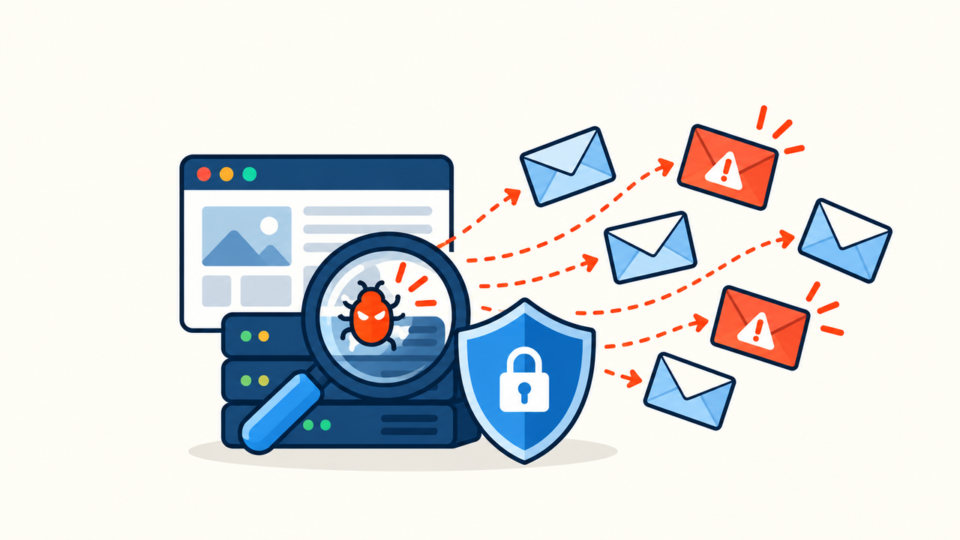
For a small business, WordPress malware is not only a technical problem. It can stop inquiries, damage search visibility, scare customers with browser warnings, and create cleanup costs that grow every hour the infection stays online.
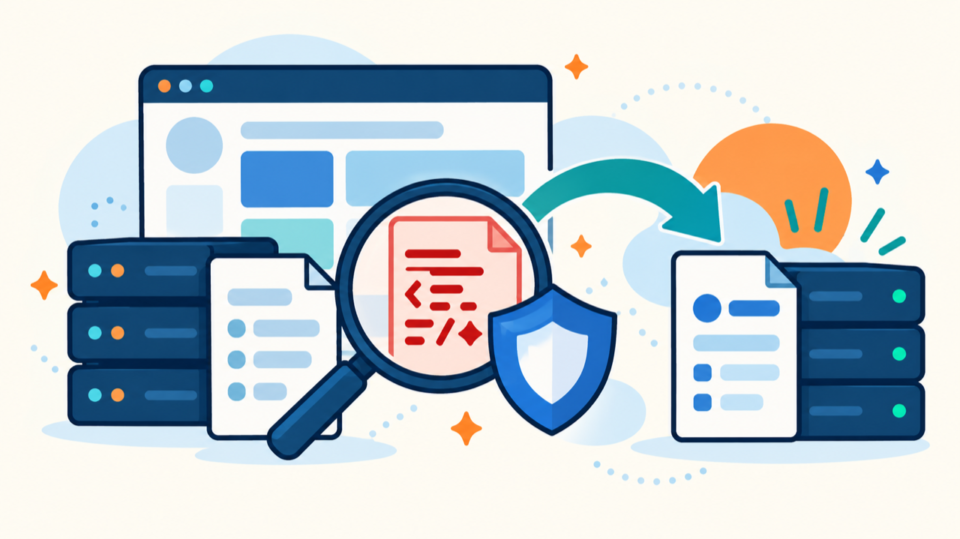
The safest WordPress malware removal method is the one that removes the visible symptom, finds the original entry point, and protects the site from the same attack coming back.
 RyoheiYokoyama
SiteFixNow is led by Ryohei Yokoyama, an IT engineer with 20+ years of experience in WordPress recovery, hacked site repair, malware cleanup, and practical security support for business websites.
- Which WordPress malware removal methods are safest for small business sites.
- How to prepare backups, logs, and access before cleanup.
- Where malware often hides in WordPress files and database content.
- When DIY cleanup is reasonable and when professional recovery is safer.
WordPress Malware Removal Should Start With Evidence, Not Guesswork
The first method is not a scanner, a plugin, or a file delete. It is evidence collection.
Small business owners often begin by deleting strange files they find in wp-content. That may remove one symptom, but it can also destroy clues about how the attacker entered the site. If the entry point remains open, the same malware can reappear within hours.
Start by collecting the current state of the website. Save a copy of the files, export the database, record active plugins, and download recent server logs if your hosting control panel provides them.
- A full file backup from the hosting file manager or SFTP.
- A database export from phpMyAdmin or your hosting backup tool.
- A list of active plugins, themes, and WordPress version.
- Recent access logs and error logs, usually available in the hosting control panel.
- Security warnings from Google Search Console, browsers, or your malware scanner.
If you are still confirming the infection, compare your symptoms with our guide to WordPress malware infection recovery and the warning signs explained in WordPress malware removal for infected sites.
Method 1: Restore From a Known-Clean Backup
The safest method is restoring a known-clean backup, then closing the vulnerability that allowed the attack.
This is the best option when you know exactly when the site was infected and you have backups from before that date. For a brochure site, restaurant site, clinic site, or small company website with limited daily changes, a clean restore can be faster and safer than manually editing hundreds of suspicious files.
However, restoring a backup without hardening the site is not enough. If the malware entered through an outdated plugin, weak admin password, abandoned theme, or writable upload folder, the site may be compromised again.
- Confirm the backup date is before the first suspicious activity.
- Restore files and database together when possible.
- Update WordPress core, plugins, and themes immediately after restore.
- Reset all administrator, hosting, FTP/SFTP, and database passwords.
- Scan again after restore to confirm the infection is gone.
If your website broke after a plugin or theme incident, the recovery flow in recovering a WordPress site after a plugin or theme crash may also help you choose a safer restore point.
Method 2: Replace Core WordPress Files Safely
When malware has modified WordPress core files, replacing the core files with a fresh official copy is often safer than trying to repair each file manually.
WordPress core files are not supposed to contain custom business content. Your pages, uploads, themes, plugins, and settings live elsewhere. That means you can often replace core folders such as wp-admin and wp-includes with a clean copy of the same WordPress version.
Do not blindly overwrite wp-content or wp-config.php. Those locations need inspection because they contain site-specific data.
Safe to replace from a clean WordPress package:
wp-admin/
wp-includes/
root WordPress files such as wp-login.php, wp-settings.php, wp-load.php

Inspect carefully instead of blindly replacing:
wp-content/
wp-config.php
.htaccess
This method works well when a scanner reports infected files in WordPress core. It does not solve malware hidden inside themes, plugins, uploads, database entries, or fake administrator accounts.
Method 3: Scan and Clean wp-content, Plugins, Themes, and Uploads
The highest-risk cleanup area is wp-content, because it contains both legitimate business assets and common malware hiding places.
Small business sites often have years of uploaded files, old themes, inactive plugins, and forgotten backup folders. Attackers use these areas because they are writable and less likely to be inspected manually.
Look for PHP files inside uploads, recently modified plugin files, unknown folders, suspicious filenames, and code that hides itself with encoding or remote loading.
Common suspicious signs:
wp-content/uploads/2026/06/index.php
wp-content/uploads/.cache/
wp-content/plugins/old-plugin/tmp.php
wp-content/themes/unused-theme/functions.php with unknown code
Files modified around the same time as the first warning

Common suspicious code patterns:
eval(
base64_decode(
gzinflate(
str_rot13(
shell_exec(
file_get_contents("http
Patterns are clues, not automatic proof. Some legitimate plugins use encoded code or external requests. Always compare suspicious files against a fresh plugin or theme download when possible.
Focus first on files that affect visitors and search engines: redirects, injected scripts, fake landing pages, spam pages, and infected theme or plugin files.
Then remove hidden persistence methods such as unknown admin users, cron jobs, modified .htaccess rules, and backdoor PHP files.
For deeper file-level cleanup examples, see WordPress file infection cleanup in wp-content and wp-config.php.
Method 4: Check .htaccess, wp-config.php, and Server Redirect Rules
Redirect malware often hides outside ordinary page content. That is why a WordPress site can look normal to the owner while visitors from search engines are sent to spam pages.
Check .htaccess, wp-config.php, hosting redirect settings, and CDN rules. Attackers may add conditional redirects that only trigger for Google, mobile visitors, or first-time users.
# Typical clean WordPress .htaccess structure
# Custom hosting rules may differ, so back up before editing.

# BEGIN WordPress
<IfModule mod_rewrite.c>
RewriteEngine On
RewriteRule .* - [E=HTTP_AUTHORIZATION:%{HTTP:Authorization}]
RewriteBase /
RewriteRule ^index\.php$ - [L]
RewriteCond %{REQUEST_FILENAME} !-f
RewriteCond %{REQUEST_FILENAME} !-d
RewriteRule . /index.php [L]
</IfModule>
# END WordPress
If you find unfamiliar redirect rules before or after the WordPress block, do not delete them without saving a copy. Some hosting environments add legitimate HTTPS or canonical redirect rules, but malware often uses the same file.
If your visitors are being redirected to strange pages, compare your symptoms with WordPress redirect hack fix.
Method 5: Clean the Database and Remove Hidden Backdoors
File cleanup is only part of WordPress malware removal. Many infections also place malicious content in the database.
Common database targets include posts, pages, widgets, options, administrator accounts, and plugin settings. A small business site may have only a few public pages, so database injections can sometimes be found by searching for unfamiliar script tags, iframe tags, pharmaceutical spam, casino terms, or strange domains.
-- Run only after creating a database backup.
-- Replace wp_ if your table prefix is different.

SELECT ID, post_title
FROM wp_posts
WHERE post_content LIKE '%<script%'
   OR post_content LIKE '%iframe%'
   OR post_content LIKE '%base64%';

SELECT option_name
FROM wp_options
WHERE option_value LIKE '%<script%'
   OR option_value LIKE '%iframe%'
   OR option_value LIKE '%base64%';
Also review administrator users. Unknown admin accounts, unfamiliar email addresses, and recently created users are serious warning signs.
- Unknown administrator accounts.
- PHP files hidden inside uploads folders.
- Modified theme
functions.phpfiles with unfamiliar code. - Suspicious scheduled tasks or cron events.
- Old inactive plugins and themes that are no longer maintained.
Backdoors are the main reason a site looks clean for a few days and then becomes infected again. Removal is not complete until persistence methods are gone.
Method 6: Harden the Site After Malware Removal
The final method is prevention. After cleanup, hardening is what turns a temporary repair into a safer recovery.
For small businesses, the goal is practical security rather than complex enterprise controls. Update everything, remove what you do not use, lock down administrator access, schedule backups, and monitor the site for changes.
- Update WordPress core, plugins, and themes.
- Delete unused plugins, unused themes, old ZIP files, and abandoned backups.
- Reset WordPress, hosting, database, FTP/SFTP, and email passwords.
- Enable two-factor authentication for administrator accounts.
- Set up scheduled off-site backups.
- Submit a review request in Google Search Console after warnings are cleared.
For a fuller post-cleanup checklist, use how to secure WordPress after malware removal.
When Should a Small Business Avoid DIY Malware Removal?
DIY cleanup can work when the site is simple, the infection is limited, and you have a reliable backup. But it is risky when the site handles sales, bookings, memberships, personal data, or active advertising traffic.
Ask for help early if the site redirects visitors, Google shows security warnings, your admin account is locked out, malware keeps returning, or you are unsure which files are safe to delete.
If you are comparing whether to handle cleanup yourself or get help, see when a website malware removal service is worth it.
FAQ About WordPress Malware Removal for Small Business Websites
Summary: Choose the Safest Method for Your Business Risk
The best WordPress malware removal method depends on the site’s risk level, backup quality, infection depth, and business impact.
For many small business websites, the safest path is to preserve evidence, restore from a clean backup when available, replace corrupted core files, inspect wp-content, clean database injections, remove backdoors, and harden the site before returning to normal operation.
If the site is generating leads, taking bookings, running ads, or showing security warnings, do not treat cleanup as a casual plugin task. A careful recovery can protect revenue, trust, and search visibility.
If You Can’t Secure or Recover Your WordPress Site Yourself

If your website shows malware warnings, redirects to strange pages, or you are not sure whether it is secure,
SiteFixNow can help clean, repair, and recover your WordPress site.
- Your WordPress site may be infected with malware.
- Security warnings appear in Google or browser results.
- You found unknown admin users or suspicious files.
- The site redirects to spam or unknown websites.
- You need urgent WordPress hacked site repair.
- Reduce visitor risk and SEO damage.
- Find hidden malware and backdoors, not only visible symptoms.
- Recover the site safely without unnecessary data loss.