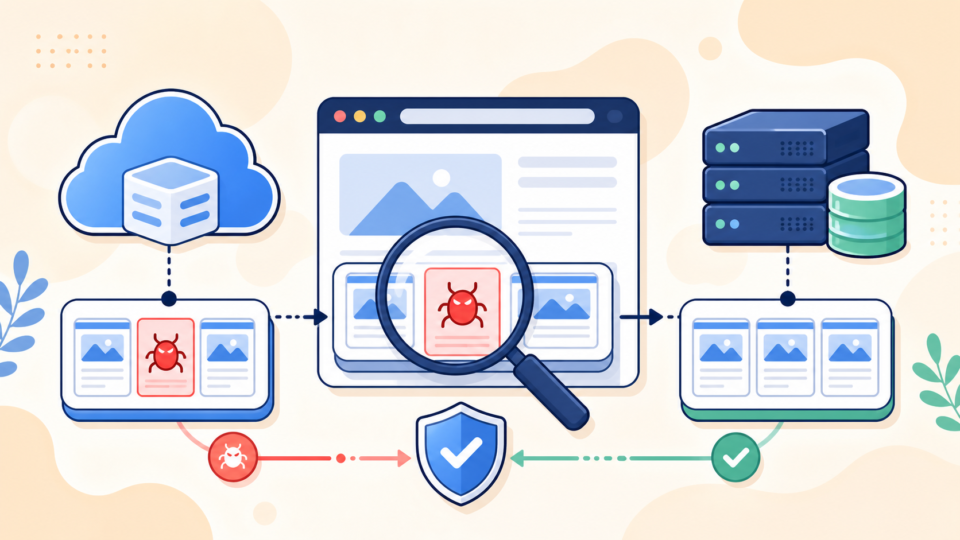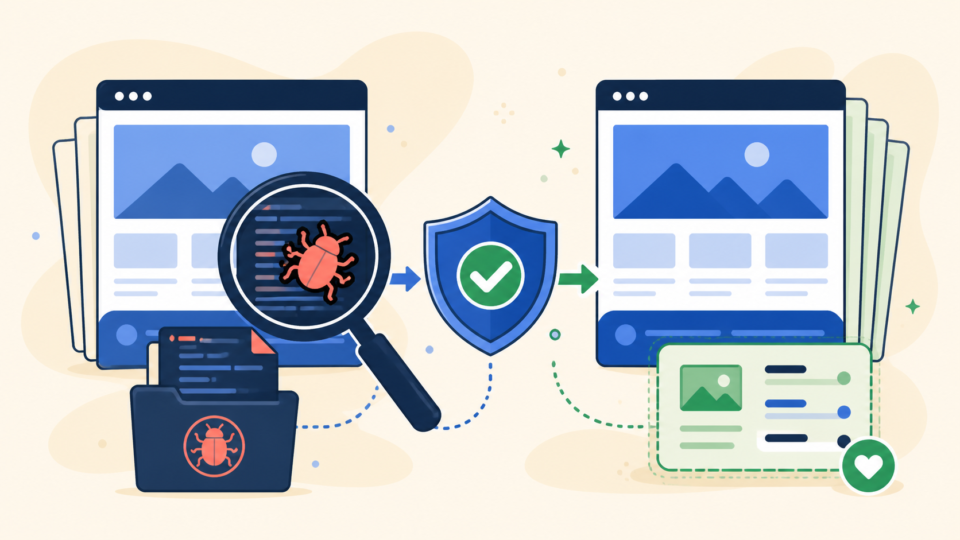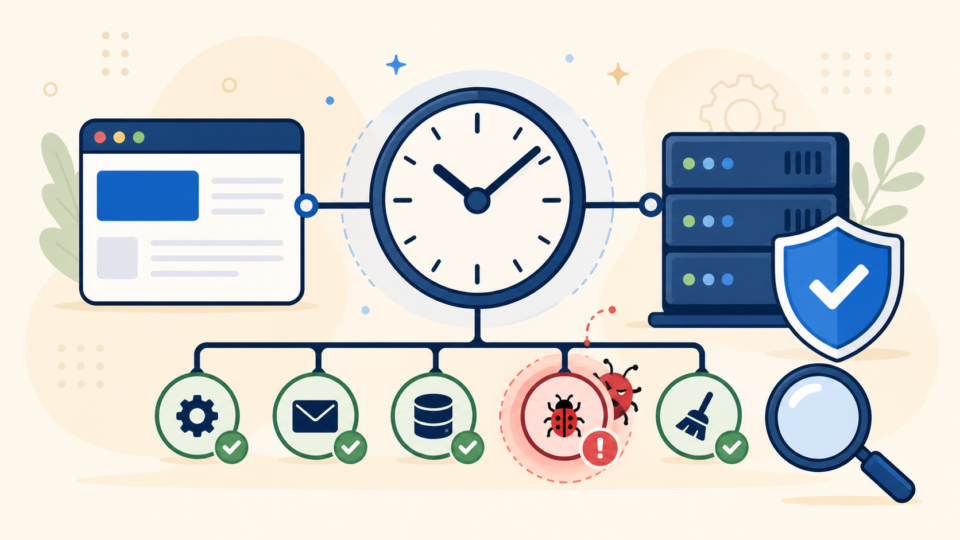
If you suspect your WordPress site has been hacked, scanning it properly is one of the safest first steps. A good scan helps you see whether the problem is limited to one infected plugin, a fake admin account, a malicious redirect script, or a deeper backdoor hidden in files you rarely check.
The problem is that many site owners either trust one plugin scan too much or start deleting files before they understand what is infected. Both mistakes can make recovery harder. In this guide, I will show you how to scan WordPress for malware and hidden backdoors in a practical way, what locations matter most, and what to do after you find suspicious results.
 RyoheiYokoyama
I’m Ryohei Yokoyama, founder of SiteFixNow. I’ve worked as an IT engineer for over 20 years and have handled many WordPress malware removal, hacked site repair, hidden backdoor cleanup, and recovery cases. In this article, I’ll explain the safest places to inspect and how to separate real infection clues from normal WordPress changes.
- Where WordPress malware and hidden backdoors usually hide
- How to scan files, users, and database clues without damaging the site
- What suspicious code patterns and rogue changes often look like
- What to do after a scan confirms malware or a backdoor
Why scanning WordPress for malware should come before random cleanup attempts
The first point is simple: scan before you start deleting. If you remove the wrong plugin, overwrite the wrong theme, or clear evidence too early, you can break the site and make it harder to identify how the infection got in.
A useful malware scan gives you a map of the problem. It helps you see whether the issue is limited to redirects, suspicious users, injected PHP in wp-content/uploads, modified core files, or a hidden script that keeps reinfecting the site. That context matters because WordPress malware removal is not just about deleting obvious junk. It is also about finding the persistence method that lets attackers come back.
- Confirm whether the infection is real, partial, or widespread
- Identify suspicious files, users, database entries, or redirects
- Preserve enough evidence to clean the site without guessing
- Reduce the chance of reinfection by finding the hidden entry point
If your site is already redirecting visitors or showing browser warnings, also read WordPress Redirect Hack Fix and WordPress Malware Removal: How to Clean an Infected Site Safely. Scanning and cleanup often need to happen together once the damage is active.
The WordPress file locations you should scan first for malware and backdoors
The best place to start is not everywhere at once. It is the set of locations attackers abuse most often because they are writable, rarely reviewed, or easy to hide in. That is why experienced cleanup work starts with a short list of high-risk paths.
Backdoors are often placed where site owners do not expect executable code. A fake image uploader, an obfuscated PHP file inside uploads, a quietly modified wp-config.php, or a loader script inside mu-plugins can all keep malware alive even after a visible plugin is removed.
wp-config.php
.htaccess
wp-content/plugins/
wp-content/themes/
wp-content/mu-plugins/
wp-content/uploads/
wp-content/debug.log
server error logs- wp-config.php: attackers may inject remote includes, hidden redirects, or changed debug and security settings
- .htaccess: redirect rules and conditional malware behavior often appear here
- uploads: this folder should not normally contain executable PHP files
- mu-plugins: must-use plugins load automatically and are easy to overlook
- debug.log and server logs: they often reveal file paths, fatal errors, or repeated suspicious requests
A fast first check for suspicious PHP files
If you have file access through SSH or your hosting file manager, one of the fastest reality checks is to look for PHP where it should not normally exist. This is especially useful in uploads and old cache or backup folders.
find wp-content/uploads -type f \\( -name "*.php" -o -name "*.phtml" -o -name "*.php5" \\ )
find wp-content -type f \\( -name "*.php" -o -name "*.phtml" \\ ) | grep -E "/cache/|/backup/|/old/|/tmp/"
find wp-content/mu-plugins -type f
Those results do not prove infection by themselves, but they immediately show you where to inspect next. A legitimate custom setup can contain unusual files, so always verify before deleting anything.
How to scan WordPress for hidden backdoors in files, users, and database clues
The main idea is that hidden backdoors are not only files. Attackers may also create rogue administrator users, inject auto-loading options, or leave scheduled code that restores malware after you think the site is clean. That is why a full scan should check three areas: files, accounts, and database behavior.
For file review, look for obfuscated code patterns. For user review, confirm every administrator is expected. For database review, inspect recent changes connected to redirects, injected scripts, or suspicious option values.
- Files: unexpected PHP, obfuscated functions, modified core files, odd loaders in plugins or themes
- Users: unknown admin accounts, changed emails, or privilege escalation
- Database: injected options, strange redirects, suspicious scheduled tasks, or payloads in content fields
Code patterns that deserve a closer look
Many malicious files try to hide by using compressed or encoded functions. Some legitimate plugins also use compact code, so treat this as a review filter, not a final verdict. Still, if these patterns appear in random upload folders or unfamiliar files, they deserve immediate attention.
grep -R "base64_decode" wp-content
grep -R "gzinflate" wp-content
grep -R "str_rot13" wp-content
grep -R "eval(" wp-content
grep -R "preg_replace.*\\/e" wp-content
Also compare your WordPress core files against official originals when possible. A plugin scan or managed security tool may help here, but manual review is still important when the site shows strong hacked-site symptoms. If the damage already affects availability, review WordPress Hacked Site Repair: What to Do Before It Gets Worse for emergency handling priorities.
How to verify administrator accounts quickly
A hidden backdoor is sometimes easier to spot in user accounts than in code. If an attacker creates a second administrator, they may not need to keep touching files every day. That is why checking your admin list is a basic but essential scan step.
SELECT ID, user_login, user_email, user_registered
FROM wp_users
ORDER BY ID DESC;
After that, confirm the usernames and emails against real team members inside the WordPress admin area. If you find a user you do not recognize, do not just delete it blindly. Check what content, uploads, or plugin changes were made under that account.
What suspicious scan results usually look like on an infected WordPress site
A useful scan does not give you only a red warning. It gives you patterns. The most common malicious patterns are isolated PHP in uploads, rewritten redirect rules, strange includes in wp-config.php, fake plugin folders with recent timestamps, or code that tries to call remote URLs quietly in the background.
The reason this matters is that a single suspicious file may be only the symptom. For example, you might delete an injected redirect from .htaccess and think the problem is solved, while a loader inside mu-plugins simply writes the redirect back later. That is why repeated reinfection almost always points to a missed backdoor.
- PHP files inside
wp-content/uploads - New administrator users you did not create
- Modified
.htaccessrules that send traffic to spam pages - Obfuscated code inside inactive plugins or abandoned themes
- Malware warnings that return right after you thought the site was fixed
What to do after your WordPress malware scan finds a backdoor or infected files
The main recommendation is to move from discovery to controlled cleanup, not panic deletion. Once you confirm suspicious files or user activity, document what you found, take a fresh backup copy for evidence, and clean the site in a deliberate order.
That order usually means isolating the infection, removing malicious code, replacing compromised core or plugin files with clean originals, resetting passwords, reviewing admins, and then hardening the site so the same path cannot be abused again. This is also the point where many DIY repairs fail because the cleanup removes visible malware but misses the hidden loader.
- Save a backup copy before making further changes
- Remove or quarantine confirmed malicious files and rogue accounts
- Replace compromised files with clean originals from trusted sources
- Reset passwords, rotate salts, and review admin privileges
- Rescan the site and confirm redirects, warnings, and suspicious activity are gone
define( 'DISALLOW_FILE_EDIT', true );
define( 'FORCE_SSL_ADMIN', true );
define( 'WP_DEBUG', false );
define( 'WP_DEBUG_LOG', true );
define( 'WP_DEBUG_DISPLAY', false );
Those settings do not remove malware, but they support safer recovery. If the infection caused broader site failures, you may also need recovery steps like the ones in WordPress Critical Error Fix or a full WordPress Recovery Service approach when the site is business-critical.
When to stop scanning alone and ask for expert WordPress malware help
The conclusion is that scanning WordPress for malware and hidden backdoors is one of the best first actions you can take, but it has limits. If you find obfuscated code in several locations, cannot confirm which files are clean, or see malware returning after cleanup, the issue has likely moved beyond a simple plugin scan.
At that point, expert help can save time, reduce SEO damage, and prevent the same infection from returning again. The goal is not only to clean the current mess. It is to recover the site safely, close the entry point, and make sure visitors are not exposed while you keep guessing.
Frequently asked questions about scanning WordPress for malware and hidden backdoors
Summary
To scan WordPress for malware and hidden backdoors safely, start with the highest-risk file locations, review administrator accounts, check for suspicious code patterns, and treat repeated reinfection as a sign that the true entry point is still active. A good scan gives you direction, but real recovery comes from removing the root cause and confirming the site stays clean afterward.
If You Can’t Secure or Recover Your WordPress Site Yourself

If your website shows malware warnings, redirects to strange pages, or you are not sure whether it is secure,
SiteFixNow can help clean, repair, and recover your WordPress site.
- Your WordPress site may be infected with malware.
- Security warnings appear in Google or browser results.
- You found unknown admin users or suspicious files.
- The site redirects to spam or unknown websites.
- You need urgent WordPress hacked site repair.
- Reduce visitor risk and SEO damage.
- Find hidden malware and backdoors, not only visible symptoms.
- Recover the site safely without unnecessary data loss.