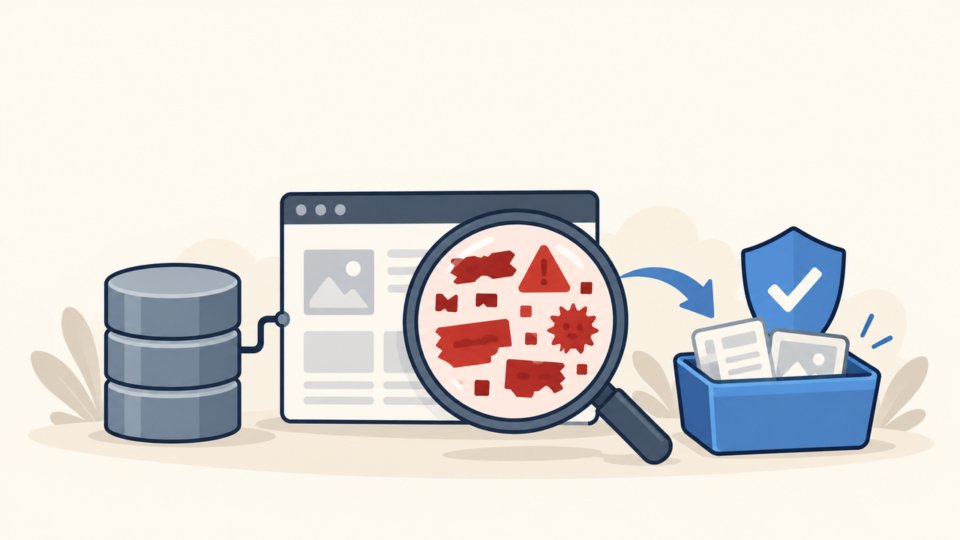
Finding unfamiliar files inside a WordPress .well-known directory is alarming, especially when visitors are redirected or search results show spam. The folder has legitimate certificate and security uses, but attackers also exploit its hidden-looking name for PHP loaders, doorway pages, and redirect rules.
Do not delete the whole directory on sight. Preserve it, identify the purpose of each legitimate file, and quarantine only what evidence shows is malicious.
 RyoheiYokoyama
I’m Ryohei Yokoyama, founder of SiteFixNow. I’ve worked as an IT engineer for over 20 years and have handled many WordPress malware removal, hidden-file investigation, hacked site repair, and security cleanup cases. This guide explains how to inspect .well-known without breaking certificate validation or erasing evidence.
- Which
.well-knownresources may be legitimate - Which redirect, spam, and executable files require investigation
- How to preserve, quarantine, and verify safely
WordPress Malware in .well-known Requires Context Before Deletion
The correct first step is classification, not deletion. /.well-known/ is a standards-based path, so its presence alone does not prove that WordPress is hacked.
Certificate authorities often use /.well-known/acme-challenge/ or /.well-known/pki-validation/. A site may also publish security.txt there. Hosting panels, CDNs, and certificate tools can create these small static files automatically.
A PHP or .phtml file is unusual in this location. Investigate an unexplained index.php, nested .htaccess, fake image containing code, spam HTML, random filename, or file that redirects only mobile or search visitors.
Confirm the file’s owner, purpose, content, timestamp, and request behavior. A filename is not proof, but executable code, hidden redirects, and no legitimate service owner are strong warning signs.
Use the broader guide to scan WordPress for malware and hidden backdoors as well. A directory-specific check does not clear the database, users, plugins, themes, or neighboring sites.
WordPress .well-known Investigation Starts With Evidence and an Inventory
Preserve evidence before editing or running cleanup. Copy the files and database, record the server time zone, and save access, error, WAF, CDN, and certificate logs when available.
Original ownership, permissions, timestamps, hashes, and requests can reveal what created the file. They are especially valuable if malware returns after deletion.

Find every matching path
Shared hosting may contain add-on domains, staging copies, and abandoned installations. Search from the account root, then map every result to its public document root.
cd /path/to/hosting-account
find . -type d -name '.well-known' -print
find . -path '*/.well-known/*' -type f -print
find . -path '*/.well-known/*' -type l -print
Record each file’s full path, size, owner, permissions, time, and hash. Also save root and nested configuration files because redirect behavior may be controlled above or inside the directory.
stat public_html/.well-known/suspect.php
shasum -a 256 public_html/.well-known/suspect.php
file public_html/.well-known/suspect.php
ls -laR public_html/.well-known
For layered rewrite conditions, follow the guide to WordPress htaccess malware and redirect rules.
WordPress Hidden Redirect and Spam Files Need File-by-File Inspection
Open suspicious files in a plain-text viewer that cannot execute them. Compare them with a trusted backup or service-generated copy; do not browse unknown PHP while signed in as an administrator.
Look for obfuscation, dynamic execution, remote downloads, filesystem writes, and conditional redirects. A single function can be legitimate, so review the full behavior and the file’s expected role.
grep -RInE 'base64_decode|gzinflate|eval\(|shell_exec|assert\(' public_html/.well-known
grep -RInE 'RewriteRule|Redirect|Location:|window\.location' public_html/.well-known
grep -RInE 'casino|pharmacy|replica|payday|crypto' public_html/.well-known
Compare visitor conditions
Redirect malware may respond only to mobile devices, search referrers, first-time visitors, or one URL. Compare controlled requests and record the complete redirect chain without sending cookies or credentials.
curl -sS -I https://example.com/.well-known/suspect
curl -sS -I -A 'Mozilla/5.0 (iPhone; Mobile)' https://example.com/.well-known/suspect
curl -sS -I -e 'https://www.google.com/' https://example.com/.well-known/suspect
curl -sS -L -o /dev/null -w '%{url_effective} %{http_code}\n' https://example.com/.well-known/suspect
If other files are affected, use the safe sequence in WordPress file infection cleanup for wp-content and wp-config.php. One removed file is not a complete cleanup.
WordPress .well-known Malware Should Be Quarantined Without Breaking SSL
After confirming malware, move the malicious file outside every public document root. Preserve its original path and hash, then remove its executable route from the live site.
Do not move the entire directory blindly. Removing an active ACME challenge path can make certificate renewal fail later even while the current certificate still works.

- Preserve files, logs, metadata, and hashes.
- Confirm legitimate paths with the host, CDN, or certificate service.
- Quarantine only confirmed malicious files outside the webroot.
- Remove malicious rewrites, tasks, users, loaders, and stolen access.
- Rebuild legitimate resources from trusted documentation.
A vulnerable plugin, stolen SFTP credential, hosting user, cron job, neighboring site, or deployment archive may recreate the file. If it returns, preserve the recurrence time and use WordPress malware root-cause analysis instead of repeating deletion.
Rebuild core files from trusted packages, compare extensions with known-good sources, clean database injections, and purge cache after the origin is clean. Keep documented validation permissions narrow; do not make the entire tree writable to solve one renewal problem.
WordPress Malware Verification Must Test Redirects, Spam, and Reinfection
Cleanup is complete only when the behavior is gone and does not return. Test the malicious URL, normal pages, mobile requests, search referrers, fresh sessions, every hostname, and the certificate-validation path.
- No malicious redirect appears across controlled visitor tests.
- No unexpected PHP handler or nested rewrite remains.
- Certificate validation and renewal still work.
- Logs show no successful calls to the quarantined payload.
- Monitoring shows that removed files are not recreated.
Recheck after scheduled jobs, normal traffic, and cache refreshes. Then rotate all potentially exposed access and secure WordPress after malware removal.
WordPress Malware in .well-known FAQ
WordPress .well-known Malware Inspection and Recovery Summary
Classify legitimate resources, preserve evidence, inventory every matching path, inspect behavior, quarantine confirmed malware, and remove what created it. Finish by testing redirects, certificate renewal, and file recreation before calling the site clean.
If You Can’t Secure or Recover Your WordPress Site Yourself

If your website shows malware warnings, redirects to strange pages, or you are not sure whether it is secure,
SiteFixNow can help clean, repair, and recover your WordPress site.
- Your WordPress site may be infected with malware.
- Security warnings appear in Google or browser results.
- You found unknown admin users or suspicious files.
- The site redirects to spam or unknown websites.
- You need urgent WordPress hacked site repair.
- Reduce visitor risk and SEO damage.
- Find hidden malware and backdoors, not only visible symptoms.
- Recover the site safely without unnecessary data loss.