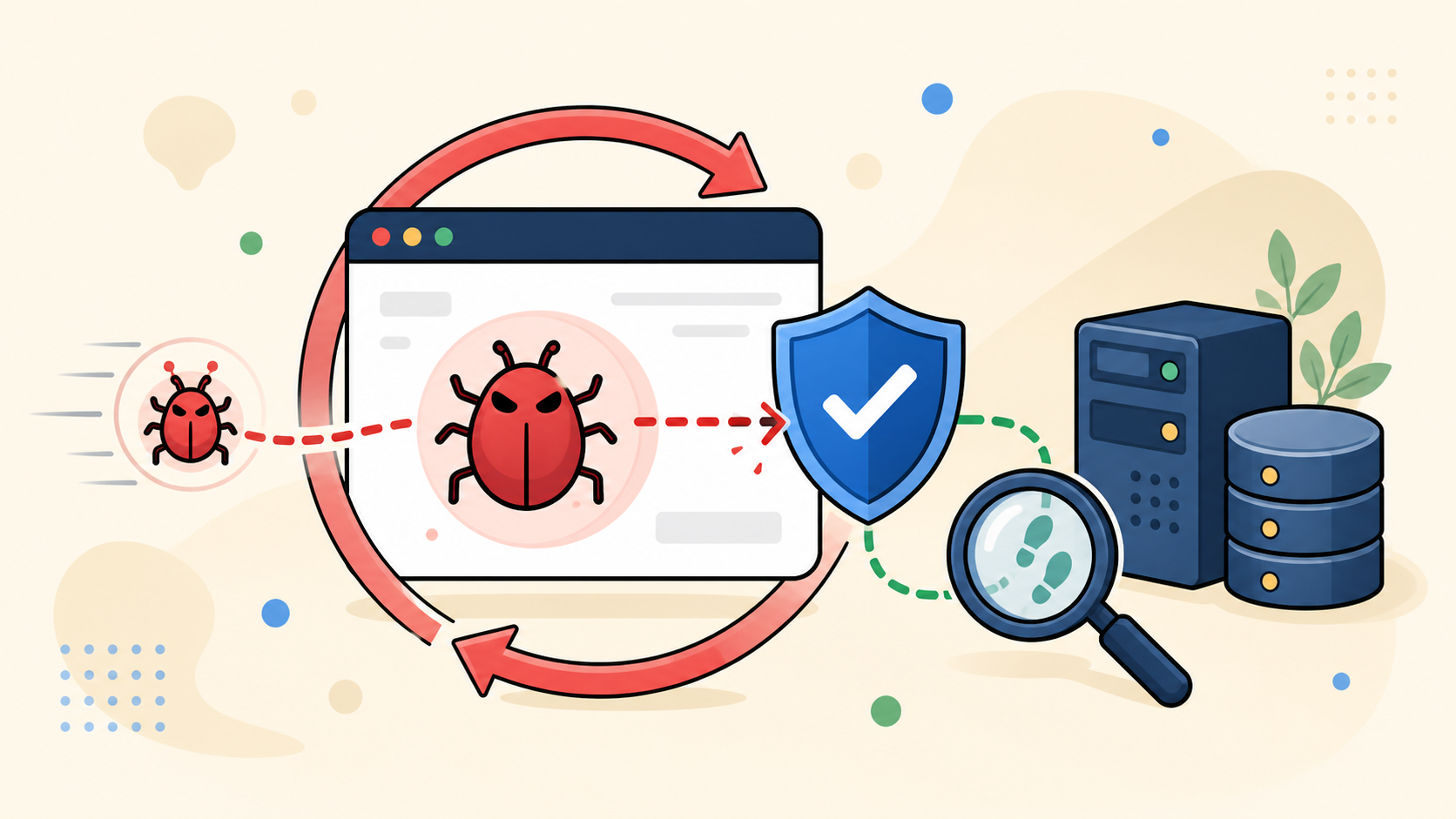
When WordPress malware keeps coming back after you delete infected files or restore a backup, the cleanup did not remove the system that recreates the infection. A hidden backdoor, stolen credential, scheduled task, compromised neighboring site, or unsafe deployment source may still have access.
Repeating the same cleanup can erase evidence while leaving that path untouched. Build a root-cause timeline before making another large change.
 RyoheiYokoyama
I’m Ryohei Yokoyama, founder of SiteFixNow. I’ve worked as an IT engineer for over 20 years and have handled many WordPress recovery and malware cleanup cases. Here is how to trace recurring malware without destroying useful evidence.
- Why visible malware can return after an apparently successful cleanup.
- How to preserve evidence and correlate the recurrence time with logs.
- Which WordPress and hosting layers can recreate files, and how to verify the cause is gone.
WordPress Malware Keeps Coming Back When the Persistence Path Survives
Recurring WordPress malware is usually a persistence problem. “Persistence” means a mechanism can restore malicious code after the visible infection is removed.
A hidden task may rewrite a cleaned theme file, or a stolen hosting password may allow a new upload. The returning file is the symptom; the surviving mechanism is the cause.
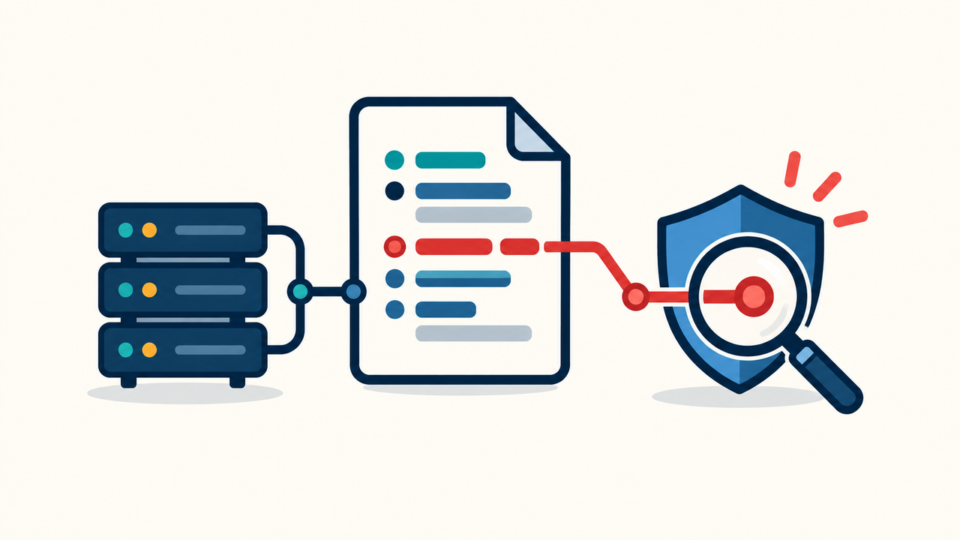
Ask “What process, account, or source created this file again?” If you need an inventory, scan WordPress for malware and hidden backdoors, then save the results before cleaning.
Preserve a copy before deleting files or clearing logs. Timestamps and file differences may identify the reinfection source.
WordPress Malware Root-Cause Analysis Starts With a Timeline
Compare what changed immediately before and after the malware returned. Time correlation narrows a large website to a smaller set of processes.
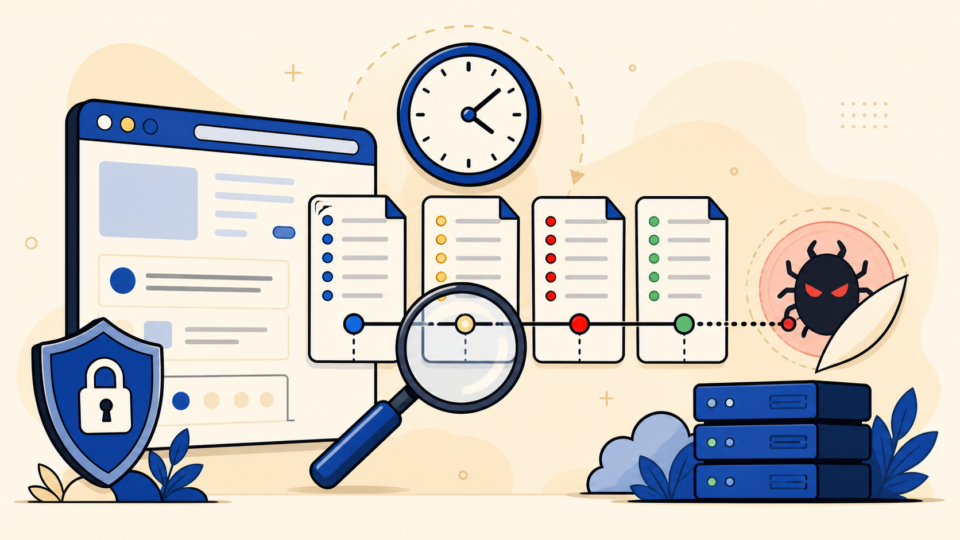
Preserve the infected state before another cleanup
Quarantine a copy of the files and database. Record the time zone and recurrence time. Save alerts, access and PHP logs, scan results, and the administrator list.
List recently modified files without changing them. This read-only example shows files changed during the last two days; adjust the path and range.
find public_html -type f -mtime -2 -printCompare recurrence time with access and task activity
Near the rewrite time, look for a wp-admin login, POST to unusual PHP, plugin install, file-manager or SFTP session, cron run, or deployment. Regular recurrence points toward scheduling; recurrence after a login points toward credentials or sessions.
Record the evidence for and against each hypothesis. For the broader cleanup sequence, see how to fix a hacked WordPress site and stop reinfection.
WordPress Reinfection Often Hides in Persistent WordPress Layers
WordPress can recreate malware from code, scheduled events, database values, and accounts—not only active plugins.
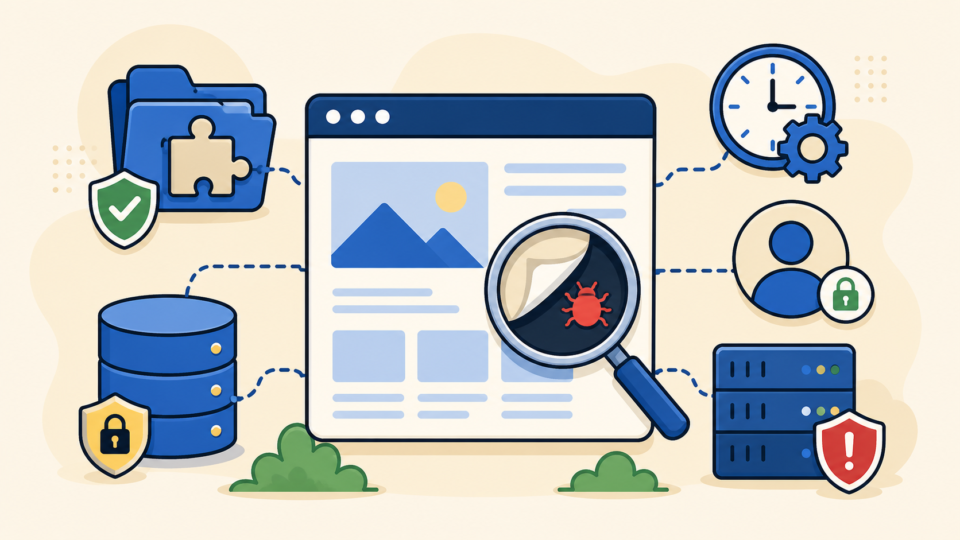
Inspect code that loads automatically
Check wp-content/mu-plugins, plugin folders, the active theme, functions.php, wp-config.php, and root files. Inspect wp-content/uploads for executable PHP.
find wp-content/uploads -type f -name '*.php' -printAn unfamiliar PHP file needs investigation, not blind deletion. Compare it with a trusted package and preserve its hash, owner, and timestamps.
Review wp-cron, database options, and privileged users
Inspect unfamiliar scheduled hooks, especially at the recurrence interval. Review autoloaded options, posts, and widgets for injections, and verify every administrator.
wp cron event list
wp user list --role=administrator
wp option list --autoload=on --fields=option_name,size_bytes
A scanner naming one file does not clear other layers. Use the WordPress malware cleanup checklist for files, the database, and backdoors to review them together.
WordPress Malware Can Return From Outside the WordPress Directory
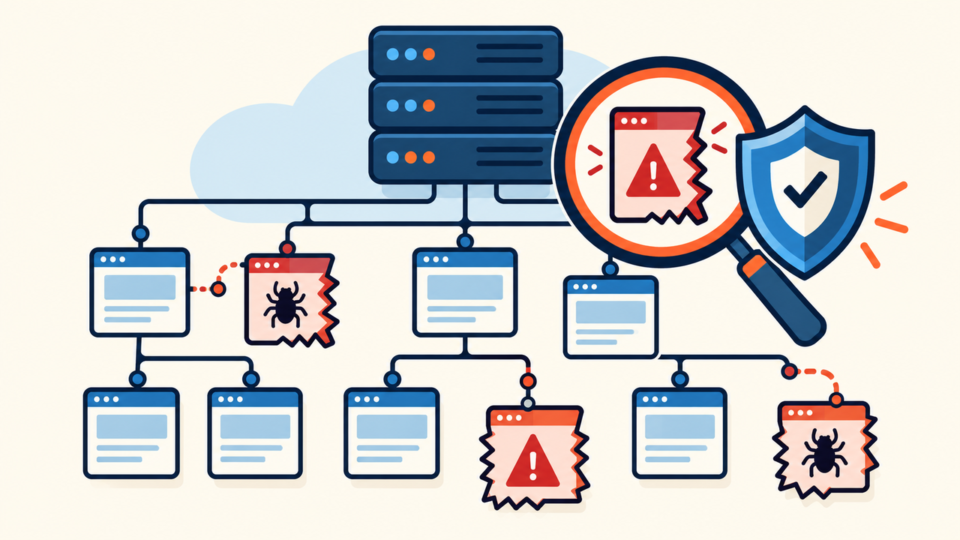
If WordPress looks clean but malware returns, expand the boundary to hosting, server settings, neighboring sites, backups, and deployment systems.
Review hosting and system cron, .user.ini, PHP auto_prepend_file, writable parent directories, and startup files. A loader above public_html survives a WordPress replacement.
Inspect every site under the hosting account; a forgotten staging site can reinfect the main domain. Review SFTP, SSH, hosting-panel, database, CDN, and registrar access, including sessions, tokens, app passwords, and keys.
Check every rebuild source: backup, developer device, repository, migration archive, and extension. A recovery point must be verified, not merely old; see restoring a WordPress backup after a hack or malware attack.
Include every system that can change files, database values, traffic, or credentials—not only WordPress.
WordPress Malware Root-Cause Removal Needs a Clean Order
Remove the cause in an order that prevents a surviving component from contaminating clean work.
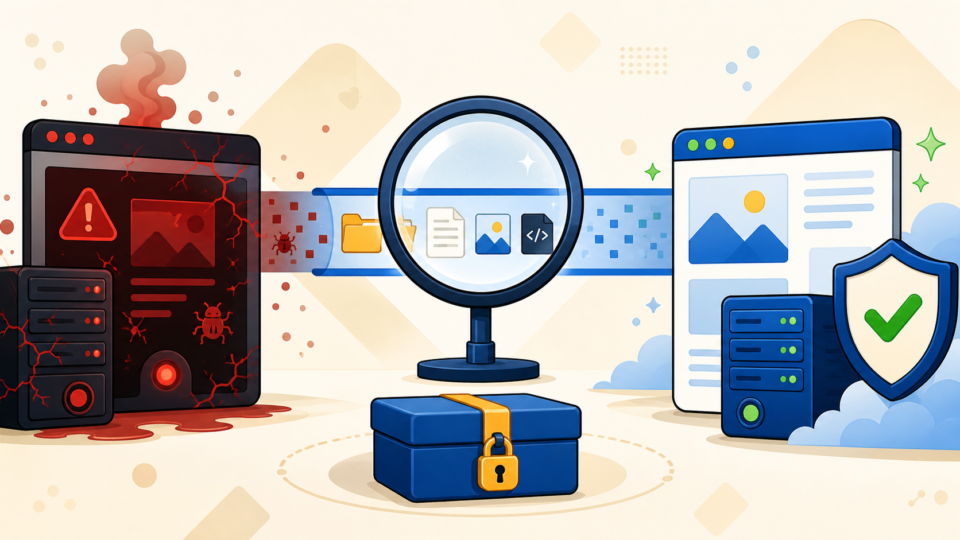
- Restrict visitors and stop automated deployment.
- Preserve files, database, logs, accounts, and timestamps.
- Replace core, plugins, and themes from trusted sources.
- Clean only content that cannot be replaced safely.
- Remove unknown users, tasks, keys, tokens, and loaders.
- Rotate credentials and invalidate existing sessions.
- Harden and monitor before reopening.
For heavy contamination, move verified content into a clean environment, reinstall trusted software, and reconnect services one at a time. Do not copy the entire compromised directory.
WordPress Reinfection Is Only Resolved After Verification
A normal homepage is not proof. The symptom must stay gone, the suspected mechanism must be removed, and no alternative access path should remain.
Repeat the checks that found the problem: hashes, file timeline, cron, administrators, database, mobile and search-referrer traffic, and logs. Test from a clean browser and network.
Monitor file changes, privileged logins, redirects, resource spikes, and alerts for at least the former recurrence interval. Then apply our guide to securing WordPress after malware removal.
WordPress Malware Keeps Coming Back: Frequently Asked Questions
WordPress Malware Root-Cause Summary: Prove What Recreated the Infection
When malware returns, preserve evidence, build a timeline, inspect WordPress persistence, expand to connected systems, and remove the cause in a controlled order.
Recovery is complete when the path is removed, access is secured, and the same checks stay clean across the former recurrence interval.
If You Can’t Secure or Recover Your WordPress Site Yourself

If your website shows malware warnings, redirects to strange pages, or you are not sure whether it is secure,
SiteFixNow can help clean, repair, and recover your WordPress site.
- Your WordPress site may be infected with malware.
- Security warnings appear in Google or browser results.
- You found unknown admin users or suspicious files.
- The site redirects to spam or unknown websites.
- You need urgent WordPress hacked site repair.
- Reduce visitor risk and SEO damage.
- Find hidden malware and backdoors, not only visible symptoms.
- Recover the site safely without unnecessary data loss.