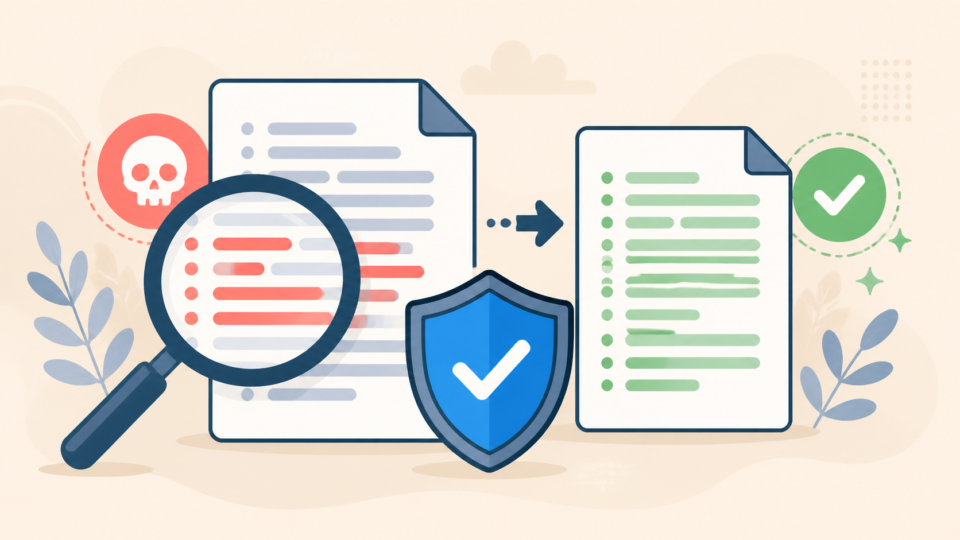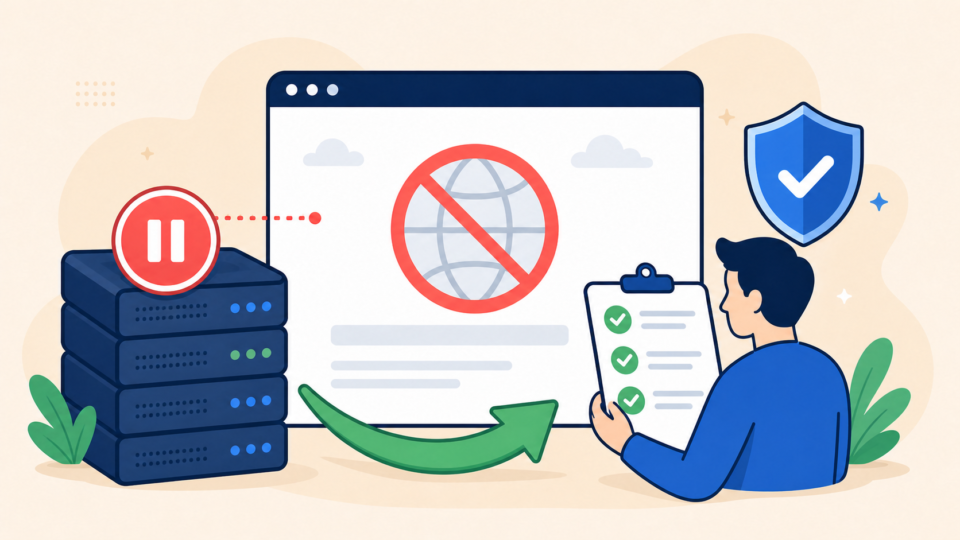
If your WordPress site suddenly shows a blank page, you are likely dealing with the WordPress white screen of death. It feels alarming because both visitors and administrators may see nothing except an empty screen.
The good news is that this problem is often recoverable. In many cases, the cause is a plugin conflict, a broken theme file, a PHP memory issue, or a fatal error hidden from view.
 RyoheiYokoyama
I’m Ryohei Yokoyama, founder of SiteFixNow. I’ve worked as an IT engineer for over 20 years and have handled many WordPress recovery, malware removal, hacked site repair, and server-side troubleshooting cases. In this article, I’ll show you the safest beginner-friendly way to investigate a white screen without causing extra damage.
- What usually causes a WordPress white screen
- Which checks are safe for beginners to try first
- How to disable plugins and themes when wp-admin is unavailable
- When the problem points to hosting, PHP memory, or deeper file damage
WordPress white screen fix starts with staying calm and protecting your site
The first step in any WordPress white screen fix is to avoid random edits. If you change multiple files or settings at once, it becomes much harder to know what actually caused the problem.
A blank page usually means WordPress hit a fatal PHP error before it could display a normal message. The error may not be visible, but the site often leaves clues in plugins, themes, logs, or memory settings.
- Check whether the white screen appears on the homepage, wp-admin, or both
- Note any recent changes such as plugin updates, theme edits, or PHP version changes
- Create a backup of files and database if your host provides one-click restore points
- Avoid reinstalling WordPress immediately unless you know the core files are damaged
WordPress recovery service is often the fastest option if the site is business-critical and downtime is already affecting visitors or sales.
WordPress white screen causes are usually plugins, themes, memory, or fatal errors
The most common cause of a white screen is a plugin or theme that triggers a fatal error. This often happens right after an update, after installing new code, or after changing the server’s PHP version.
Another common cause is low PHP memory. If WordPress runs out of available memory while loading plugins, widgets, or the page builder, the result may be a blank screen instead of a readable error.
- A plugin conflict after update or installation
- A broken theme file or recent custom code edit
- PHP memory exhaustion
- Fatal PHP errors hidden because debugging is off
- Server configuration or PHP version mismatch
- Damaged core files or malware-related file corruption
WordPress critical error fixes and white screen fixes overlap in many cases because both problems are often caused by the same PHP-level failures.
WordPress white screen fix for beginners should start by disabling all plugins
The safest beginner check is disabling all plugins at once. If the site starts working again, you know one of the plugins was responsible, and you can narrow it down methodically.
If you can still access wp-admin, go to Plugins and deactivate everything. If wp-admin is also blank, use your hosting file manager or FTP and rename the plugins folder temporarily.
wp-content/
  plugins/      → rename to plugins-disabled
  themes/
  uploads/
After renaming the folder, reload the site. If the white screen disappears, change the folder name back to plugins, then reactivate plugins one by one until the problem returns.
WordPress white screen after a theme edit may require switching to a default theme
If disabling plugins does not help, the next likely cause is the active theme. This is especially common if someone edited functions.php, added custom snippets, or installed a theme update that is not compatible with the current PHP version.
Using File Manager or FTP, rename the active theme folder. WordPress may then fall back to another installed default theme such as Twenty Twenty-Four.
WordPress white screen fix often becomes easier after enabling debug logging
If the blank screen continues, the next step is to make WordPress write errors to a log file. This is much safer than showing raw errors to visitors on a live production site.
Edit wp-config.php and add or adjust the following lines above the line that says /* That's all, stop editing! */.
define( 'WP_DEBUG', true );
define( 'WP_DEBUG_LOG', true );
define( 'WP_DEBUG_DISPLAY', false );
Then reload the broken page and check this file:
wp-content/debug.logTypical messages may mention an exhausted memory limit, a missing PHP function, a plugin path, or a specific theme file. Once you know the exact file name, the WordPress white screen fix becomes much more targeted.
WordPress white screen caused by memory exhaustion may need a PHP memory increase
If the log says “Allowed memory size exhausted,” increase the WordPress memory limit in wp-config.php and confirm your hosting plan supports it.
define( 'WP_MEMORY_LIMIT', '256M' );
define( 'WP_MAX_MEMORY_LIMIT', '512M' );
This does not fix every blank page, but it is a common solution on sites using heavy plugins, builders, backups, or large WooCommerce setups.
WordPress 500 error fixes may also help here because memory limits and server misconfiguration can trigger both symptoms.
WordPress white screen that survives these checks may point to hosting or malware issues
If plugins, themes, and debugging still do not explain the problem, the issue may be deeper than a normal beginner fix. Hosting-level PHP errors, corrupted core files, or malicious code can all lead to a blank site.
This is where many site owners lose time by trying random forum advice. A rushed reinstall can overwrite clues, while partial cleanup can leave hidden backdoors behind.
- The site was recently hacked or is redirecting visitors elsewhere
- Important business pages are down and time matters
- The debug log points to unfamiliar or suspicious PHP files
- Your hosting company says the account is consuming abnormal resources
- You are not sure whether the site is actually clean after it comes back online
WordPress malware removal and WordPress security checklist for beginners are worth reading if the blank screen appeared alongside suspicious files, spam redirects, or unknown admin users.
WordPress white screen fix works best when you isolate one cause at a time
The best WordPress white screen fix is usually a careful process, not a magic button. Start with plugins, move to the theme, enable debug logging, and only then look at memory limits, PHP versions, or security concerns.
If you change one thing at a time, you can find the cause without adding new damage. That is the difference between a clean recovery and a long, frustrating guessing game.
WordPress white screen fix summary for beginners
A WordPress white screen is serious, but it does not always mean your site is permanently broken. In most cases, the root cause is a plugin conflict, theme problem, memory limit, or fatal error that can be identified step by step.
Start with the safest checks first, use debug logs instead of guesswork, and get help early if the site may be hacked or business downtime is already costing you money.
If You Can’t Secure or Recover Your WordPress Site Yourself

If your website still shows a blank page, or you are not sure whether the problem is only a plugin conflict or something more serious,
SiteFixNow can help clean, repair, and recover your WordPress site.
- Your WordPress site suddenly shows a blank page or stops loading properly.
- You cannot access wp-admin after a plugin, theme, or PHP update.
- You found suspicious files or think the site may have been compromised.
- You need urgent WordPress recovery without trial-and-error downtime.
- You want the site checked properly after it comes back online.
- Reduce downtime for visitors, leads, and customers.
- Find deeper file, plugin, or malware issues before they spread.
- Recover the site safely without unnecessary data loss or repeated crashes.