WordPress security can feel complicated when you are a beginner. You may hear words like malware, firewall, brute-force attack, backups, two-factor authentication, and file permissions—but you may not know what to do first.
This guide keeps it practical. You do not need to become a security engineer today. Start with the basic settings that reduce the most common risks: weak passwords, outdated plugins, missing backups, unsafe admin accounts, and no recovery plan.
 RyoheiYokoyama
I’m Ryohei Yokoyama, founder of SiteFixNow. I’ve worked as an IT engineer for over 20 years and have handled many WordPress recovery, malware removal, hacked site repair, and security cleanup cases. In this article, I’ll explain beginner-friendly security steps that help prevent avoidable WordPress trouble.
- The most important WordPress security settings for beginners
- How to protect your login page and admin accounts
- How to update plugins safely without breaking your site
- What files and folders should be protected
- What to do if you already suspect malware or hacking
WordPress Security for Beginners: Start With the Biggest Risks
The best beginner security strategy is not to install every security plugin you can find. The best strategy is to reduce the most common risks first.
Most beginner WordPress sites are not hacked because the owner made one advanced technical mistake. They are often hacked because of simple problems: old plugins, weak passwords, abandoned themes, missing backups, or admin accounts that were never reviewed.
- Protect administrator accounts.
- Keep WordPress, plugins, and themes updated.
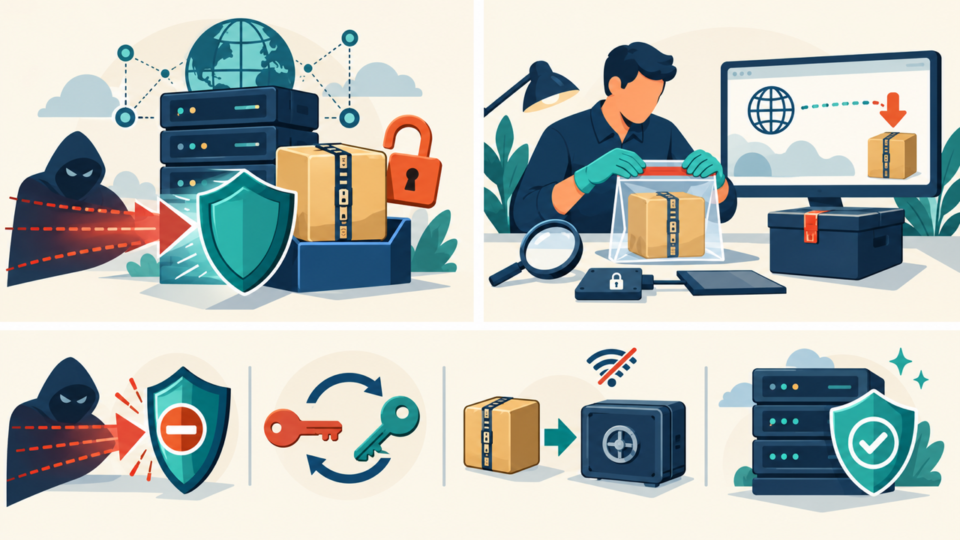
- Set up reliable backups.
- Remove unused plugins and themes.
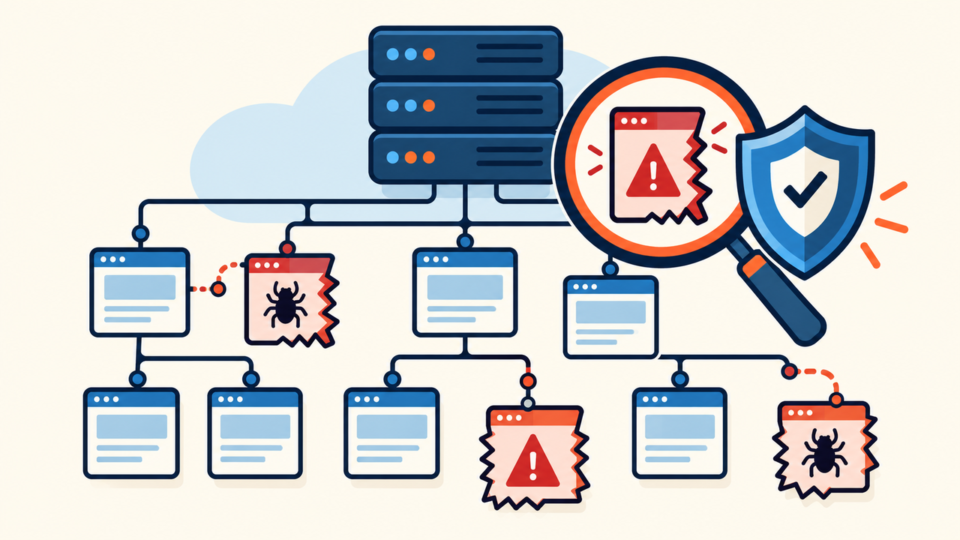
- Monitor for malware and suspicious changes.
1. Use Strong Admin Passwords and Two-Factor Authentication
Your WordPress login is one of the most attacked parts of the site. If an attacker can guess or steal an administrator password, they may be able to install malicious plugins, edit theme files, create hidden admin users, or redirect visitors.
Use a long unique password for every admin account and enable two-factor authentication. Two-factor authentication adds a second step, usually a code from an app, so a stolen password alone is not enough.
- Use a password manager to create a long unique password.
- Enable two-factor authentication for all administrators.
- Remove old administrator accounts that are no longer needed.
- Do not share one admin account between multiple people.
- Review users under Users > All Users regularly.
If you find an administrator you do not recognize, do not ignore it. That can be a sign of compromise.
2. Update WordPress, Plugins, and Themes Safely
Updates are security fixes, not just new features. Old plugins and themes are common entry points for attackers. However, beginners should update safely instead of clicking every update button without a backup.
- Take a full backup first.
- Update plugins one by one when possible.
- Check the homepage, contact form, login page, and important pages after updates.
- Update the theme after confirming plugin updates are stable.
- Update WordPress core when backups and plugins are ready.
If an update causes a critical error, do not panic. You can often recover by disabling the plugin folder or checking debug logs.
3. Set Up Backups Before You Need Them
A backup is not security by itself, but it is one of the most important recovery tools. If your site is hacked, broken by an update, or damaged by a mistake, a clean backup can save hours or days.
For beginners, the goal is simple: keep backups outside the hosting account and confirm that restore is possible.
- Back up both files and the database.
- Store backups in an external location such as cloud storage.
- Keep more than one backup version.
- Take a manual backup before major updates.
- Test restore on a staging site if possible.
If you only keep backups inside the same server, a server compromise or hosting suspension may make those backups unavailable. External backup storage is safer.
4. Remove Unused Plugins, Themes, and Old Files
Inactive does not always mean harmless. An unused plugin or old theme can still contain vulnerable files. If you are not using it, remove it after confirming you have a backup.
Also check for old test directories, backup ZIP files, and abandoned copies of WordPress. Attackers often find forgotten files before site owners do.
/old-site/
/test/
/backup/
/wp-old/
backup.zip
site-copy.zip
unused plugin folders
unused theme folders
Do not delete folders if you are not sure what they are. Download a copy first or ask your developer/host. Removing the wrong folder can break the website.
5. Protect Important WordPress Files and Folders
Some WordPress files are especially important. Beginners do not need to memorize every file, but you should know which locations are commonly checked during security cleanup.
wp-config.php
.htaccess
wp-content/plugins/
wp-content/themes/
wp-content/uploads/
wp-admin/
wp-includes/
One practical protection is to prevent PHP files from running inside the uploads folder when your hosting environment supports it. Many normal WordPress sites do not need PHP execution in uploads.
<FilesMatch "\.php$">
  Require all denied
</FilesMatch>
Server rules differ, so test carefully. If your site shows an error after adding a rule, remove it and ask your host which syntax is supported.
6. Use a Security Plugin, but Do Not Rely on It Alone
A security plugin can help with malware scanning, login protection, firewall rules, file change detection, and alerts. But it cannot replace updates, backups, strong passwords, and careful account management.
For beginners, choose one reputable security plugin and configure the basics. Installing multiple security plugins with overlapping firewall features can cause conflicts.
- Login attempt limits
- Two-factor authentication support
- Malware scanning
- File change alerts
- Basic firewall protection
7. Know the Warning Signs of Malware or Hacking
Security is not only prevention. You also need to notice when something is wrong. The earlier you react, the less damage your visitors, SEO, and business may suffer.
- Your site redirects to strange pages.
- Google shows spam titles or unknown pages.
- There are unknown administrator users.
- PHP files appear inside
wp-content/uploads. - Security tools or browsers show malware warnings.
- The site shows repeated critical errors after cleanup.
If you see these symptoms, do not only change the password and move on. You may need full malware cleanup and hacked site repair.
Beginner WordPress Security FAQ
Summary: Simple Security Habits Prevent Many WordPress Problems
Beginner WordPress security starts with simple habits: strong admin accounts, two-factor authentication, safe updates, reliable backups, removing unused plugins and themes, protecting important folders, and watching for warning signs.
You do not need to do everything perfectly from day one. Start with the basics, document what you changed, and create a recovery plan before trouble happens.
If You Can’t Secure or Recover Your WordPress Site Yourself

If your website shows malware warnings, redirects to strange pages, or you are not sure whether it is secure,
SiteFixNow can help clean, repair, and recover your WordPress site.
- Your WordPress site may be infected with malware.
- Security warnings appear in Google or browser results.
- You found unknown admin users or suspicious files.
- The site redirects to spam or unknown websites.
- You need urgent WordPress hacked site repair.
- Reduce visitor risk and SEO damage.
- Find hidden malware and backdoors, not only visible symptoms.
- Recover the site safely without unnecessary data loss.