Remove WordPress malware manually only when you can work carefully, keep backups, and verify more than the obvious infected file. Manual cleanup can save a hacked site, but it can also break the site or leave a hidden backdoor behind if you delete files without a plan.
This practical guide explains the safe order: preserve evidence, take a clean backup, inspect files, review the database, replace core files, remove backdoors, and secure access before asking Google or visitors to trust the site again.
 RyoheiYokoyama
I’m Ryohei Yokoyama, founder of SiteFixNow. I’ve worked as an IT engineer for over 20 years and have handled many WordPress recovery, malware removal, hacked site repair, and security cleanup cases. In this article, I’ll explain a practical manual cleanup flow and the checks that help prevent reinfection.
- When manual WordPress malware cleanup is reasonable and when it is risky
- Which files, folders, database tables, and users need inspection
- How to replace WordPress core safely without deleting your content
- How to confirm the site is stable before requesting review or sending traffic back
Remove WordPress malware manually only after you preserve a backup
The first rule is simple: do not start deleting files until you have a full copy of the current site. Even an infected backup is useful because it preserves posts, uploads, database content, and evidence of how the attack happened.
This matters because manual cleanup often involves comparing files, replacing folders, and reversing database changes. If you remove the wrong file or overwrite the wrong directory, the backup may be the only way to recover missing content.
- Download all WordPress files, including hidden files such as
.htaccess. - Export the full database from phpMyAdmin, Adminer, WP-CLI, or the hosting panel.
- Save a copy of server access logs and error logs if your hosting panel provides them.
- Record the current administrator users, plugins, themes, and suspicious symptoms.
A good manual cleanup starts from a staging copy when possible. If the live site is actively redirecting visitors or serving malware, put it behind maintenance mode at the hosting level or temporarily restrict access while you work.
Before cleanup, save:
/public_html/ or the WordPress document root
database export as .sql
.htaccess and wp-config.php
wp-content/uploads/
wp-content/themes/
wp-content/plugins/
server access logs and error logs
If you are still deciding whether cleanup should be manual or professional, the related guide on website malware removal service explains when DIY cleanup becomes too risky for a business site.
Remove WordPress malware manually by separating core, content, and configuration
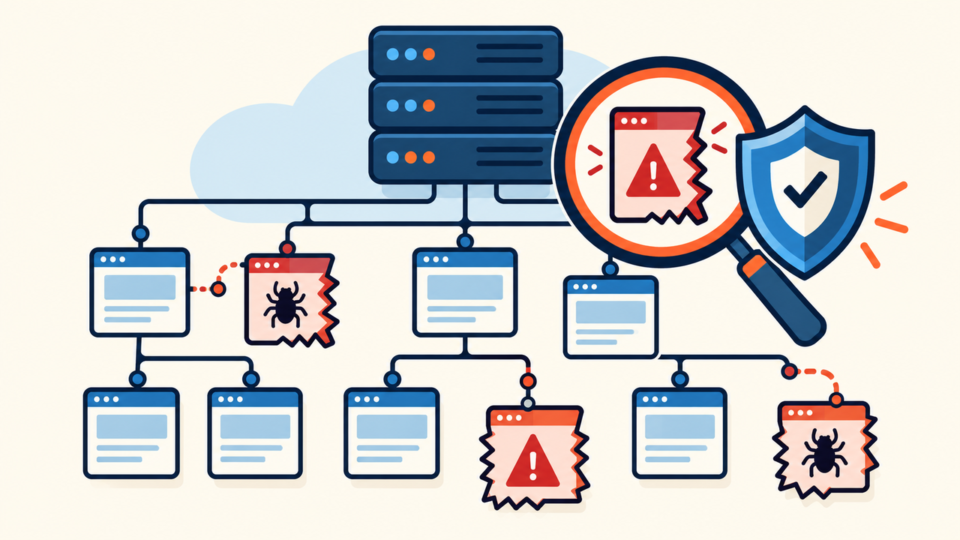
The safest manual workflow is to separate the site into three areas: WordPress core files, site-specific content, and configuration. Core files can usually be replaced from a fresh WordPress package. Content and configuration need closer inspection.
This separation prevents a common mistake: editing random files one by one while the attacker’s backdoor stays active somewhere else. Manual cleanup should be systematic, not emotional.
- Core files: replace
wp-admin,wp-includes, and root core files from a clean WordPress download. - Content files: inspect
wp-content/uploads, themes, plugins, and must-use plugins carefully. - Configuration: review
wp-config.php,.htaccess, cron jobs, users, and database options.
Download the same WordPress version or the latest safe version from wordpress.org. Then compare the existing core folders against the clean package. Do not overwrite wp-content or wp-config.php blindly because those contain site-specific data.
Usually safe to replace from a clean WordPress package:
wp-admin/
wp-includes/
root core files such as wp-login.php, wp-settings.php, wp-load.php

Do not blindly overwrite:
wp-config.php
wp-content/
.htaccess
custom files required by the hosting environment
If the infection appears inside wp-content, review the SiteFixNow guide on WordPress file infection cleanup in wp-content and wp-config.php. Those areas require more judgment than core replacement.
Remove WordPress malware manually by checking high-risk file locations first
The highest-risk locations are the places where attackers can execute PHP, hide redirects, or reload malware after you delete it. Start with the usual persistence points before spending hours on harmless cache files.
In many hacked WordPress sites, the visible malware is only the symptom. The real problem is a small loader, fake plugin, injected include statement, or upload-folder PHP file that recreates the infection.
wp-content/uploads/for unexpected.php,.phtml, or executable files.wp-content/mu-plugins/for unfamiliar must-use plugin files.wp-content/plugins/for fake plugin folders or modified plugin files.wp-content/themes/active-theme/for injected code infunctions.php, header files, or template files..htaccessand server config files for hidden redirects or PHP handler changes.
Search for risky PHP functions, but do not assume every match is malicious. Some plugins legitimately use advanced PHP functions. The pattern, location, modification date, and surrounding code matter.
Look for suspicious patterns such as:
base64_decode(
eval(
gzinflate(
str_rot13(
shell_exec(
preg_replace('/.../e'
assert(
Files with random names in uploads/
PHP files inside image/date upload folders
Also sort files by modification date. If the hack started around a known day, recently changed files can reveal the entry point. Be careful with update dates, because legitimate plugin updates can also change many files at once.
# Example: files changed in the last 14 days
find . -type f -mtime -14 -print

# Example: unexpected PHP files in uploads
find wp-content/uploads -type f \( -name "*.php" -o -name "*.phtml" -o -name "*.phar" \) -print
If malicious redirects are the main symptom, use the related guide on WordPress redirect hack fixes because redirect payloads often hide in .htaccess, theme files, database options, and injected JavaScript.
Remove WordPress malware manually from the database without damaging content
Manual cleanup is incomplete if you only check files. WordPress malware can live in the database as spam links, injected scripts, fake admin users, changed site URLs, malicious widgets, or poisoned options.
The database is also where careless cleanup can do the most damage. Always export the database first, then search specific tables and values. Do not run broad replace commands until you know exactly what you are removing.
wp_usersandwp_usermetafor unknown administrators.wp_optionsfor suspicioussiteurl,home, widgets, or autoloaded payloads.wp_postsandwp_postmetafor injected scripts, iframes, spam links, or hidden content.- Plugin-specific tables for security plugins, form plugins, page builders, or redirect tools.
Use precise searches for suspicious domains, script tags, iframes, encoded payloads, and unknown administrator emails. If your table prefix is not wp_, adjust the table names before running queries.
SELECT ID, user_login, user_email
FROM wp_users
ORDER BY ID;

SELECT option_name, option_value
FROM wp_options
WHERE option_value LIKE '%<script%'
   OR option_value LIKE '%iframe%'
   OR option_value LIKE '%base64%';

SELECT ID, post_title
FROM wp_posts
WHERE post_content LIKE '%<script%'
   OR post_content LIKE '%iframe%'
   OR post_content LIKE '%casino%'
   OR post_content LIKE '%viagra%';
Be especially careful with serialized data in wp_options. Editing serialized strings directly can break widgets, theme settings, or page builder data. If you need to replace a value inside serialized data, use a trusted search-replace tool that understands serialization.
Remove WordPress malware manually and then close the reinfection path
Cleanup is not finished when the homepage looks normal. The attacker may still have a password, an administrator account, an API key, a vulnerable plugin, or a writable upload folder that allows reinfection.
After removing infected files and database payloads, rotate access and harden the site. This is the difference between a temporary cleanup and a real recovery.
- Change all WordPress administrator passwords and remove unknown users.
- Change hosting, FTP/SFTP, database, and control panel passwords.
- Update WordPress core, plugins, and themes after the infected copy is preserved.
- Delete unused plugins and themes instead of only deactivating them.
- Disable PHP execution in upload folders where hosting rules allow it.
- Create a fresh clean backup after verification.
One useful hardening step is to prevent PHP execution inside upload folders. The exact method depends on Apache, Nginx, and hosting restrictions, but the idea is to stop uploaded files from running as code.
# Place inside wp-content/uploads/ on Apache hosting if allowed
<FilesMatch "\.php$">
  Require all denied
</FilesMatch>

# Older Apache fallback
<Files *.php>
  deny from all
</Files>
For a broader prevention checklist, see how to secure WordPress after malware removal and the WordPress security checklist for beginners.
Remove WordPress malware manually and verify before declaring recovery complete
The final step is verification. You need to test the public site, dashboard, search results, security warnings, logs, and reinfection behavior. If you skip verification, you may publish a site that still serves malware to some visitors.
Test from a private browser window, a mobile device, and important pages beyond the homepage. Redirect malware often behaves differently depending on device, referrer, cookie, country, or login status.
- Homepage, key pages, forms, checkout, search, and login page load normally.
- No unexpected redirects appear in private browser and mobile tests.
- No unknown administrator users remain.
- Recent file changes match your cleanup work, updates, or known site activity.
- Google Search Console security issues are resolved before requesting review.
- A fresh backup exists after cleanup and hardening.
If Google or browsers warned visitors, do not request review until the cleanup is complete. A failed review can slow trust recovery, and a hidden backdoor can recreate the same problem after you submit the site.
If you find repeated reinfection, unknown files returning, or admin users being recreated, treat the site as still compromised. The related guide on fixing a hacked WordPress site and stopping reinfection covers that deeper scenario.
Remove WordPress malware manually FAQ
Remove WordPress malware manually summary: clean the cause, not only the symptom
Manual WordPress malware cleanup can work when it follows a safe order: preserve a backup, separate core files from content, inspect high-risk folders, search the database, rotate access, harden the site, and verify from the visitor’s point of view.
The dangerous approach is to delete the first suspicious file you find and assume the site is clean. Most serious infections have more than one location, and many reinfections happen because a backdoor, password, or vulnerable plugin remained active.
If you can document each step and verify the result, manual cleanup may be enough. If the site handles revenue, customer data, ads, or important search traffic, professional review is often safer than guessing under pressure.
If You Can’t Secure or Recover Your WordPress Site Yourself

If your website shows malware warnings, redirects to strange pages, or you are not sure whether it is secure,
SiteFixNow can help clean, repair, and recover your WordPress site.
- Your WordPress site may be infected with malware.
- Security warnings appear in Google or browser results.
- You found unknown admin users or suspicious files.
- The site redirects to spam or unknown websites.
- You need urgent WordPress hacked site repair.
- Reduce visitor risk and SEO damage.
- Find hidden malware and backdoors, not only visible symptoms.
- Recover the site safely without unnecessary data loss.