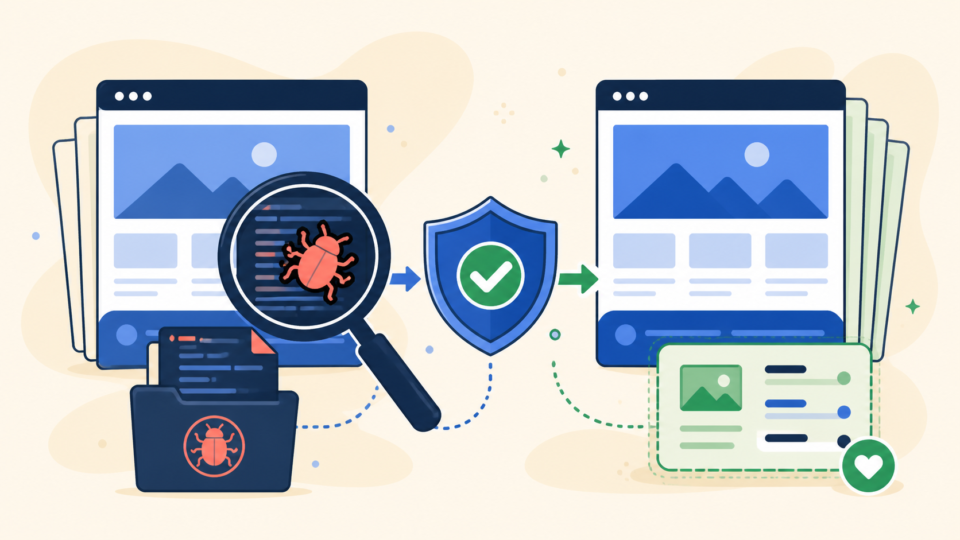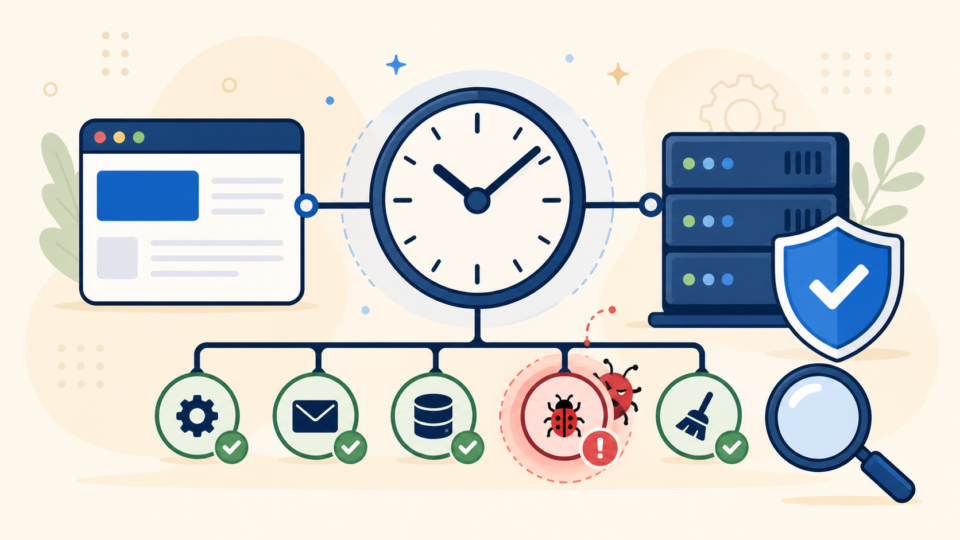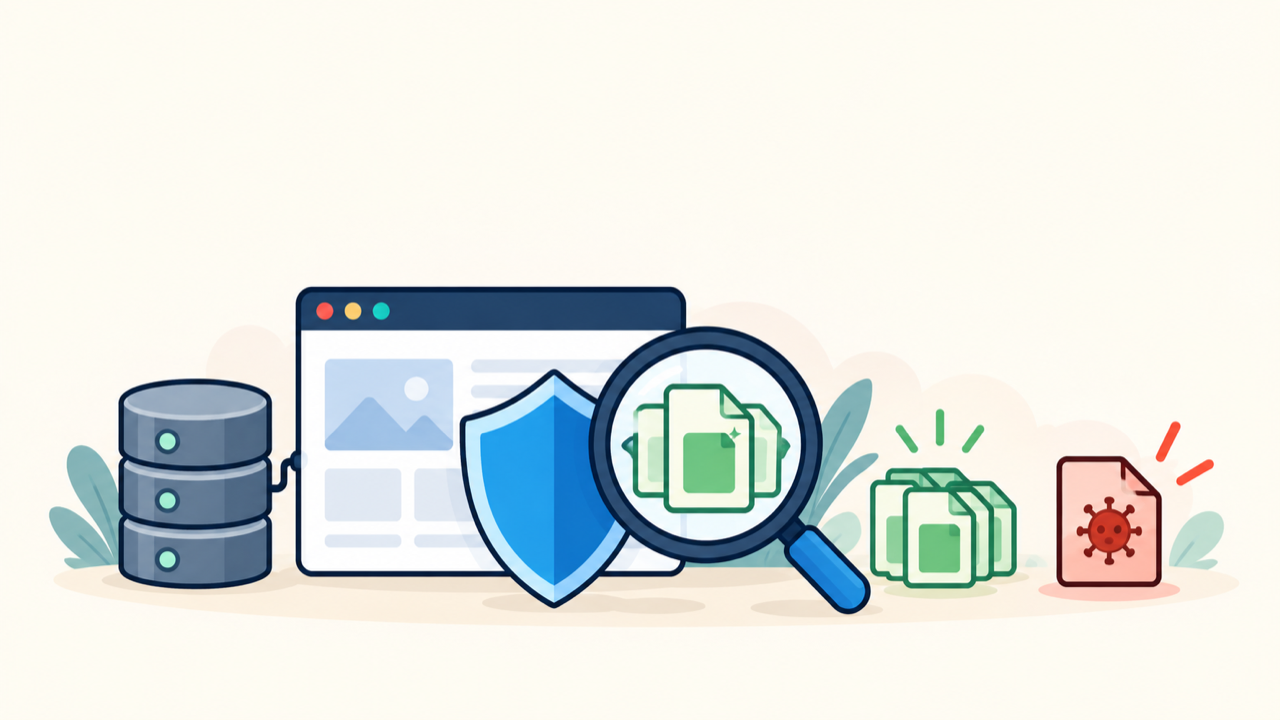
WordPress core file malware can turn a normal update, security scan, or hosting alert into a confusing list of modified files. When the warning points to wp-admin, wp-includes, or root PHP files, the safest response is not to edit every flagged line or upload a random fresh copy over the live site.
 RyoheiYokoyama
I’m Ryohei Yokoyama, founder of SiteFixNow. I’ve worked as an IT engineer for over 20 years and have handled many WordPress recovery, malware removal, hacked site repair, and security cleanup cases. In this article, I’ll explain how to verify suspicious core files and rebuild them without sacrificing site-specific content.
- What to preserve before checking or replacing WordPress core files
- How to run and interpret official WordPress checksum verification
- How to rebuild wp-admin, wp-includes, and root core files safely
- Why clean core checksums do not rule out malware elsewhere
- How to verify recovery and reduce the chance of reinfection
WordPress Core File Malware Response Starts With Containment and Evidence
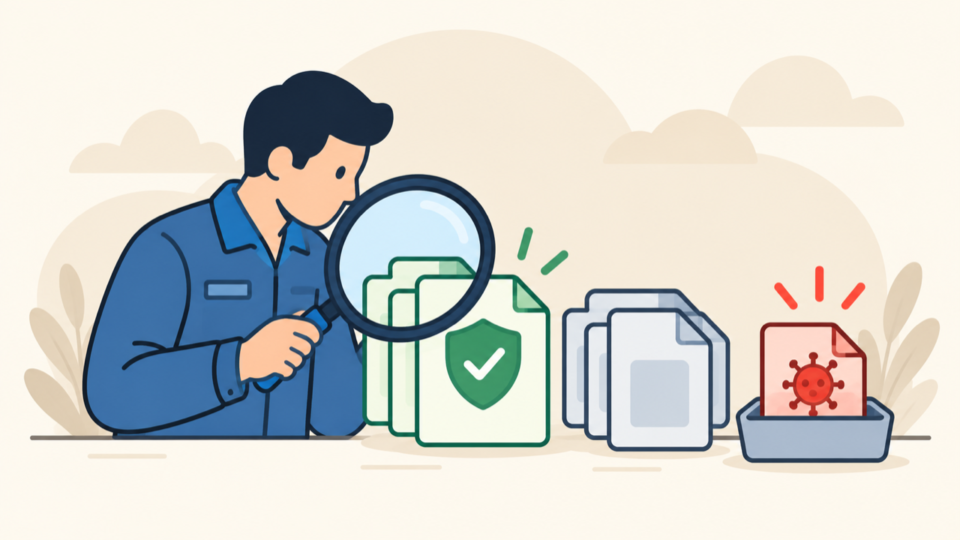
The first priority is to stop avoidable damage while preserving enough information to understand the compromise. Do not delete flagged files, run an automatic cleaner repeatedly, or overwrite the live installation before recording the paths, timestamps, file sizes, warnings, and visible symptoms.
Take a full file and database backup even if it contains malware. Store it away from the public web root, label it as compromised, and restrict access. This copy may be needed to identify the entry point, recover a legitimate customization, or compare what changed after cleanup.
- The complete site files and database in a protected archive
- The installed WordPress version, locale, PHP version, and hosting stack
- Scanner output, suspicious paths, modification times, and file hashes
- Recent access, error, login, deployment, and file-change logs
- A list of active plugins, themes, must-use plugins, and administrators
If visitors are being redirected, malware is executing, or hosting has suspended the site, contain the incident before detailed comparison. The emergency WordPress malware removal checklist explains the immediate access, user, file, database, and logging checks to prioritize.
WordPress Core File Malware Checksums Establish a Trusted Baseline
Official checksums are the fastest reliable baseline for files distributed with a specific WordPress release. They tell you whether expected core files match the official package; they do not decide who changed a file, whether the change is malicious, or whether a separate non-core file is safe.
Verify the installed version and locale first
Checksum results are meaningful only when the version and locale are correct. Record them before updating WordPress, because an update changes the comparison target and can erase evidence about the compromised release.
wp core version
wp language core list --status=installed
wp config get WPLANG
wp core is-installed
Run WP-CLI checksum verification as a read-only check
wp core verify-checksums --version=6.6.2 --locale=en_US
wp core verify-checksums --include-root --version=6.6.2 --locale=en_US
Replace the example version and locale with the values you recorded. The first command checks official core files. The second also reports unexpected files in the root, which is useful because attackers often place plausible-looking PHP loaders beside index.php or wp-load.php.
Use a clean package when WP-CLI is unavailable
Download the exact release and locale from a trusted WordPress source to a separate directory, never directly over the live site. Compare directory trees and hashes from the protected working copy.
wp core download --path=/private/wordpress-clean --version=6.6.2 --locale=en_US
diff -ruN /private/wordpress-clean/wp-admin ./wp-admin
diff -ruN /private/wordpress-clean/wp-includes ./wp-includes
find ./wp-admin ./wp-includes -type f -print0 | xargs -0 shasum -a 256
WordPress Core File Malware Results Must Be Interpreted Carefully
Checksum output is evidence, not an automatic deletion list. Modified official files, missing files, and unexpected files each require a slightly different response, and a “Success” result covers only the official core set that was checked.
- Modified official file: preserve, compare, and replace it from the trusted package.
- Missing official file: confirm whether an incomplete update or failed deployment occurred.
- Unexpected root or core file: quarantine and investigate ownership, behavior, and creation time.
- Checksums pass: continue checking wp-content, wp-config.php, users, the database, and server configuration.
Official core verification does not validate wp-content, wp-config.php, custom drop-ins, database rows, server cron jobs, or hosting control-panel accounts. Use the focused guide to inspect WordPress file infections in wp-content and wp-config.php for those high-risk locations.
Broader manual cleanup also requires reviewing plugins, themes, uploads, must-use plugins, redirect rules, and the database. See the manual WordPress malware cleanup workflow before treating a core rebuild as a complete incident response.
WordPress Core File Malware Recovery Requires a Controlled Core Rebuild
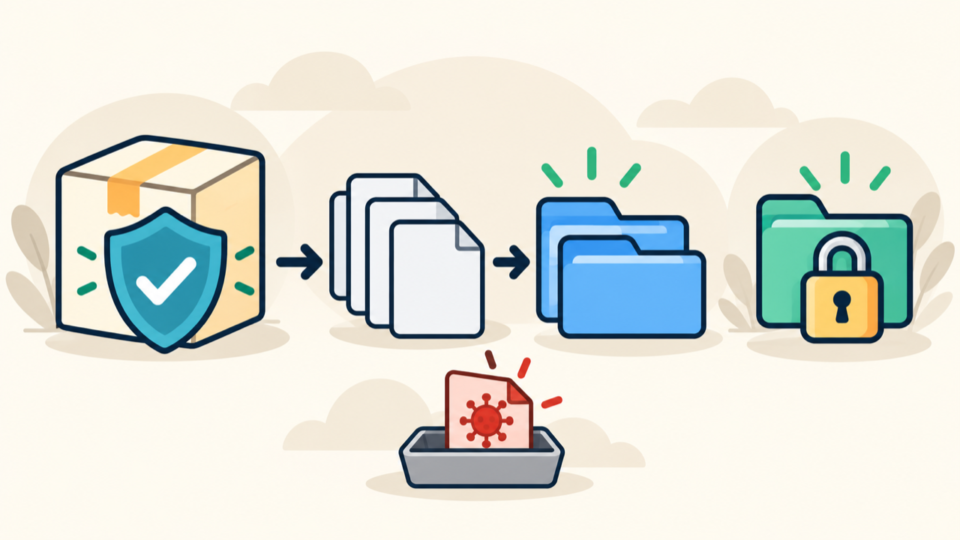
A controlled rebuild is safer than editing flagged lines one by one. The goal is to replace every distributed core file with a trusted copy while preserving the database, wp-content, wp-config.php, and any documented server configuration that belongs to the site.
wp-content, which contains plugins, themes, uploads, languages, and site-specific fileswp-config.php, which contains database, salts, environment, and custom configuration- Server rules or host-managed files unless you have reviewed their clean source
- The database, which is not repaired by copying WordPress core files
- Preserve the compromised copy, database, logs, hashes, and environment details.
- Prepare the exact clean WordPress package in a separate protected directory.
- Remove the live
wp-adminandwp-includestrees from service by moving them to a restricted quarantine location. - Copy the clean
wp-adminandwp-includesdirectories into place as complete trees. - Replace distributed root core files while preserving
wp-contentandwp-config.php. - Restore correct ownership and permissions, clear caches, then run checksum verification again.
If command-line access is available and the incident is already preserved, wp core download --force --skip-content can overwrite distributed core files. However, overwriting alone may not remove extra attacker-created files, so you still need the unexpected-file review and a clean directory replacement strategy.
WordPress Core File Malware Verification Must Cover Reinfection Paths
The rebuild is complete only when the new core matches its trusted baseline and the original symptom does not return. Verify immediately after replacement, again after normal traffic resumes, and after scheduled tasks have had time to run.
wp core verify-checksums --include-root --version=6.6.2 --locale=en_US
wp user list --role=administrator
wp cron event list
find wp-content/uploads -type f -name '*.php' -print
find . -type f -mtime -2 -print
If core files change again, do not repeat the replacement indefinitely. Investigate stolen credentials, vulnerable plugins or themes, unknown administrators, malicious cron, writable deployment paths, neighboring compromised sites, and server-level persistence. The guide to finding the root cause of recurring WordPress malware covers that escalation path.
Rotate WordPress, hosting, SFTP, SSH, database, email, CDN, and registrar credentials from a clean device as appropriate. Revoke active sessions and application passwords, update vulnerable components in a controlled order, and continue with the post-malware WordPress security checklist.
WordPress Core File Malware Recovery Summary
Verify WordPress core file malware against the exact official version and locale, preserve every finding, and rebuild complete core directories from a trusted package. Protect wp-content, wp-config.php, and the database, then inspect all non-core persistence paths before declaring the site clean.
If You Can’t Secure or Recover Your WordPress Site Yourself

If your website shows malware warnings, redirects to strange pages, or you are not sure whether it is secure,
SiteFixNow can help clean, repair, and recover your WordPress site.
- Your WordPress site may be infected with malware.
- Security warnings appear in Google or browser results.
- You found unknown admin users or suspicious files.
- The site redirects to spam or unknown websites.
- You need urgent WordPress hacked site repair.
- Reduce visitor risk and SEO damage.
- Find hidden malware and backdoors, not only visible symptoms.
- Recover the site safely without unnecessary data loss.