Emergency WordPress malware removal starts with one decision: stop the damage before you start “cleaning.” If your site is redirecting visitors, showing browser warnings, creating unknown users, or loading strange scripts, the first few checks matter more than a random plugin scan.
This guide explains what to check right now, what not to touch too early, and how to collect the evidence you need for a safer recovery. The goal is not only to remove visible malware, but also to avoid breaking the site or leaving a hidden backdoor behind.
 RyoheiYokoyama
I’m Ryohei Yokoyama, founder of SiteFixNow. I’ve worked as an IT engineer for over 20 years and have handled many WordPress malware removal, hacked site repair, and security cleanup cases. In this article, I’ll explain the practical emergency checks I use before cleanup begins.
- Which emergency checks to run before editing files.
- Where WordPress malware and backdoors commonly hide.
- How to preserve evidence while reducing visitor and SEO damage.
- When DIY cleanup becomes risky and professional recovery is safer.
Emergency WordPress Malware Removal Starts With Containment
The first step in emergency WordPress malware removal is containment, not deletion. If you remove suspicious files without understanding the infection path, the attacker may still have access and the site can be reinfected within minutes.
Start by limiting further damage. Put the site into maintenance mode if visitors are being redirected or served malicious downloads. If your host provides a temporary access restriction, use it while you investigate.
Do not immediately delete the entire wp-content folder, reinstall WordPress over the live site, or restore an old backup without checking the backup date. These shortcuts can destroy useful evidence or restore the same malware again.
- Confirm whether the malware affects all visitors or only mobile, search traffic, or specific countries.
- Take screenshots of browser warnings, redirects, unknown popups, and search result warnings.
- Download a copy of current files and database before making destructive changes.
- Change WordPress admin, hosting panel, FTP/SFTP, and database passwords from a clean device.
If you need a symptom checklist before touching the site, compare your situation with WordPress malware warning signs. It helps separate a normal plugin error from a likely infection.
Emergency WordPress Malware Removal Check 1: Admin Users and Login Access
Check admin access first because unknown administrator accounts are one of the clearest signs that the attacker may still control the site. A file cleanup is not enough if a hidden user can log back in.
Open the WordPress user list and look for accounts you do not recognize. Pay attention to recently created administrators, strange email domains, usernames that look like random strings, and accounts with display names that imitate real staff members.
If you can still access the database, check the wp_users and wp_usermeta tables. Some attackers hide privilege changes in usermeta, especially when the visible user list looks normal.
SELECT ID, user_login, user_email, user_registered
FROM wp_users
ORDER BY user_registered DESC;

SELECT user_id, meta_key, meta_value
FROM wp_usermeta
WHERE meta_key LIKE '%capabilities%';
Do not delete a suspicious admin before taking a record of the account. Record the username, email address, registration time, and related usermeta. Then remove the account, rotate passwords, and invalidate active sessions.
Emergency WordPress Malware Removal Check 2: Files That Commonly Hide Backdoors
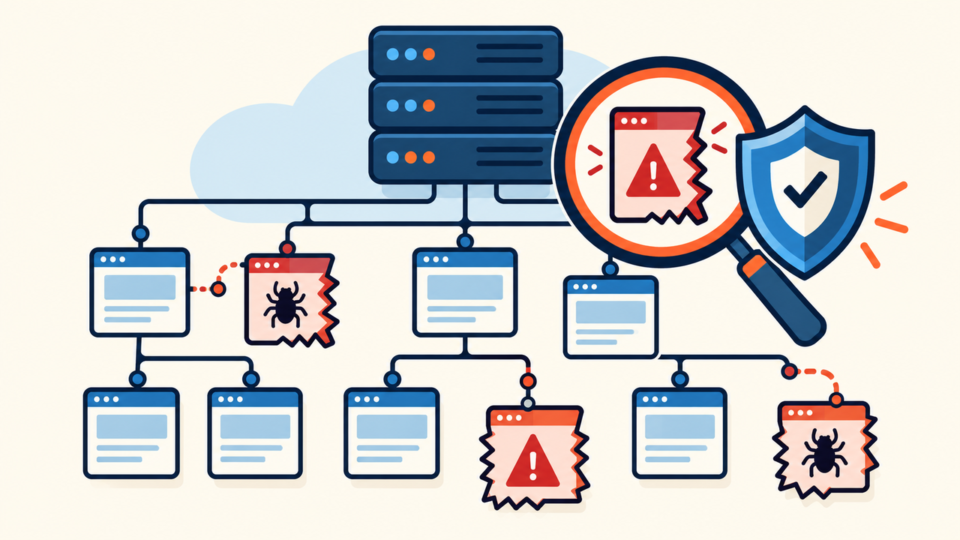
The next check is the file system. WordPress malware often hides in places that look ordinary: plugin folders, theme files, uploads, cache directories, and files with names that imitate core files.
Start with recent changes. Sort files by modification time and look for PHP files that changed around the time the problem started. A legitimate plugin update can change many files, but random PHP files inside uploads or cache folders deserve immediate attention.
find public_html -type f -name '*.php' -mtime -14 -print
find public_html/wp-content/uploads -type f -name '*.php' -print
find public_html -type f \( -name '*.ico' -o -name '*.txt' -o -name '*.bak' \) -mtime -14 -print
Look for suspicious code patterns, but avoid assuming every match is malware. Functions such as base64_decode, eval, gzinflate, str_rot13, and shell_exec can appear in malicious files, but context matters.
grep -RIn --include='*.php' 'base64_decode\|eval(\|gzinflate\|str_rot13\|shell_exec' public_html/wp-contentFor a deeper file-focused cleanup path, use the checklist in WordPress file infection cleanup. It covers wp-content, wp-config.php, and other high-risk areas in more detail.
Check uploads for executable files
The uploads directory should usually contain images, PDFs, and media files, not executable PHP. If you find PHP inside wp-content/uploads, treat it as high risk until proven otherwise.
After you remove confirmed malicious files, block PHP execution in uploads. This does not replace cleanup, but it reduces one common reinfection route.
<FilesMatch "\.php$">
  Require all denied
</FilesMatch>
Emergency WordPress Malware Removal Check 3: Database Injections and Redirect Rules
Emergency cleanup must include the database because many redirect hacks and spam injections do not live only in files. Malicious scripts can be stored in posts, widgets, options, custom HTML blocks, or plugin settings.
Search for suspicious domains, encoded scripts, unknown JavaScript, and iframe injections. If visitors are redirected only from Google or mobile devices, the payload may be conditional and hard to spot in the browser.
SELECT option_name, option_value
FROM wp_options
WHERE option_value LIKE '%<script%'
   OR option_value LIKE '%iframe%'
   OR option_value LIKE '%base64%';

SELECT ID, post_title
FROM wp_posts
WHERE post_content LIKE '%<script%'
   OR post_content LIKE '%iframe%';
Also inspect .htaccess, server redirect settings, and any CDN or control panel redirects. A redirect hack can sit outside WordPress, especially when the WordPress files look clean but traffic still jumps to spam pages.
If the main symptom is forced redirection, compare your case with WordPress redirect hack fix and WordPress redirect virus fix. Those guides explain the redirect-specific hiding places.
Emergency WordPress Malware Removal Check 4: Plugins, Themes, and Core Integrity
Plugin, theme, and core integrity checks help you decide whether you are seeing a compromised extension, an abandoned theme, or a broader server-level infection. This step should be systematic, not based on guessing which plugin “looks suspicious.”
Compare WordPress core files with a clean copy from wordpress.org. For plugins and themes, compare against the official repository version or the vendor’s original package. Any extra PHP file, changed loader, or unexpected admin hook needs review.
- The plugin or theme has not been updated for years.
- The folder contains files with random names or recent timestamps.
- A nulled or unofficial premium plugin was installed.
- Files contain obfuscated code that the original package does not include.
If you cannot log into the dashboard safely, rename a suspicious plugin folder through SFTP instead of deleting it immediately. For example, rename wp-content/plugins/example-plugin to example-plugin.disabled and then test whether the site behavior changes.
After emergency containment, update or replace vulnerable extensions. Cleanup without closing the entry point is only temporary. The guide on how to fix a hacked WordPress site and stop reinfection explains the post-cleanup hardening process.
Emergency WordPress Malware Removal Check 5: Backups, Logs, and Recovery Timing
Backups are useful only when you know whether they are clean. In emergency WordPress malware removal, the safest restore point is not always the newest backup. You need to compare the infection timeline with backup dates, server logs, and file modification times.
Check access logs for suspicious POST requests, unknown admin login attempts, plugin editor access, REST API abuse, and requests to unusual PHP files. Common log locations vary by host, but these paths are worth checking when available.
/var/log/apache2/access.log
/var/log/apache2/error.log
/var/log/nginx/access.log
/var/log/nginx/error.log
/home/account/logs/
hosting-control-panel access logs
If a backup is older than the infection, restore it to a staging area first when possible. Then compare files, database content, users, and plugin versions before replacing the live site. A blind live restore can erase customer data, orders, forms, or newer content.
For a broader owner-friendly workflow, keep the WordPress malware cleanup checklist open while you work. It gives you a structured order when the situation feels urgent.
Emergency WordPress Malware Removal: When to Stop DIY Cleanup
You should stop DIY cleanup when the infection affects revenue, customer trust, search visibility, or server security. The harder truth is that a partially cleaned hacked site can be more dangerous than an obviously broken one, because everyone assumes the problem is gone.
Ask for help if the malware returns after cleanup, Google keeps showing warnings, unknown admin users reappear, redirects happen only for some visitors, or you cannot identify the entry point. These are signs that a hidden backdoor or server-level issue may still exist.
SiteFixNow helps with WordPress malware removal, hacked site repair, database cleanup, file inspection, and recovery planning. If the site is important to your business, a careful recovery is usually cheaper than repeated emergency patches.
Emergency WordPress Malware Removal FAQ
Emergency WordPress Malware Removal Summary
Emergency WordPress malware removal should follow a careful order: contain the damage, preserve evidence, check admin users, inspect files, search the database, review extensions, evaluate backups, and then clean the site with the entry point in mind.
Do not treat visible malware as the whole problem. The real recovery goal is to remove backdoors, stop reinfection, restore trust, and make sure visitors and search engines can safely access the site again.
If You Can’t Secure or Recover Your WordPress Site Yourself

If your website shows malware warnings, redirects to strange pages, or you are not sure whether it is secure,
SiteFixNow can help clean, repair, and recover your WordPress site.
- Your WordPress site may be infected with malware.
- Security warnings appear in Google or browser results.
- You found unknown admin users or suspicious files.
- The site redirects to spam or unknown websites.
- You need urgent WordPress hacked site repair.
- Reduce visitor risk and SEO damage.
- Find hidden malware and backdoors, not only visible symptoms.
- Recover the site safely without unnecessary data loss.