A Google blacklist warning on WordPress can appear as a red browser interstitial, a Search Console security notice, a warning beside a search result, or a hosting alert. Whatever the surface, treat it as a security incident—not a cache glitch or a normal WordPress error.
 RyoheiYokoyama
I’m Ryohei Yokoyama, founder of SiteFixNow. I’ve worked as an IT engineer for over 20 years and have handled many WordPress recovery, malware removal, hacked site repair, and security cleanup cases. In this article, I’ll explain how to clear a blacklist warning without overlooking the cause that triggered it.
- How to confirm which service is showing the security warning
- What to save before cleaning files or changing accounts
- Which WordPress, database, hosting, and ownership layers to inspect
- When the site is ready for a security review request
- Why a warning can remain or return after cleanup
Google Blacklist Warning on WordPress Means Confirm the Exact Signal
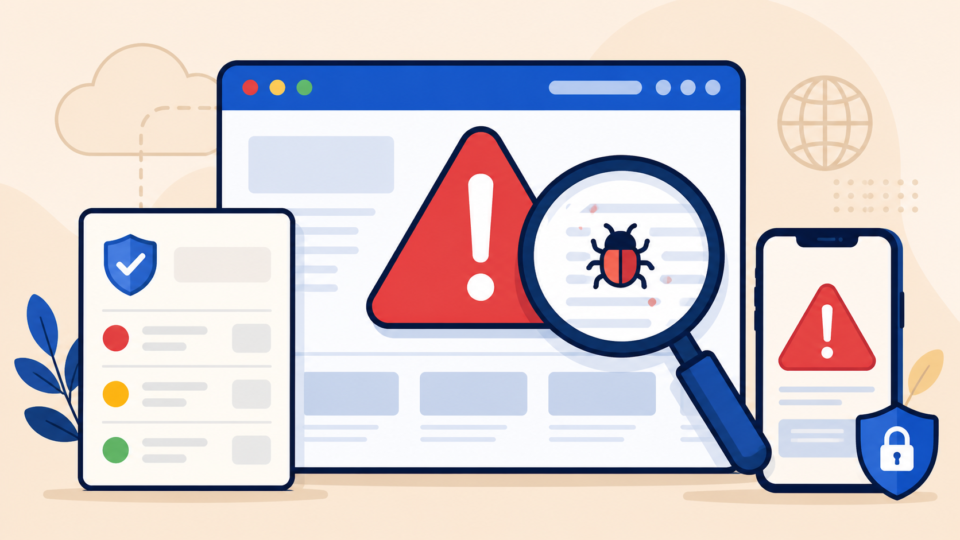
The first decision is to identify who is issuing the warning and which URLs trigger it. A browser Safe Browsing screen, Search Console Security Issues report, search-result warning, and hosting malware notice are related signals, but they do not always list the same evidence.
Record the exact message, affected URL, date, device, and path used to reach the page. Test the homepage, a normal article, a search-result click, and a direct URL in a private window. Do not repeatedly open a page that attempts downloads or asks for credentials.
- A screenshot showing the full warning and browser address bar
- The example URLs named in Search Console or the hosting report
- The first time the warning appeared and the last known clean time
- Recent plugin, theme, user, DNS, deployment, or server changes
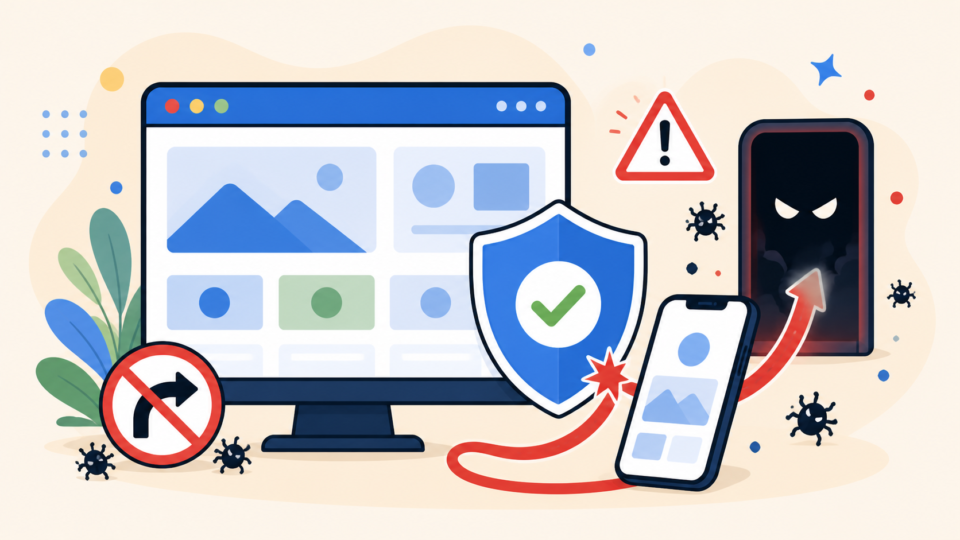
Conditional malware may target only mobile users, search visitors, or people without an admin cookie. If the site looks normal only while you are logged in, that does not clear it. Compare the signs with WordPress virus symptoms that indicate a compromise.
WordPress Blacklist Cleanup Starts With Containment and Evidence
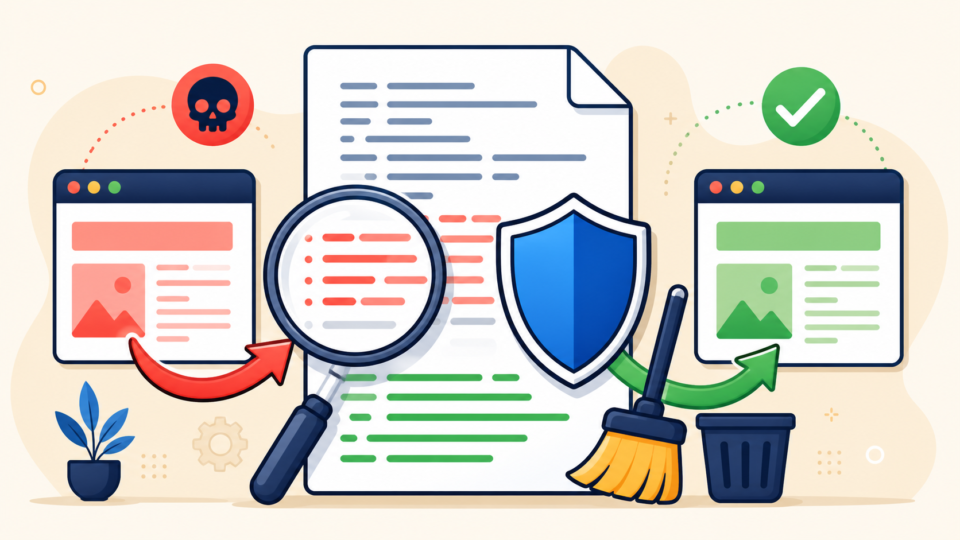
The correct first move is containment, not random deletion. Protect visitors while keeping enough evidence to learn how the compromise happened. Deleting one named file may remove a symptom but also erase its timestamp, owner, related requests, and connection to a surviving loader.
Create a full copy of WordPress files and the database before cleanup, even if that copy is infected. Export relevant access and error logs. If the site is actively redirecting, distributing downloads, or impersonating a login page, use host-level maintenance or access controls so malicious PHP cannot keep serving visitors.
Do not rely on a dashboard maintenance plugin if the infection can bypass WordPress. A malicious file in uploads or a root rewrite rule may execute before the plugin loads. The emergency WordPress malware removal checks provide a broader first-response sequence.
WordPress Blacklist Cleanup Must Remove Every Infection Layer
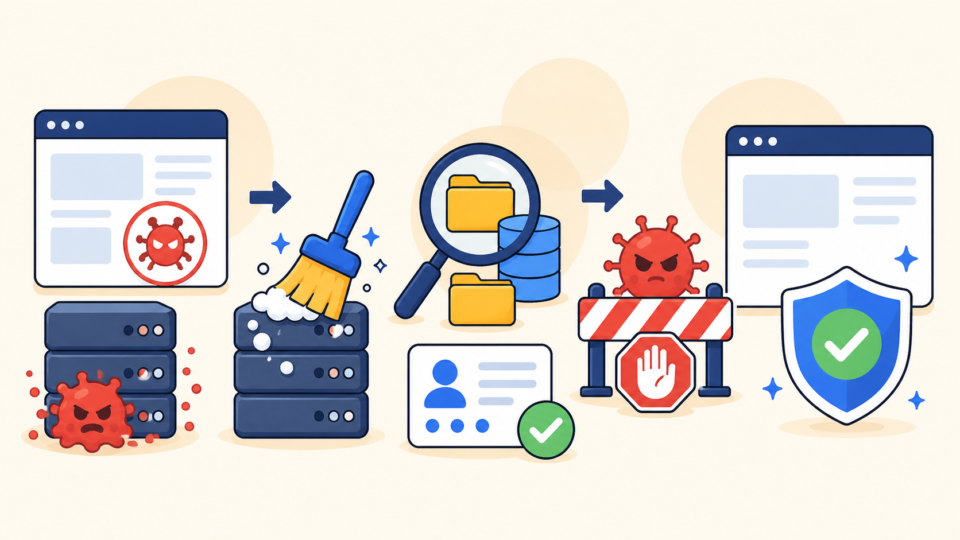
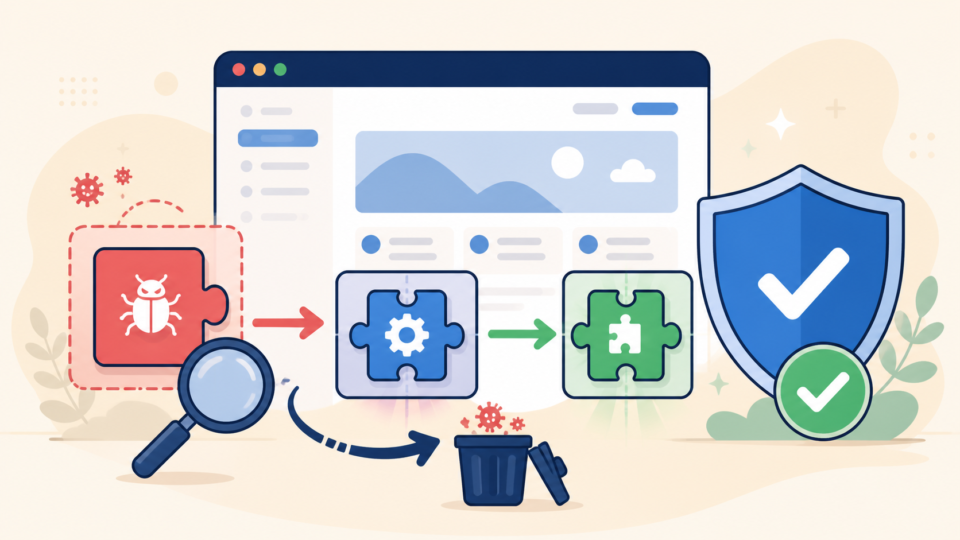
A review request should describe a complete cleanup, so the work must cover every place that can create the flagged content. Inspect WordPress core, plugins, themes, uploads, must-use plugins, configuration files, rewrite rules, database records, administrator users, scheduled tasks, and hosting-level jobs.
Compare core, plugin, and theme files with fresh copies from trusted sources. Replace compromised components rather than trying to understand every obfuscated line. Preserve custom uploads and business data, but quarantine executable files that do not belong in media folders.
WordPress and hosting locations:
.htaccess
wp-config.php
wp-content/mu-plugins/
wp-content/plugins/
wp-content/themes/
wp-content/uploads/
database: posts, options, users, usermeta
hosting cron jobs and scheduled tasks
Search Console users and verification files
Database cleanup matters because spam can live in posts, options, injected JavaScript, widget content, or unknown tables. User cleanup matters because an attacker with a surviving administrator, hosting, SFTP, database, or mailbox credential can upload the infection again after a perfect file replacement.
Review Search Console owners and verification methods too. Remove only identities and verification artifacts you have confirmed are unauthorized. When search pages are the main symptom, the guide to Japanese keyword hack and WordPress SEO spam explains why deleting visible URLs alone is insufficient.
After malicious code and unauthorized access are removed, update vulnerable software and rotate credentials from a known-clean device. Use unique passwords and refresh salts, API keys, deployment tokens, and database credentials where exposure is plausible. For a deeper layer-by-layer plan, follow WordPress malware cleanup across files, the database, and backdoors.
Google Safe Browsing Review Request Comes Only After Verification

Submit a Google security review only after the site is clean, reachable, and stable. The absence of a visible warning in your usual browser is not enough. Verify the specific reported URLs, several normal pages, mobile and search-entry behavior, file changes, user accounts, scheduled tasks, and server logs.
- Every sample URL in the warning has been investigated
- Malicious files, code, users, redirects, and verification methods are gone
- The exploited component or stolen access path has been corrected
- Direct, search, mobile, and logged-out tests return clean content
- Logs show no continued calls to quarantined files or attacker endpoints
In the review request, be factual and concise. State what was compromised, which malicious artifacts were removed, how the entry point was fixed, which credentials were rotated, and how you verified the cleanup. Do not claim the site is secure merely because a scanner reports zero detections.
Keep the site online in its clean state so reviewers can inspect it. Continue monitoring while the request is pending. Use the steps to secure WordPress after malware removal without adding untested changes that make verification harder.
WordPress Blacklist Review Failures Reveal Remaining Problems
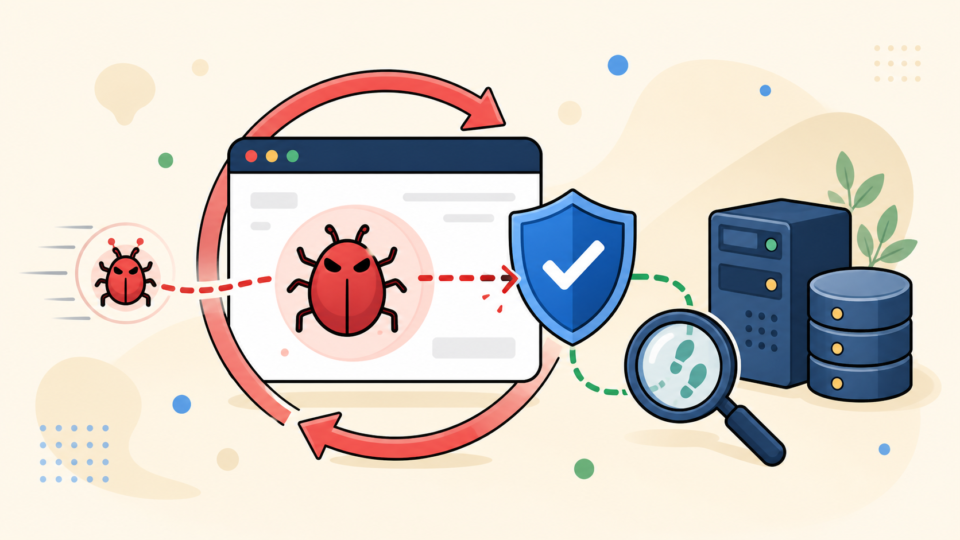
If a review is rejected or the warning returns, assume that evidence remains before blaming browser cache. Recheck every example URL and compare its response by device, user agent, referrer, cookie state, and network. Conditional output is a common reason owners see a clean page while reviewers still see malware.
Google Blacklist Warning on WordPress FAQ
Google Blacklist Warning on WordPress Cleanup Summary
A Google blacklist warning on WordPress is resolved by proving the dangerous behavior is gone and the path that created it cannot return. Confirm the warning source, preserve evidence, contain visitor risk, clean every technical and access layer, verify from several paths, and submit a clear review request.
If You Can’t Secure or Recover Your WordPress Site Yourself

If your website shows malware warnings, redirects to strange pages, or you are not sure whether it is secure,
SiteFixNow can help clean, repair, and recover your WordPress site.
- Your WordPress site may be infected with malware.
- Security warnings appear in Google or browser results.
- You found unknown admin users or suspicious files.
- The site redirects to spam or unknown websites.
- You need urgent WordPress hacked site repair.
- Reduce visitor risk and SEO damage.
- Find hidden malware and backdoors, not only visible symptoms.
- Recover the site safely without unnecessary data loss.