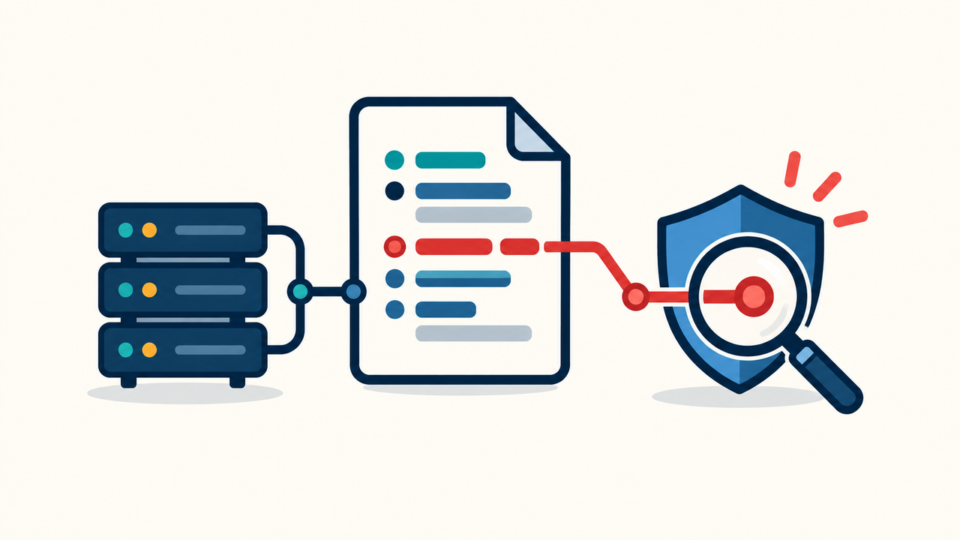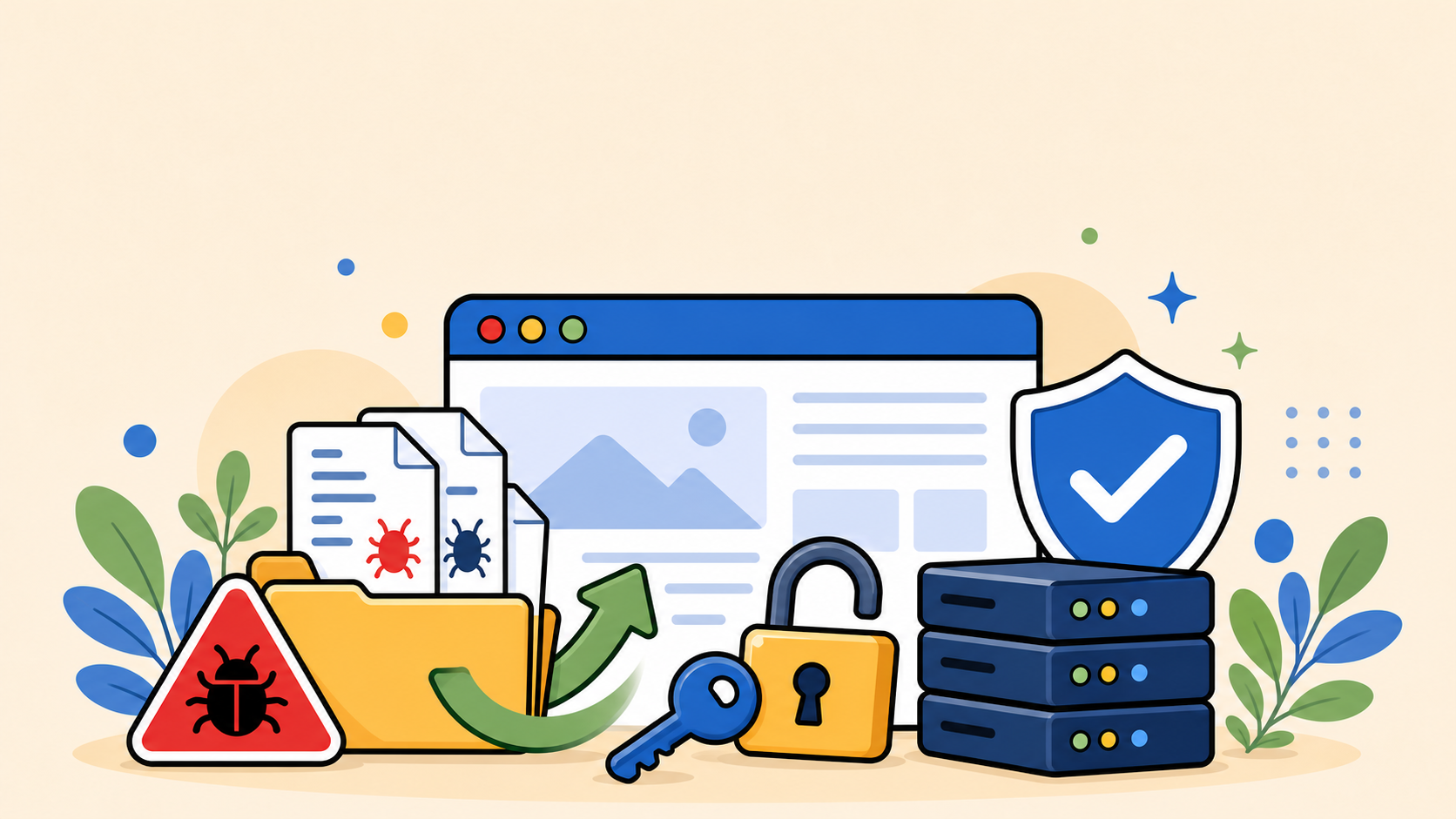
WordPress emergency recovery starts with one goal: regain control without destroying evidence, losing clean data, or leaving the attacker a way back in. When wp-admin is locked, files look suspicious, or customers no longer trust the site, random trial-and-error fixes can make the incident worse.
This guide explains how to restore access, check critical files, and rebuild trust after a WordPress hack, malware infection, redirect attack, or serious site failure. Use it as a calm response plan before you delete files, overwrite the database, or request a warning review.
 RyoheiYokoyama
I’m Ryohei Yokoyama, founder of SiteFixNow. I’ve worked as an IT engineer for over 20 years and have handled many WordPress recovery, malware removal, hacked site repair, and security cleanup cases. In this article, I’ll explain the practical checks and safe recovery steps you should know before making the problem worse.
- How to stabilize a hacked or broken WordPress site before deeper repair.
- Which access points to recover first: wp-admin, hosting, FTP/SFTP, database, and email.
- Which files and database locations commonly hide malware or backdoors.
- How to rebuild visitor, browser, and search engine trust after cleanup.
WordPress Emergency Recovery Starts With Stabilizing the Site
The first step in WordPress emergency recovery is not cleanup. It is stabilization. You need to stop the visible damage, preserve what happened, and make sure your next action does not erase the information needed to find the real entry point.
If the site is redirecting visitors, showing malware warnings, sending spam, or exposing fake pages, consider temporarily restricting public access while you investigate. This protects visitors and gives you room to work. However, do not immediately wipe the server unless you already have a clean backup and a clear restoration plan.
- Save a current backup of files and the database, even if it is infected.
- Take screenshots of warnings, redirects, defacement, or wp-admin errors.
- Record the first known time of the problem and the pages affected.
- Check whether hosting, email, DNS, or only WordPress is affected.
- Restrict public access if visitors are being sent to unsafe pages.
A copy of the infected state may feel useless, but it can be important. It helps compare file timestamps, inspect suspicious code, recover content if a cleanup step fails, and understand whether the same attacker returns after restoration.
If the problem looks like a malware infection, read the broader WordPress malware removal guide before deleting files. If the symptom is a redirect, also compare the checks in the WordPress redirect hack fix guide.
WordPress Emergency Recovery for Lost Access and Locked wp-admin
When you cannot log in to wp-admin, recover the strongest access layer first. In most incidents, hosting control panel access, SFTP/SSH, database access, and the admin email account matter more than the WordPress password itself.
Start with the email account tied to the WordPress administrator and hosting account. If that email is compromised, password resets can be intercepted. Change the email password, enable two-factor authentication, and then secure the hosting account before resetting WordPress users.
Recover admin access without trusting the current dashboard
If wp-admin still loads, review Users > All Users immediately. Remove unknown administrators, downgrade unused accounts, and change passwords for every administrator. If wp-admin is broken, use phpMyAdmin, Adminer, WP-CLI, or hosting support to inspect the users table.
# List WordPress users if WP-CLI is available.
wp user list

# Reset a known administrator password.
wp user update admin --user_pass='use-a-long-unique-password-here'

# Check administrator accounts only.
wp user list --role=administrator
If you do not have WP-CLI, check the database table ending in _users and the role data in _usermeta. Be careful with manual database edits. A typo can lock you out further, so export the affected tables before changing them.
Do not stop at password resets
Password resets are necessary, but they are not enough. If malware added a backdoor file, a hidden admin user, or a malicious plugin, the attacker may regain access even after every visible password has changed.
- WordPress administrator accounts and application passwords.
- Hosting control panel, FTP, SFTP, SSH, and database users.
- Email accounts used for password reset links.
- API keys used by backup, form, SMTP, payment, and automation plugins.
- DNS, CDN, and domain registrar access if visitors are redirected before WordPress loads.
If you see unknown administrators or suspicious login behavior, the site should be treated as compromised even if the homepage looks normal. Our hacked WordPress site repair guide explains why visible symptoms are often only one part of the incident.
WordPress Emergency Recovery Requires File and Database Checks
After access is stable, the next priority is checking files and database locations that can change every page request. A site can look repaired while a hidden loader, modified option, or backdoor plugin remains active.
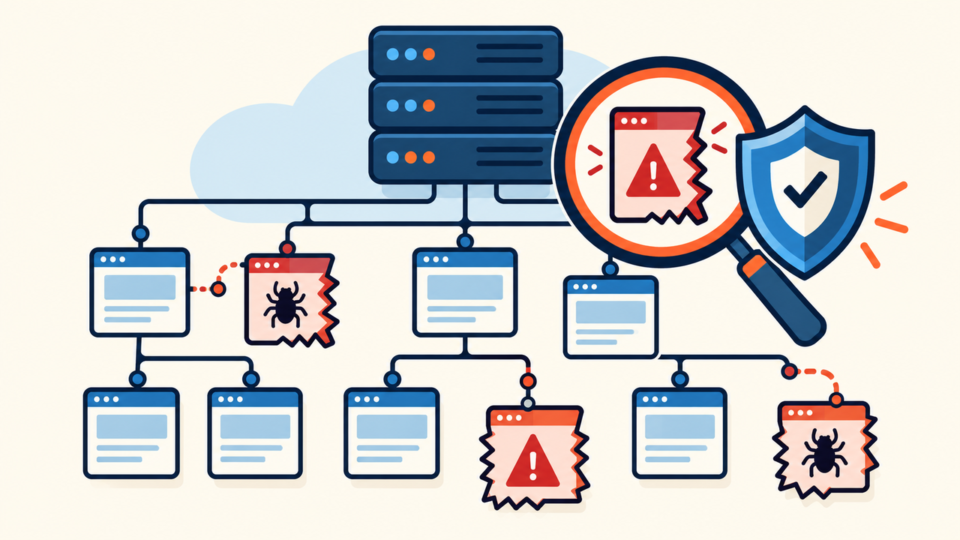
Focus first on files that load early or affect routing. These locations can redirect visitors, include external code, hide spam links, or recreate deleted malware after you clean only the visible infected files.
.htaccessor server rewrite rules in the document root.wp-config.phpfor unfamiliar includes, constants, or remote loading.wp-content/mu-plugins/because files there load automatically.wp-content/plugins/for unknown folders or modified plugin files.wp-content/themes/your-theme/functions.php,header.php, andfooter.php.wp-content/uploads/for PHP files that should not be there.
A normal root .htaccess file usually contains the WordPress rewrite block. Unexpected rules that check referrers, mobile user agents, cookies, or search engines are common in conditional redirect infections.
# Standard WordPress rewrite block.
# Review any unknown redirect rules above or below this section.
<IfModule mod_rewrite.c>
RewriteEngine On
RewriteRule .* - [E=HTTP_AUTHORIZATION:%{HTTP:Authorization}]
RewriteBase /
RewriteRule ^index\.php$ - [L]
RewriteCond %{REQUEST_FILENAME} !-f
RewriteCond %{REQUEST_FILENAME} !-d
RewriteRule . /index.php [L]
</IfModule>
In wp-config.php, look for unfamiliar include, require, eval, base64_decode, gzinflate, remote URLs, or code before the normal WordPress configuration. A clean configuration file should mainly hold database settings, salts, table prefix, and safe WordPress constants.
// Helpful during investigation. Do not display errors publicly.
define('WP_DEBUG', true);
define('WP_DEBUG_LOG', true);
define('WP_DEBUG_DISPLAY', false);

// Disable file editing from the WordPress dashboard.
define('DISALLOW_FILE_EDIT', true);
For uploads, WordPress sites normally store images, PDFs, and media files there. PHP files inside wp-content/uploads/ deserve careful review because attackers often place web shells in writable upload directories.
# Apache example for uploads hardening.
# Test carefully because hosting environments differ.
<FilesMatch "\.php$">
  Require all denied
</FilesMatch>
Database checks matter too. Inspect wp_options for suspicious siteurl, home, active plugin lists, injected header/footer options, and strange autoloaded values. Also check posts, widgets, reusable blocks, and plugin-specific tables if spam pages or hidden links appeared.
For a deeper file-focused workflow, compare this with the WordPress file infection cleanup guide and the guide to scanning WordPress for malware and hidden backdoors.
WordPress Emergency Recovery Should Restore From Clean Sources Carefully
A backup can save a WordPress emergency, but restoring the wrong backup can also reintroduce malware or erase recent orders, leads, comments, and content. The safest recovery plan separates clean files, valuable database content, and the vulnerable entry point.
Do not assume the newest backup is clean. If the infection existed quietly for weeks, the latest backup may already contain backdoors. Compare multiple backup dates, server logs, file modification times, and the first visible symptom.
- Is the backup from before the first suspicious login, file change, or warning?
- Will restoring the database remove important recent orders or inquiries?
- Can you replace WordPress core, plugins, and themes from official clean sources?
- Do you know which plugin, theme, password, or server issue allowed the incident?
- Can the restored site be scanned before it goes public again?
For many sites, the cleanest approach is to replace WordPress core files, reinstall plugins and themes from trusted sources, preserve only reviewed uploads, and carefully migrate database content. This takes longer than clicking “restore,” but it reduces the chance of bringing the same malware back.
Before replacing files, save a copy of wp-config.php, uploads, custom theme changes, and the database. Then rebuild from known-good sources and reapply only the settings and customizations you can verify.
1. Save an infected-state backup for reference.
2. Export the current database.
3. Download clean WordPress core from wordpress.org.
4. Reinstall plugins and themes from official or vendor sources.
5. Review uploads before copying them back.
6. Import only needed database content and settings.
7. Patch the entry point before reopening the site.
If your main problem is choosing or validating a backup, the WordPress recovery service guide explains when professional restoration support is safer than guessing on a live business site.
WordPress Emergency Recovery Must Rebuild Visitor and Search Trust
Technical recovery is not complete when the homepage loads again. You also need to rebuild trust with visitors, browsers, search engines, ad platforms, and anyone who may have interacted with the compromised site.
After cleanup, change passwords, revoke unused API keys, update all software, remove abandoned plugins and themes, clear caches, and rescan the site. Then check Google Search Console, browser warnings, malware scanner reports, and ad platform notices before assuming the issue is finished.
- Scan the site with more than one method, including server files when possible.
- Check the site as a logged-out visitor on desktop and mobile.
- Test key pages, forms, checkout, login, and password reset flows.
- Clear WordPress, plugin, server, CDN, and browser caches.
- Submit review requests only after malware and backdoors are removed.
If Google or a browser flagged the site, do not request a review while suspicious files remain. A failed review can delay recovery and keep warning labels visible longer. Make sure the site is clean, accessible, updated, and no longer redirecting before you submit.
For long-term prevention after the emergency, use the guide to securing WordPress after malware removal. Emergency recovery should end with better monitoring, stronger accounts, clean backups, and fewer unnecessary attack surfaces.
FAQ About WordPress Emergency Recovery
WordPress Emergency Recovery Summary: Restore Control, Files, and Trust
WordPress emergency recovery is not one button. It is a sequence: stabilize the site, recover trusted access, inspect files and database entries, restore from clean sources, close the entry point, and rebuild public trust.
The biggest mistake is removing only the visible symptom. A hacked site may contain hidden admin users, modified rewrite rules, infected uploads, malicious options, or backdoor plugins that recreate the problem later. Treat recovery as both repair and investigation.
If your site is already losing access, files, rankings, or customer trust, slow down just enough to preserve evidence and choose a safe recovery path. That calm approach is usually faster than cleaning the same infection twice.
If You Can’t Secure or Recover Your WordPress Site Yourself

If your website shows malware warnings, redirects to strange pages, or you are not sure whether it is secure,
SiteFixNow can help clean, repair, and recover your WordPress site.
- Your WordPress site may be infected with malware.
- Security warnings appear in Google or browser results.
- You found unknown admin users or suspicious files.
- The site redirects to spam or unknown websites.
- You need urgent WordPress hacked site repair.
- Reduce visitor risk and SEO damage.
- Find hidden malware and backdoors, not only visible symptoms.
- Recover the site safely without unnecessary data loss.