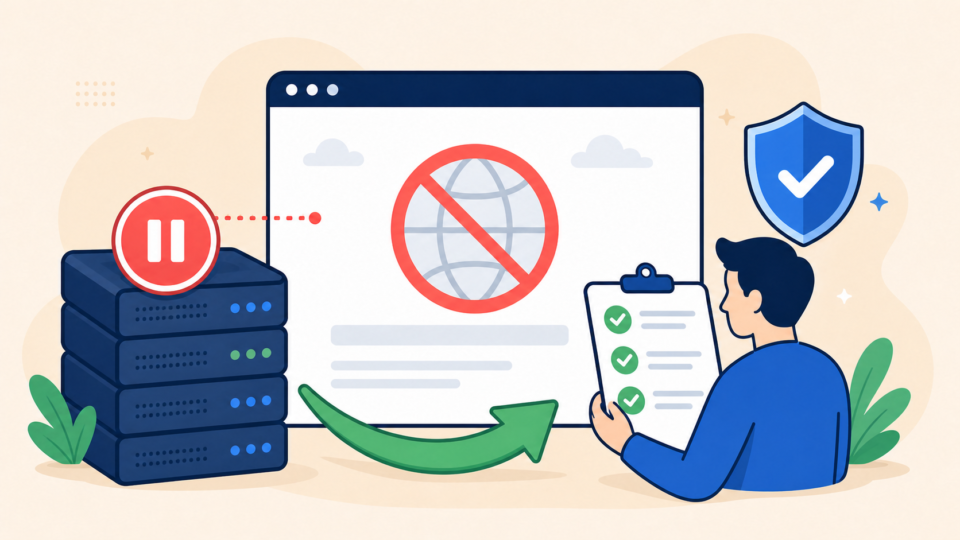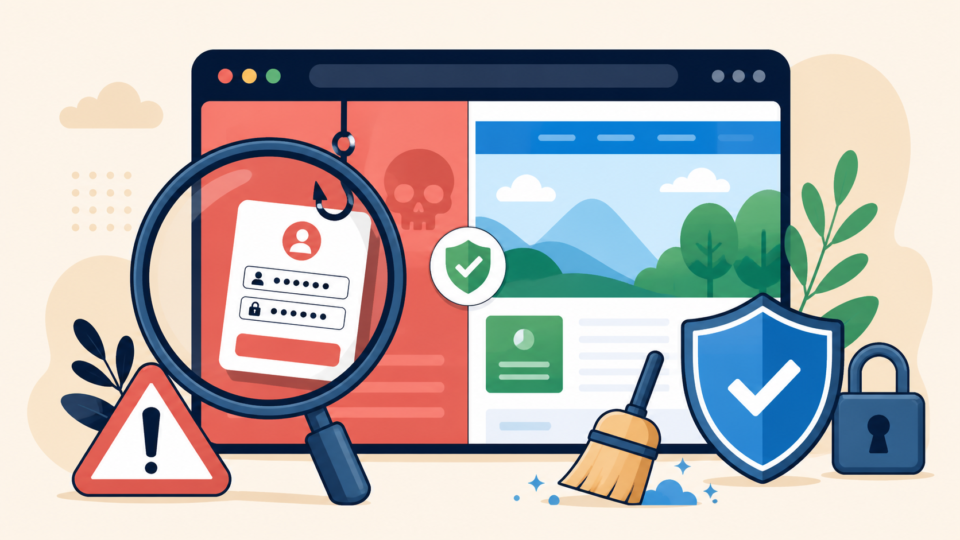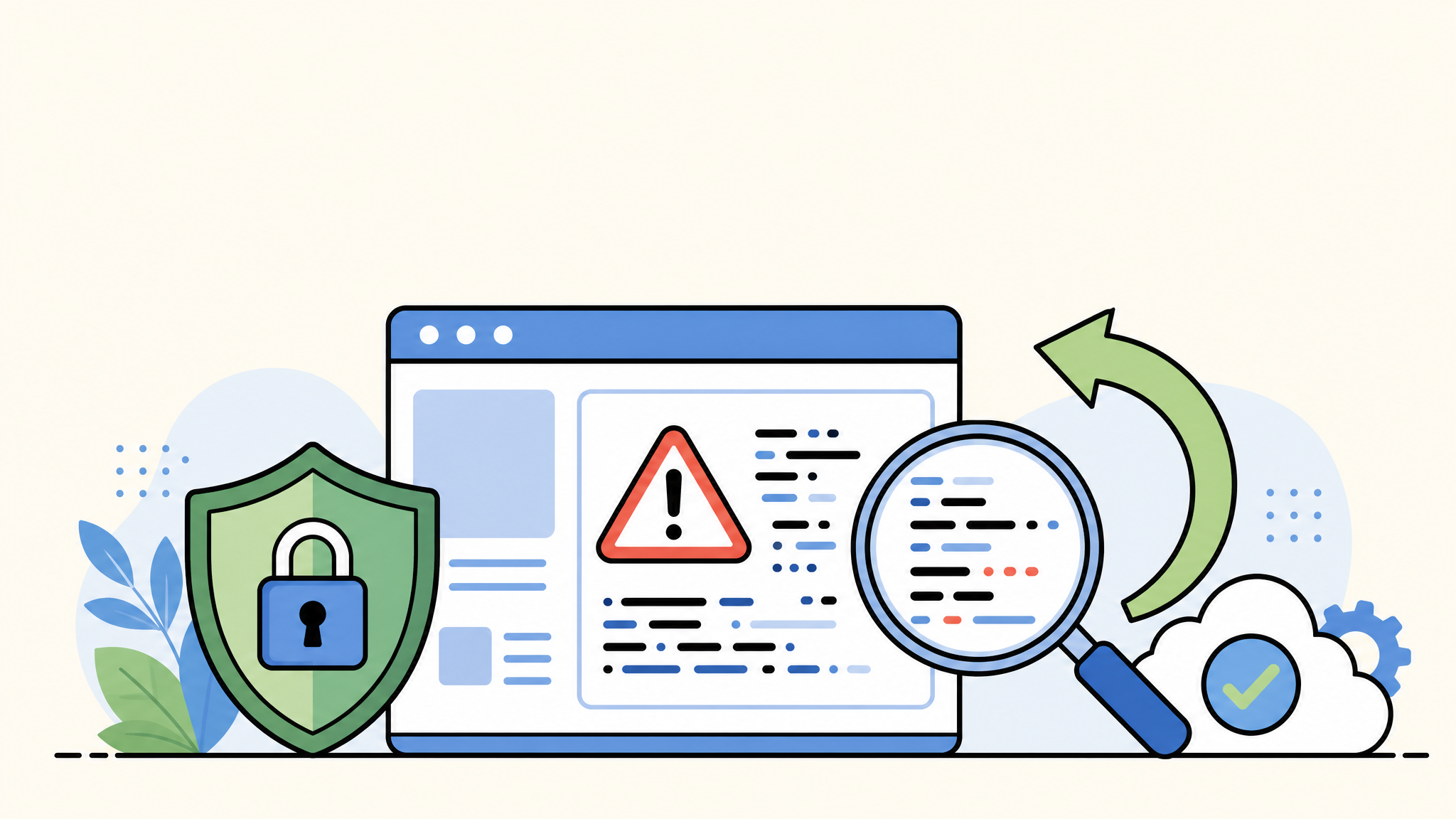
WordPress virus symptoms can be confusing because a hacked site does not always look broken. Sometimes the homepage still loads, orders still come in, and the dashboard looks normal, while visitors, search engines, or server logs are already seeing something dangerous.
If you suspect your WordPress site has been hacked, the safest first step is not to randomly delete files. Start by confirming the symptoms, checking the right locations, and preserving enough evidence to clean the site without losing content or leaving a backdoor behind.
 RyoheiYokoyama
I’m Ryohei Yokoyama, founder of SiteFixNow. I’ve worked as an IT engineer for over 20 years and have handled many WordPress recovery, malware removal, hacked site repair, and security cleanup cases. In this article, I’ll show you how to recognize WordPress virus symptoms and decide what to check first.
- Which WordPress virus symptoms usually indicate a real compromise
- How to check visitor-facing symptoms, dashboard clues, files, and server logs
- What file names and locations often hide malware or reinfection scripts
- What to avoid before you have a backup and a safe cleanup plan
WordPress virus symptoms are often visible to visitors before they are obvious to site owners
The first thing to understand is that WordPress virus symptoms are not always shown to the administrator. Many infections use conditional behavior. They may redirect only mobile visitors, show spam only to search engine crawlers, or stay quiet while you are logged in.
This matters because checking only the homepage from your usual browser can create a false sense of safety. A hacked WordPress site may look clean to you while sending customers to phishing pages, fake update downloads, casino pages, or suspicious shopping sites.
- The site redirects to an unknown domain after a few seconds
- Only mobile users or first-time visitors see strange pages
- Search results show spam titles, foreign text, or pages you never created
- Chrome, Safari, or Google shows a security or deceptive-site warning
- Visitors report popups, downloads, or login screens that are not yours
Test the site in a private browser window, on a phone, and from at least one page that is not the homepage. If symptoms appear only outside your admin session, treat that as a stronger sign of malware, not a weaker one.
If redirects are the main symptom, review the related guide on WordPress redirect hack fixes because redirect malware often hides in multiple places at once.
Test these URLs from a private browser window:
https://example.com/
https://example.com/wp-login.php
https://example.com/category/sample-category/
https://example.com/an-old-blog-post/

Also test from:
- A mobile device
- A different network
- Google search results
- A direct typed URL
WordPress virus symptoms in Google Search Console and search results can reveal hidden hacked pages
Another common symptom is search pollution. Your site may suddenly have indexed pages about products, coupons, gambling, adult content, or medical keywords that do not match your business. This is often called SEO spam or a Japanese keyword hack, depending on the injected content.
The reason this symptom is serious is that the visible page list may be only the surface. Attackers can create thousands of doorway URLs, inject content into theme files, or use rewrite rules so the spam is visible to search engines but hidden from normal administrators.
- Google Search Console reports security issues or hacked content
- The indexed page count jumps or drops without a site migration
- Search results show titles or descriptions you did not write
- Unknown URLs appear under your domain with spam keywords
- Clicks fall sharply because Google marks the site as unsafe
A useful check is the site: search operator. It is not a full security scan, but it can quickly show whether Google has indexed obvious spam under your domain.
Search Google for:
site:example.com casino
site:example.com viagra
site:example.com loan
site:example.com "wp-content"
site:example.com "index.php?"

Then check:
Google Search Console > Security issues
Google Search Console > Pages
Google Search Console > Manual actions
If Google has already detected the infection, do not request a review until the cleanup is complete. A premature review can fail, and the same hidden backdoor may recreate the spam after you remove only the visible pages.
For a broader recovery path, see WordPress malware infection recovery before changing files on a live production site.
WordPress virus symptoms inside wp-admin include unknown users, plugin changes, and broken access
Dashboard symptoms are especially important because they can show whether the attacker reached administrative control. If you find an unknown administrator account, unfamiliar plugin, changed site URL, or repeated password reset activity, assume the compromise may be deeper than one infected file.
This matters because deleting a suspicious file does not help if the attacker can still log in and upload it again. User accounts, API keys, FTP access, hosting control panel access, and database users may all need review after an admin-level compromise.
- Unknown administrator users or changed user email addresses
- Plugins or themes you do not remember installing
- Security plugins disabled or log files cleared unexpectedly
- Homepage, site URL, or permalink settings changed without approval
- You are locked out even though the password should be correct
Unknown admin users are not just clutter
If an unknown administrator exists, remove it only after you preserve a backup and check whether its email, display name, or creation time gives you a clue. Then reset passwords for every legitimate administrator and review access outside WordPress too.
Check these wp-admin areas:
Users > All Users
Plugins > Installed Plugins
Appearance > Themes
Settings > General
Settings > Permalinks
Tools or security plugin logs

If anything is unfamiliar, document it before deleting it.
When dashboard access is broken or suspicious users appear, WordPress hacked site repair should include account cleanup, credential resets, and reinfection checks, not only malware scanning.
WordPress virus symptoms in files often appear in wp-config.php, .htaccess, uploads, and mu-plugins
File-level symptoms are where many hacked WordPress sites become clear. Suspicious code in wp-config.php, strange redirect rules in .htaccess, executable PHP files inside wp-content/uploads, and unfamiliar files in wp-content/mu-plugins all deserve careful review.
The reason these locations are common is persistence. Malware authors want code that runs early, survives plugin deactivation, or hides in writable folders. That is why a proper check must include core files, configuration files, themes, plugins, uploads, and hidden must-use plugins.
- PHP files inside
wp-content/uploads/or image folders - Unknown
include,require, or encoded code inwp-config.php - Redirect rules in
.htaccessthat mention unknown domains - Files with names that imitate WordPress core files in the wrong folder
- Long unreadable strings using
base64_decode,gzinflate, oreval
Suspicious file names often look intentionally boring
Malware files often use names that look close to legitimate WordPress files. Do not rely on the file name alone. Check the folder, modification time, and content. A file named class-wp-cache.php inside uploads is much more suspicious than the same pattern inside a known cache plugin folder.
Common suspicious locations:
wp-content/uploads/2026/06/wp-cache.php
wp-content/uploads/2026/06/class-wp-image.php
wp-content/mu-plugins/loader.php
wp-content/plugins/.cache/index.php
wp-content/themes/active-theme/functions.php
wp-config.php
.htaccess
A clean reinstall of WordPress core can help only if you also inspect content folders and configuration files. For practical cleanup locations, review WordPress malware removal for infected sites.
Server-level WordPress virus symptoms include high resource usage, mail abuse, and strange log entries
Some symptoms appear outside WordPress. Your hosting account may show high CPU usage, outbound email spikes, suspicious PHP processes, or repeated requests to unfamiliar files. These signs can explain why the site is slow, suspended, or blocked by the host even when the homepage still opens.
The reason server symptoms matter is that malware may be using your site for tasks you cannot see in the dashboard. It might send spam, run a web shell, attack other sites, or keep calling a hidden file through scheduled requests.
- Hosting provider warns about malware, spam, phishing, or high load
- Error logs show repeated PHP warnings from unknown files
- Access logs show many POST requests to unusual PHP files
- Email delivery fails because the domain or server is blacklisted
- Cron jobs or scheduled tasks call URLs you do not recognize
Common places to check:
cPanel > Metrics > Errors
cPanel > Raw Access
Plesk > Logs
/home/account/logs/
/var/log/apache2/
/var/log/nginx/
Hosting security scan report
Mail delivery or bounce logs
If the host has already restricted your account, ask for the exact infected file paths from their scan. Those paths are useful evidence, but they should be treated as starting points. Malware scans often find symptoms without identifying every backdoor.
What to do when you notice WordPress virus symptoms
The safest response is to slow down for a moment and work in the right order. Panic deletion can erase evidence, break the site, or remove visible malware while leaving the reinfection path untouched. A methodical approach gives you a better chance of recovering the site cleanly.
Start with a full backup of files and database, even if the backup may contain malware. Then document the symptoms, check access accounts, scan files, remove confirmed malicious code, replace compromised core/plugin/theme files from trusted sources, reset credentials, and monitor the site after cleanup.
- Take a full file and database backup before deleting anything
- Record the symptoms, URLs, screenshots, and hosting scan paths
- Review admin users, hosting accounts, FTP/SFTP, and database access
- Inspect
wp-config.php,.htaccess, uploads, themes, plugins, andmu-plugins - Clean or replace infected files, then reset credentials and monitor logs
After cleanup, strengthen the site with the basics: remove unused plugins, update software, enable two-factor authentication, limit admin access, review file permissions, and keep reliable backups. The WordPress security checklist for beginners is a useful next step once the emergency is under control.
FAQ about WordPress virus symptoms
Summary: treat WordPress virus symptoms as evidence, not isolated glitches
WordPress virus symptoms can appear as redirects, browser warnings, spam search results, unknown admin users, suspicious files, high server usage, or strange log entries. One symptom may be easy to miss. Several symptoms together usually mean the site needs a serious security review.
The safest path is to confirm the symptoms, preserve a backup, check the right locations, clean the infection completely, reset access, and monitor for reinfection. If the site is business-critical or already flagged by Google or your host, getting help early can reduce downtime, SEO damage, and repeat compromise.
If You Can’t Secure or Recover Your WordPress Site Yourself

If your website shows malware warnings, redirects to strange pages, or you are not sure whether it is secure,
SiteFixNow can help clean, repair, and recover your WordPress site.
- Your WordPress site may be infected with malware.
- Security warnings appear in Google or browser results.
- You found unknown admin users or suspicious files.
- The site redirects to spam or unknown websites.
- You need urgent WordPress hacked site repair.
- Reduce visitor risk and SEO damage.
- Find hidden malware and backdoors, not only visible symptoms.
- Recover the site safely without unnecessary data loss.