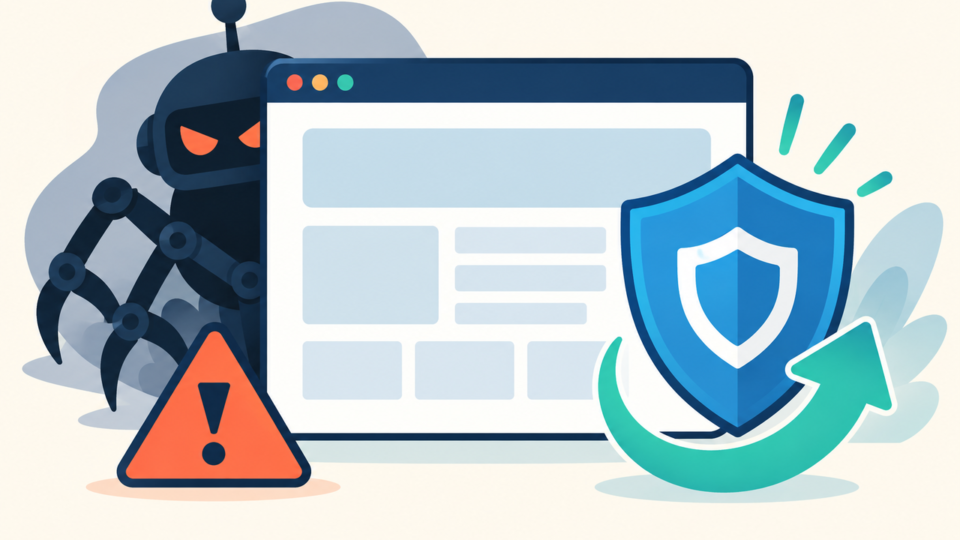
A WordPress backup restore after a hack or malware attack should not mean “upload the newest backup and hope.” If the backup is infected, outdated, incomplete, or restored over the wrong files, the site can break again or reinfect itself within hours.
This guide explains how to choose the right backup, preserve evidence, restore files and database safely, check for malware, and rebuild trust with visitors, browsers, and search engines after the site is back online.
 RyoheiYokoyama
I’m Ryohei Yokoyama, founder of SiteFixNow. I’ve worked as an IT engineer for over 20 years and have handled many WordPress recovery, malware removal, hacked site repair, and security cleanup cases. In this article, I’ll explain how to restore from backup without bringing the same infection back.
- How to decide whether a backup is safe enough to restore
- Which WordPress files, database tables, and access points need checking before restore
- How to restore files and database without overwriting useful evidence or clean data
- What to verify after restore so the same hack does not return
WordPress backup restore after a hack starts with choosing the right recovery point
The best backup is not always the newest backup. After a hack, the newest backup may already contain the injected files, malicious database rows, unknown admin user, or modified configuration that caused the problem.
Before restoring anything, compare the timeline. Identify when symptoms first appeared, when Google or browser warnings started, when suspicious files were modified, and when the last known good backup was created.
- Find the earliest confirmed symptom: redirect, warning, spam page, unknown user, or changed file.
- Look for a backup from before that symptom, not only the latest backup.
- Confirm whether the backup includes both WordPress files and the database.
- Check whether uploads, plugins, themes, and
wp-config.phpare included. - Keep the infected current site copy before overwriting it.
If the infection date is unknown, do not assume the backup is clean. Restore to a staging area first if your host allows it, then scan and inspect the restored copy before replacing the live site.
Record this before restore:
First visible symptom date
Browser or Google warning date
Suspicious file modification dates
Last plugin/theme update date
Available backup dates
Known clean backup candidate
Current infected site backup location
If you need a broader recovery framework before choosing a restore point, the related SiteFixNow guide on WordPress malware infection recovery explains the safe order for cleanup and recovery decisions.
WordPress backup restore after a hack should preserve the infected copy first
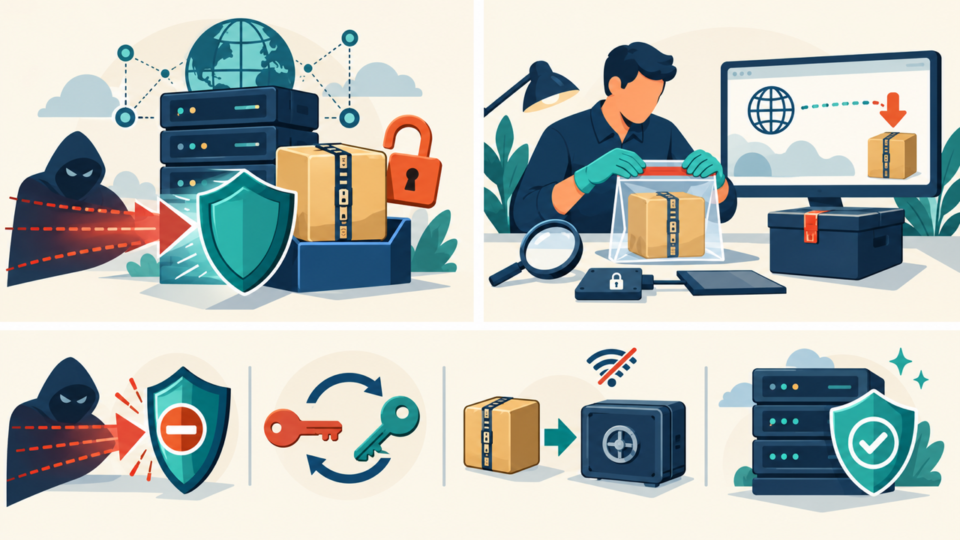
Preserve the current infected site before you restore. This may feel backward when you want the site fixed quickly, but it protects data and helps identify the attack path.
The infected copy may contain new orders, form submissions, comments, media files, or customer data that did not exist in the older clean backup. It may also contain server logs, malware files, and timestamps that explain how the attacker got in.
- The full WordPress document root, including hidden files such as
.htaccess. - The current database export, even if it contains malicious content.
- Server access logs, error logs, malware warning screenshots, and Google Search Console messages.
- A list of current users, plugins, themes, and suspicious admin accounts.
Use a name that makes the copy impossible to confuse with the clean backup. For example, store it outside the public web root and label it as infected, current, and not safe to deploy.
Example archive names:
site-before-restore-INFECTED-2026-07-08-files.zip
site-before-restore-INFECTED-2026-07-08-database.sql
site-access-logs-before-restore-2026-07-08.log

Do not place these archives inside:
public_html/
htdocs/
www/
wp-content/uploads/
If the site is redirecting visitors or showing malware warnings, restrict public access while you prepare the restore. Use hosting-level maintenance mode, basic authentication, or a temporary block instead of leaving visitors exposed.
For file-specific cleanup checks, see the guide on WordPress file infection cleanup in wp-content and wp-config.php. It helps you decide which parts of the infected copy need closer inspection before or after restore.
WordPress backup restore after a hack needs separate file and database decisions
Do not treat “restore backup” as one giant action. WordPress recovery is safer when you decide separately what to do with core files, wp-content, configuration, uploads, and the database.
This matters because each area has a different risk. WordPress core can often be replaced from a clean package. Uploads may contain customer media and malicious PHP files. The database may contain recent orders and injected scripts at the same time.
- Core files: replace from a clean WordPress download when possible.
- Plugins and themes: reinstall clean copies, then bring back only verified custom changes.
- Uploads: preserve media, but block executable files and inspect suspicious extensions.
- Database: restore carefully so clean content is not overwritten by infected rows.
- Configuration: review
wp-config.php, salts, database credentials, cron jobs, and.htaccess.
If the backup is old, blindly restoring the database may erase legitimate changes. If the backup is recent, it may contain malware. For active business sites, compare important tables before overwriting the live database.
-- Adjust table prefix if your site does not use wp_
SELECT ID, user_login, user_email
FROM wp_users
ORDER BY ID;

SELECT option_name, option_value
FROM wp_options
WHERE option_value LIKE '%<script%'
   OR option_value LIKE '%iframe%'
   OR option_value LIKE '%base64%'
   OR option_value LIKE '%eval(%';

SELECT ID, post_title
FROM wp_posts
WHERE post_content LIKE '%<script%'
   OR post_content LIKE '%iframe%'
   OR post_content LIKE '%spam%'
   OR post_content LIKE '%casino%';
For WooCommerce, membership, forms, learning platforms, and booking sites, database changes after the backup date may be business-critical. In those cases, staging restore and selective merge are safer than replacing everything at once.
WordPress backup restore after a hack should include malware checks before going live
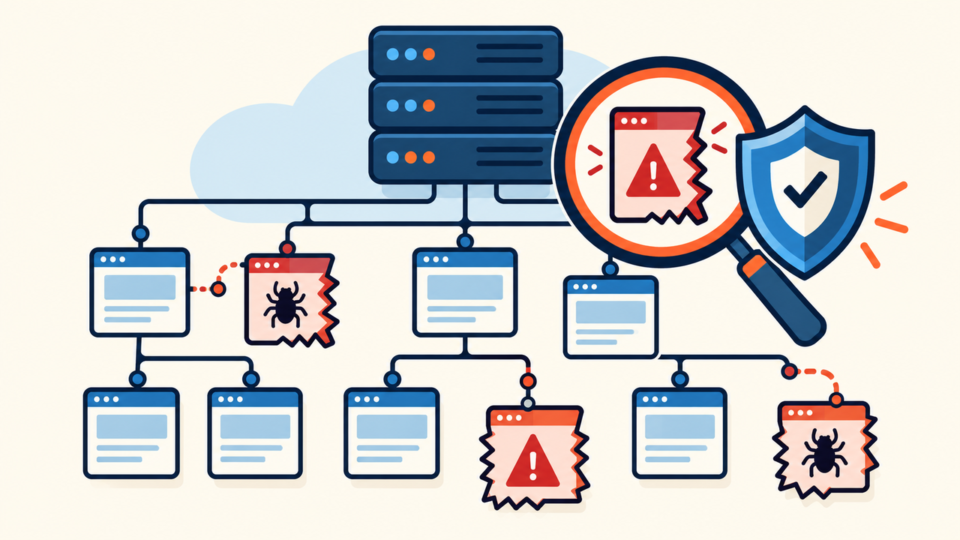
A restored site is not automatically a clean site. The backup can contain dormant malware, vulnerable plugins, fake admin users, or a backdoor that was already present before anyone noticed the hack.
Before sending traffic back, inspect high-risk locations. The goal is to confirm that the restore removed the visible problem and did not reintroduce the hidden cause.
- Look for unexpected PHP files inside
wp-content/uploads/. - Review
wp-content/mu-plugins/for unfamiliar must-use plugins. - Compare active theme files, especially
functions.php,header.php, and template files. - Check
.htaccessfor redirects, strange PHP handler rules, or obfuscated conditions. - Confirm administrator users and emails are expected.
Search for suspicious patterns, but review context before deleting. Some legitimate plugins use advanced PHP functions. The same function in a random upload folder is much more suspicious than the same function in a known plugin library.
# Unexpected executable files in uploads
find wp-content/uploads -type f \( -name "*.php" -o -name "*.phtml" -o -name "*.phar" \) -print

# Recently changed files after restore
find . -type f -mtime -7 -print

# Suspicious strings to review manually
base64_decode(
gzinflate(
eval(
str_rot13(
shell_exec(
assert(
If you find repeated redirects, also review the guide on WordPress redirect hack fixes. Redirect malware can hide in files, database options, injected scripts, and server rules.
When the restored copy still looks suspicious, do not keep retrying random backup dates. That usually means the infection predates the backup, or the entry point remains open. In that case, cleanup and hardening must happen before the restore can be trusted.
WordPress backup restore after a hack is incomplete without access rotation and hardening
Restoring files and database only returns the site to a previous state. It does not automatically change stolen passwords, remove vulnerable plugins, close writable paths, or invalidate attacker access.
After restore, rotate credentials and harden the site immediately. Otherwise, the attacker may simply log in again or use the same vulnerable component that caused the original compromise.
- Change all WordPress administrator passwords and remove unknown users.
- Change hosting panel, SFTP/FTP, SSH, database, and email passwords.
- Regenerate WordPress authentication salts in
wp-config.php. - Update WordPress core, plugins, and themes from trusted sources.
- Delete unused plugins and themes instead of only deactivating them.
- Disable PHP execution in upload folders when the server allows it.
Regenerating salts forces existing sessions to log in again. This is useful after a hack because a stolen cookie or session should not remain valid after the site is restored.
define('AUTH_KEY',         'replace-with-new-random-value');
define('SECURE_AUTH_KEY',  'replace-with-new-random-value');
define('LOGGED_IN_KEY',    'replace-with-new-random-value');
define('NONCE_KEY',        'replace-with-new-random-value');
define('AUTH_SALT',        'replace-with-new-random-value');
define('SECURE_AUTH_SALT', 'replace-with-new-random-value');
define('LOGGED_IN_SALT',   'replace-with-new-random-value');
define('NONCE_SALT',       'replace-with-new-random-value');
For prevention after cleanup, the related guide on how to secure WordPress after malware removal covers the steps that reduce reinfection risk after the emergency is over.
WordPress backup restore after a hack must be verified before requesting trust recovery
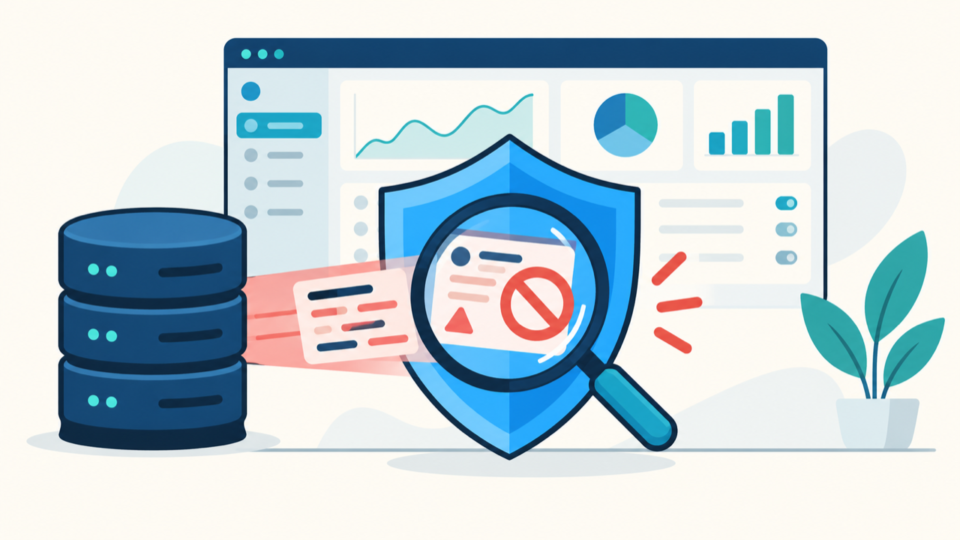
Verification is the point where you decide whether the restore is truly complete. Do not request Google review, reopen ads, or announce recovery until the site behaves cleanly from the visitor’s point of view.
Test more than the homepage. Malware often targets only search visitors, mobile users, logged-out users, specific pages, or first-time visitors without cookies.
- Homepage, key landing pages, blog posts, forms, checkout, search, and login page load normally.
- No unexpected redirects appear in private browser, mobile browser, and search-result style tests.
- No unknown administrator users, suspicious cron jobs, or fake plugins remain.
- Server error logs do not show repeated malware loader failures or suspicious requests.
- Google Search Console security issues are resolved before requesting review.
- A new clean backup exists after restore, cleanup, updates, and hardening.
If Google or browser warnings were shown, use the official review process only after the restored site is clean. Requesting review too early can delay trust recovery and make the next cleanup more stressful.
After verification, create a fresh clean backup and label it clearly. This gives you a reliable recovery point that is newer than the old backup and safer than the infected copy.
Suggested clean backup label:
site-clean-after-malware-restore-2026-07-08-files.zip
site-clean-after-malware-restore-2026-07-08-database.sql

Record:
Restore source date
Cleanup date
Credentials rotated
Plugins/themes updated
Verification completed
WordPress backup restore after a hack FAQ
WordPress backup restore after a hack summary: restore carefully, then prove it is clean
A WordPress backup restore after a hack is useful only when it is controlled. Choose the restore point based on the infection timeline, preserve the infected copy, separate file and database decisions, inspect high-risk locations, rotate access, and verify the site before reopening it fully.
The dangerous shortcut is restoring the newest backup without checking whether it already contains the attack. That can hide the problem for a short time while the same backdoor, password, or vulnerable plugin remains active.
When the site is important for sales, ads, customers, or search traffic, it is worth slowing down enough to protect data and avoid repeat infection. A successful restore is not only a working homepage. It is a clean, hardened, verified site with a reliable new backup.
If You Can’t Secure or Recover Your WordPress Site Yourself

If your website shows malware warnings, redirects to strange pages, or you are not sure whether it is secure,
SiteFixNow can help clean, repair, and recover your WordPress site.
- Your WordPress site may be infected with malware.
- Security warnings appear in Google or browser results.
- You found unknown admin users or suspicious files.
- The site redirects to spam or unknown websites.
- You need urgent WordPress hacked site repair.
- Reduce visitor risk and SEO damage.
- Find hidden malware and backdoors, not only visible symptoms.
- Recover the site safely without unnecessary data loss.