WordPress database malware cleanup requires more care than deleting an unfamiliar row. Attackers can place redirect URLs, hidden scripts, spam links, rogue administrator settings, or loaders inside legitimate tables. Removing the wrong value may break the site, while removing only the visible link may leave the attacker’s access intact.
 RyoheiYokoyama
I’m Ryohei Yokoyama, founder of SiteFixNow. I’ve worked as an IT engineer for over 20 years and have handled many WordPress recovery, malware removal, hacked site repair, and security cleanup cases. Here I’ll show how to investigate suspicious database options and injected links without turning a malware incident into a data-loss incident.
- How to preserve a usable database backup and incident evidence.
- Which WordPress tables and option values deserve priority.
- How to search for injected links without deleting legitimate data.
- How to clean confirmed malware and test for recurrence.
WordPress Database Malware Cleanup Starts With Evidence, Not Deletion
The first step is to export the current database before changing a single row. Even an infected export is valuable: it preserves timestamps, malicious domains, option names, user records, and plugin settings that can reveal how the compromise worked.

Export the database and record the table prefix
You can export through the hosting control panel, phpMyAdmin, a managed backup tool, or WP-CLI. A command-line export is useful when WordPress admin access is unreliable:
wp db export incident-before-cleanup.sql
wp config get table_prefix
The familiar prefix is wp_, but many sites use something else. Never paste a query containing wp_options until you confirm the actual table name. Running an update against the wrong database or assuming the wrong prefix can produce false results or damage a different installation.
WordPress Suspicious Options and Injected Links Need Targeted Searches
Start with read-only searches that answer a specific question. You are looking for unexpected domains, script tags, iframe code, encoded payloads, oversized autoloaded values, and settings that cause WordPress to load malicious code on every request.

The options table is important because WordPress and plugins load many values from it automatically. A malicious value in an autoloaded option can affect every page even when the visible post content looks clean. Common legitimate rows include siteurl, home, active_plugins, theme settings, cron data, and plugin configuration, so an unfamiliar name is not proof of malware.
Search by known domain, script marker, or payload clue
If you already know the spam domain or redirect destination, search for that exact fragment first. The following examples are read-only; replace the table prefix and suspicious domain with values from your own incident:
SELECT option_id, option_name, autoload, LENGTH(option_value) AS bytes
FROM wp_options
WHERE option_value LIKE '%bad-example.invalid%'
   OR option_value LIKE '%<script%'
   OR option_value LIKE '%<iframe%'
ORDER BY bytes DESC;

SELECT ID, post_type, post_status, post_title
FROM wp_posts
WHERE post_content LIKE '%bad-example.invalid%';
Use the results as leads, not as an automatic deletion list. Advertising plugins, analytics tools, page builders, consent tools, and embedded videos can legitimately store scripts or iframes. Confirm the owning plugin or theme, compare with a clean installation, and inspect surrounding data before deciding that a row is malicious.
WordPress Database Malware Can Hide Outside the Options Table
A clean options table does not prove the database is clean. Injected links can live in posts, post metadata, widgets, reusable blocks, comments, users, scheduled tasks, or plugin-specific tables. Search based on the symptom and the page where it appears.
Match the visible symptom to likely storage
The broader WordPress malware cleanup for files, database records, and backdoors helps connect these database clues to the rest of the compromise. You can also scan WordPress for malware and hidden backdoors before concluding that the database was the only affected layer.
WordPress Database Malware Cleanup Must Protect Legitimate Serialized Data
Clean only records you can identify and restore. The safest repair is often to replace a compromised setting with a known-good value from the same plugin version, remove a confirmed rogue item through the WordPress interface, or restore a small affected table from a verified clean backup.
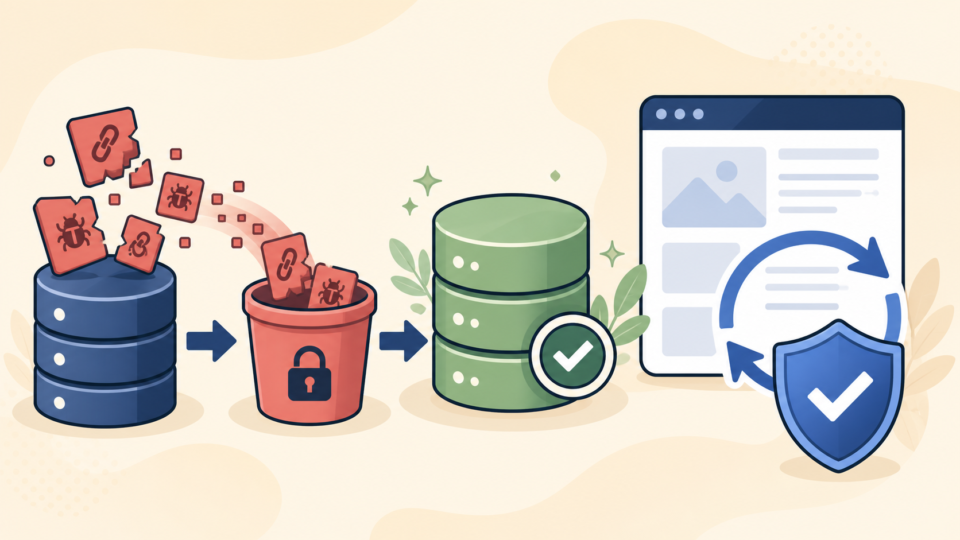
Do not run a global SQL replacement across the entire database just because one domain is malicious. WordPress stores serialized PHP data that records exact string lengths. A direct replacement with a different-length domain can corrupt widgets, theme settings, plugin configuration, and page-builder content.
Use a quarantine-and-compare workflow
If many records are affected, rebuilding from trusted files and selectively migrating reviewed content may be safer than hundreds of manual edits. Use the manual WordPress malware cleanup guide to coordinate database repair with clean core files, plugin replacement, upload review, and access hardening.
WordPress Injected Links Are Not Gone Until Reinfection Stops
The cleanup is complete only when the malicious value stays gone and the entry point has been closed. If the same option, link, or script returns, something still has permission to write it: a backdoor file, rogue administrator, compromised plugin, stolen password, scheduled task, external deployment, or vulnerable integration.
Verify across pages, devices, caches, and time
Clear WordPress, plugin, object, CDN, browser, and hosting caches after repair. Test logged out and in a private window. Check desktop and mobile, because conditional redirects may target only certain devices or referrers. Inspect the page source and network requests, not only the visible page.
Finish with the guide to securing WordPress after malware removal. Database cleanup removes stored symptoms; updates, least-privilege accounts, stronger credentials, monitoring, and clean backups reduce the chance that the same attacker can write them again.
WordPress Database Malware Cleanup FAQ
WordPress Database Malware Cleanup Requires a Full Incident Check
Safe WordPress database malware cleanup follows a disciplined order: preserve the current database, confirm the table prefix, search for specific indicators, trace each result to its owner, repair only confirmed malicious data, clear caches, and repeat the checks over time.
If You Can’t Secure or Recover Your WordPress Site Yourself

If your website shows malware warnings, redirects to strange pages, or you are not sure whether it is secure,
SiteFixNow can help clean, repair, and recover your WordPress site.
- Your WordPress site may be infected with malware.
- Security warnings appear in Google or browser results.
- You found unknown admin users or suspicious files.
- The site redirects to spam or unknown websites.
- You need urgent WordPress hacked site repair.
- Reduce visitor risk and SEO damage.
- Find hidden malware and backdoors, not only visible symptoms.
- Recover the site safely without unnecessary data loss.