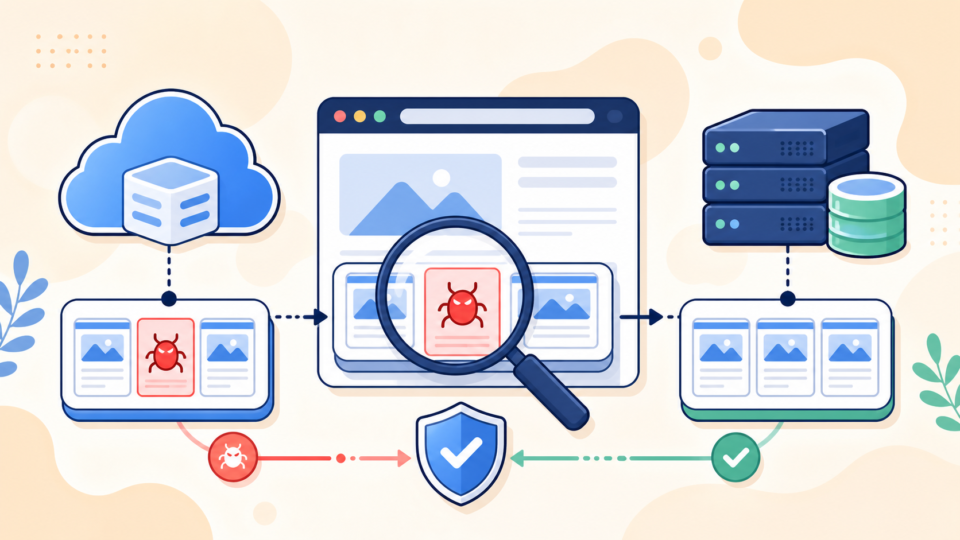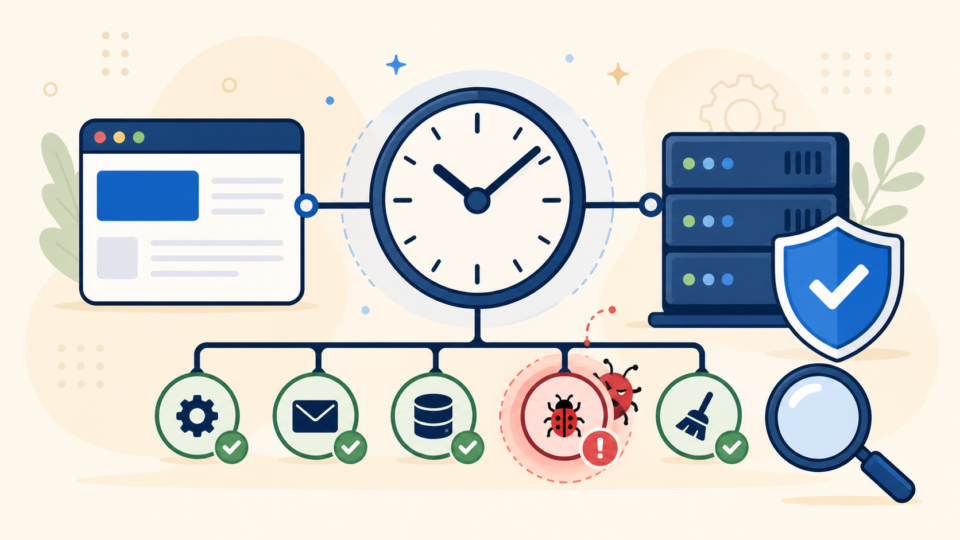
A WordPress critical error is stressful on its own. When it appears after a malware infection, it can feel even worse because the site may be broken, unsafe, and difficult to access at the same time.
The most important thing is to slow down. A critical error after malware cleanup does not always mean the website is lost. In many cases, the cause is a damaged plugin file, an infected theme function, a PHP version conflict, or a cleanup that removed malicious code but also exposed an existing dependency problem.
 RyoheiYokoyama
I’m Ryohei Yokoyama, founder of SiteFixNow. I’ve worked as an IT engineer for over 20 years and have handled many WordPress recovery, malware removal, hacked site repair, and security cleanup cases. In this article, I’ll explain how to approach a critical error after malware infection without making the damage worse.
- Why critical errors often appear after WordPress malware infections.
- Which files and folders to check before editing anything.
- How to disable unsafe plugins or themes without deleting the site.
- How to use logs and WordPress debug mode safely.
- When the problem should be handled as hacked site recovery, not only normal troubleshooting.
WordPress Critical Errors After Malware Infection Usually Have a Specific Cause
A critical error after malware infection is usually not random. It often means WordPress tried to load a plugin, theme, or core file that is now broken, missing, incompatible, or still infected.
The reason this matters is simple: if you treat the issue as a normal plugin error, you may bring the site back online while leaving malware behind. If you treat it only as malware, you may remove too much and break legitimate site functions. The correct recovery path checks both the error and the infection.
Common causes include a hacked plugin file, malicious code inserted into functions.php, a damaged wp-config.php, a bad .htaccess rule, or a mismatch between PHP and old plugin code after files were restored. If you recently cleaned files, updated PHP, restored a backup, or removed suspicious code, note that timing carefully.
- Recently modified plugin files inside
wp-content/plugins/. - Suspicious code in the active theme’s
functions.php. - Unexpected changes in
wp-config.php. - Redirect or access rules added to
.htaccess. - PHP fatal errors caused by outdated plugins after cleanup.
If your symptoms include spam redirects, browser warnings, or unknown admin users, also read our guide on WordPress hacked site repair. A critical error can be only one visible symptom of a wider compromise.
Check Access, Backups, and Server Logs Before Changing Files
Before editing files, confirm how much access you still have. You need to know whether you can reach the WordPress dashboard, hosting file manager, SFTP, database, and server logs.
This step prevents accidental damage. Malware incidents often create pressure to delete files quickly, but deleting the wrong plugin, theme, or configuration file can make recovery harder. A quick access and backup check gives you a safe starting point.
Confirm a restorable backup exists
If possible, download a current copy of the site before making changes, even if the site is infected. You want a forensic snapshot of the broken state. Then check whether you also have a clean backup from before the infection.
- The full
public_htmlor WordPress document root. - The database export from phpMyAdmin or the hosting panel.
- The active theme folder, especially if it contains custom work.
- Server error logs from the time the critical error appeared.
Find the real fatal error message
A browser message that says “There has been a critical error on this website” is not enough. The real clue is usually in the server error log or WordPress debug log.
Depending on the hosting provider, error logs may be in the hosting dashboard, cPanel Metrics, Plesk logs, or files such as error_log under the site root. Look for messages with PHP Fatal error, Uncaught Error, Call to undefined function, or Allowed memory size exhausted.
/public_html/error_log
/home/account/logs/example.com.error.log
/var/log/apache2/error.log
/var/log/nginx/error.log
Hosting control panel > Metrics > Errors
When the log points to a specific plugin or theme file, do not immediately delete the folder. First, check whether the file was recently modified and whether it contains suspicious code. If you need a broader malware scan process, see WordPress malware removal: how to clean an infected site safely.
Disable the Suspect Plugin or Theme Safely
If the fatal error points to a plugin or theme, the safest first recovery action is usually to disable it temporarily. This can restore dashboard access without deleting data.
The reason this works is that WordPress loads active plugins and the active theme on most requests. If infected or broken code runs during that loading process, WordPress stops with a critical error. Renaming the suspect folder prevents WordPress from loading it.
Disable one plugin through SFTP or file manager
Use this approach when the error log names a specific plugin file, such as wp-content/plugins/example-plugin/includes/file.php.
wp-content/plugins/example-plugin
wp-content/plugins/example-plugin.disabled
After renaming, reload the site and dashboard. If the critical error disappears, do not simply rename the plugin back. Download a clean copy from the official source, compare changed files, and scan for injected code before reactivation.
Disable all plugins only when the log is unclear
If the log does not identify a clear plugin, you can temporarily rename the entire plugins folder. This is more disruptive, so use it carefully.
wp-content/plugins
wp-content/plugins.disabled
If the site loads after this change, create a new empty plugins folder, then move plugins back one by one after checking them. Malware often hides in abandoned plugins, fake plugin folders, or files with names that look harmless.
If a plugin caused the fatal error after an infection, it may be damaged, outdated, or compromised. Restoring access is only the first step. You still need to remove backdoors, unknown users, suspicious cron jobs, and infected files.
If the error is related to a normal site failure rather than infection, our general WordPress critical error fix guide may also help. For malware cases, continue with the security checks below.
Inspect wp-config.php, .htaccess, and functions.php for Infection Damage
After a malware infection, configuration files deserve special attention. A critical error can come from one bad line in a file WordPress loads on every request.
This is why you should inspect wp-config.php, .htaccess, and the active theme’s functions.php before assuming the problem is only a plugin conflict. Attackers often use these files because they run early and affect many pages.
- Long unreadable strings of random characters.
- Unexpected
eval,base64_decode,gzinflate, orstr_rot13calls. - Includes that load files from strange hidden folders.
- Redirect rules to unrelated domains.
- Recently changed timestamps on files that should rarely change.
A normal WordPress .htaccess file for a basic Apache installation often looks similar to this:
# BEGIN WordPress
<IfModule mod_rewrite.c>
RewriteEngine On
RewriteRule .* - [E=HTTP_AUTHORIZATION:%{HTTP:Authorization}]
RewriteBase /
RewriteRule ^index\.php$ - [L]
RewriteCond %{REQUEST_FILENAME} !-f
RewriteCond %{REQUEST_FILENAME} !-d
RewriteRule . /index.php [L]
</IfModule>
# END WordPress
If your file contains unrelated domains, strange conditional redirects, or very large encoded blocks, preserve a copy before removing anything. Some malware hides inside rewrite rules and sends only search engine visitors or mobile visitors to spam pages.
For wp-config.php, be careful not to remove legitimate database settings. Focus on unexpected code above the “stop editing” line, unknown includes, or constants that force strange behavior.
define( 'DB_NAME', 'database_name_here' );
define( 'DB_USER', 'username_here' );
define( 'DB_PASSWORD', 'password_here' );
define( 'DB_HOST', 'localhost' );

/* That's all, stop editing! Happy publishing. */
Use Debug Mode Carefully to Identify the Broken File
WordPress debug mode can help identify the file causing the critical error, but it should be used carefully on a hacked or public site.
The point is to write errors to a private log, not display sensitive paths and warnings to visitors. Avoid leaving debug display enabled on a live infected site.
Add or adjust these lines in wp-config.php above the “stop editing” comment:
define( 'WP_DEBUG', true );
define( 'WP_DEBUG_LOG', true );
define( 'WP_DEBUG_DISPLAY', false );
@ini_set( 'display_errors', 0 );
Then check this file:
wp-content/debug.logIf the log shows a fatal error in a specific plugin, theme, or custom file, handle that file as evidence. Download it, compare it with a clean original if possible, and search the surrounding folder for similar suspicious code. If the log shows memory exhaustion, the infection may still be causing heavy requests, but it could also be a plugin conflict.
PHP Fatal error: Uncaught Error: Call to undefined function example_function()
in /home/account/public_html/wp-content/plugins/example-plugin/includes/load.php:42
After you finish troubleshooting, turn debug mode off or leave logging only if you actively need it.
define( 'WP_DEBUG', false );Clean the Infection Before You Trust the Restored Site
Restoring access is not the same as completing recovery. If the critical error happened after malware infection, the site should not be considered safe until you confirm the infection is removed.
This matters because attackers often leave multiple backdoors. You may fix the file that caused the fatal error while another hidden file continues to recreate malware later. That is how reinfection happens.
- Replace WordPress core files with clean official files.
- Replace plugins and themes from trusted sources instead of editing every infected file manually.
- Check
wp-content/uploadsfor PHP files that should not be there. - Remove unknown admin users and reset all administrator passwords.
- Rotate hosting, SFTP, database, and WordPress credentials.
- Check scheduled tasks, cron jobs, and recently modified files.
If you are not sure where to start, our WordPress malware infection recovery guide explains the broader recovery flow. If visitors were redirected to spam pages, also check the WordPress redirect hack fix article.
When to Ask for Expert Help
You should ask for help when the site contains business-critical data, the error keeps returning, or you cannot tell which files are legitimate. Malware recovery is more than getting the homepage to load.
The practical reason is risk control. A partially cleaned WordPress site can continue harming visitors, damaging SEO, triggering hosting suspension, or leaking data. If the site is important, a structured recovery is often safer than repeated trial and error.
- The site shows browser or Google malware warnings.
- The dashboard is inaccessible and the error log is unclear.
- Malware returns after you remove suspicious files.
- You found unknown admin accounts or strange database entries.
- You need to recover the site without losing orders, forms, posts, or customer data.
FAQ: WordPress Critical Errors After Malware Infection
Summary: Fix the Error, Then Confirm the Site Is Clean
A WordPress critical error after malware infection should be handled with two goals: restore access and confirm the infection is gone. If you only fix the fatal error, hidden malware may remain. If you only remove suspicious files without checking logs, you may break legitimate site functions.
Start with backups and logs, disable suspect plugins or themes safely, inspect key configuration files, use debug logging carefully, and complete a malware cleanup before trusting the restored site. When business data or visitor safety is involved, expert help can reduce both downtime and reinfection risk.
If You Can’t Secure or Recover Your WordPress Site Yourself

If your website shows malware warnings, redirects to strange pages, or you are not sure whether it is secure,
SiteFixNow can help clean, repair, and recover your WordPress site.
- Your WordPress site may be infected with malware.
- Security warnings appear in Google or browser results.
- You found unknown admin users or suspicious files.
- The site redirects to spam or unknown websites.
- You need urgent WordPress hacked site repair.
- Reduce visitor risk and SEO damage.
- Find hidden malware and backdoors, not only visible symptoms.
- Recover the site safely without unnecessary data loss.