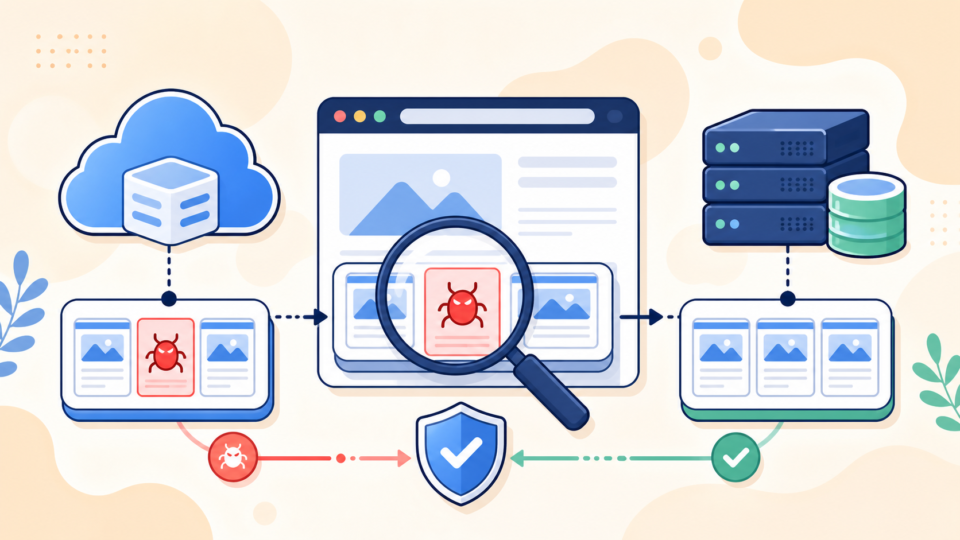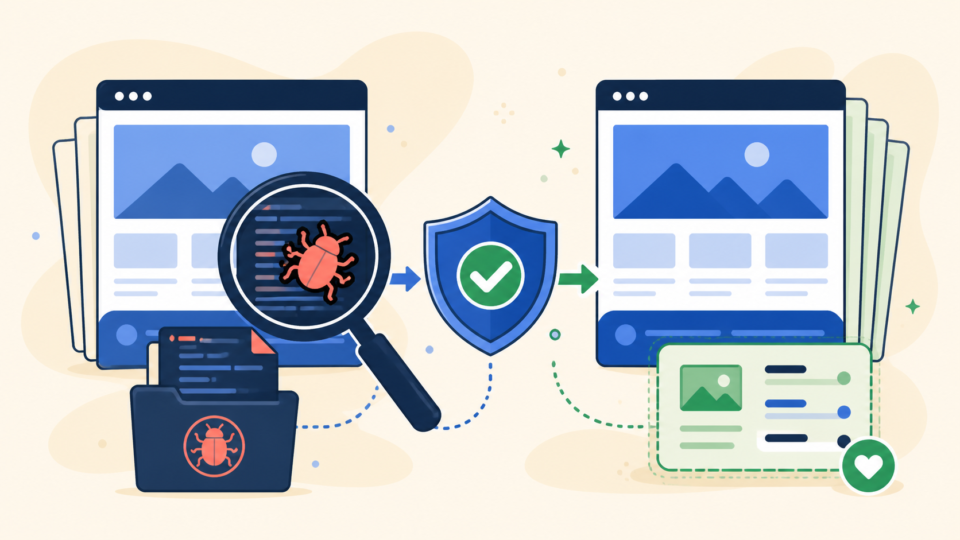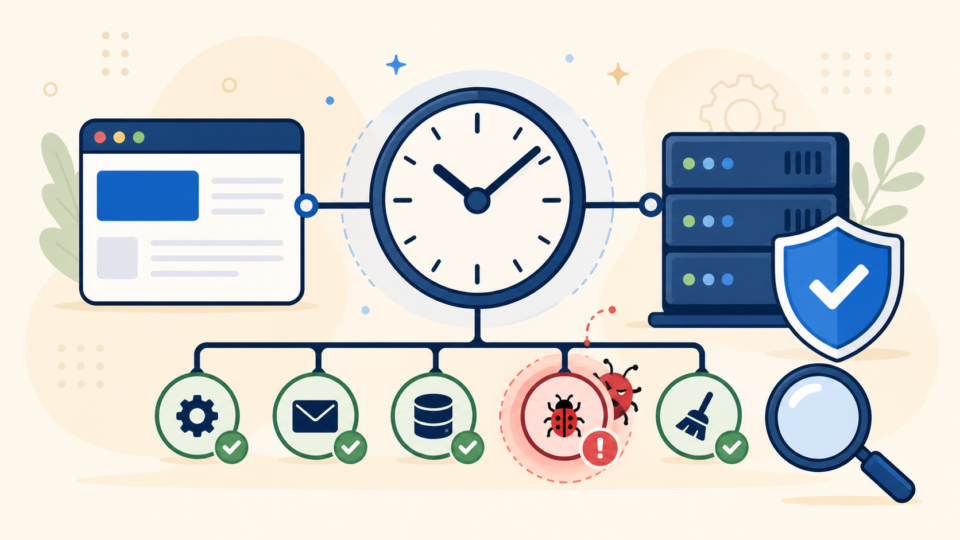
A plugin or theme crash can take down an otherwise healthy WordPress site in seconds. One update, one incompatible PHP function, one broken template file, or one custom code change can turn into a critical error, white screen, broken layout, or locked wp-admin before you even know what changed.
This guide explains how to recover a WordPress site after a plugin or theme crash without making the damage worse. You will learn how to preserve evidence, isolate the failing component, restore access safely, and decide when the problem is bigger than a normal compatibility issue.
 RyoheiYokoyama
I’m Ryohei Yokoyama, founder of SiteFixNow. I’ve worked as an IT engineer for over 20 years and have handled many WordPress recovery, malware cleanup, plugin conflict, theme failure, and hacked site repair cases. In this article, I’ll show you how to recover from a plugin or theme crash in a safer order.
- How to recover from a WordPress plugin or theme crash step by step
- How to tell whether the failure came from a plugin, a theme, or something deeper
- Which files, logs, and folders to check before deleting anything
- When to stop DIY recovery and ask for expert help
Why a plugin or theme crash can break WordPress so completely
The main reason these crashes feel severe is that plugins and themes run inside core WordPress execution. If one of them throws a fatal PHP error, calls an unsupported function, loads damaged code, or clashes with your current PHP version, WordPress may fail before it can render the front-end or open wp-admin normally.
That is why a single update can suddenly produce a white screen, a critical error notice, a half-loaded page, missing CSS, or endless admin redirects. The good news is that many of these failures are recoverable if you isolate the broken component before changing several things at once.
- A critical error message appears after a plugin or theme update
- The site turns white or loses layout after editing theme files
- wp-admin stops loading but the server itself is still online
- The front-end fails only on certain pages or templates
- The site enters recovery mode or sends a fatal error email
If your site already shows a generic fatal message, read WordPress Critical Error Fix as well. It covers the broader fatal-error workflow that often overlaps with plugin and theme crashes.
What to do before you deactivate, delete, or reinstall anything
The safest first recommendation is to preserve the current state before you try to fix it. A rushed deletion can remove the very file path or version clue you need to confirm the real cause. If the crash happened right after an update, custom code edit, migration, or PHP version change, that timeline matters.
Take a quick backup of the current files and database, note the exact error message, and record what changed just before the failure. This gives you a recovery path you can verify instead of a random rollback.
- Back up the current file set and database
- Write down the exact error text, page URL, and time of failure
- Note the last plugin update, theme edit, or PHP version change
- Check whether the crash affects only admin, only front-end, or both
Files and logs to preserve first
Save the files most likely to tell you what failed. Even if you later replace them, keeping a snapshot of the broken state helps you compare the before and after conditions and check whether the crash was really a plugin or theme issue.
wp-config.php
wp-content/debug.log
wp-content/plugins/
wp-content/themes/
.htaccess
server error logs
hosting PHP error logsHow to tell whether the crash came from a plugin or a theme
The practical goal here is to narrow the failure domain before applying a fix. Plugin crashes usually affect functionality across the site or block wp-admin entirely. Theme crashes often break front-end rendering, custom templates, widgets, or appearance-related functions after a theme edit or update. That is not a perfect rule, but it is a useful starting point.
- Plugin crash: checkout broken, admin lockout, fatal errors tied to a plugin path, site-wide function failures
- Theme crash: front-end layout failure, template errors, customizer issues, broken headers, fatal errors tied to theme files
- Deeper issue: repeated 500 errors, strange redirects, unknown admin users, or damage that continues after plugin and theme isolation
Use WordPress debugging before guessing
If the crash is not obvious, logging the fatal error is usually the fastest way to identify the file path that failed. Enable safe debugging so the error is written to a log instead of shown to visitors.
define( 'WP_DEBUG', true );
define( 'WP_DEBUG_LOG', true );
define( 'WP_DEBUG_DISPLAY', false );
@ini_set( 'display_errors', 0 );
Then check wp-content/debug.log. If the log points to a plugin file under wp-content/plugins/, a plugin is the likely starting point. If it points to wp-content/themes/your-theme/, the theme is the stronger suspect.
A step-by-step way to recover a WordPress site after a plugin or theme crash
The safest recovery order is to isolate the component first, then restore a stable version, then verify the rest of the site. This matters because random reinstalls can hide the real cause or erase evidence that the crash was linked to a specific update, custom code edit, or incompatible environment.
- Back up the current site state
- Enable logging and read the fatal path
- Disable suspected plugins or switch away from the active theme
- Restore a last known good version of the broken component
- Check PHP version, memory, caching, and file permissions
- Verify that the site is stable on both front-end and admin pages
How to disable all plugins when wp-admin is unavailable
If the site crashed after a plugin update and you cannot log in, temporarily disable plugins in bulk by renaming the plugins directory. This is often the quickest way to confirm whether one of the installed plugins is causing the fatal error.
wp-content/plugins
rename to:
wp-content/plugins.off
If the site starts loading again, rename the folder back to plugins and reactivate plugins in smaller groups until the failing extension is identified. If one plugin update clearly triggered the crash, restore its previous known-good version rather than forcing the current broken build to stay active.
How to isolate a theme crash safely
When a theme file edit or update is the likely cause, switching to a default theme is usually safer than editing multiple template files live under pressure. A broken theme can stop front-end rendering even when plugins are healthy.
wp-content/themes/your-active-theme
rename to:
wp-content/themes/your-active-theme.off

keep a default theme available, such as:
wp-content/themes/twentytwentyfour
WordPress may fall back to an available default theme after that change. If the site recovers, compare the broken theme’s recent edits, template overrides, and PHP compatibility with the server’s current environment before re-enabling it.
Use recovery mode and server logs as supporting evidence
Recovery mode emails can be helpful because WordPress often names the failing plugin or theme in the message. Hosting error logs are also valuable when the site dies before WordPress can write a full debug log. If the same component appears in several places, you have a much stronger root-cause signal.
What to check if the crash keeps coming back
If the site recovers temporarily but crashes again, the failing component may not be the whole story. The plugin or theme might need a different PHP version, more memory, a clean reinstall, or removal of old custom code that was left behind after an update. In some cases, a supposed plugin crash is actually a symptom of malware, file corruption, or server-side problems.
Memory, version, and configuration checks
When repeated crashes happen after activation, compare the plugin or theme requirements with your server settings. Memory limits, old PHP builds, stale caches, and file permission mistakes can all trigger or worsen instability.
define( 'WP_MEMORY_LIMIT', '256M' );
define( 'DISALLOW_FILE_EDIT', true );
Also check whether the crash overlaps with a 500-level failure. If so, compare your findings with WordPress 500 Error Fix. Server configuration and rewrite issues can look like plugin or theme breakage when the actual failure is lower in the stack.
When a plugin or theme crash may really be a security problem
If the site shows unknown admin users, injected redirects, suspicious PHP files in uploads, or repeated reinfection after you restore a plugin or theme, stop treating it as a normal compatibility problem. That pattern often means a compromised site is damaging components or using them as hiding places.
In that case, review WordPress Malware Removal, WordPress Hacked Site Repair, and WordPress Security Checklist for Beginners. A clean recovery is not enough if the underlying intrusion is still active.
When to stop DIY recovery and ask for expert help
The practical answer is to stop when the site is revenue-critical, when the recovery path is unclear, when your backups are uncertain, or when the crash may involve hidden compromise. At that point, further trial-and-error can cost more than professional help because you risk longer downtime, data loss, and SEO damage.
If you need a structured recovery process with plugin and theme isolation, malware checks, and post-repair hardening, a dedicated WordPress Recovery Service can help shorten the outage and reduce the chance of recurrence.
Beginner-friendly examples: what the crash looks like in real situations
If you are not used to troubleshooting WordPress, the hardest part is often not the repair itself. The hard part is deciding what the error is trying to tell you. A plugin or theme crash can look like several different problems: a white screen, a critical error message, a broken design, a login page that reloads forever, or a site that works on one page but fails on another. The examples below show how to think through those situations without guessing.
Example 1: the site crashes right after updating one plugin
Imagine you update a contact form plugin and immediately see “There has been a critical error on this website.” A beginner may want to delete the plugin because it looks guilty. A safer first move is to confirm the timing and preserve the evidence. Write down the plugin name, the old version if you know it, the new version, the time of the update, and whether WordPress sent a recovery mode email.
Then connect with FTP or your hosting file manager and rename only that plugin folder. For example, rename wp-content/plugins/contact-form-example to contact-form-example.off. If the site loads again, you have learned that this plugin is involved. You have not yet proved whether the plugin is badly coded, incompatible with your PHP version, conflicting with another plugin, or damaged by a failed update. That distinction matters because the permanent fix may be a rollback, a PHP version change, a clean reinstall, or a replacement plugin.
Do not delete the plugin first. Disable it in a reversible way, confirm whether the site recovers, and keep notes about exactly what changed.
Example 2: the homepage works, but one page shows a fatal error
Sometimes the whole site does not go down. For example, the homepage loads, but a service page, product page, or blog post fails. This usually means the broken code is not loaded everywhere. A page builder widget, shortcode, custom block, WooCommerce template, or theme file may run only on that specific page type.
In this case, disabling every plugin may recover the page, but it may also hide the real clue. A more careful approach is to check the server error log for the exact file path. If the log mentions something like wp-content/themes/your-theme/single.php, focus on the theme template. If it mentions wp-content/plugins/page-builder-addon/widgets/gallery.php, focus on that add-on. The path in the error log is like an address. It tells you where WordPress was when it failed.
PHP Fatal error: Uncaught Error: Call to undefined function old_builder_helper()
in /home/account/public_html/wp-content/plugins/page-builder-addon/widgets/gallery.php on line 42
For a beginner, this example means you should avoid broad changes until you have checked whether the error points to a specific plugin, theme, template, or widget. If the error log gives a file path, use it. It is more reliable than guessing from the last thing you remember clicking.
Example 3: the design breaks after a theme update
A theme crash is not always a full fatal error. Sometimes the site still loads, but the header disappears, buttons lose styling, the layout becomes narrow, or the mobile menu stops opening. This can happen when a theme update changes template files, removes a function that a child theme expected, or fails to load CSS and JavaScript correctly.
Start by checking whether the problem appears with a default theme such as Twenty Twenty-Four. If the design returns to a normal WordPress layout after switching themes, the active theme or child theme is the likely area. Next, compare the child theme files, especially functions.php, header.php, footer.php, and any custom template files. A small PHP mistake in functions.php can affect the whole site, while a template mistake may affect only one page type.
A practical beginner example is a copied code snippet that worked before the update but now calls a theme function that no longer exists. The symptom may look like “the new theme update broke everything,” but the actual fix may be removing or rewriting one snippet in the child theme.
Example 4: wp-admin is unavailable, but FTP still works
This is one of the most common beginner panic moments. You cannot open the dashboard, so it feels as if you have no control. But WordPress is made of files and a database. If FTP, SFTP, cPanel File Manager, or the hosting control panel still works, you can often recover access without using wp-admin.
The safest simple test is to rename the entire plugins folder to plugins.off. WordPress will treat all plugins as inactive. If wp-admin opens after that, rename the folder back to plugins, then disable plugins one by one by renaming individual plugin folders. This narrows the problem without deleting files. If disabling plugins does not help, check the active theme folder and make sure a default WordPress theme exists as a fallback.
- First, preserve a backup and error details.
- Second, disable plugins in a reversible way.
- Third, test the active theme with a safe fallback theme.
- Finally, check PHP version, memory limit, and server logs.
Example 5: the same crash returns after you fix it
If the site recovers and then crashes again the next day, do not treat it as a brand-new accident. Repeated crashes often mean the root cause was not removed. The server may be running an old PHP version, a plugin may be auto-updating into an incompatible release, the theme may depend on a missing library, or the site may have hidden malware modifying files after you repair them.
For example, if you reinstall a clean plugin and the same plugin file becomes modified again, that is no longer just a plugin crash. It may be a security issue. Check for unknown admin users, recently modified files in wp-content, suspicious cron jobs, and strange code in wp-config.php or .htaccess. A beginner-friendly rule is this: if a clean repair does not stay clean, investigate who or what is changing the site after the repair.
These examples all point to the same recovery principle. Make one reversible change at a time, observe the result, and keep the evidence. That approach is slower than random clicking for the first five minutes, but it is much faster when you need a stable recovery that will not collapse again after the next update.
Frequently asked questions about WordPress plugin or theme crash recovery
Summary
To recover a WordPress site after a plugin or theme crash, start by preserving evidence, then use logging, plugin isolation, theme isolation, and configuration checks in that order. That workflow gives you a safer way to restore access, confirm the failing component, and spot deeper security or server issues before they turn into repeated downtime.
If You Can’t Secure or Recover Your WordPress Site Yourself

If your website shows malware warnings, redirects to strange pages, or you are not sure whether it is secure,
SiteFixNow can help clean, repair, and recover your WordPress site.
- Your WordPress site may be infected with malware.
- Security warnings appear in Google or browser results.
- You found unknown admin users or suspicious files.
- The site redirects to spam or unknown websites.
- You need urgent WordPress hacked site repair.
- Reduce visitor risk and SEO damage.
- Find hidden malware and backdoors, not only visible symptoms.
- Recover the site safely without unnecessary data loss.