If you discover malware on your WordPress site, the first instinct is often to delete suspicious files as fast as possible. That reaction is understandable, but rushed cleanup is one of the easiest ways to break the site further or lose important content, settings, and SEO value.
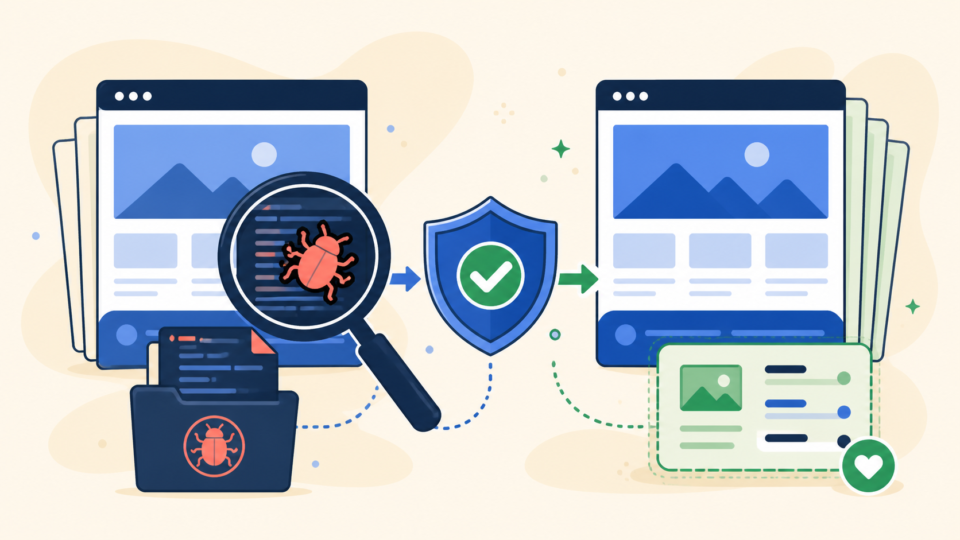
The safer goal is not only removing malware. It is removing malware while keeping your posts, media, theme settings, forms, and recovery options intact. With the right order of steps, many site owners can reduce damage and avoid turning a security incident into a full rebuild.
 RyoheiYokoyama
I’m Ryohei Yokoyama, founder of SiteFixNow. I’ve worked as an IT engineer for over 20 years and have handled many WordPress malware removal, hacked site repair, and recovery cases. In this article, I’ll show you how to clean a compromised site more safely so you do not destroy the evidence, the content, or the recovery path.
- Why rushed malware cleanup can make WordPress recovery harder
- Which backups and file copies to secure before changing anything
- What to inspect in
wp-content,wp-config.php, the database, and.htaccess - How to verify the site is actually clean before you reopen everything
Remove WordPress malware without losing your website by protecting data first
The most important point is simple: protect what you may need before you start deleting files. Many infected sites are still recoverable, but the recovery becomes much harder after someone removes random plugin folders, overwrites core files, or restores the wrong backup without checking what changed.
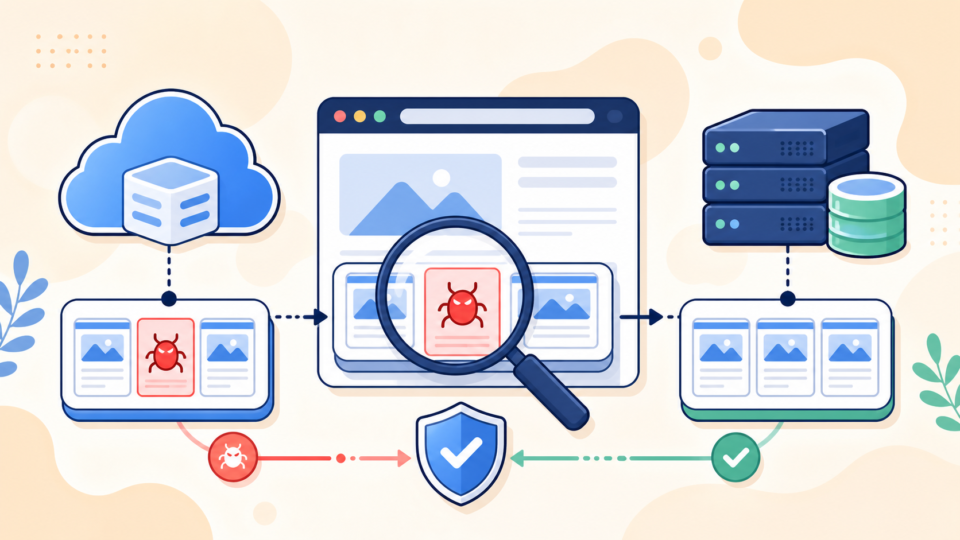
Before cleanup, preserve a snapshot of the current state. That includes the file system, the database, and any error logs or security alerts. Even if the site is already compromised, this copy gives you a fallback if a cleanup step removes something essential.
- Put the site in maintenance mode or restrict access if customers are at risk
- Download a full copy of files and export the database before deleting anything
- Save any malware scanner alerts, Google warnings, or suspicious redirect URLs
- Write down recent changes such as plugin updates, admin user changes, or PHP version switches
WordPress hacked site repair becomes much easier when you preserve evidence and avoid changing five things at once.
WordPress malware removal should start with a clean backup and a recovery baseline
The best reason to create a backup before cleanup is not fear. It is control. If malware cleanup breaks the theme, deletes uploads, or removes a required plugin file, you need a way to compare the damaged version against the original state.
Your backup should cover both the database and the full WordPress file tree. A database-only export is not enough because malware often hides in theme files, plugin folders, mu-plugins, uploads, or custom drop-in files.
Backup these before cleanup:
- public_html/ or document root
- wp-admin/
- wp-includes/
- wp-content/plugins/
- wp-content/themes/
- wp-content/uploads/
- wp-content/mu-plugins/
- wp-config.php
- .htaccess
- Full database export (.sql)
If your host offers snapshots, verify the timestamp before restoring. A backup created after the infection spread may simply put the malware back. In that case, the backup is still useful for comparison, but not as a final restore point.
WordPress recovery service is often the safer route if the site handles orders, leads, memberships, or high-value SEO pages and you cannot afford cleanup mistakes.
Check the usual malware hiding places in WordPress files before deleting anything
The next point is that malware usually leaves patterns. Attackers often hide code in writable areas, startup files, redirect rules, or places site owners rarely inspect. If you know where to look first, you can clean more accurately and reduce the chance of deleting the wrong files.
Start with files that affect every request: wp-config.php, .htaccess, active theme files, must-use plugins, and suspicious PHP files under wp-content/uploads. A normal WordPress media library should mostly contain images, PDFs, and other uploads, not random executable PHP scripts.
wp-config.phpfor injected includes, obfuscated code, or unknown constants.htaccessfor redirect rules or rewritten requests to strange domainswp-content/uploads/for PHP files that should not be therewp-content/mu-plugins/andwp-content/plugins/for unfamiliar loaders- Active theme files such as
functions.php,header.php, andfooter.php
wp-content/uploads/2026/05/random-loader.php
wp-content/mu-plugins/wp-cache-loader.php
wp-content/themes/your-theme/functions.php
wp-config.php
.htaccess
Look for signs such as long unreadable strings, base64_decode, suspicious eval() usage, unexpected remote URLs, or code that loads from unknown files. Not every use of these functions is malicious, but they deserve careful review in a hacked site.
WordPress redirect hack fixes are especially relevant if visitors are being sent to spam pages from injected rules in .htaccess or theme files.
A clean default .htaccess can help you compare unexpected redirect rules
If you suspect malicious redirects, compare your current .htaccess against a normal WordPress version. This does not solve every case, but it quickly shows whether hidden rewrite rules were added.
# BEGIN WordPress
<IfModule mod_rewrite.c>
RewriteEngine On
RewriteBase /
RewriteRule ^index\.php$ - [L]
RewriteCond %{REQUEST_FILENAME} !-f
RewriteCond %{REQUEST_FILENAME} !-d
RewriteRule . /index.php [L]
</IfModule>
# END WordPress
If your real file contains unknown redirects, odd conditions, or references to unfamiliar domains, do not just overwrite it blindly. Save a copy first, then replace the bad rules with a known-good version after you confirm the site setup does not rely on custom rules.
Database and admin user checks help remove malware without losing content
Many site owners focus only on files, but WordPress malware cleanup also requires database checks. Attackers may inject spam links, add rogue admin accounts, modify site URLs, or store malicious JavaScript in widget content, options, or post data.
This matters because deleting files alone can leave the compromise active. On the other hand, deleting database rows without understanding them can remove legitimate content or break settings. The safer method is to review high-risk areas systematically.
- Users with administrator privileges you do not recognize
- Suspicious values in
wp_optionssuch as changed URLs or unknown autoloaded entries - Injected links or scripts inside posts, widgets, or reusable blocks
- SEO plugin settings that suddenly point to spam titles or descriptions
define( 'WP_DEBUG', true );
define( 'WP_DEBUG_LOG', true );
define( 'WP_DEBUG_DISPLAY', false );
Enable logging before major edits so WordPress writes warnings to wp-content/debug.log. That file often exposes broken plugin paths, suspicious includes, or database-related warnings that help you clean the right component instead of guessing.
WordPress malware infection recovery and WordPress security checklist for beginners are useful follow-up reads after the obvious malware is gone.
Verify the cleanup before reopening WordPress to visitors and search engines
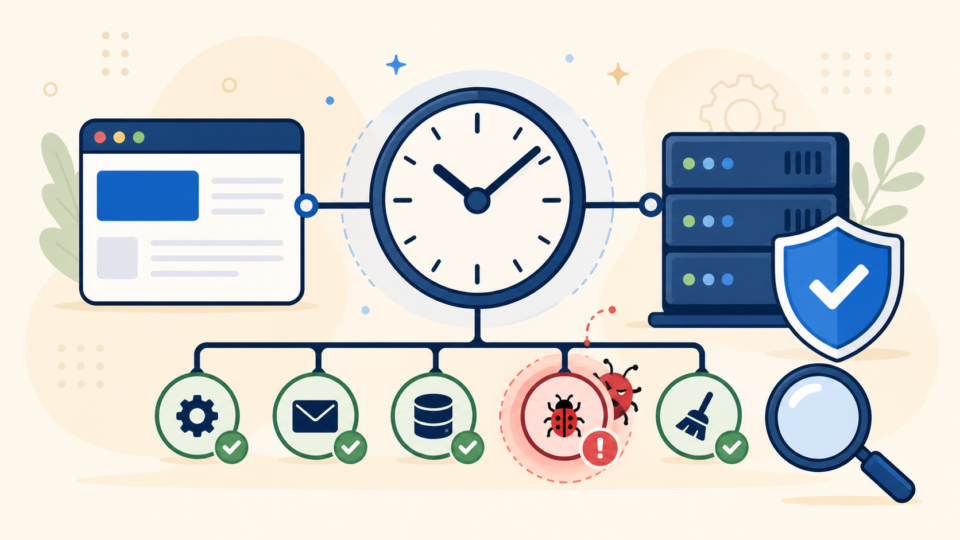
Cleanup is not finished when the homepage starts loading again. A site can appear normal while hidden backdoors, scheduled tasks, or database injections remain active. The final step is verification, because that is what protects you from reinfection and repeated downtime.
Check both the frontend and the backend. Test important pages, login, forms, checkout flows, redirects, and indexable content. Then review logs and security scanners again to confirm the suspicious behavior is gone.
- Open key pages on desktop and mobile without login and while logged in
- Rescan the site with your security plugin or external scanner
- Review
wp-content/debug.logand server error logs for recurring issues - Confirm no unknown admin users, scheduled jobs, or suspicious redirects remain
- Update all passwords and patch the original entry point such as an outdated plugin or weak credential
If Google or browsers flagged the site earlier, do not forget the review or reconsideration process where applicable. Cleaning the files is only part of restoring trust.
Professional malware removal is safer when the site is business-critical or the infection is unclear
The final point is that not every infected WordPress site is a good DIY project. If the site stores customer data, runs paid ads, drives leads, or has years of SEO value, one wrong deletion can cost more than expert help.
That is especially true when malware returns after cleanup, unknown files keep reappearing, or you are not sure whether the real entry point was fixed. In those situations, the goal is not just making the site look normal. The goal is confirming the compromise is actually removed.
- The infection keeps coming back after you delete suspicious files
- You found malware in both files and the database
- Visitors see warnings, spam redirects, or login abuse on multiple pages
- The site is tied to revenue, leads, memberships, or customer data
- You do not have a verified clean backup or a safe staging copy
How to remove malware from WordPress without losing your website: summary
You can remove malware from WordPress without losing your website, but only if you work in the right order. Secure a backup first, inspect high-risk files and database areas carefully, clean methodically, and verify the result before reopening the site.
The biggest mistake is trying to make the warning disappear as fast as possible. The safer win is restoring a site that is clean, stable, and still has its content, settings, and trust intact.
If You Can’t Secure or Recover Your WordPress Site Yourself

If your website shows malware warnings, redirects to strange pages, or you are not sure whether it is truly clean,
SiteFixNow can help clean, repair, and recover your WordPress site.
- Your WordPress site may be infected with malware.
- Security warnings appear in Google or browser results.
- You found unknown admin users or suspicious files.
- The site redirects to spam or unknown websites.
- You need urgent WordPress hacked site repair.
- Reduce visitor risk and SEO damage.
- Find hidden malware and backdoors, not only visible symptoms.
- Recover the site safely without unnecessary data loss.