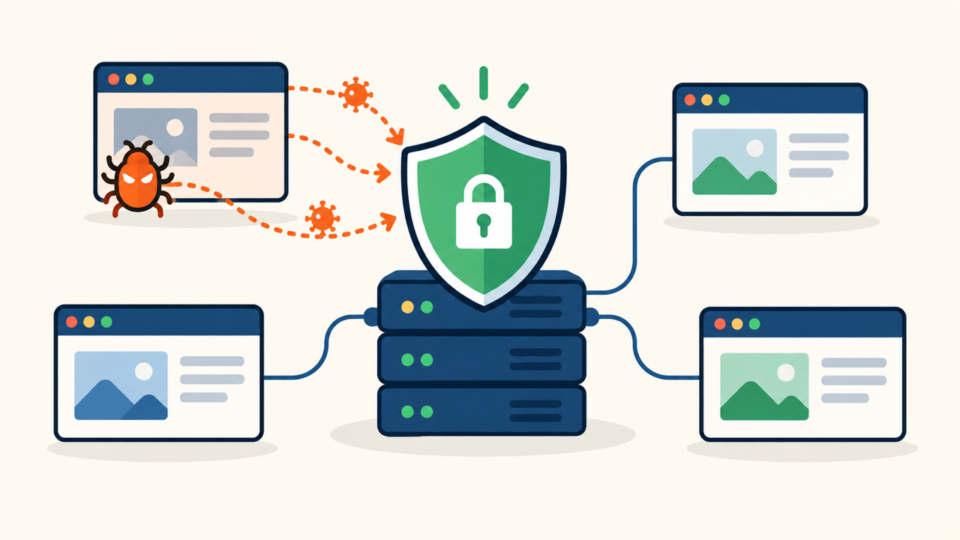
WordPress index.php malware that keeps returning is not a file-replacement problem. It is evidence that another process, account, scheduled task, configuration directive, or infected neighboring site can still write the malicious code back.
Replacing index.php may restore the homepage for a few minutes, but it can also erase the timestamp, payload, and clues needed to identify the writer. The safe response is to preserve evidence, build a timeline, trace the persistence path, and only then rebuild the affected files.
 RyoheiYokoyama
I’m Ryohei Yokoyama, founder of SiteFixNow. I’ve worked as an IT engineer for over 20 years and have handled many WordPress recovery, malware removal, hacked site repair, and reinfection cases. Here I’ll show the practical checks to make before another index.php replacement hides useful evidence.
- Why a clean index.php can be infected again
- Which evidence to collect before replacing the file
- How to trace the account, task, loader, or request that rewrites it
- How to clean in the right order and prove reinfection has stopped
WordPress index.php Malware Keeps Returning Because the Writer Still Exists
The first conclusion is simple: if malicious code returns to index.php, something with write access survived the cleanup. The returning file is a symptom, while the real incident remains active elsewhere.
A compromised plugin can rewrite the file during normal page loads. A server cron job can restore it on a timer. An auto_prepend_file directive can run a hidden loader before WordPress starts, and another infected installation under the same hosting account can cross-write into this site.
- Restrict public access if visitors are being redirected or served malware.
- Save a copy of the suspicious file outside the document root.
- Record its hash, modification time, permissions, owner, and group.
- Export relevant access, error, PHP, and security logs before rotation deletes them.
If the site is actively harming visitors, use the containment order in Emergency WordPress Malware Removal: What to Check Right Now. Containment comes first, but evidence collection should happen before destructive cleanup whenever possible.
WordPress index.php Evidence Must Be Preserved Before You Replace It
cd /path/to/wordpress
stat index.php
shasum -a 256 index.php
ls -ln index.php
cp -p index.php /protected-quarantine/index.php.suspect
A full core comparison is still necessary because the visible payload may start elsewhere. Use WordPress Core File Malware: Verify Checksums and Rebuild wp-admin and wp-includes to verify the wider core, but do not assume a clean checksum alone proves that plugins, themes, configuration files, or the database are safe.
WordPress index.php Reinfection Should Be Traced From Time, Owner, and Trigger
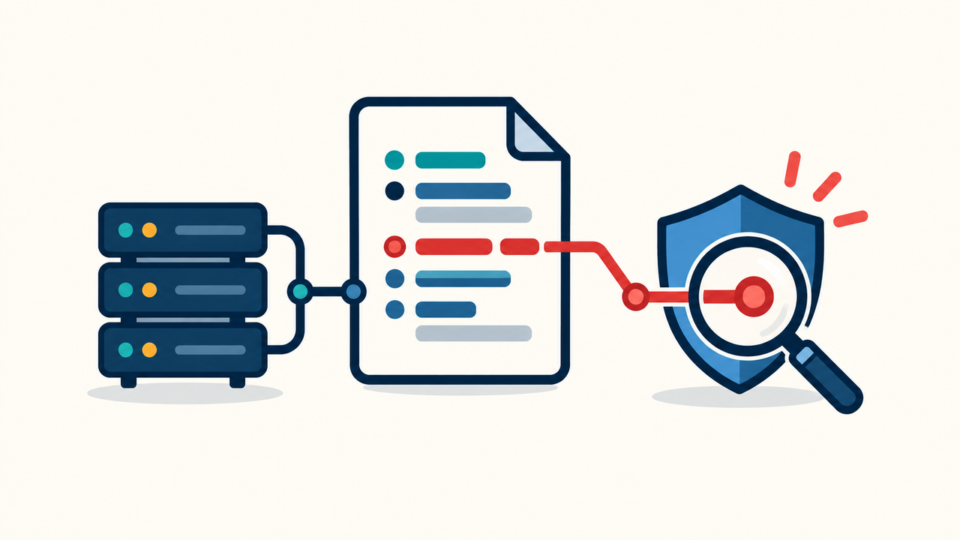
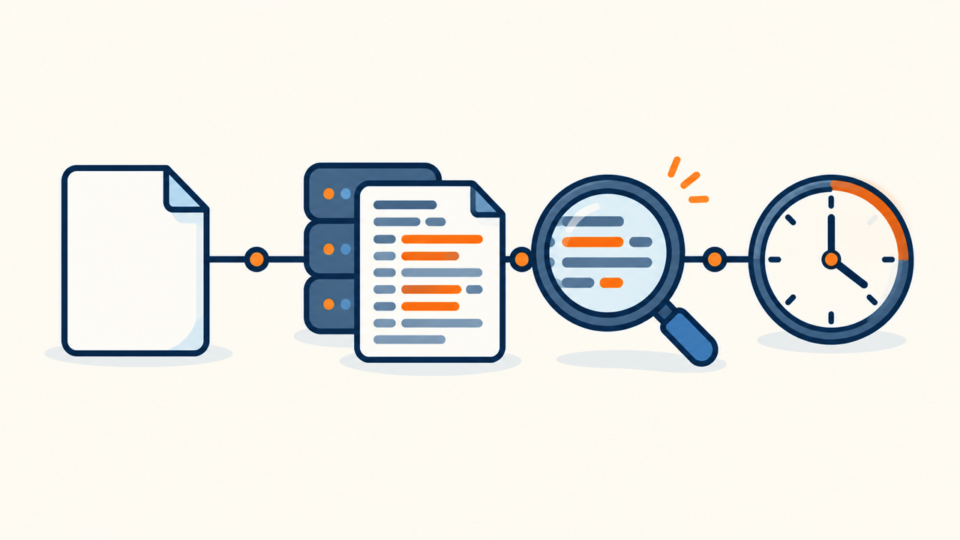
The most efficient investigation starts with three questions: exactly when did the file change, which system identity wrote it, and what request or task ran at that moment? This converts a vague reinfection into a testable event.
Correlate the modification time with web and PHP logs
Search a narrow window around the modification time in the domain access log, web-server error log, PHP-FPM log, and hosting audit log. Look for requests to unfamiliar PHP files, plugin endpoints, upload paths, AJAX actions, XML-RPC, or a burst of POST requests immediately before the rewrite.
Target event: 2026-10-01 01:42:18 server time
Review window: 01:40:00 through 01:45:00
Check:
- domain access log
- web server error log
- PHP-FPM or PHP error log
- control-panel file and login history
- WAF or security event log
Inspect loaders that run before or outside WordPress
Check .user.ini, php.ini, PHP-FPM pool settings, and web-server configuration for auto_prepend_file. A malicious prepend can run on every PHP request and rewrite index.php even when WordPress core itself is clean.
The dedicated WordPress .user.ini Malware guide explains how to follow this layer safely. Also inspect root files such as wp-blog-header.php and wp-load.php, plus must-use plugins and drop-ins that load before ordinary plugins.
Review scheduled and account-level writers
Follow the checks in WordPress Cron Job Malware: How to Find and Remove Suspicious Scheduled Tasks. Do not delete an unfamiliar event only because its name looks strange; identify the callback and owning plugin first so you do not break legitimate jobs or lose the evidence chain.
If the timing is irregular, inspect SSH keys, FTP users, hosting-panel sessions, deployment tokens, and every WordPress installation owned by the same account. For a broader persistence map, compare the results with WordPress Malware Keeps Coming Back: How to Find the Root Cause.
WordPress index.php Malware Must Be Removed in Dependency Order
Cleanup should remove the highest-level writer before the lowest-level symptom. If you rebuild index.php first but leave the malicious cron event or prepend loader active, the fresh file simply becomes the next target.
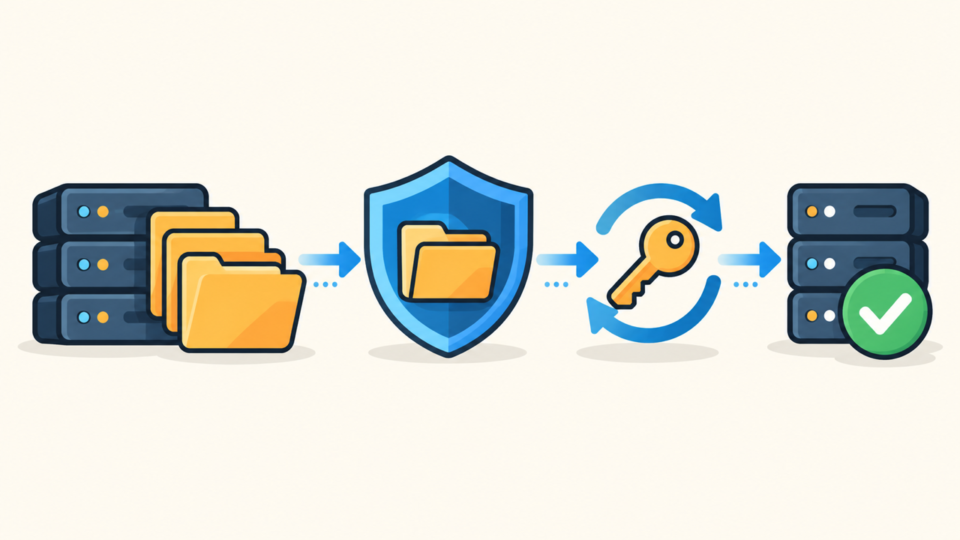
- Contain the site and preserve the infected file and relevant logs.
- Disable or quarantine the confirmed writer, loader, account, or scheduled task.
- Clean every affected installation and inspect shared account-level files.
- Replace WordPress core from a trusted package and reinstall trusted plugins and themes.
- Review users, database options, cron events, configuration, and writable directories.
- Rotate credentials and restore only verified custom code and content.
WordPress index.php Must Stay Clean Through a Verification Window
The final proof is not that the homepage loads once. The file must remain identical through normal traffic, cron intervals, cache purges, administrator logins, and the time window in which reinfection previously occurred.
Record the clean file’s hash, owner, permissions, and modification time. Recheck them after several page requests, after WP-Cron runs, and after the longest observed recurrence interval. Continue monitoring access, error, PHP, and security logs for the original trigger.
Once the site stays clean, rotate WordPress administrator, hosting, database, SFTP, SSH, CDN, and deployment credentials that were exposed or could write to the account. Use How to Secure WordPress After Malware Removal as the post-recovery hardening checklist.
WordPress index.php Malware Frequently Asked Questions
WordPress index.php Reinfection Recovery Summary
When WordPress index.php malware keeps returning, stop treating the entry file as the whole incident. Preserve the infected copy and metadata, align its modification time with logs, identify the writing identity or trigger, and investigate pre-WordPress loaders, scheduled tasks, credentials, and neighboring installations.
If You Can’t Secure or Recover Your WordPress Site Yourself

If your website shows malware warnings, redirects to strange pages, or you are not sure whether it is secure,
SiteFixNow can help clean, repair, and recover your WordPress site.
- Your WordPress site may be infected with malware.
- Security warnings appear in Google or browser results.
- You found unknown admin users or suspicious files.
- The site redirects to spam or unknown websites.
- You need urgent WordPress hacked site repair.
- Reduce visitor risk and SEO damage.
- Find hidden malware and backdoors, not only visible symptoms.
- Recover the site safely without unnecessary data loss.