If your WordPress site has been hacked, getting the homepage back online is only the first battle. Many site owners remove a few suspicious files, change one password, and think the problem is over, only to see the same spam redirects, rogue admins, or malware warnings return days later.
The reason is simple: a hacked WordPress site usually has more than one problem at the same time. You may have visible malware, hidden backdoors, weak credentials, unsafe plugins, and leftover settings that allow attackers to come back. To fix the site properly, you need to clean the damage and remove the reinfection path.
 RyoheiYokoyama
I’m Ryohei Yokoyama, founder of SiteFixNow. I’ve worked as an IT engineer for over 20 years and have handled many WordPress malware removal, hacked site repair, and security cleanup cases. In this article, I’ll show you how to fix a hacked WordPress site in a safer order so you do not leave the door open for reinfection.
- How to contain a hacked WordPress site before cleanup makes things worse
- Which files, users, plugins, and settings commonly cause reinfection
- What to reset in
wp-config.php, passwords, salts, and hosting access after cleanup - How to verify the site is actually clean before you trust it again
Fix a hacked WordPress site by containing the damage before random cleanup
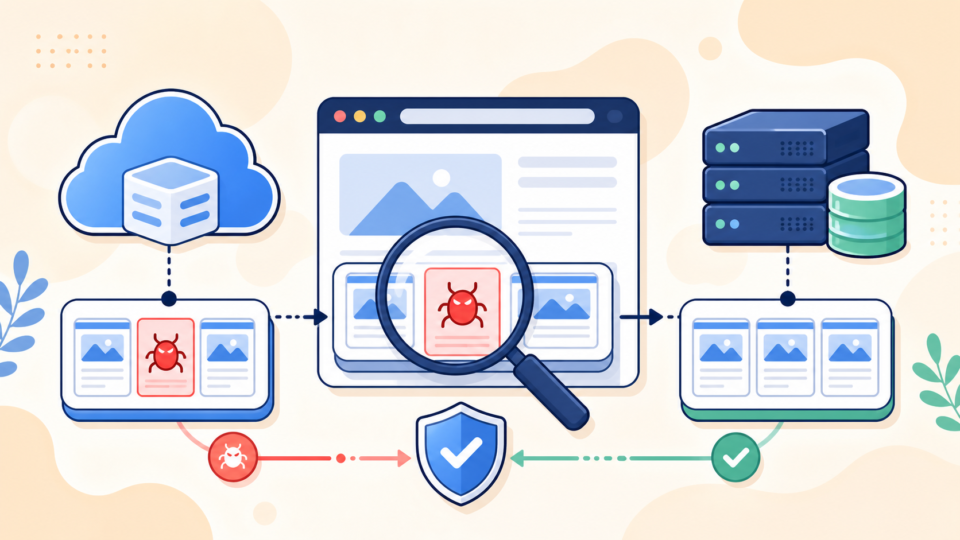
The first point is that containment matters more than speed alone. If the site is hacked and still sending visitors to spam pages, loading malicious JavaScript, or allowing attackers to log in, every extra minute can create more damage. At the same time, deleting files too fast can remove the evidence you need to find the real entry point.
A better approach is to reduce risk first, then clean with a plan. That usually means restricting access, securing backups, and recording the symptoms before you start editing files. When you do this, you are far more likely to stop reinfection instead of only hiding it for a few hours.
- Save a full copy of files and export the database before deleting anything
- Capture malware alerts, redirect URLs, suspicious admin usernames, and timestamps
- Temporarily restrict public access if customers or SEO traffic are at risk
- Write down recent changes such as new plugins, theme edits, hosting moves, or password leaks
If the attack is active, a short maintenance page or IP restriction can buy you time to investigate safely. Just remember that containment is temporary. The real fix is finding what allowed the compromise in the first place.
A temporary .htaccess restriction can reduce exposure during triage
If your server runs Apache and you need a quick emergency block while you investigate, a simple access rule can help. Replace the sample IP below with your own address and remove the rule after the site is clean.
Order Deny,Allow
Deny from all
Allow from 203.0.113.10WordPress hacked site repair becomes much safer when you pause the damage first and avoid changing ten things at once.
Find the reinfection path in WordPress files, plugins, and unknown admin access
The main reason hacked sites get infected again is that the original entry point was never removed. A homepage may look normal after you replace a theme file, but if an attacker still has admin access, a hidden loader in mu-plugins, or a vulnerable plugin that remains active, the compromise will return.
That is why the goal is not simply “remove bad code.” The goal is to identify what gave the attacker persistence. In WordPress, that usually means checking global files, writable folders, plugin loaders, database users, and server-level access.
- A vulnerable plugin or theme that stays installed after cleanup
- Unknown administrator users or stolen hosting control panel credentials
- Hidden PHP loaders in
wp-content/uploads/orwp-content/mu-plugins/ - Injected code in
wp-config.php,functions.php, or.htaccess - Scheduled tasks, backdoor files, or database options that recreate malware
wp-config.php
.htaccess
wp-content/uploads/
wp-content/mu-plugins/
wp-content/plugins/
wp-content/themes/your-theme/functions.php
wp-content/debug.log
Look for unfamiliar PHP files, obfuscated strings, unexpected include statements, references to unknown domains, or code that should not exist in an uploads directory. Also review plugin and theme lists carefully. If the infection started through an outdated extension, leaving it installed is often enough to let the attacker back in.
Do not ignore must-use plugins and uploads folders during hacked site cleanup
Two areas are especially dangerous because site owners often overlook them. The first is wp-content/mu-plugins/, where code loads automatically without the normal plugin activation screen. The second is wp-content/uploads/, where an attacker may hide executable PHP among normal media folders.
If you find a file like wp-content/uploads/2026/06/cache-helper.php or wp-content/mu-plugins/wp-verify-loader.php, do not assume the filename is legitimate just because it sounds technical. Compare it against a known-good backup or vendor package before deciding it belongs there.
WordPress malware removal and WordPress redirect hack fix are useful references when the symptoms involve spam redirects or hidden loaders.
Clean the hacked WordPress site in the right order so backdoors do not survive
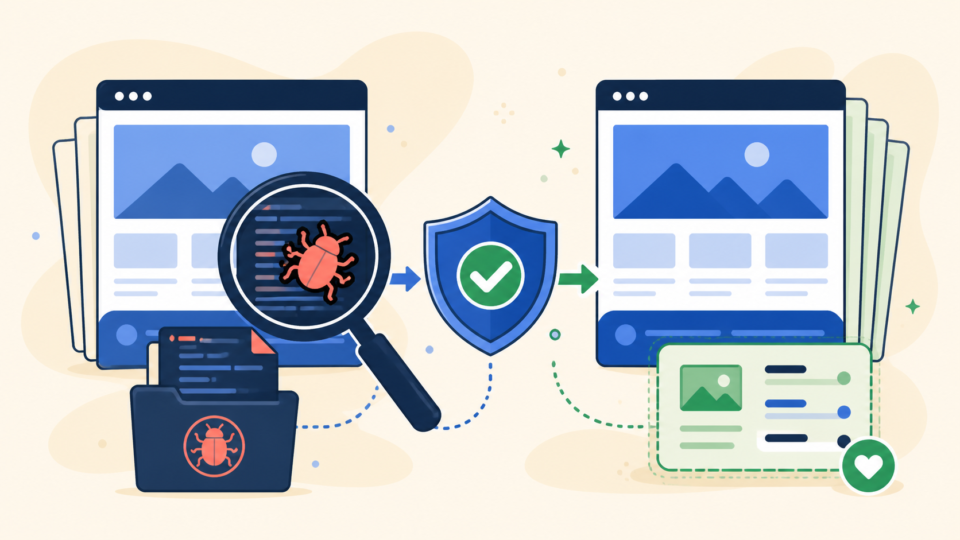
Once you know where the compromise lives, the next step is disciplined cleanup. The safest order is to replace compromised core files from a clean WordPress package, remove or reinstall suspicious plugins and themes from trusted sources, then clean custom files only after you have verified what is supposed to be there.
This order matters because many hacked sites contain a mix of clean files and infected customizations. If you delete everything first, you can destroy legitimate business logic. If you keep everything first, malware survives. The middle path is to restore known-good components and review custom code separately.
- Replace WordPress core files with a clean copy that matches your version
- Remove or reinstall plugins and themes from trusted original packages
- Review custom theme code, snippets, and drop-ins one by one
- Clean rogue users, suspicious options, and spam content from the database
- Rescan the site before reopening public access
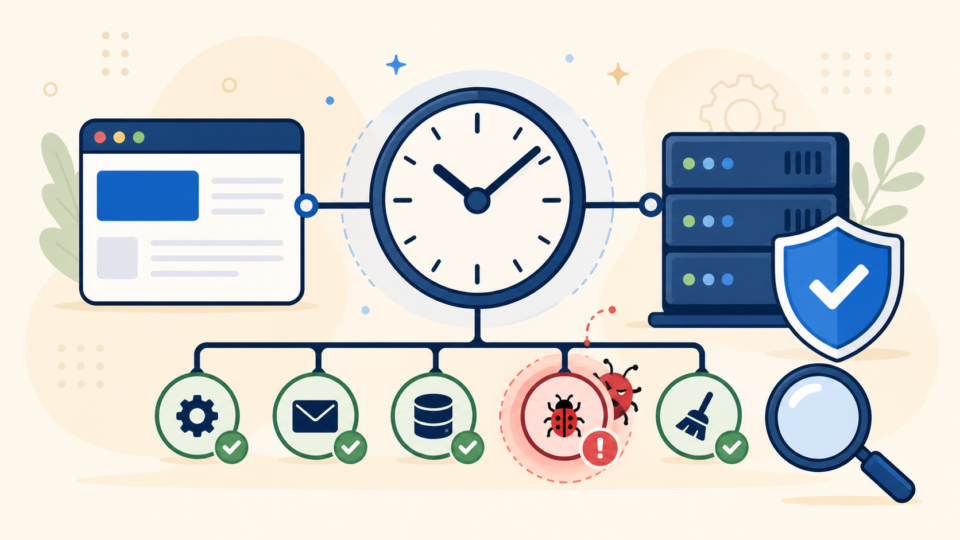
Turn on logging during this phase so warnings are written to a file instead of shown to visitors. That helps you spot broken includes, missing plugin files, or suspicious callbacks that survive the first cleanup pass.
define( 'WP_DEBUG', true );
define( 'WP_DEBUG_LOG', true );
define( 'WP_DEBUG_DISPLAY', false );
After enabling these settings, review wp-content/debug.log for repeated calls to suspicious files, plugin paths that should no longer exist, or errors that reveal hidden malware loaders. This is one of the easiest ways to catch reinfection that is triggered by a remaining file or hook.
Reset passwords, salts, and server access to stop WordPress reinfection at the source
The point many site owners miss is that malware cleanup is not enough if credentials were stolen. A hacker may have entered through WordPress admin, FTP, SFTP, SSH, the hosting panel, or the database user. If any of those access paths remain unchanged, the site can be compromised again even after you remove all visible malware.
That is why post-cleanup hardening is part of the fix, not an optional extra. You want to break every session, revoke unknown access, and close off easy reuse of the same credentials.
- Reset all WordPress administrator passwords
- Change hosting panel, FTP, SFTP, SSH, and database passwords
- Rotate WordPress salts in
wp-config.phpto invalidate sessions - Remove unknown admin users and review user roles carefully
- Update WordPress, plugins, themes, and the PHP version if safe for the site
At the WordPress level, a salt rotation forces logged-in sessions to expire. That helps cut off attackers who may still have stolen cookies or active sessions.
define( 'AUTH_KEY',         'replace-with-new-random-value' );
define( 'SECURE_AUTH_KEY',  'replace-with-new-random-value' );
define( 'LOGGED_IN_KEY',    'replace-with-new-random-value' );
define( 'NONCE_KEY',        'replace-with-new-random-value' );
define( 'AUTH_SALT',        'replace-with-new-random-value' );
define( 'SECURE_AUTH_SALT', 'replace-with-new-random-value' );
define( 'LOGGED_IN_SALT',   'replace-with-new-random-value' );
define( 'NONCE_SALT',       'replace-with-new-random-value' );
Do not paste these literal placeholder values into production. Generate new random salts and replace the existing values carefully. If the site runs a cache layer or managed hosting security feature, clear those sessions as well after the change.
WordPress security checklist for beginners is a useful follow-up once the urgent hacked site cleanup is complete.
Verify the hacked WordPress site is clean before trusting recovery is complete
The proof of recovery is not only that the homepage loads. A site can look fine while still creating spam pages, sending hidden redirects, or running a backdoor file through scheduled requests. Verification is the step that tells you whether cleanup worked or whether reinfection is already starting again.
Check the public site, the admin dashboard, and the server environment. Review logs, inspect user tables, rescan the file system, and test important forms or checkout actions. If one suspicious behavior remains, keep investigating instead of assuming the problem is solved.
- Open key pages while logged out and logged in to confirm no spam redirects appear
- Review
wp-content/debug.logand server error logs for suspicious repeated calls - Confirm no unknown admin users, scheduled tasks, or modified plugin files return
- Run another malware scan after passwords, salts, and updates are complete
- Watch the site for 24 to 72 hours instead of declaring success immediately
If the site is still triggering security warnings in search results or browsers, remember that the malware may be gone while the warning cache remains. In that case, cleanup and reputation recovery are separate tasks, and both need attention.
WordPress malware infection recovery and WordPress recovery service are relevant if your site is still unstable after the first cleanup pass.
When to stop DIY hacked WordPress cleanup and get expert help
The final point is that not every hacked site is a good DIY project. If the infection keeps returning, if customer data may be involved, if you cannot identify the original entry point, or if custom code makes the site risky to touch, expert cleanup is often faster and cheaper than repeated failed attempts.
Professional recovery is especially helpful when you need to compare infected files against clean originals, investigate database manipulation, track reinfection sources, and harden the server after malware removal. The goal is not just making the site load again. It is getting you back to a stable, trustworthy site that stays clean.
FAQ
Summary
To fix a hacked WordPress site and stop reinfection, you need more than a quick visible cleanup. Contain the damage, preserve evidence, check high-risk files and users, remove backdoors, reset every access path, and verify the site carefully before you trust it again. That is the difference between a temporary repair and a stable recovery.
If You Can’t Secure or Recover Your WordPress Site Yourself

If your website shows malware warnings, redirects to strange pages, or you are not sure whether it is secure,
SiteFixNow can help clean, repair, and recover your WordPress site.
- Your WordPress site may be infected with malware.
- Security warnings appear in Google or browser results.
- You found unknown admin users or suspicious files.
- The site redirects to spam or unknown websites.
- You need urgent WordPress hacked site repair.
- Reduce visitor risk and SEO damage.
- Find hidden malware and backdoors, not only visible symptoms.
- Recover the site safely without unnecessary data loss.