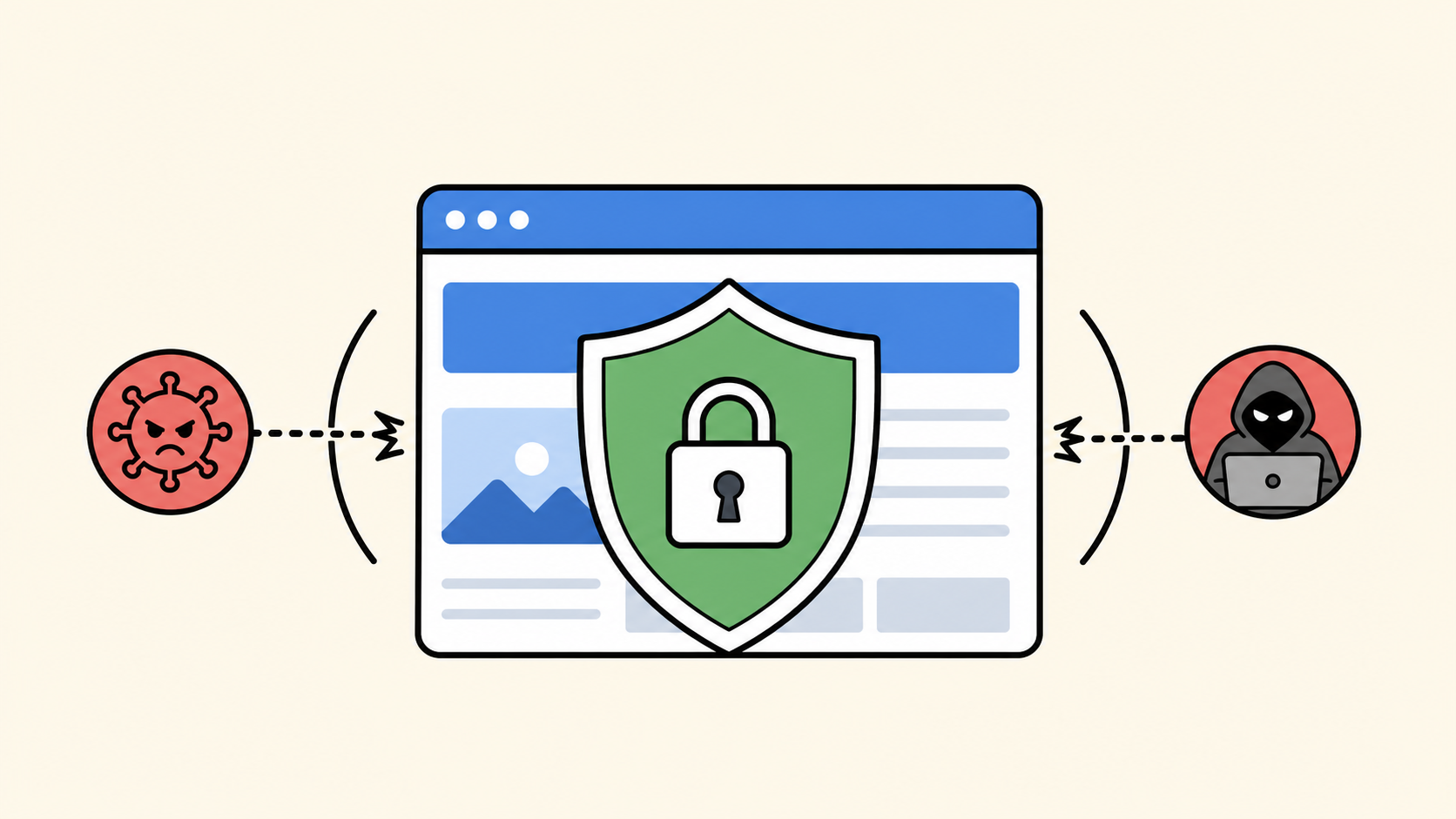
Your WordPress homepage is often the first page visitors, search engines, and attackers notice. If it is replaced with spam, injected with hidden links, or used as the starting point for redirects, the whole site can look untrustworthy within minutes.
The good news is that homepage protection is not only about installing one security plugin. It is about reducing the places where attackers can change what visitors see, checking the files that load on every request, and keeping a clean recovery path ready before something goes wrong.
 RyoheiYokoyama
SiteFixNow handles WordPress malware removal, hacked site repair, security cleanup, and emergency recovery. This guide is based on practical WordPress repair experience and 20+ years of engineering work.
- Why attackers often target the homepage first.
- Which WordPress files and settings can change homepage behavior.
- How to harden the homepage without breaking normal updates.
- What to check if the homepage suddenly redirects or shows spam.
Protect Your WordPress Homepage by Understanding Why It Is Targeted
The homepage is valuable to attackers because it has visibility. A malicious change on an old blog post may stay hidden for a while, but a hacked homepage is seen by customers, search engines, ad reviewers, and security scanners quickly.
Common homepage attacks include injected pharmacy links, fake support banners, malicious JavaScript redirects, popups, cryptocurrency scam pages, and hidden SEO spam that only appears to search engine crawlers. Some attacks do not replace the page completely. They quietly add code to the header, footer, theme files, or database options that load across the entire site.
- The homepage redirects only on mobile devices or only from Google search results.
- Unknown JavaScript appears before
</head>or</body>. - The site title, meta description, or Open Graph data has changed without permission.
- Visitors report spam content that you cannot see while logged in.
If you already see redirects or browser warnings, read our guides on cleaning an infected WordPress site and fixing a WordPress redirect hack. If your homepage still looks normal, the steps below help reduce the chance that it becomes the first visible symptom of a hack.
Limit Who Can Change Homepage Content and Layout
The simplest way to protect your homepage is to reduce unnecessary editing power. Many homepage compromises begin with a stolen admin password, an abandoned editor account, or a plugin that allows content injection through a weak setting.
Start by checking every user under Users > All Users. Remove unknown accounts, downgrade people who do not need administrator access, and make sure old contractors no longer have access. For active administrators, enable two-factor authentication and use strong passwords that are not reused on email, hosting, or FTP accounts.
- Keep only trusted people as Administrators.
- Use Editor or Author roles for content-only work.
- Remove inactive users, especially old contractor accounts.
- Enable two-factor authentication for every admin account.
- Change passwords after any suspected malware infection.
Next, review plugins that can insert scripts into the header, footer, ads, analytics area, forms, popups, or custom HTML blocks. These tools are useful, but they also create powerful places where malicious code can hide. If a plugin is no longer needed, remove it instead of leaving it inactive forever.
Protect the Files That Control the Homepage
WordPress homepages are usually built from database content, theme templates, plugins, and server rules. Attackers know this, so they often modify files that load before visitors even reach the page content.
Check these locations first when hardening or investigating homepage problems:
.htaccessin the WordPress root directory.wp-config.phpfor unfamiliar includes or remote code.wp-content/themes/your-theme/header.phpandfooter.php.wp-content/themes/your-theme/functions.php.wp-content/mu-plugins/, which loads automatically.- Widget areas, custom HTML blocks, reusable blocks, and theme customizer scripts.
Your root .htaccess file should usually contain standard WordPress rewrite rules. Extra redirect rules, encoded strings, or conditions that check user agent, referrer, or mobile devices deserve careful review.
# Standard WordPress rewrite block.
# Unexpected redirect rules above or below this block should be reviewed.
<IfModule mod_rewrite.c>
RewriteEngine On
RewriteRule .* - [E=HTTP_AUTHORIZATION:%{HTTP:Authorization}]
RewriteBase /
RewriteRule ^index\.php$ - [L]
RewriteCond %{REQUEST_FILENAME} !-f
RewriteCond %{REQUEST_FILENAME} !-d
RewriteRule . /index.php [L]
</IfModule>
For wp-config.php, be especially careful with unfamiliar include, require, eval, base64_decode, or remote URL loading. A clean configuration file should focus on database settings, salts, debug configuration, table prefix, and WordPress constants.
// Helpful during investigation, but do not leave public error display enabled.
define('WP_DEBUG', true);
define('WP_DEBUG_LOG', true);
define('WP_DEBUG_DISPLAY', false);

// Disable file editing from the WordPress dashboard.
define('DISALLOW_FILE_EDIT', true);
The DISALLOW_FILE_EDIT setting does not stop every attack, but it removes one easy path for editing theme and plugin files from the dashboard. Use it together with strong account security, updates, backups, and malware scanning.
Keep the Homepage Clean by Controlling Scripts, Forms, and Redirects
A modern homepage often loads analytics, ad pixels, contact forms, chat widgets, sliders, popup tools, and tracking scripts. Each extra script can be legitimate, but the more unmanaged code you load, the harder it becomes to spot malicious changes.
Make a short inventory of scripts that are supposed to appear on the homepage. Include analytics, tag managers, heatmap tools, chat widgets, form integrations, and payment-related scripts. If you cannot identify a script, do not delete it blindly on a live site. First save a backup, confirm where it is injected, and test changes in a safe way.
- Keep only one plugin or tool responsible for header and footer scripts.
- Avoid pasting unknown JavaScript from emails, comments, or support tickets.
- Check form plugins for spam protection, file upload restrictions, and redirect settings.
- Review popup and ad plugins because they can inject code into high-visibility pages.
Redirect settings deserve special attention. Some malware creates conditional redirects that only trigger for first-time visitors, mobile users, or search engine traffic. Test your homepage in a private browser window, from a mobile device, and by clicking the result from Google if the site is indexed.
If you find redirects you did not create, check your security logs, root .htaccess, redirect plugins, cache plugins, theme files, and suspicious database entries. Our hacked WordPress site repair guide explains why it is important to remove the backdoor, not only the visible redirect.
Use Updates, Backups, and Monitoring Before the Homepage Breaks
Homepage protection becomes much easier when you can compare the current site with a known-good state. Without backups and monitoring, you may not know when the homepage changed, which file was touched, or whether the malware is still active.
Keep WordPress core, themes, and plugins updated, but do it with a backup path. For business sites, the safer pattern is: create a backup, update on staging or during a low-traffic window, check the homepage, test forms, clear cache, then monitor for errors.
- Back up files and the database before important updates.
- Update plugins, themes, and WordPress core regularly.
- Check the homepage as a logged-out visitor after changes.
- Scan for malware and unexpected file changes.
- Review Google Search Console and browser warnings.
If you are new to security hardening, start with our WordPress security checklist for beginners. It gives a broader foundation for protecting the whole site, not only the homepage.
For monitoring, you can use a security plugin, hosting file integrity checks, uptime monitoring, and Search Console alerts. The goal is not to create noise. The goal is to know quickly when the homepage changes in a way you did not approve.
What to Do If Your Homepage Is Already Hacked
If your homepage is already replaced, redirecting, or showing spam, do not keep editing random files until the symptom disappears. That can destroy evidence, break the site, or leave the backdoor active.
First, take a backup of the current infected state. It sounds strange, but a forensic backup helps you compare files, preserve logs, and recover content if a cleanup step goes wrong. Then temporarily disable risky plugins only if you can do so without losing critical data.
1. Save a current backup of files and database.
2. Record the visible symptom and affected URLs.
3. Check wp-admin users for unknown administrators.
4. Review .htaccess, wp-config.php, theme header/footer, and mu-plugins.
5. Check server access logs and error logs if available.
6. Remove malware and backdoors before requesting warning review.
Common server log locations vary by host, but useful paths may include /var/log/apache2/access.log, /var/log/nginx/access.log, hosting control panel access logs, or domain-specific logs inside your hosting account. Look for unfamiliar POST requests, repeated access to vulnerable plugin files, and requests to files that should not exist.
If the site is actively harming visitors, consider putting the site into maintenance mode or restricting public access while you clean it. After cleanup, change passwords, update everything, remove unused plugins and themes, clear cache, rescan the site, and check Search Console for security issues.
FAQ About Protecting a WordPress Homepage
Summary: Protect the Homepage Before It Becomes the Warning Sign
Your homepage is not just another page. It is the public face of your WordPress site, the page visitors trust first, and one of the fastest places for a hack to damage your reputation.
Protect it by limiting administrator access, monitoring files that affect every request, controlling scripts and redirects, keeping updates and backups current, and checking the site as a logged-out visitor. If something already looks wrong, investigate safely and remove the backdoor before assuming the problem is fixed.
If You Can’t Secure or Recover Your WordPress Site Yourself

If your website shows malware warnings, redirects to strange pages, or you are not sure whether it is secure,
SiteFixNow can help clean, repair, and recover your WordPress site.
- Your WordPress site may be infected with malware.
- Security warnings appear in Google or browser results.
- You found unknown admin users or suspicious files.
- The site redirects to spam or unknown websites.
- You need urgent WordPress hacked site repair.
- Reduce visitor risk and SEO damage.
- Find hidden malware and backdoors, not only visible symptoms.
- Recover the site safely without unnecessary data loss.