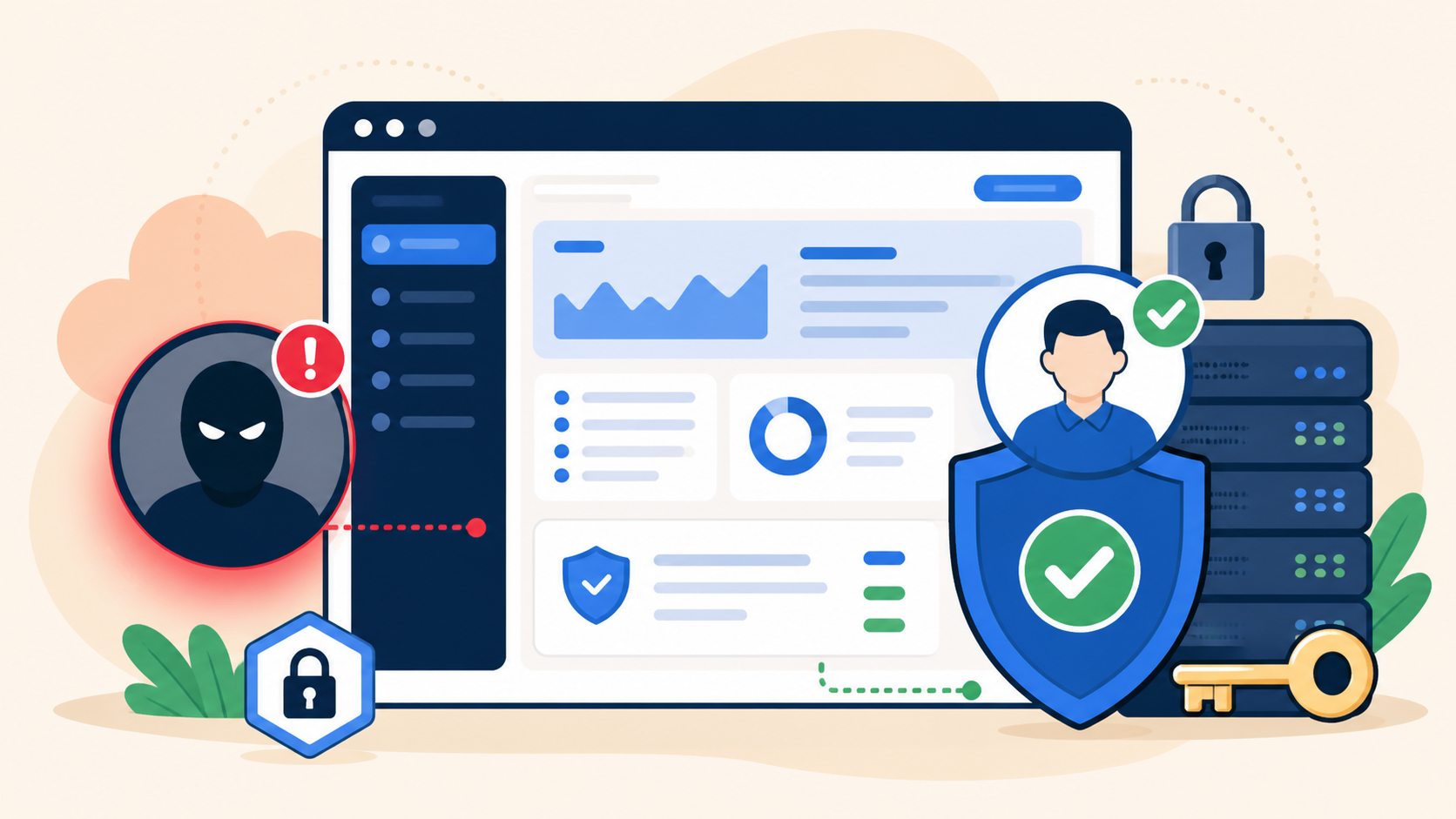
If you discover a WordPress admin user that nobody authorized, treat it as a security incident. An unauthorized administrator can install plugins, change files, create accounts, reset users, read private data, and prepare a backdoor.
Do not simply click Delete. Preserve evidence, contain the account, protect legitimate content, identify how it was created, and close every related access path. Otherwise, the visible user may disappear while the attacker still controls another system.
 RyoheiYokoyama
I’m Ryohei Yokoyama, founder of SiteFixNow. I’ve worked as an IT engineer for over 20 years and have handled many WordPress recovery, malware removal, hacked site repair, and security cleanup cases. In this article, I’ll show you how to respond to an unknown administrator without destroying useful evidence or leaving the creation path open.
- Why an unknown WordPress administrator must be treated as a security incident
- What evidence to record before disabling or deleting the account
- How to reassign legitimate posts and remove the rogue user safely
- Where to look for the account creation path and persistent access
- Which credentials and sessions to reset after containment
WordPress Admin User Added by Hackers Means Assume Admin-Level Compromise
An unknown administrator is strong evidence that someone reached a privileged path. A normal-looking site does not prove the damage is limited to the Users screen.
Administrator access can come from stolen credentials, vulnerable software, malicious PHP, direct database access, a compromised host, or another hidden account. Deleting one user removes only a visible result.
- The username or email address is unknown to every authorized site owner.
- The account has an administrator role or recently changed another user.
- Security plugins were disabled, settings changed, or logs cleared.
- New plugins, themes, redirects, spam pages, or PHP files appeared.
- Password-reset or login emails arrived without a legitimate request.
Also check for other WordPress virus symptoms that indicate a hacked site. Redirects, new files, unexplained resource usage, mail abuse, and search spam can show that the incident extends beyond the account.
WordPress Admin User Added by Hackers: Preserve Evidence and Contain Access
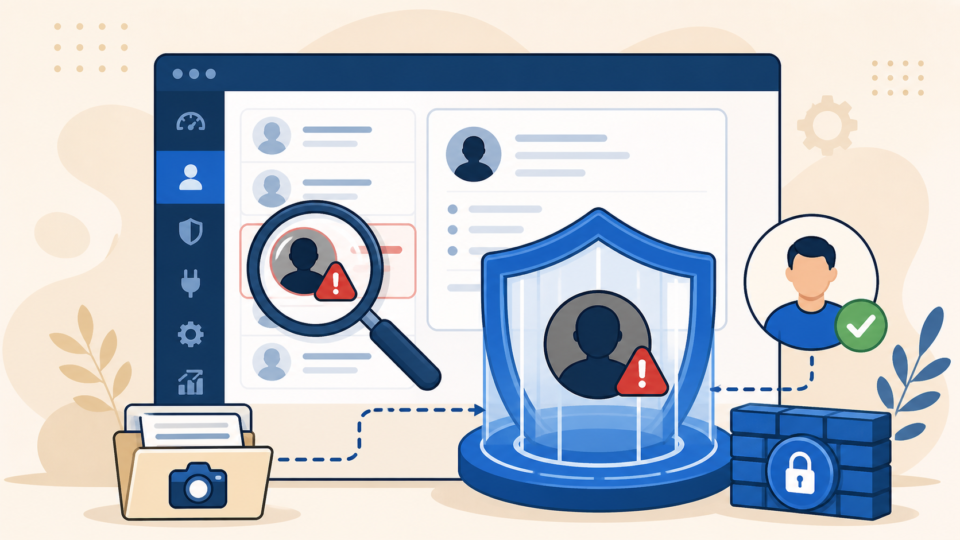
Preserve a full file-and-database backup and record the account before changing it. Evidence helps reconstruct the timeline, distinguish the attacker from legitimate users, and explain the incident to your host or developer.
Capture the user ID, login, email, role, registration time, application passwords, and related security logs. Note the time and timezone. Save screenshots and searchable text or JSON.
wp user list --fields=ID,user_login,user_email,display_name,roles,user_registered --format=table
wp user get suspicious_login --format=json
wp user application-password list suspicious_login
wp cron event list

# Save command output with the incident date.
# Do not delete the user until the backup and evidence are complete.
If wp-admin is unavailable, start with read-only database queries. Confirm the real table prefix in wp-config.php; it may not be wp_.
SELECT ID, user_login, user_email, user_registered
FROM wp_users
ORDER BY ID DESC;

SELECT user_id, meta_key, meta_value
FROM wp_usermeta
WHERE meta_key LIKE '%capabilities%'
ORDER BY user_id;
Containment must limit damage without destroying evidence. Revoke the suspicious user’s sessions or temporarily block the account after the backup. If abuse continues, use hosting-level protection while you investigate.
Work from a clean device. A compromised laptop, browser extension, mailbox, or password manager can leak new credentials. These emergency WordPress malware removal checks support safe containment.
Remove a Rogue WordPress Admin User Without Losing Legitimate Content
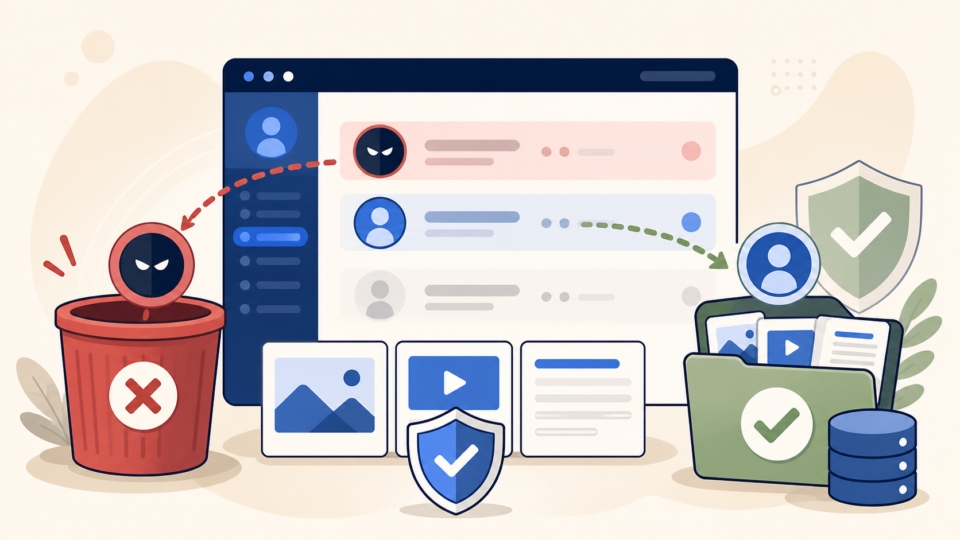
Remove the rogue account only after you know what content it owns. WordPress asks whether to delete that user’s posts or attribute them to another user. Choosing “delete all content” without review can erase legitimate pages, products, media, or imported posts that the attacker deliberately reassigned.
Confirm one clean administrator first, with a unique login, new password, verified mailbox, and multifactor authentication. Do not reuse a compromised credential.
- Verify the full backup and record the suspicious user’s details.
- Review posts, pages, products, media, and custom post types owned by that user.
- Confirm a clean administrator who can receive legitimate content.
- Reassign valid content, then delete the suspicious account.
- Verify that no other unknown administrator or application password remains.
# Review ownership before removal.
wp post list --author=suspicious_login --post_type=any --post_status=any --fields=ID,post_type,post_status,post_title

# Reassign owned content to a verified administrator.
wp user delete suspicious_login --reassign=trusted_admin_login
If the attacker’s account created spam or altered files, account removal is only one part of WordPress hacked site repair before the incident gets worse.
Find How Hackers Created the WordPress Admin User
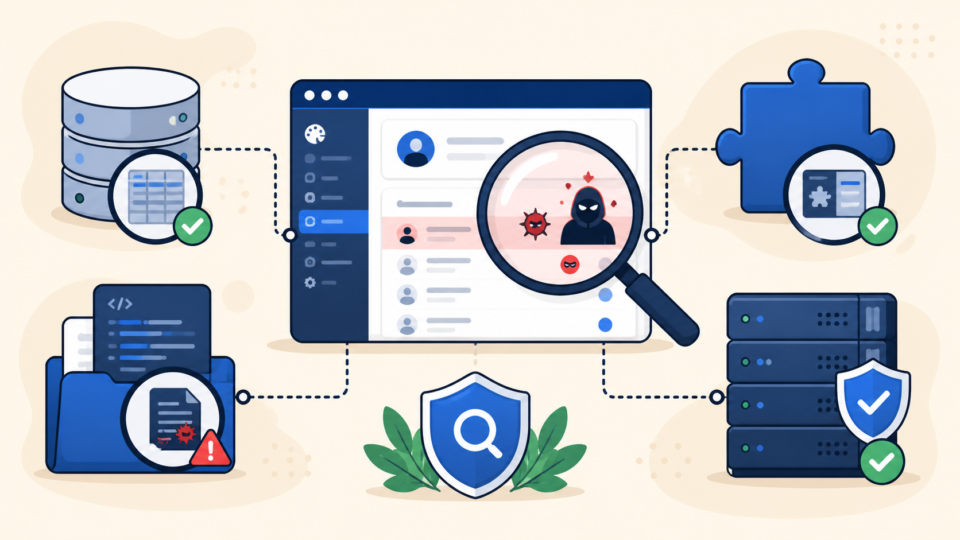
The account may return unless you close its creation path. Build a timeline from the registration date, logins, plugin changes, file modification times, password resets, hosting alerts, and access logs.
Review plugins, themes, must-use plugins, application passwords, REST API use, security logs, and scheduled tasks. Malicious code can call wp_create_user() or wp_insert_user() without using the registration screen.
Inspect recent users and usermeta rows, unexpected administrator capabilities, suspicious options, and scheduled tasks. A normal-looking registration date is not proof of legitimacy because direct database access can alter timestamps.
Check these locations and records:
wp-content/mu-plugins/
wp-content/plugins/
wp-content/themes/active-theme/functions.php
wp-content/uploads/ for unexpected PHP files
wp-config.php and .htaccess
WordPress users and usermeta tables
Hosting access and error logs
SFTP/FTP account logs
Database user and control-panel logs
Mailbox login and password-reset history
Search custom code for user-creation functions, but judge findings in context. Membership, import, and single-sign-on tools may create users legitimately. Focus on an unexplained privileged role, unfamiliar source file, or matching compromise timeline.
Compare server access logs with the timeline, especially POST requests to wp-login.php, admin-ajax.php, REST endpoints, plugin paths, or unexpected PHP files. Then review WordPress malware cleanup across files, the database, and backdoors.
Reset Every Credential and Close Persistent Access
Rotate credentials for every system that could recreate administrator access. WordPress-only resets fail if the attacker also reached an admin mailbox, hosting panel, SFTP account, database user, or API token.
- Reset passwords for every legitimate WordPress administrator.
- Revoke application passwords, active sessions, and unused API tokens.
- Change hosting, SFTP/FTP, SSH, database, CDN, registrar, and email credentials.
- Replace exposed WordPress salts so old login cookies stop working.
- Patch the exploited plugin, theme, or server component—or remove it.
- Review must-use plugins, uploads, scheduled tasks, and startup files again.
Monitor for new users, role changes, file modifications, unexpected scheduled jobs, outbound mail spikes, and repeat login attempts after cleanup. Compare a clean baseline with the live site rather than relying on the absence of visible symptoms.
For a broader hardening plan, follow the steps to secure WordPress after malware removal. Security monitoring is most useful after the creation path and hidden persistence have been removed.
WordPress Admin User Added by Hackers FAQ
WordPress Admin User Added by Hackers Response Summary
When hackers add a WordPress admin user, preserve evidence, contain access, reassign valid content, delete the rogue user, trace its creation path, rotate affected credentials, remove persistence, and monitor for recurrence.
If You Can’t Secure or Recover Your WordPress Site Yourself

If your website shows malware warnings, redirects to strange pages, or you are not sure whether it is secure,
SiteFixNow can help clean, repair, and recover your WordPress site.
- Your WordPress site may be infected with malware.
- Security warnings appear in Google or browser results.
- You found unknown admin users or suspicious files.
- The site redirects to spam or unknown websites.
- You need urgent WordPress hacked site repair.
- Reduce visitor risk and SEO damage.
- Find hidden malware and backdoors, not only visible symptoms.
- Recover the site safely without unnecessary data loss.