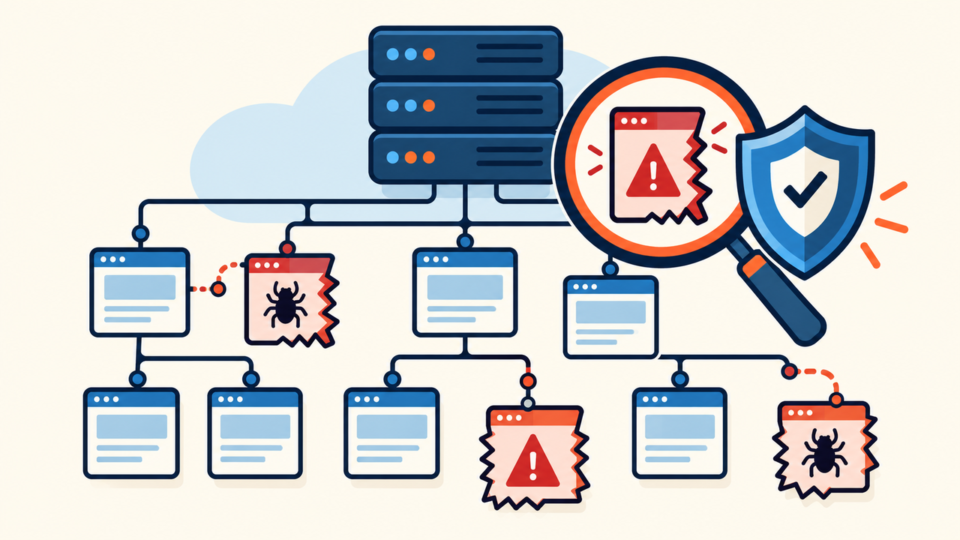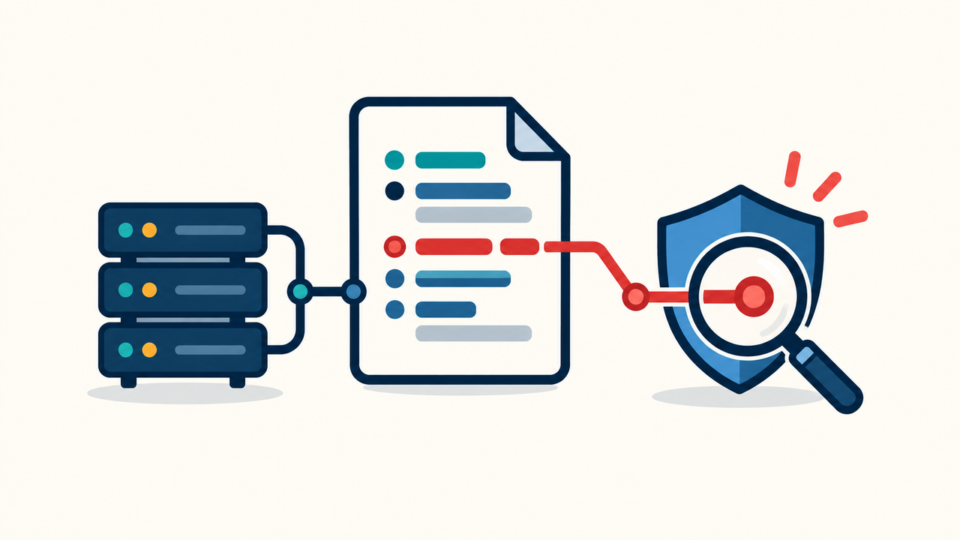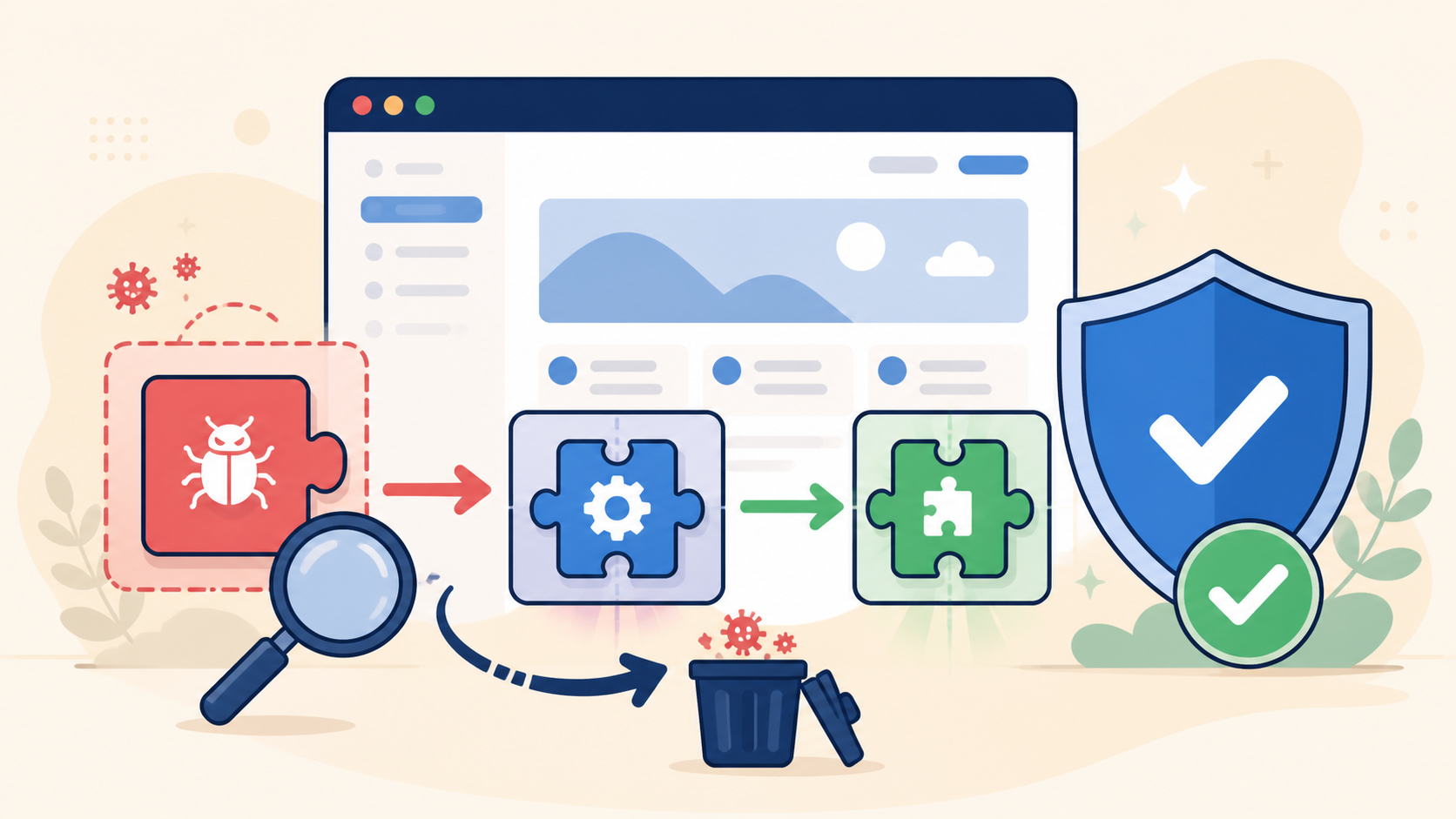
An infected WordPress plugin folder is dangerous, but deleting the whole directory immediately can turn a security incident into a broken website. The folder may contain malware, yet it may also contain code required for checkout, forms, membership access, caching, or a custom business workflow.
 RyoheiYokoyama
I’m Ryohei Yokoyama, founder of SiteFixNow. I’ve worked as an IT engineer for over 20 years and have handled many WordPress recovery, malware removal, hacked site repair, and security cleanup cases. In this article, I’ll explain how to clean a compromised plugin folder while protecting the site, its settings, and the evidence needed to find the real entry point.
- What to preserve before changing an infected plugin folder
- How to compare plugin files with a trusted package
- How to isolate or replace a plugin without avoidable site damage
- Which wider WordPress locations and accounts must also be checked
- How to prove the cleanup holds after the site returns to service
Infected WordPress Plugin Folder Cleanup Starts With Containment and Evidence
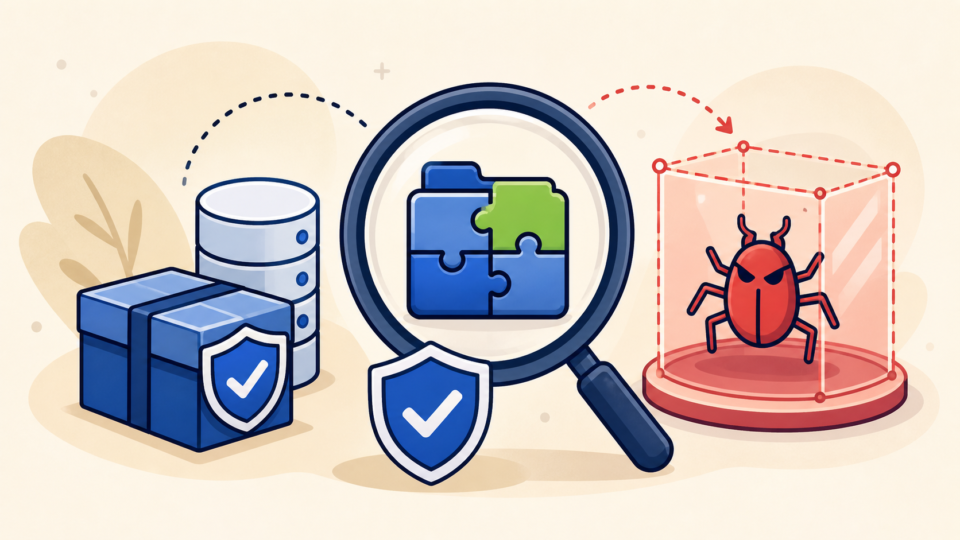
The first step is to contain the risk without destroying the record of what happened. Do not open suspicious URLs repeatedly, edit files in place, or delete the plugin before you know its folder name, installed version, activation state, and role on the site.
- A full copy of site files and the database, even if the copy contains malware
- The exact suspicious paths, modification times, file sizes, and hosting scan report
- Recent access, error, firewall, login, deployment, and file-change logs
- Screenshots or notes showing redirects, errors, spam, or other visible symptoms
For a broader preservation plan, review how to remove WordPress malware without losing your website before making destructive changes.
Infected WordPress Plugin Folder Checks Must Separate Malware From Legitimate Code
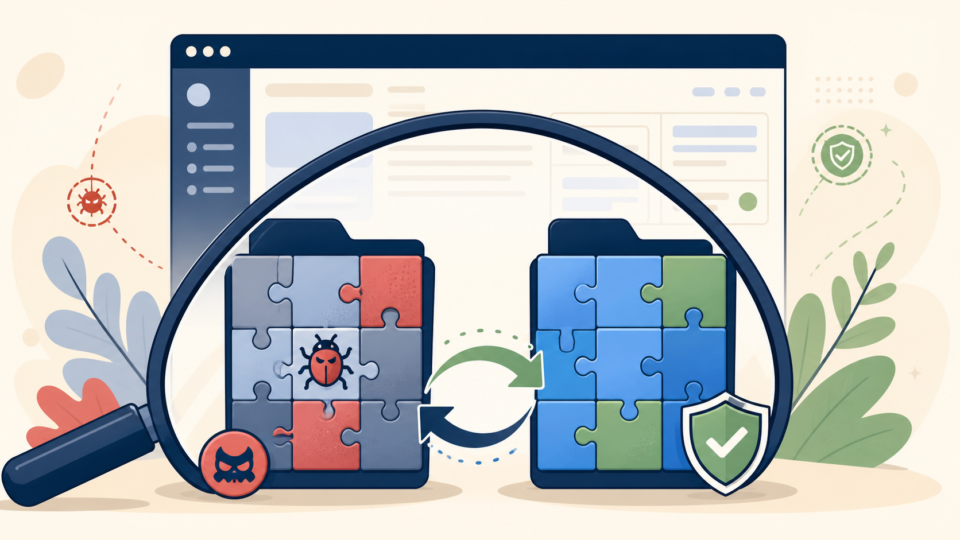
Do not decide that a file is malicious only because its PHP looks unfamiliar. Establish a trusted baseline for the exact plugin version from WordPress.org, the verified vendor, or a known-good deployment artifact, then compare names, contents, and hashes.
Check the plugin header and directory shape first
Confirm the main plugin header and directory name. Investigate hidden subdirectories, double extensions, recently added PHP in asset folders, or small loader files that include code from uploads, temporary directories, or external URLs.
Use checksums or recursive comparison when available
wp plugin get example-plugin --fields=name,status,version
wp plugin verify-checksums example-plugin
diff -ruN clean/example-plugin/ suspect/example-plugin/
find suspect/example-plugin -type f -name '*.php' -mtime -14 -print
If differences extend into themes, uploads, configuration, or must-use plugins, use the wider WordPress file infection cleanup across wp-content and wp-config.php guide rather than treating the plugin as the only affected component.
Infected WordPress Plugin Folder Isolation Should Protect Site Availability
After preserving evidence, isolate the plugin with the least disruption. Deactivate it in wp-admin when trustworthy. If wp-admin is unavailable, rename only that plugin’s folder, not the entire plugins directory.
- Checkout, payment, tax, shipping, booking, and subscription functions
- Contact forms, SMTP integration, CRM delivery, and webhook processing
- Caching or security rules that may remain active outside the plugin folder
If isolation causes a critical error, restore the last controlled state and follow the process to recover WordPress after a plugin or theme crash. Do not reactivate the suspect copy merely to make the error disappear.
Infected WordPress Plugin Folder Replacement Is Safer Than Editing in Place
Replacing the entire plugin code folder with a trusted copy is usually safer than removing a few malicious lines. Selective editing can miss another loader or leave altered vendor files behind.
Use a controlled replacement sequence
- Confirm the exact version and download the package from a trusted source.
- Install the clean package with correct ownership and permissions.
- Test public pages, wp-admin, forms, transactions, scheduled tasks, and logs.
Do not copy every changed file back into the clean folder. Move only reviewed, documented custom code. If the plugin is abandoned or untrusted, migrate to a maintained alternative instead of reinstalling the same risk.
Infected WordPress Plugin Folder Cleanup Must Include the Wider Compromise
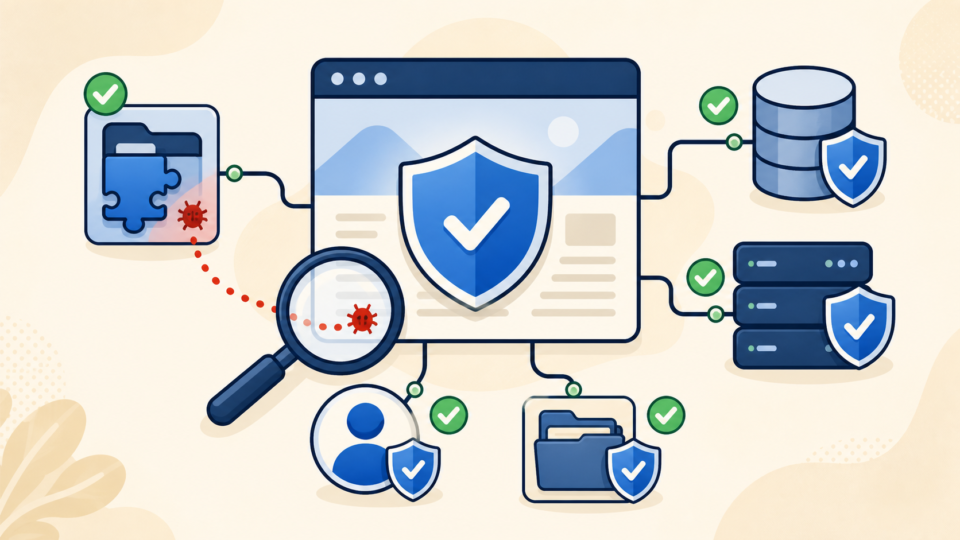
A clean plugin directory does not prove a clean site. Attackers may use the plugin for entry, then add persistence in admin accounts, mu-plugins, themes, uploads, cron, the database, wp-config.php, or server configuration.
- Unknown administrators, changed email addresses, application passwords, and active sessions
- Unexpected PHP in uploads, unfamiliar must-use plugins, and modified theme files
- Changes to
wp-config.php,.htaccess, web server rules, and hosting cron jobs - Compromised WordPress, hosting, SFTP, database, email, CDN, and registrar credentials
Use a trusted security scanner as one source of evidence, then review high-risk locations manually. The guide to scan WordPress for malware and hidden backdoors explains why one clean scan is not enough when persistence may exist outside a normal plugin.
Infected WordPress Plugin Folder Verification Proves the Cleanup Will Hold
Verification separates a temporary repair from real recovery. Reproduce the original symptom, watch whether files return, compare the plugin again, and review logs. One successful page load is not proof.
Immediately after replacement:
- Compare files with the trusted package
- Test critical public and admin functions
- Confirm no unexpected errors or redirects

After traffic resumes:
- Review access, error, login, and file-change logs
- Repeat malware and integrity checks
- Confirm suspicious paths and users do not return
Create a clean baseline of file hashes or a deployment artifact after verification, not before. Continue with the steps to secure WordPress after malware removal so the same vulnerable plugin, password, or writable path does not reopen the site.
Infected WordPress Plugin Folder Cleanup Summary
Cleaning an infected WordPress plugin folder safely requires evidence, a trusted baseline, dependency-aware isolation, clean replacement, wider compromise checks, and repeated verification. Deleting one file or reinstalling one plugin may remove a symptom without removing the attacker’s access.
If You Can’t Secure or Recover Your WordPress Site Yourself

If your website shows malware warnings, redirects to strange pages, or you are not sure whether it is secure,
SiteFixNow can help clean, repair, and recover your WordPress site.
- Your WordPress site may be infected with malware.
- Security warnings appear in Google or browser results.
- You found unknown admin users or suspicious files.
- The site redirects to spam or unknown websites.
- You need urgent WordPress hacked site repair.
- Reduce visitor risk and SEO damage.
- Find hidden malware and backdoors, not only visible symptoms.
- Recover the site safely without unnecessary data loss.