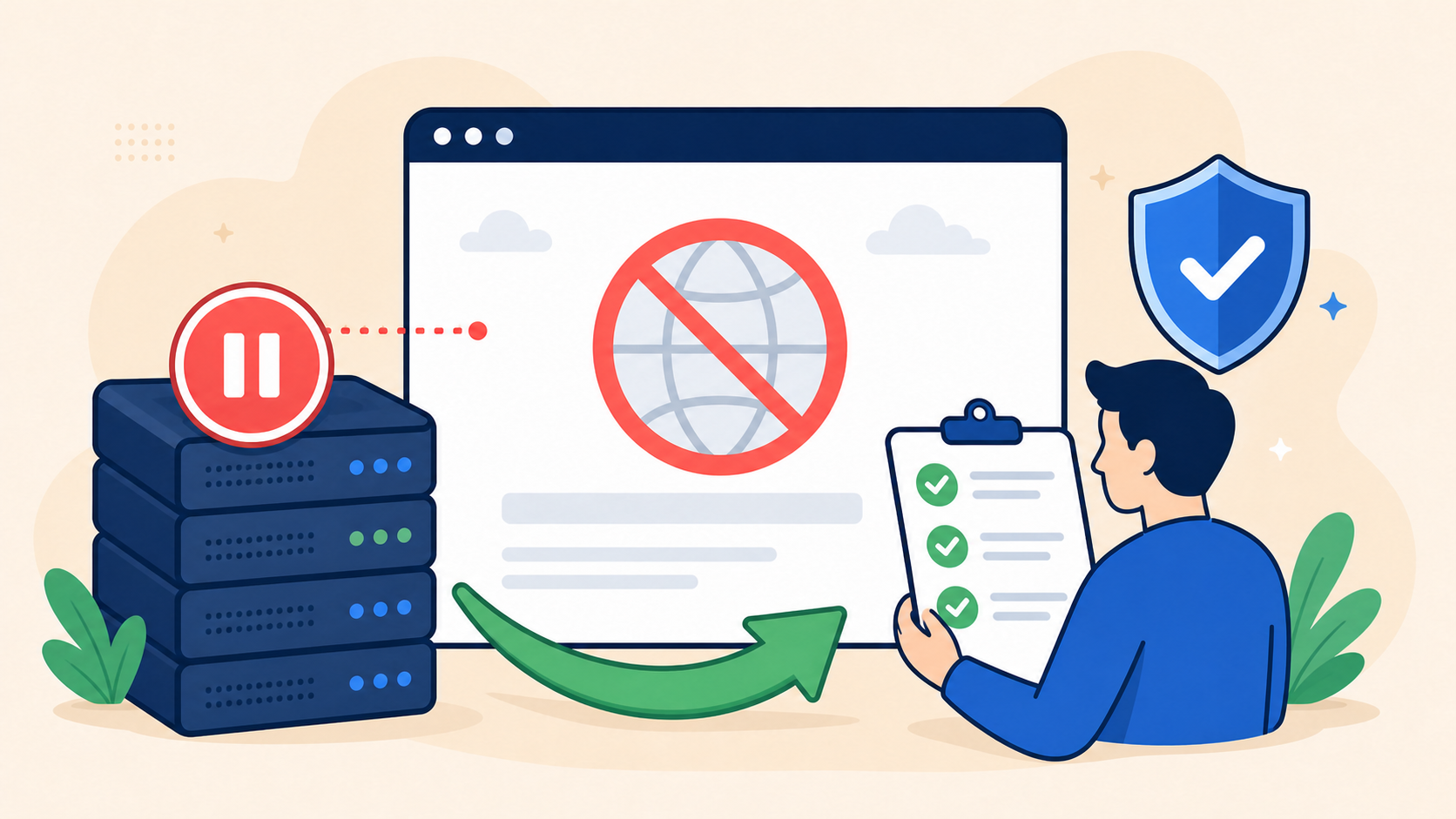
A WordPress site suspended by a hosting provider can feel like a total loss: the homepage is offline, customers cannot reach you, and the control panel may show only an abuse or security notice. In most cases, however, suspension is a containment measure. It does not automatically mean your content, database, or domain is gone.
The safest response is to identify the exact policy or security reason, preserve the evidence your host still provides, clean the whole compromise, and submit a precise reinstatement request. Randomly deleting files or sending repeated “please reopen my site” messages can remove useful clues and delay the review.
 RyoheiYokoyama
I’m Ryohei Yokoyama, founder of SiteFixNow. I’ve worked as an IT engineer for over 20 years and have handled many WordPress recovery and security cleanup cases. Here I’ll turn a vague suspension notice into a controlled recovery plan.
- How to identify the exact reason and scope of a hosting suspension
- What evidence and backups to preserve before changing the site
- How to investigate files, database records, users, logs, and entry points
- What a credible cleanup report and reinstatement request should contain
WordPress Site Suspended by Hosting Provider: Confirm the Exact Reason First
The first priority is to determine what the provider suspended: one domain, one hosting account, outbound email, database access, or the entire server. The correct recovery path changes with that scope.
- Incident or ticket ID, detection time, and affected hostname
- Examples of malicious URLs, filenames, processes, or messages
- The provider’s cleanup deadline and exact reinstatement requirements
Ask for indicators of compromise, the first observed time, temporary restricted access, and any snapshot made before suspension. Keep every response because the timeline guides backup selection and shows what the reviewer expects.
If access has also been stolen or changed, follow the WordPress emergency recovery guide to regain trusted control before editing content.
WordPress Site Suspension: Preserve Evidence and Contain the Risk
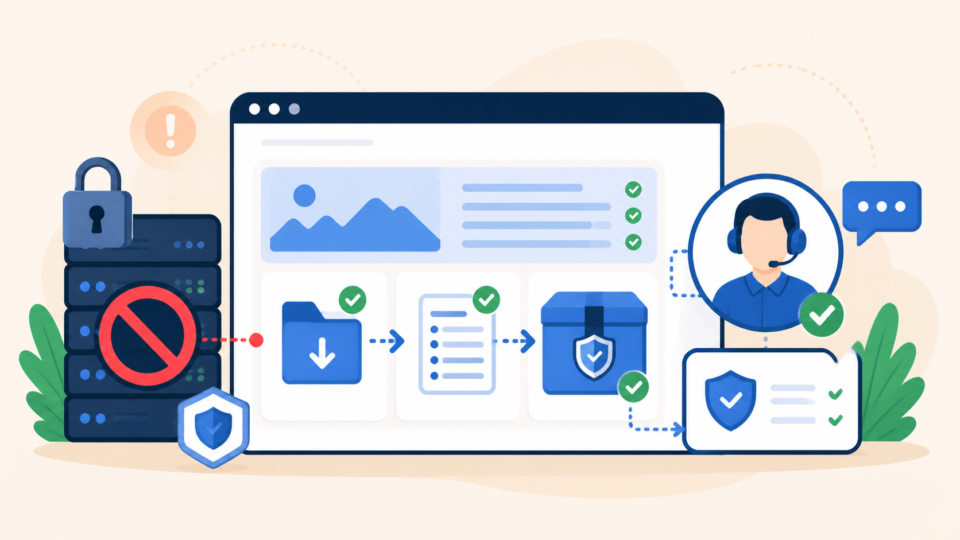
Before cleanup, preserve the current state whenever the host allows it. An infected backup is not for production, but it can reveal modification times, unknown accounts, persistence files, and the difference between clean and compromised restore points.
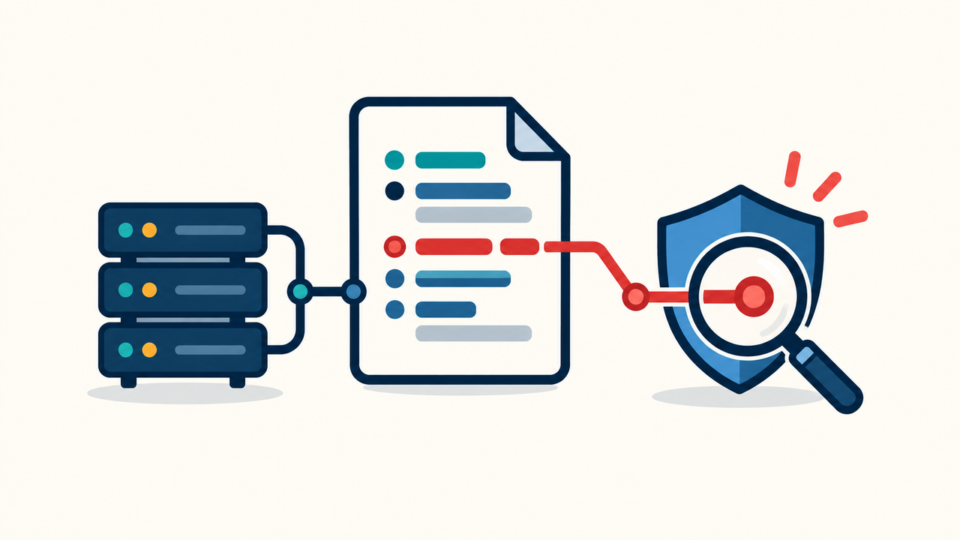
Download the document root, export the database, save access and error logs, capture the notice, and record active plugins, themes, users, and scheduled tasks. Store evidence outside the suspended account and never execute files from the archive.
Change the hosting and recovery-email passwords from a clean device, enable multi-factor authentication, revoke unfamiliar sessions, and rotate SFTP or SSH credentials. Check shared mailboxes for unknown forwarding or sent spam.
For broader containment priorities, review the guide to hacked WordPress site repair before damage spreads.
WordPress Site Suspension Investigation: Find the Root Cause
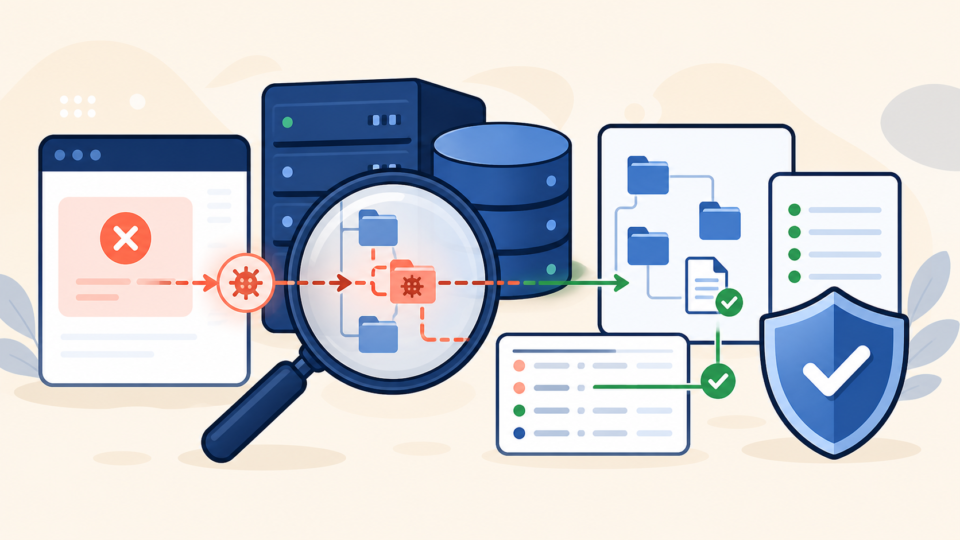
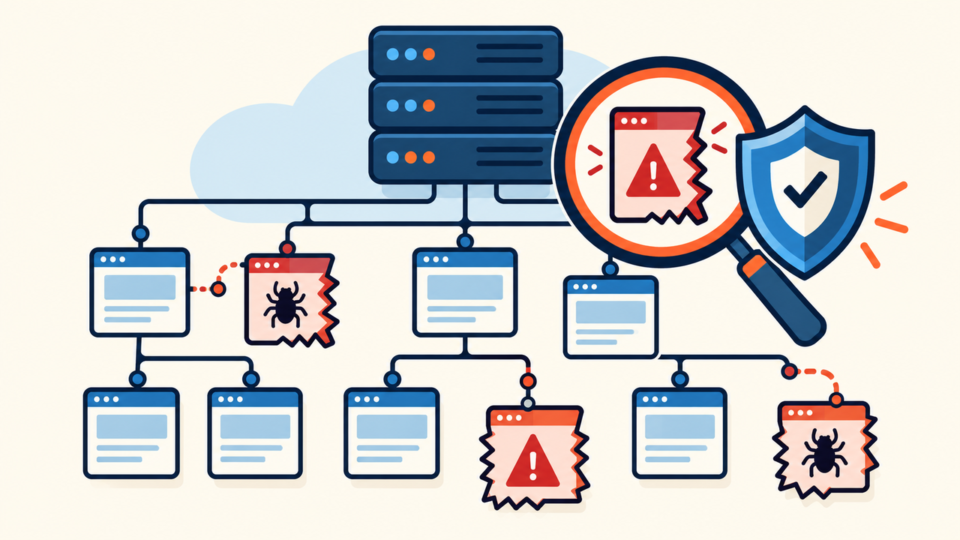
A hosting suspension is not resolved by deleting the one file named in the notice. That file may be only a payload, while the entry point, loader, malicious administrator, cron job, or stolen credential remains active.
Build a timeline from the detection time, file changes, user changes, plugin updates, logins, and outbound traffic. Inspect the web root, wp-config.php, .htaccess, wp-content/mu-plugins/, plugins, themes, and executable files in wp-content/uploads/.
# Run only through trusted SSH access and adjust the path.
find /path/to/site -type f -mtime -14 -print
find /path/to/site/wp-content/uploads -type f -name "*.php" -print

grep -RInE "base64_decode|gzinflate|eval[[:space:]]*\(" /path/to/site
Check for unknown administrators, application passwords, unexpected wp_options values, injected scripts, changed site URLs, and suspicious scheduled events. Logs may reveal requests to a vulnerable plugin, PHP execution after an upload, or an unfamiliar login.
Record what each confirmed artifact did and how it was created. The WordPress malware cleanup guide for files, database records, and backdoors provides a deeper inspection sequence.
WordPress Site Suspension Cleanup: Rebuild From Trusted Sources
Replace untrusted executable code instead of trying to recognize every malicious line. Reinstall WordPress core, plugins, and themes from verified sources. Preserve reviewed custom code and uploads separately.
Validate any backup against the timeline. A restore does not fix the vulnerable plugin, stolen password, exposed key, or server setting that allowed the compromise. Close the entry point before reopening.
- Build in a restricted staging area or under host-provided temporary access.
- Replace core, plugins, and themes with trusted copies.
- Review uploads, custom code, database content, users, and scheduled tasks.
- Rotate WordPress salts, administrator passwords, keys, and service credentials.
Do not bypass the host’s quarantine. Work through its restricted method, scan and test the rebuild, and consult the guide to restoring WordPress from a backup after malware when backup selection is uncertain.
WordPress Site Suspension Review: Prove the Site Is Ready

A successful reinstatement request is factual and verifiable. State what was found, what was replaced, what entry point was closed, which credentials were rotated, and how the clean state was tested.
Use the provider’s indicators as acceptance tests. Confirm malicious URLs are gone, compromised mail or forms are secured, and any abusive process or query is corrected.
Incident scope: affected domain and services
Confirmed cause: vulnerable component, stolen access, or malicious file path
Cleanup: files replaced, database records removed, users reviewed
Containment: passwords, keys, sessions, and salts rotated
Verification: scans, URLs, logs, login, and scheduled tasks checked
Request: please review the restricted site for reinstatement
WordPress Site Restored: Monitor Before Returning to Normal
Reinstatement does not prove every backdoor is gone. Monitor new files, administrators, logins, scheduled tasks, outbound mail, resource use, and unusual requests during the first hours and days.
Test as a logged-out visitor on desktop and mobile. Confirm login, forms, checkout, email, and backups. Clear WordPress, server, CDN, and browser caches.
Create a fresh backup after checks pass, retain incident evidence separately, and follow the guide to securing WordPress after malware removal.
WordPress Site Suspension FAQ
WordPress Site Suspended by Hosting Provider Recovery Summary
When a host suspends WordPress, confirm the reason, preserve evidence, secure access, find the root cause, rebuild from trusted sources, and test the result.
Do not remove only the named symptom. Close the entry point, check persistence, rotate access, and explain the verified cleanup to the reviewer.
If You Can’t Secure or Recover Your WordPress Site Yourself

If your website shows malware warnings, redirects to strange pages, or you are not sure whether it is secure,
SiteFixNow can help clean, repair, and recover your WordPress site.
- Your WordPress site may be infected with malware.
- Security warnings appear in Google or browser results.
- You found unknown admin users or suspicious files.
- The site redirects to spam or unknown websites.
- You need urgent WordPress hacked site repair.
- Reduce visitor risk and SEO damage.
- Find hidden malware and backdoors, not only visible symptoms.
- Recover the site safely without unnecessary data loss.