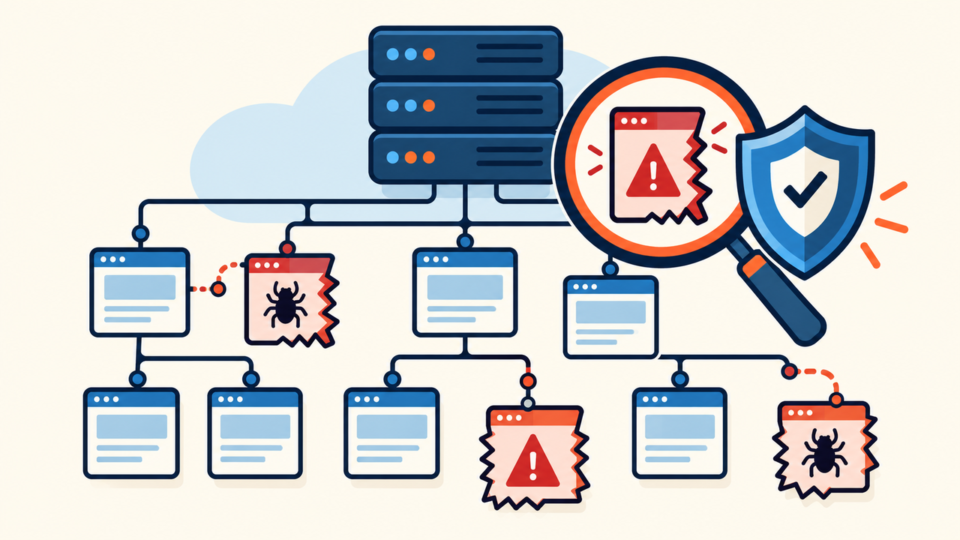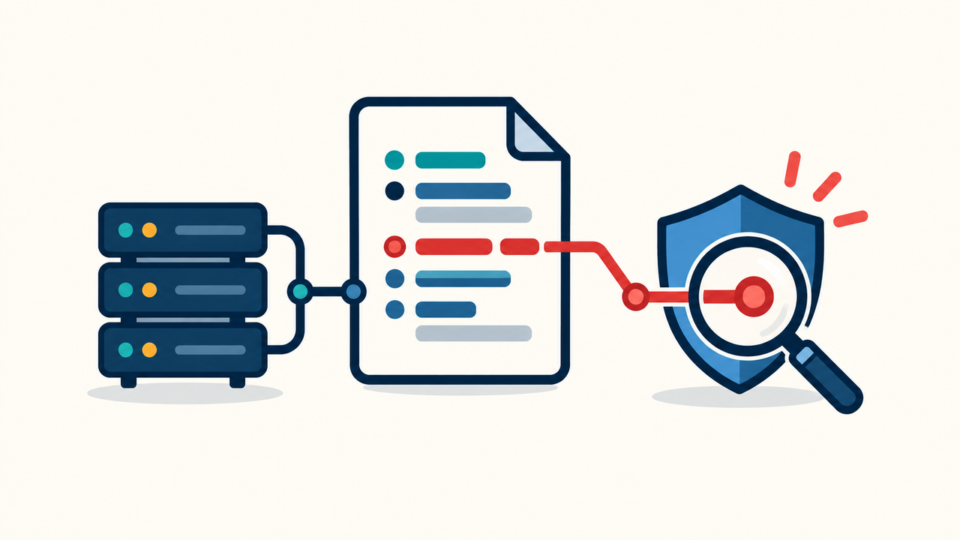
WordPress uploads folder malware is dangerous because the directory stays writable and contains legitimate media. A hidden PHP backdoor in wp-content/uploads can remain usable after you remove a visible redirect or spam page.
Do not delete the whole uploads directory or assume the first suspicious file is the only problem. Preserve evidence, stop execution safely, inspect the wider site, and verify the original entry path before declaring the cleanup complete.
 RyoheiYokoyama
I’m Ryohei Yokoyama, founder of SiteFixNow. I’ve worked as an IT engineer for over 20 years and have handled many WordPress recovery, malware removal, hacked site repair, and security cleanup cases. Here I’ll explain how to investigate uploads-folder backdoors without destroying legitimate media or leaving the attacker’s access behind.
- Why attackers place executable PHP inside media folders
- How to preserve evidence and contain the backdoor first
- Which commands, file clues, and logs help confirm compromise
- How to block PHP execution without breaking normal uploads
WordPress Uploads Folder Malware Hides Where Files Are Expected
The uploads directory is attractive to attackers because WordPress must write to it. A vulnerable plugin, stolen administrator session, compromised hosting account, or unsafe upload handler may place a web shell there without changing WordPress core files.
Normal uploads are media files and generated thumbnails. A PHP file under a year/month path is unusual, especially when its name imitates a cache or image file and its content uses encoded strings or request parameters.
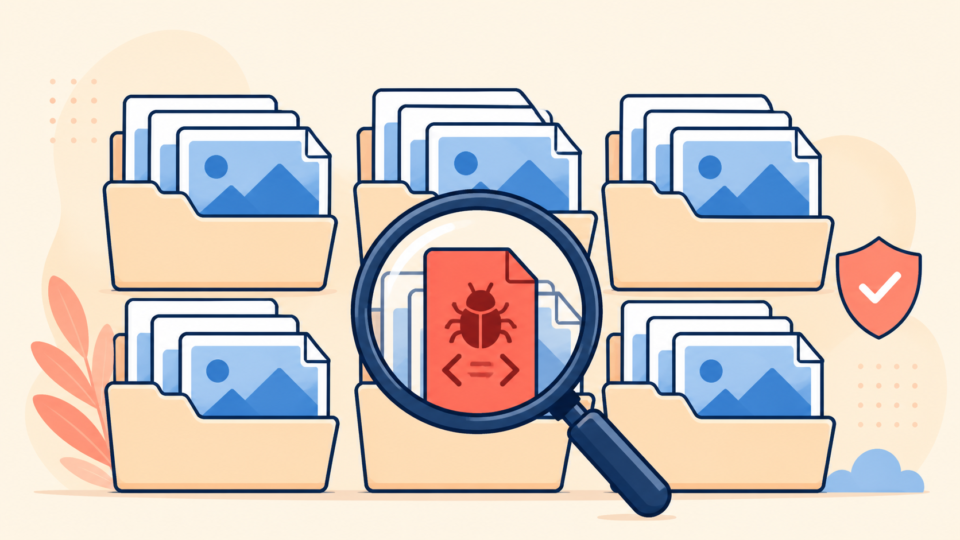
wp-content/uploads/2026/08/wp-image.php
wp-content/uploads/2025/11/.cache.php
wp-content/uploads/tmp/class-media.php
wp-content/uploads/index.php with unfamiliar code
A short protective index.php may be intentional, so file names alone are not proof. Compare content, modification time, owner, permissions, and access logs. The guide to scan WordPress for malware and hidden backdoors explains why one clean scan cannot prove safety.
WordPress Uploads Folder Malware Requires Containment Before Deletion
First preserve the files, database, and relevant logs, then restrict the suspicious file. Its creation time, owner, and request history may reveal the vulnerability or stolen credential that must also be closed.
- Back up the current files and database, including the infected copy.
- Record the path, timestamp, owner, permissions, and file hash.
- Check recent access logs for requests to that exact path.
- Quarantine the file outside the public web root or deny access to it.
- Test the site before continuing with the wider investigation.
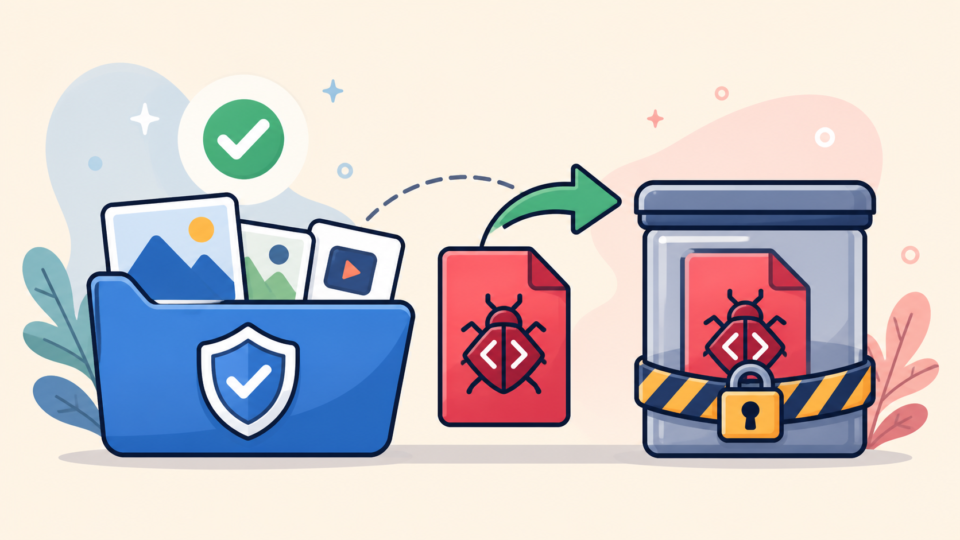
Changing permissions or renaming a malicious file may stop it temporarily, but never run it to “see what it does.” Read a copied version as plain text in a safe environment.
If the site is actively redirecting, sending spam, or exposing visitors, use the full WordPress hacked site repair steps instead of treating uploads as an isolated folder problem.
WordPress Uploads Folder Malware Inspection Should Combine Files and Logs
Use several signals together: executable extensions, recent changes, obfuscated functions, and direct requests in web logs. One signal creates a lead; matching signals create evidence.
find wp-content/uploads -type f \( -name '*.php' -o -name '*.phtml' -o -name '*.phar' \)
find wp-content/uploads -type f -mtime -14
grep -RIlE 'base64_decode|gzinflate|shell_exec|eval\(' wp-content/uploads
These commands are leads, not deletion instructions. Legitimate software can use suspicious-looking functions, while a backdoor can avoid obvious keywords. Review every result in context.
Match suspicious files to web requests
Search web-server or hosting logs for the file name and URL. Repeated POST requests, unusual query strings, or successful responses soon after creation can show that the backdoor was used.
Also review cron jobs, administrator users, SFTP accounts, hosting-panel logins, and recently changed plugins. The WordPress file infection cleanup guide covers other high-risk locations that should be compared with uploads.
WordPress Uploads Folder Malware Removal Must Close the Entry Point
Removing confirmed malicious files is necessary, but it is not the finish line. The decisive step is finding how the file arrived. Otherwise the attacker, vulnerable plugin, stolen credential, or scheduled loader can recreate it under a new name.
- Unknown administrators, changed email addresses, or active old accounts
- Outdated or abandoned plugins with upload or file-manager features
- Modified
wp-config.php,.htaccess, themes, or must-use plugins - Database options, widgets, or posts containing injected scripts
- Unknown cron jobs, API keys, SFTP users, or database users
Replace compromised software with verified clean copies and rotate WordPress, hosting, SFTP, database, and API credentials. Then use the files, database, and backdoor cleanup checklist to verify more than the uploads symptom.
WordPress Uploads Folder Malware Prevention Blocks PHP Execution
After cleanup, prevent PHP from executing inside uploads when your hosting stack allows it. A normal media directory does not need to run scripts. This control cannot repair an existing compromise, but it can turn a newly uploaded backdoor into a non-executable file.
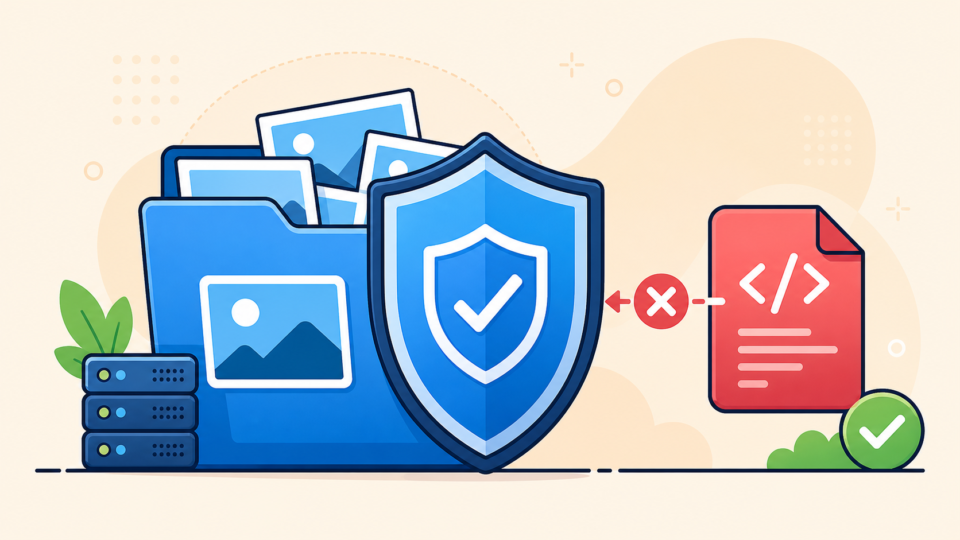
<FilesMatch "\.(php|phtml|phar)$">
    Require all denied
</FilesMatch>
Test this Apache or LiteSpeed example on your server. Nginx ignores .htaccess, so its deny rule belongs in the server configuration and may require the host to reload Nginx.
Verify normal image uploads, thumbnail generation, media display, backups, and any trusted plugin that stores generated files. Continue monitoring logs and file changes after cleanup. For the broader hardening sequence, follow the guide to secure WordPress after malware removal.
WordPress Uploads Folder Malware FAQ
WordPress Uploads Folder Malware Cleanup Summary
WordPress uploads folder malware should be handled as evidence of a wider compromise, not as one unwanted file. Preserve the infected state, contain execution, inspect paths and logs, quarantine confirmed backdoors, and identify how they arrived.
After cleanup, block unnecessary PHP execution in uploads, test normal media functions, rotate credentials, patch the entry point, and monitor for recurrence. This order protects legitimate media while giving you a much better chance of removing the attacker’s persistence.
If You Can’t Secure or Recover Your WordPress Site Yourself

If your website shows malware warnings, redirects to strange pages, or you are not sure whether it is secure,
SiteFixNow can help clean, repair, and recover your WordPress site.
- Your WordPress site may be infected with malware.
- Security warnings appear in Google or browser results.
- You found unknown admin users or suspicious files.
- The site redirects to spam or unknown websites.
- You need urgent WordPress hacked site repair.
- Reduce visitor risk and SEO damage.
- Find hidden malware and backdoors, not only visible symptoms.
- Recover the site safely without unnecessary data loss.