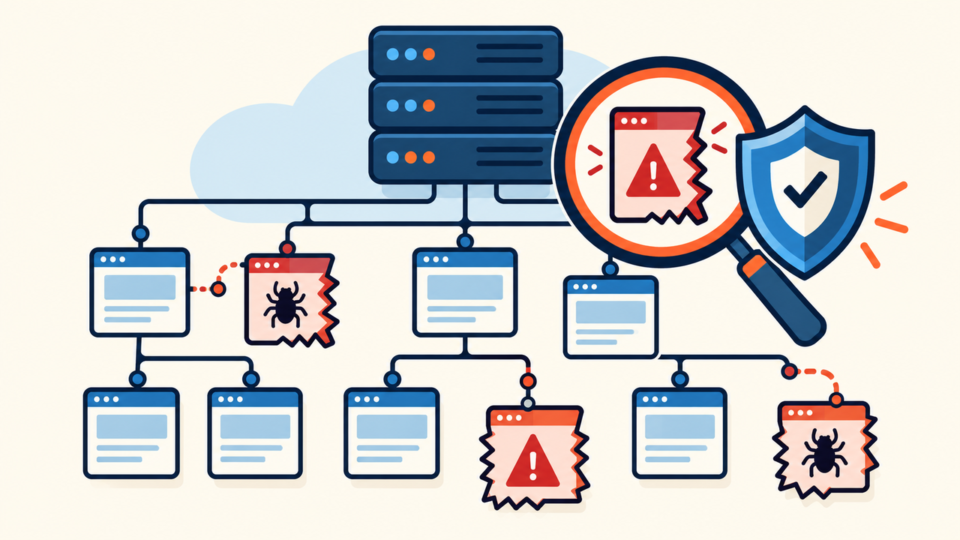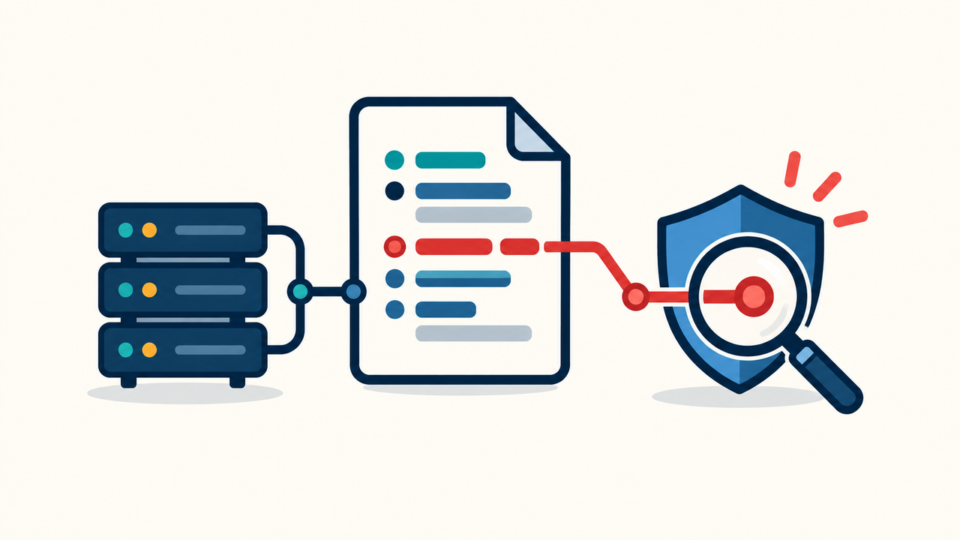
An All-in-One WP Migration backup exposure can turn one WordPress compromise into a full data breach. A .wpress archive may contain the database, media, themes, plugins, user records, configuration values, and other material an attacker can study or reuse.
If wp-content/ai1wm-backups is reachable while logged out, preserve evidence, block access, assess the contents, rotate affected secrets, and only then trust a replacement backup.
 RyoheiYokoyama
I’m Ryohei Yokoyama, founder of SiteFixNow. I’ve worked as an IT engineer for over 20 years and have handled many WordPress recovery, malware removal, and hacked-site investigations. Here I’ll explain how to contain an exposed migration backup without destroying the evidence needed to find the original access path.
- How to confirm whether a backup is publicly reachable without spreading it
- How to block
ai1wm-backupson Apache or Nginx - How to decide which data, accounts, and secrets must be rotated
- How to validate a backup offline before trusting it for recovery
All-in-One WP Migration Backup Exposure Is a Security Incident
Assume a publicly downloadable archive may have been copied. Removing or renaming it does not invalidate data already downloaded.

A .wpress archive can reveal more than page content
A migration backup can include database tables, user records, orders, plugin settings, uploads, custom code, password hashes, and API-related values stored in options.
Protection can fail when Nginx ignores .htaccess, Apache overrides are disabled, a proxy serves files directly, the archive is copied elsewhere, or an attack removes the rule.
All-in-One WP Migration Backup Exposure Should Be Confirmed Before Deletion
Record the archive path, size, modification time, owner, permissions, checksum, and logged-out HTTP response. These facts help distinguish a legitimate backup from attacker staging.
ls -lah wp-content/ai1wm-backups/
stat wp-content/ai1wm-backups/example-site.wpress
shasum -a 256 wp-content/ai1wm-backups/example-site.wpress
curl -I https://example.com/wp-content/ai1wm-backups/example-site.wpress
A 200 OK or partial-content response indicates exposure. A deliberate 403 or 404 is safer, but retest outside the administrator session and bypass browser cache.
Do not copy a sensitive archive to ordinary laptops or shared storage. Preserve a checksum, metadata, relevant log lines, the plugin version, and one controlled encrypted evidence copy when required.
Use the wider WordPress malware and backdoor checks when other symptoms exist. The archive may indicate stolen access, vulnerable code, or compromised hosting.
All-in-One WP Migration Backup Exposure Must Be Blocked Immediately
Block web delivery first while preserving controlled evidence access. Store backups outside the public document root and limit access to the backup process and authorized administrators.
Apache example for backup archive extensions
<FilesMatch "\.(wpress|zip|tar|gz)$">
  Require all denied
</FilesMatch>
Options -Indexes
Nginx example for the ai1wm-backups path
location ^~ /wp-content/ai1wm-backups/ {
    return 404;
}
Nginx does not read .htaccess. Add the rule to the active server configuration, validate it, reload safely, and retest externally. CDN or object storage needs its own access rule.
- Preserve file metadata, a checksum, and relevant access logs.
- Block the public path at the actual web-server or storage layer.
- Move trusted archives outside the document root or into private storage.
- Retest without authentication and after cache purges.
All-in-One WP Migration Backup Files May Be Legitimate or Attacker-Staged
Do not assume the newest archive came from a normal job. Compare its timestamp with administrator activity, plugin and web logs, cron, and the first sign of compromise. An attacker may stage the site as one downloadable file.
Review administrators, new users, sessions, application passwords, and plugin activation. Use the rogue administrator response checklist to remove access without losing content.
If a removed archive returns, check WordPress and system cron, hosting jobs, must-use plugins, theme code, temporary directories, and external automation. Correlate each return with logs and modification times.
Use the reinfection root-cause workflow when files return. Repeated deletion only hides the write path.
All-in-One WP Migration Backup Exposure Requires a Data and Secret Review
If logs cannot rule out access, inventory the archive and rotate credentials by impact. Prioritize hosting, WordPress administrators, database access, deployment, mail, payment, and API credentials.

Establish one trusted administrative path, revoke unknown sessions, rotate hosting access, update database credentials in the service and wp-config.php, replace WordPress salts, then rotate integration tokens. Test after each change.
Never place real credentials in shell history, tickets, or chat. If customer or regulated data may be exposed, preserve logs and follow applicable legal and notification requirements.
All-in-One WP Migration Backups Must Be Validated Offline Before Restore
A post-compromise archive may contain the same backdoor. Validate it in isolation, never directly over production. Keep the original read-only and work from a checked copy.
Verify core checksums, compare plugins and themes with trusted packages, inspect must-use plugins, uploads, database options, users, scheduled actions, and injected scripts. A successful import does not prove the site is clean.
Use the backup restore guide after malware to test a recovery point. If no trusted baseline exists, follow the emergency recovery sequence before changing production.
All-in-One WP Migration Backup Protection Needs Repeated Verification
Containment is complete only when the path stays blocked, no public copy remains, unauthorized access is revoked, the creation mechanism is known, and a clean replacement restores in testing.
- Retest the exact archive URL and directory path while logged out.
- Check CDN, proxy, object-storage, and host-level caches for old copies.
- Search the document root for additional
.wpress, ZIP, SQL, and tar archives. - Review access logs for successful downloads and unusual range requests.
- Confirm scheduled backup jobs now write only to approved private storage.
- Create a new backup from the verified clean site and test restoration.
After recovery, apply the post-malware hardening plan. Patch the entry point, reduce privileges, protect backups, and monitor archives, users, files, and scheduled tasks.
All-in-One WP Migration Backup Exposure FAQ
All-in-One WP Migration Backup Exposure Recovery Depends on Evidence and Containment
The safe order is evidence, access blocking, source attribution, disclosure assessment, secret rotation, offline validation, and repeated external verification.
If You Can’t Secure or Recover Your WordPress Site Yourself

If your website shows malware warnings, redirects to strange pages, or you are not sure whether it is secure,
SiteFixNow can help clean, repair, and recover your WordPress site.
- Your WordPress site may be infected with malware.
- Security warnings appear in Google or browser results.
- You found unknown admin users or suspicious files.
- The site redirects to spam or unknown websites.
- You need urgent WordPress hacked site repair.
- Reduce visitor risk and SEO damage.
- Find hidden malware and backdoors, not only visible symptoms.
- Recover the site safely without unnecessary data loss.