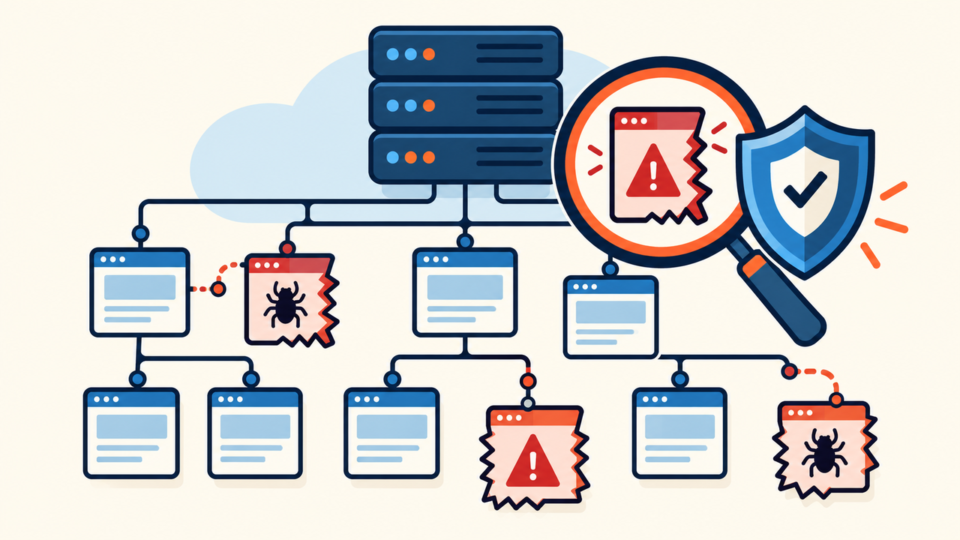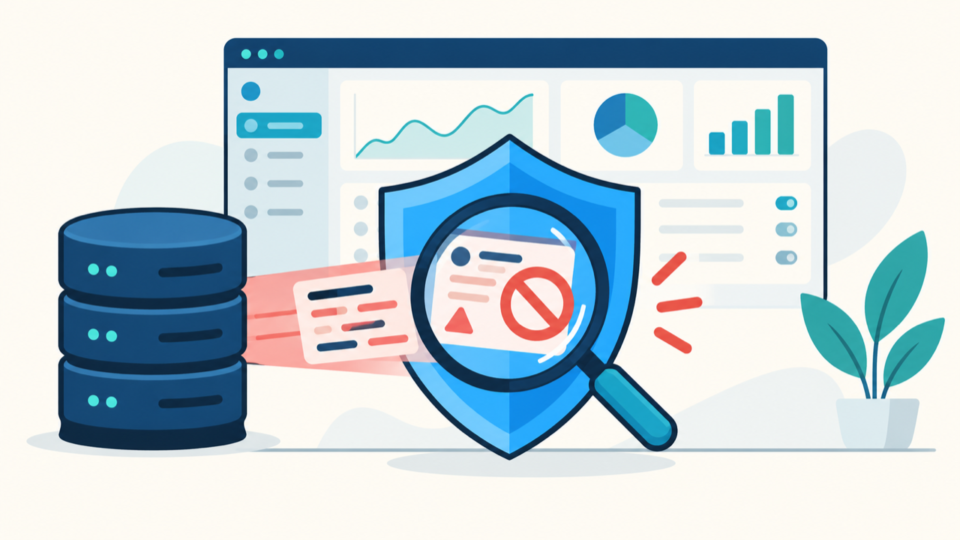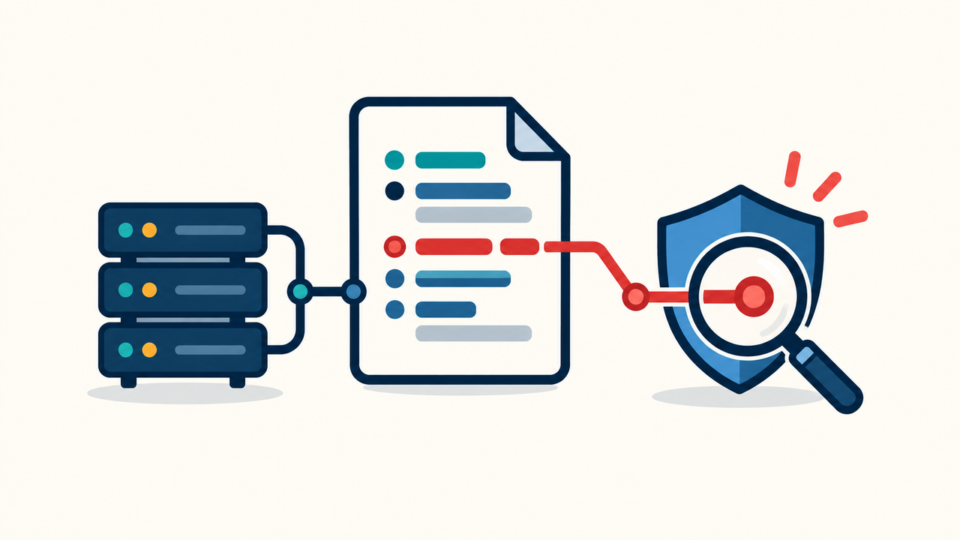
An infected WordPress backup can restore malware, hidden administrator access, poisoned database records, or vulnerable software. An archive is not clean merely because it is old or opens correctly.
 RyoheiYokoyama
I’m Ryohei Yokoyama, founder of SiteFixNow. I’ve worked as an IT engineer for over 20 years and have handled many WordPress recovery, malware removal, hacked site repair, and security cleanup cases. Here I’ll explain how to evaluate backup archives without carrying the original compromise into a restored site.
- How to quarantine and inventory WordPress backup archives safely.
- How to inspect files and SQL exports without launching the site.
- How to choose selective recovery, a clean rebuild, or another backup.
- How to prove a restored candidate is safe before production use.
Infected WordPress Backup Archives Must Be Quarantined Before Inspection
Quarantine every archive before opening or extracting it. A ZIP, TAR, `.wpress`, UpdraftPlus set, hosting snapshot, or manual files-and-SQL package may contain executable PHP, JavaScript, stolen data, or a persistence mechanism.
Copy each candidate outside every web root and disconnect it from deployment automation. Use a nonproduction account with no saved hosting, SFTP, database, email, CDN, or registrar credentials.

shasum -a 256 wordpress-backup.zip
unzip -l wordpress-backup.zip > archive-file-list.txt
tar -tf wordpress-backup.tar.gz > archive-file-list.txt
Infected WordPress Backup Archives Need Provenance and Timeline Checks
The best recovery point is the newest backup created before the earliest confirmed attacker activity, not simply the backup dated before the visible symptom. A redirect discovered on Friday may have been planted by access stolen weeks earlier.
Infected WordPress Backup Files and Databases Must Be Inspected Separately
Inspect the filesystem and database as separate evidence sources. Replacing suspicious PHP does not remove a rogue administrator, injected option, scheduled task, spam post, malicious widget, or JavaScript stored in page content.
Inspect replaceable files against trusted packages
Record WordPress, plugin, and theme versions from the archive, then obtain clean packages from their original sources. Compare hashes or trees for core files and every replaceable extension; do not use the compromised live server as the reference copy.
Give extra attention to `wp-content/mu-plugins`, `uploads`, cache directories, inactive themes, unknown plugin folders, `wp-config.php`, `.htaccess`, `.user.ini`, and files above the expected document root. PHP inside uploads and unexplained loaders deserve investigation, but preserve evidence before removal.
find extracted-site -type f -name '*.php' -print
find extracted-site/wp-content/uploads -type f \
  \( -name '*.php' -o -name '*.phtml' \) -print
grep -RInE 'base64_decode|gzinflate|eval\(|auto_prepend_file' extracted-site
These patterns produce false positives in legitimate software. Confirm path, package source, surrounding code, owner, timestamps, and callers. Use the hidden WordPress backdoor scanning guide to broaden the review beyond one signature.
Inspect SQL as data, not as a site to launch
Search an SQL export without importing it into production. Review the administrator table, user metadata, active plugins, cron data, autoloaded options, site URL values, widgets, posts, reusable blocks, and plugin-specific tables that can store executable snippets.
Use the real table prefix from `wp-config.php`; it may not be `wp_`. Search for unfamiliar domains, script tags, iframe content, encoded blobs, newly added capabilities, and suspicious option names. Serialized values must be repaired with WordPress-aware tools because manual length changes can corrupt them.
The WordPress database malware cleanup guide gives additional locations and decision criteria. Treat every query result as a lead until the application context confirms it.
Infected WordPress Backup Restoration Needs a Clean-Room Decision
Choose the recovery method after inspection, not before it. A complete restore is appropriate only when the candidate predates compromise, matches trusted software, contains no suspicious access or persistence, and can be tested away from production.
- Full restore: strong pre-compromise evidence and clean validation.
- Selective recovery: content is valuable but software or settings are suspect.
- Clean rebuild: provenance is weak or contamination is widespread.
- Do not restore: archive integrity, source, or legal handling is uncertain.
Coordinate files, database, credentials, and persistence checks with the WordPress malware cleanup workflow. A candidate is not safe when only one layer has been examined.
Infected WordPress Backup Candidates Must Be Tested in Isolated Staging
Restore the chosen candidate only in an isolated clean-room environment. Use a new server or disposable virtual machine, separate credentials, no production secrets, no outbound email, and restricted network access.

Then browse from a clean test client while monitoring network requests, file changes, PHP errors, processes, cron events, database writes, and outbound connections. Test logged-out visits, mobile user agents, search referrers, 404 pages, and administrative actions because conditional malware may hide from normal checks.
wp core verify-checksums
wp user list --fields=ID,user_login,user_email,roles,user_registered
wp plugin list --fields=name,status,version,update
wp cron event list
A clean scan is one signal, not final proof. Compare observed behavior with the incident timeline and suspected entry path. If the same anomaly returns, follow the WordPress reinfection root-cause process before considering production promotion.
Infected WordPress Backup Recovery Requires Production Verification
Repeat integrity, administrator, cron, database, redirect, log, and network checks after traffic resumes. Monitor through the former recurrence interval, then follow the post-malware WordPress security guide.
Infected WordPress Backup Archives FAQ
Infected WordPress Backup Recovery Starts With Evidence, Not Restore
Do not restore an unknown archive directly over production. Quarantine and hash it, establish provenance and compromise timing, inspect files and SQL separately, and choose full restore, selective recovery, or a clean rebuild based on evidence.
If You Can’t Secure or Recover Your WordPress Site Yourself

If your website shows malware warnings, redirects to strange pages, or you are not sure whether it is secure,
SiteFixNow can help clean, repair, and recover your WordPress site.
- Your WordPress site may be infected with malware.
- Security warnings appear in Google or browser results.
- You found unknown admin users or suspicious files.
- The site redirects to spam or unknown websites.
- You need urgent WordPress hacked site repair.
- Reduce visitor risk and SEO damage.
- Find hidden malware and backdoors, not only visible symptoms.
- Recover the site safely without unnecessary data loss.