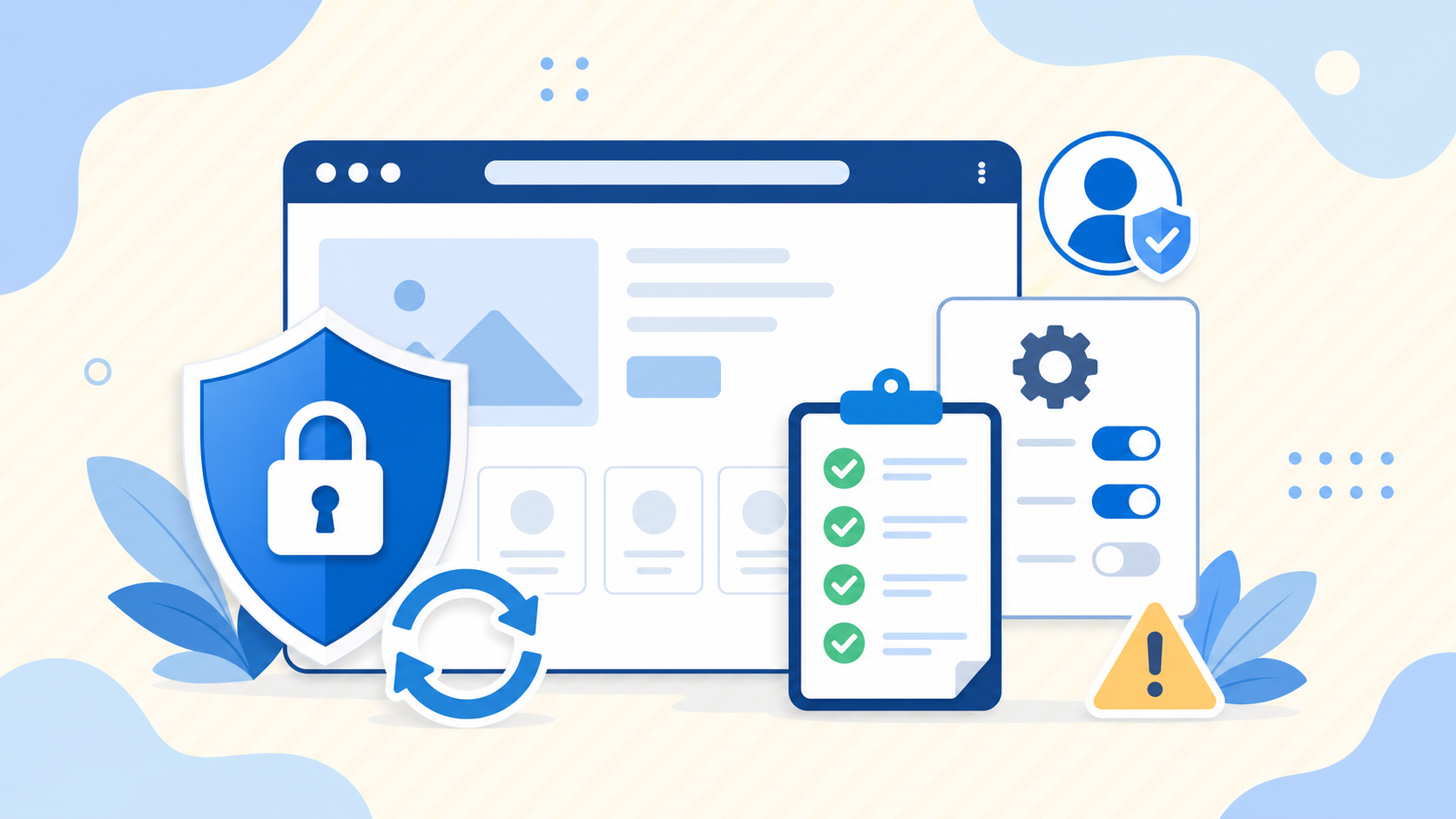
Most WordPress malware problems do not begin with a dramatic hack message. They begin with a small weakness that stays open for too long, such as an outdated plugin, a weak administrator password, unnecessary user accounts, unsafe file editing, or a backup nobody tested.
These WordPress security tips focus on prevention before cleanup becomes urgent. If you want to reduce the chance of malware, spam redirects, unknown admin users, or repeated reinfection, the goal is to harden the simple parts of your site first and keep those habits consistent.
 RyoheiYokoyama
I’m Ryohei Yokoyama, founder of SiteFixNow. I’ve worked as an IT engineer for over 20 years and have handled many WordPress malware removal, hacked site repair, security cleanup, and recovery cases. In this article, I’ll show you which preventive steps reduce real risk before a WordPress infection starts.
- Which everyday WordPress security habits prevent malware most effectively
- How to harden admin access, updates, and file settings before attackers exploit them
- What to monitor so suspicious changes are caught early
- When prevention is no longer enough and a malware investigation should begin
Why WordPress security tips matter before malware starts
The main point is simple: prevention is cheaper than cleanup. Once malware reaches your site, you are no longer just fixing a technical detail. You may also be dealing with SEO damage, warning pages, broken forms, stolen admin sessions, lost sales, or a backup that already contains the infection.
That is why WordPress security tips matter before anything looks wrong. A safer setup reduces the number of easy openings attackers can exploit and makes unusual behavior easier to detect before it spreads.
- Reduce obvious attack entry points before they are abused
- Limit the damage if one plugin, user account, or setting becomes risky
- Make suspicious changes visible sooner
- Give you a cleaner recovery path if an incident still happens
If you want a broader baseline checklist, also review WordPress Security Checklist for Beginners. This article goes deeper into the daily habits that help stop malware before cleanup becomes urgent.
Harden admin access because weak logins are still one of the easiest attack paths
The best first recommendation is to secure who can log in and what those people can do. Many infections begin after a guessed password, a reused password from another breach, a forgotten administrator account, or a low-trust account with more permissions than it should have.
Access hardening matters because it reduces the chance that an attacker can make changes without needing a software vulnerability at all. Even when a vulnerable plugin exists, stronger account controls often slow attackers down or expose their activity sooner.
- Use long unique passwords for every admin and hosting account
- Enable two-factor authentication where possible
- Remove unused admin accounts, especially from old developers or temporary staff
- Review user roles so editors or shop staff do not have unnecessary administrator rights
Check your user list for accounts that should not still exist
Do not assume the current user list is safe just because nobody recently added a visible account. Old project accounts, temporary contractors, and forgotten staging users often remain in production longer than expected.
Users to review:
- current administrators
- former staff or agencies
- test or staging accounts
- users with password-reset emails you no longer control
- any admin account you cannot identify immediatelyKeep WordPress, plugins, and themes updated because old code is one of the most common malware entry points
The next priority is maintenance discipline. Many WordPress infections begin with a plugin, theme, or core component that stayed outdated long enough for a known exploit to be used against it. Attackers often automate those scans, so small sites are not invisible just because they are small.
Updates matter because they close publicly known weaknesses. But the safer habit is not updating blindly on a live site after months of neglect. It is creating a routine that checks releases consistently, removes abandoned extensions, and tests critical changes before they affect visitors.
- Remove plugins and themes you no longer use instead of only deactivating them
- Review whether each plugin is still maintained and compatible with your current WordPress version
- Schedule regular update windows instead of delaying everything until a crisis
- Back up before major updates so rollback is possible without guessing
Simple settings in wp-config.php that improve your security baseline
A few configuration choices make accidental exposure less likely. They do not replace full malware prevention, but they reduce unnecessary risk and make dangerous admin actions harder to perform from inside the dashboard.
define( 'DISALLOW_FILE_EDIT', true );
define( 'FORCE_SSL_ADMIN', true );
define( 'WP_AUTO_UPDATE_CORE', 'minor' );
DISALLOW_FILE_EDIT helps prevent quick dashboard file edits, FORCE_SSL_ADMIN helps protect admin sessions, and minor core auto-updates reduce the chance that small security fixes are ignored too long.
If you use a security plugin, treat it as support for a strong update routine rather than as a replacement for it. The plugin can help with alerts, login protection, and scanning, but your maintenance habits still decide whether known weaknesses stay open too long.
Protect critical files and uploads because malware often hides where owners rarely look
The third recommendation is to reduce unsafe file behavior. Attackers commonly target writable areas, hidden PHP files, modified rewrite rules, and configuration files that site owners do not inspect often. Prevention is easier when those areas are harder to abuse and easier to review.
This matters because malware rarely announces itself in only one place. A redirect may start in .htaccess, a backdoor may sit inside wp-content/uploads/, and a reinfection path may remain in an old plugin folder even after visible symptoms disappear.
wp-config.php.htaccesswp-content/plugins/wp-content/themes/wp-content/mu-plugins/wp-content/uploads/, especially unexpected PHP files
A practical Apache rule to block PHP execution inside uploads
Many normal WordPress sites do not need PHP files executing from the uploads folder. If your hosting stack uses Apache and your site does not depend on custom behavior there, blocking PHP execution in uploads can remove one common hiding place for malware.
<FilesMatch "\.(php|php\.)$">
Require all denied
</FilesMatch>
Test carefully after making changes. Some environments need a different rule style, and custom applications inside WordPress may behave differently. The main lesson is to reduce places where uploaded files can become executable without your notice.
If you already see suspicious redirects or unfamiliar files, compare your findings with WordPress Redirect Hack Fix and WordPress Malware Removal: How to Clean an Infected Site Safely. Prevention advice should shift into investigation once warning signs appear.
Use monitoring, backups, and routine reviews so small issues are caught before they become malware cleanup jobs
The fourth priority is visibility. Even a well-maintained site can still be affected by hosting issues, stolen credentials, vulnerable third-party code, or human mistakes. Monitoring and tested backups do not stop every attack, but they shorten the time between compromise and response.
That matters because the first visible symptom is often not the first malicious action. By the time visitors report a redirect or a browser warning, the site may already have several changed files or database entries that have been sitting there for days.
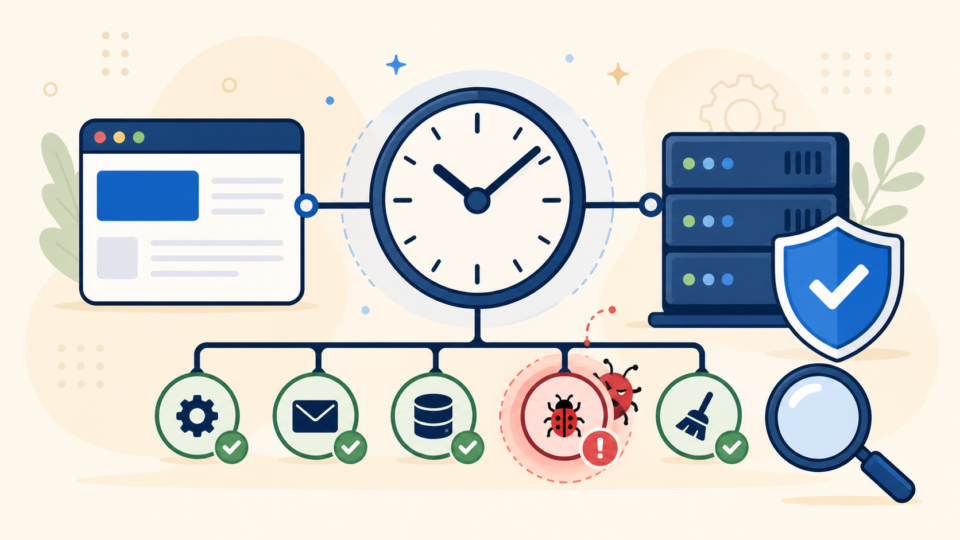
- Review backups and confirm they can actually be restored
- Check plugin and core updates on a regular schedule
- Look for unfamiliar admins, file changes, and security alerts weekly
- Keep hosting, domain, and admin contact emails secure and current
Know when prevention has failed and you should investigate a possible infection immediately
The final recommendation is to recognize the line between prevention and incident response. Security tips are useful before malware starts, but once you see warning signs, you should stop treating the problem as routine maintenance and begin checking for compromise.
Unexpected redirects, changed homepage content, unknown administrators, odd PHP files, browser warnings, or a sudden spike in spammy behavior all mean prevention may already have been bypassed. At that point, you need evidence, cleanup, and a reinfection review rather than only another plugin setting.
- Visitors are being sent to spam or unrelated pages
- Google or browsers show warnings about malware or unsafe content
- You discover unfamiliar admin users or modified security settings
- The site keeps getting reinfected after a basic cleanup attempt
If those signs already exist, start with WordPress Hacked Site Repair: What to Do Before It Gets Worse, WordPress Malware Infection Recovery, and WordPress Recovery Service. A fast expert review can reduce long-term damage when prevention is no longer enough.
Frequently asked questions about WordPress security tips
Summary
The most useful WordPress security tips are the ones you can keep doing consistently: harden admin access, remove unused software, update on schedule, protect critical files, and review alerts and backups before a small weakness becomes a malware cleanup project. Prevention is never perfect, but it gives you fewer blind spots and a much safer recovery position if something still goes wrong.
If You Can’t Secure or Recover Your WordPress Site Yourself

If your website shows malware warnings, redirects to strange pages, or you are not sure whether it is secure,
SiteFixNow can help clean, repair, and recover your WordPress site.
- Your WordPress site may be infected with malware.
- Security warnings appear in Google or browser results.
- You found unknown admin users or suspicious files.
- The site redirects to spam or unknown websites.
- You need urgent WordPress hacked site repair.
- Reduce visitor risk and SEO damage.
- Find hidden malware and backdoors, not only visible symptoms.
- Recover the site safely without unnecessary data loss.