A WordPress error rarely starts as only one small problem. A plugin conflict, damaged file, bad update, memory shortage, or leftover malware can quickly turn a minor warning into admin lockout, broken pages, or full downtime if you start changing things at random.
This WordPress error recovery guide explains how to diagnose common failures without making them worse. If your site shows a critical error, white screen, 403, 500, redirect, or broken admin area, use this workflow to identify the likely cause, collect the right clues, and apply safer fixes in the right order.
 RyoheiYokoyama
I’m Ryohei Yokoyama, founder of SiteFixNow. I’ve worked as an IT engineer for over 20 years and have handled many WordPress recovery, malware cleanup, hacked site repair, and server-side troubleshooting cases. In this article, I’ll show you how to recover from common WordPress errors step by step without causing extra damage.
- How to approach WordPress error recovery in a safer order
- What common WordPress errors usually mean
- Which files, logs, and settings to check first
- When to stop DIY recovery and ask for expert help
Why a WordPress error recovery guide matters before you try random fixes
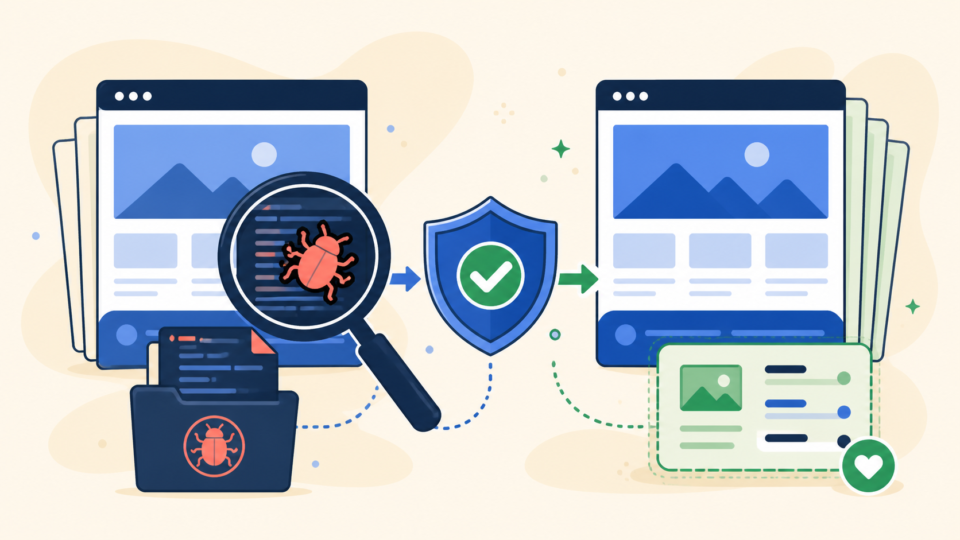
The safest first move is not deleting plugins blindly or restoring the oldest backup you can find. A recovery guide matters because WordPress errors often have overlapping symptoms. For example, a critical error can come from a plugin conflict, a fatal PHP change, corrupted theme code, insufficient memory, or malware that damaged core files.
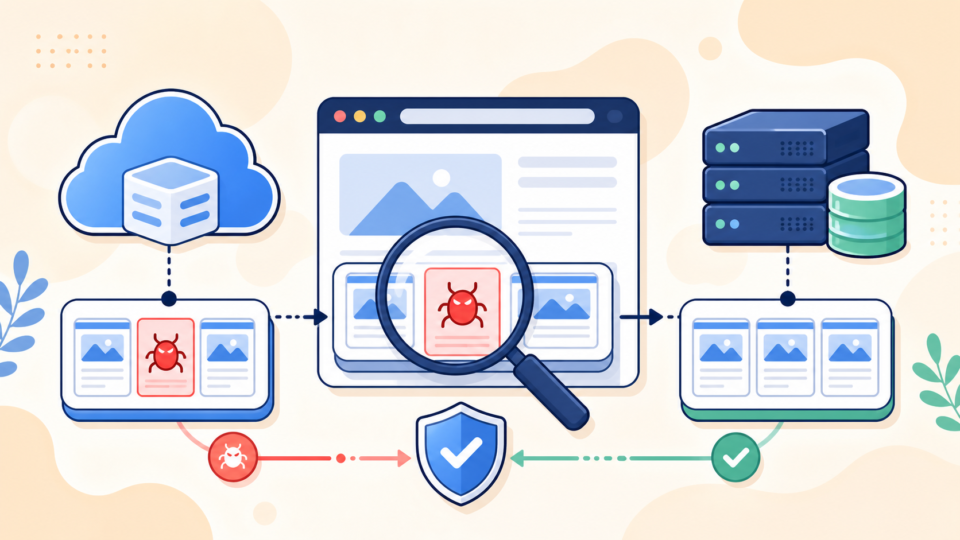
If you change several things at once, you lose the trail. That makes it harder to identify the real cause, and it can also turn a reversible failure into a longer outage. A controlled recovery sequence helps you protect data, preserve evidence, and reduce the chance of reinfection or repeated crashes.
- Preserve backups and error evidence before editing files
- Narrow the likely cause before applying a fix
- Separate configuration issues from security incidents
- Verify stability after each change instead of changing everything at once
If you already suspect malicious redirects or hidden file changes, also review WordPress Hacked Site Repair: What to Do Before It Gets Worse and WordPress Malware Removal: How to Clean an Infected Site Safely. Recovery gets riskier when a standard error is really part of a broader compromise.
First checks to do before changing files or settings
The main recommendation here is to stabilize first. Before editing anything, make a fresh copy of your current files and database, note the exact error message, and write down what changed recently. Recent plugin installs, theme edits, PHP upgrades, cache changes, and malware cleanup attempts are often the fastest clues.
This step matters because WordPress recovery is much easier when you know whether the site broke after a specific action. Without that timeline, you may waste hours checking the wrong files or restoring the wrong backup.
- Back up the current file set and database
- Record the exact error text, page URL, and time it appeared
- Note recent updates, file edits, migrations, or login changes
- Check whether the issue affects only admin, only front-end, or the whole site
Files and logs worth preserving first
Even if you plan to replace damaged files later, keep a copy of the current state first. That helps you compare changes and spot whether the issue came from configuration, code, or an attacker-modified file.
wp-config.php
.htaccess
wp-content/plugins/
wp-content/themes/
wp-content/mu-plugins/
wp-content/debug.log
server access logs
server error logsWhat common WordPress errors usually mean
The next step is to translate the symptom into a likely cause. This does not solve the problem by itself, but it helps you check the most useful places first instead of guessing. Many site owners treat all errors as the same, but a 403, a 500, and a critical error usually point to different recovery paths.
- Critical error: often a fatal PHP error from a plugin, theme, or custom code
- White screen: fatal error, memory exhaustion, or output failure before rendering
- 403 Forbidden: permissions, security rules, or damaged
.htaccess - 500 Internal Server Error: rewrite issue, server misconfiguration, plugin crash, or PHP fault
- Unexpected redirects: rewrite abuse, malicious injection, or compromised plugin/theme files
For more specific branches of this process, see WordPress Critical Error Fix, WordPress 500 Error Fix, and WordPress 403 Forbidden Error. Those articles go deeper into the symptoms that are most likely behind each error type.
Why the same error screen can hide different root causes
A white screen may look simple, but it can be caused by memory shortage, a broken plugin update, bad custom PHP, or a compromised file that never finishes execution. That is why error recovery should start with logs and recent changes, not only with what the browser shows.
A step-by-step WordPress error recovery workflow
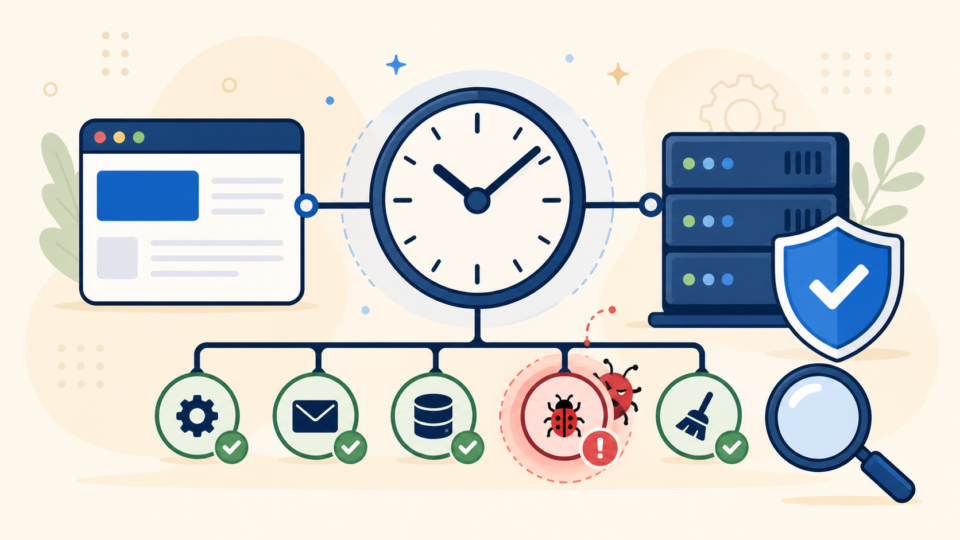
The safest recovery path is to narrow the problem one layer at a time. Start by enabling safe diagnostics, then isolate plugin or theme conflicts, then verify core files and server settings. This order helps you avoid unnecessary edits and makes each result easier to interpret.
- Back up files and database
- Enable safe debugging and read the exact fatal error
- Disable plugins in bulk if admin access is broken
- Switch to a default theme if a theme conflict is likely
- Review
.htaccess, permissions, and PHP memory settings - Recheck for hacked-file or redirect indicators before calling the site clean
How to enable safe WordPress debugging
If you are seeing a critical error or white screen, logging the fatal message is often the fastest way to find the broken plugin, file path, or function. Do this in a controlled way so visitors do not see raw errors on the front-end.
define( 'WP_DEBUG', true );
define( 'WP_DEBUG_LOG', true );
define( 'WP_DEBUG_DISPLAY', false );
@ini_set( 'display_errors', 0 );
After adding those lines, review wp-content/debug.log. If the log points to a specific plugin file, theme function, or unsupported PHP call, you now have a targeted recovery path instead of a guess.
How to disable plugins when wp-admin is unavailable
When admin access is broken, the fastest isolation step is usually to disable all plugins at once. The simplest method is renaming the plugins directory temporarily so WordPress cannot load those extensions during the next request.
wp-content/plugins
rename to:
wp-content/plugins.off
If the site loads after that change, restore the folder name and reactivate plugins one by one or in small groups until the problem returns. That usually identifies the conflict much faster than editing random PHP files.
Safe fixes for configuration, theme, and server-side issues
Once you isolate the likely category, apply the smallest safe fix that matches the evidence. Configuration problems often live in .htaccess, PHP memory limits, permissions, or cache layers. Theme issues often appear after custom edits or updates. Server-side failures may show up in host logs before WordPress logs anything useful.
A clean baseline .htaccess block for WordPress
If redirects or 500 errors started after a rewrite change, compare your current file with a clean baseline. A basic WordPress rewrite block should not include unknown external redirects, encoded strings, or suspicious conditions pointing to spam domains.
# BEGIN WordPress
<IfModule mod_rewrite.c>
RewriteEngine On
RewriteBase /
RewriteRule ^index\\.php$ - [L]
RewriteCond %{REQUEST_FILENAME} !-f
RewriteCond %{REQUEST_FILENAME} !-d
RewriteRule . /index.php [L]
</IfModule>
# END WordPress
A practical memory and file-edit hardening check
Some recovery problems come from memory exhaustion or unsafe live file editing. After the immediate error is under control, it is worth checking whether the environment still encourages the same failure pattern.
define( 'WP_MEMORY_LIMIT', '256M' );
define( 'DISALLOW_FILE_EDIT', true );
If the site still behaves strangely after a plugin or theme fix, do not ignore the possibility of hidden compromise. Redirects, unknown administrators, modified uploads, or repeated reinfection should be treated as a security incident, not only a configuration mistake. In that case, compare your findings with WordPress Redirect Hack Fix and WordPress Security Checklist for Beginners.
When to stop DIY recovery and ask for expert help
The final recommendation is to know when the risk is no longer worth it. If the site is business-critical, if recovery attempts keep failing, if malware may be involved, or if you cannot confidently identify what changed, expert help is often cheaper than a longer outage or a second compromise.
This is especially true when the site mixes multiple problems at once, such as a critical error after cleanup, a 500 error after migration, missing admin access, or suspicious redirects that return after you think the site is fixed. In those cases, a structured WordPress Recovery Service can save time and reduce the chance of data loss.
Frequently asked questions about WordPress error recovery
Summary
A reliable WordPress error recovery guide starts with backups and evidence, then narrows the likely cause through logs, plugin isolation, theme checks, and configuration review. That approach is safer than random fixes, and it helps you separate normal site errors from deeper security or server-side problems before they get worse.
If You Can’t Secure or Recover Your WordPress Site Yourself

If your website shows malware warnings, redirects to strange pages, or you are not sure whether it is secure,
SiteFixNow can help clean, repair, and recover your WordPress site.
- Your WordPress site may be infected with malware.
- Security warnings appear in Google or browser results.
- You found unknown admin users or suspicious files.
- The site redirects to spam or unknown websites.
- You need urgent WordPress hacked site repair.
- Reduce visitor risk and SEO damage.
- Find hidden malware and backdoors, not only visible symptoms.
- Recover the site safely without unnecessary data loss.